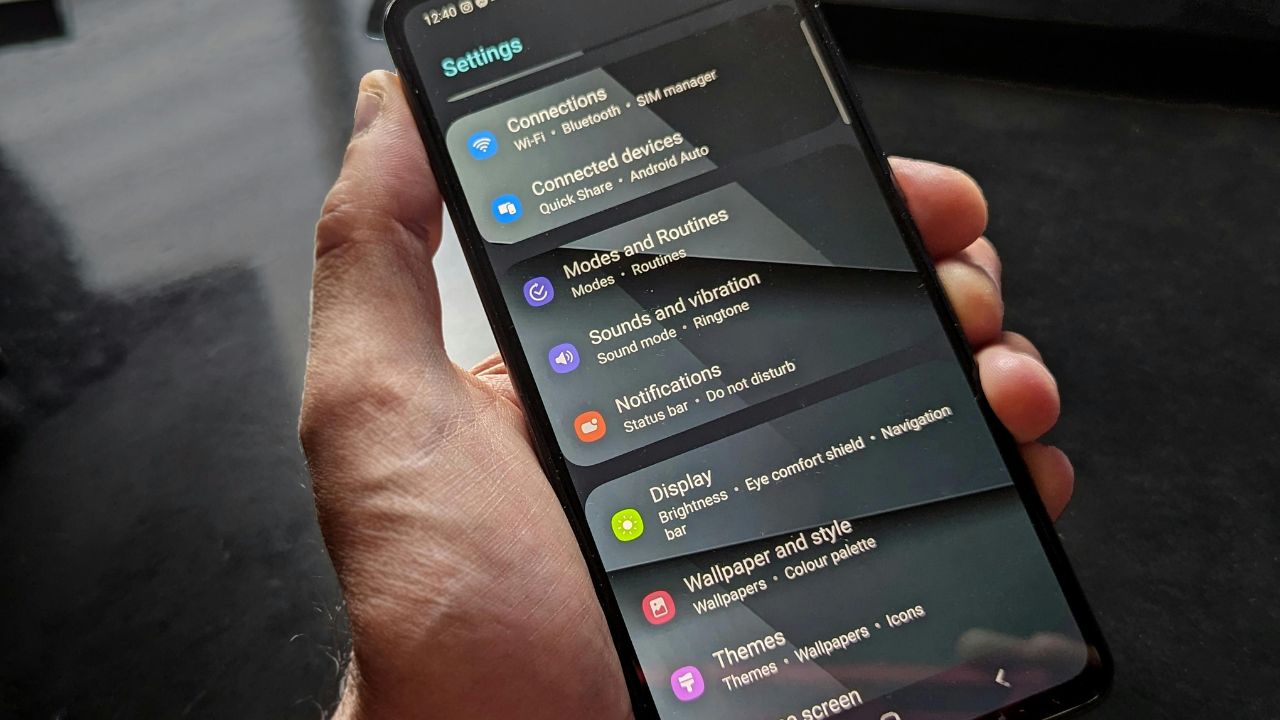
Few things irritate smartphone users more than a dropping internet connection. You are right in the middle of a video call, an intense mobile game, or an important download, and suddenly, the connection drops. Your screen displays the dreaded notification that you are disconnected.
If your Android WiFi keeps disconnecting, you are not alone. This is a common issue that affects millions of Android devices worldwide, from budget models to premium flagship phones.
Understanding why this happens is the first step toward a permanent solution. Sometimes the issue lies within your phone’s network settings, software glitches, or aggressive battery saving modes. Other times, your wireless router or environmental interference is to blame.
This detailed guide will walk you through the top 8 proven methods to fix a dropping wireless signal on Android. We will use simple language, clear steps, and quick reference data tables to get your device back online permanently.
Understanding the Core Causes of WiFi Drops
Before diving into the technical fixes, it helps to understand why an internet connection drops. Google’s Android operating system constantly evaluates network quality. If the OS detects a weak signal or an unstable internet supply, it may drop the network automatically to protect your battery or look for a better connection.
| Possible Cause | What Happens Internally | Quick Identification Sign |
| IP Address Conflict | Two devices try to use the same network ID. | Connected, but no internet access. |
| Aggressive Power Saving | Phone turns off the WiFi chip to save battery. | Disconnects every time the screen turns off. |
| Router Frequency Drops | The router fluctuates between 2.4 GHz and 5 GHz. | The signal icon blinks or disappears briefly. |
| Corrupted Network Cache | Old configuration files confuse the system. | Connection drops randomly even right next to the router. |
Fix 1: Restart Your Android Device and Wireless Router
The simplest solutions are often the most effective. A basic reboot clears out temporary background files and resets network radio chips. When your phone stays powered on for weeks, minor software bugs pile up in the random-access memory (RAM). The same principle applies to your home router.
How to Properly Reboot for Best Results
- Press and hold the Power Button on the side of your Android device.
- Tap the Restart option on your screen. Wait for the phone to boot up completely.
- Walk over to your internet router. Unplug the power cable from the wall outlet.
- Leave the router unplugged for exactly 30 to 60 seconds. This allows the capacitors to drain completely.
- Plug the router power cable back in. Wait 2 to 3 minutes for all the lights to turn solid green.
| Action Item | Recommended Time | Expected Outcome |
| Phone Restart | Less than 1 minute | Clears local network cache and stuck loops. |
| Router Power Cycle | 60 seconds unplugged | Forces the router to assign fresh local IP addresses. |
Fix 2: Forget and Reconnect to the Wi-Fi Network
When you connect to a wireless access point for the first time, your phone saves the password, security type, and IP configurations. If your internet provider updates router firmware, or if security protocols shift, the saved details on your phone become outdated. Forgetting the network forces your phone to create a fresh, clean configuration profile.
Step-by-Step Guide to Reset the Specific Network
- Open the Settings app on your Android device.
- Tap on Network & Internet or Connections (this varies by manufacturer like Samsung or Google Pixel).
- Select Internet or WiFi.
- Look for the name of the network that keeps dropping. Tap the Gear Icon next to it.
- Tap the trash can icon labeled Forget at the bottom of the screen.
- Turn your phone’s WiFi switch off, wait 5 seconds, and turn it back on.
- Tap the network name again, enter the password carefully, and select Connect.
| Setting Parameter | Before Forgetting | After Reconnecting |
| Network Profile | Potentially corrupted / old cache | 100% brand new configuration |
| IP Allocation | Stale local data | Freshly requested DHCP lease |
Fix 3: Disable Adaptive Connectivity or Switch to Mobile Data
Modern Android phones feature intelligent automation systems. Features like Adaptive Connectivity or Switch to Mobile Data monitor your wireless network strength. If the phone senses that your local network is slightly slow, it will disconnect from the wireless network and switch to your cellular data plan to keep your internet speed fast. However, this often causes frequent, annoying disconnections.
How to Turn Off Network Switching Automation
- Navigate to your main Settings menu.
- Tap on Network & Internet.
- Scroll down and locate Adaptive Connectivity. Tap on it.
- Flip the toggle switch to the Off position.
- On Samsung devices, go to Settings > Connections > WiFi. Tap the three dots in the top right corner, select Intelligent Wi-Fi, and turn off Switch to mobile data.
| Feature Name | Functionality | Why Turn It Off? |
| Adaptive Connectivity | Changes networks based on performance. | Prevents accidental drops when WiFi is stable but slow. |
| Intelligent Wi-Fi | Prefers mobile networks over weak signals. | Keeps your phone connected to local networks even at a distance. |
Fix 4: Turn Off Battery Saver and Power Optimization
Android uses strict power management rules to prolong battery life. When your phone enters Battery Saver Mode, or if an automated app optimization system marks your network hardware as a heavy battery drainer, the system will temporarily put your wireless chip to sleep. This happens most often when your phone screen turns off.
Adjusting Power Controls for Continuous Connection
- Open Settings and select Battery or Battery and Device Care.
- If Battery Saver or Power Saving Mode is active, toggle it Off.
- To stop specific network optimizations, go to Settings > Apps > See All Apps.
- Tap the three vertical dots in the corner and select Show System.
- Search for Wi-Fi or Network Manager. Tap it, select Battery, and switch the setting from Optimized to Unrestricted.
| Mode State | Impact on Network Chip | Stability Level |
| Battery Saver On | Throttles power to antennas; drops idle links. | Low / Unstable |
| Battery Saver Off | Runs wireless antennas at full operational voltage. | High / Consistent |
Fix 5: Change Phone MAC Address Settings to Device MAC
By default, modern Android versions use a privacy feature called Randomized MAC (Media Access Control) Address. Every time your phone connects to a router, it creates a fake, random hardware identification number. While this is great for public security, many home routers get confused by changing MAC addresses and drop the device for security safety. Switching to your phone’s permanent Device MAC fixes this mismatch.
[Android Device (Randomized MAC)] —> [Home Router Filters] —> “Unknown Identity!” —> DISCONNECT
[Android Device (Permanent Device MAC)] —> [Home Router Filters] —> “Recognized Device” —> STABLE CONNECTION
Changing MAC Address Privacy Controls
- Go to Settings > Network & Internet > WiFi.
- Tap the Gear Icon next to your active home network.
- Tap Advanced or scroll down to view deep properties.
- Look for an option labeled Privacy.
- Change the setting from Use Randomized MAC to Use Device MAC.
- Your network will briefly drop once and reconnect permanently with your true hardware address.
| MAC Mode Selection | Router Compatibility | Privacy Level | Recommended Use Case |
| Randomized MAC | Moderate (Can cause drops) | Maximum | Public Hotspots, Cafes, Airports |
| Device MAC | Perfect (Stable link) | Standard | Home Networks, Office Networks |
Fix 6: Reset Android Network Settings to Factory Default
If you have tried multiple steps and your Android WiFi keeps disconnecting, deep system preferences inside the Android network stack might be corrupted. Instead of wiping your entire phone via a full factory data reset, you can reset just your wireless network configurations. This removes all saved wireless networks, Bluetooth pairings, and cellular network choices.
How to Safely Execute a Network Configuration Reset
- Launch your phone’s Settings app.
- Scroll to the bottom and select System or General Management.
- Tap on Reset Options or Reset.
- Choose Reset Wi-Fi, mobile & Bluetooth (or Reset Network Settings).
- Confirm your identity by entering your phone security PIN or biometric fingerprint pattern.
- Tap Reset Settings to complete the process. Your phone will refresh its radio modules instantly.
Important Note: This process will clear out all your saved wireless network keys and Bluetooth passwords. Make sure you have your home password written down before executing this step.
| Network Stack Component | Reset Impact | Action Required After |
| WiFi Profiles | Completely cleared | Must re-enter passwords manually. |
| Bluetooth Pairings | Removed from memory | Re-pair smartwatches and wireless earbuds. |
| Cellular Configurations | Re-downloaded from carrier | Automatic configuration; no action needed. |
Fix 7: Check and Modify Router Frequency Bands (2.4 GHz vs. 5 GHz)
Many modern wireless systems use Dual-Band technology. This means your router broadcasts two different frequencies under the exact same name: a slower 2.4 GHz signal with long physical reach, and a faster 5 GHz signal with a shorter reach. If you walk around your home, your phone will constantly switch back and forth between these two bands. If the transition isn’t perfect, your phone drops the link.
+— 5 GHz Band (Fast Speed, Short Distance)
|
[Dual-Band Router] —-+
|
+— 2.4 GHz Band (Slower Speed, Long Distance)
Best Practices for Band Splitting
- Split the Names: Log into your router’s administration webpage using a computer web browser. Rename your network bands so they are clearly separated. For example, name them MyHomeNetwork_2.4G and MyHomeNetwork_5G.
- Connect Intentionally: Connect your Android device to the 5 GHz band if you stay in the same room as the router. Connect to the 2.4 GHz band if you move through different rooms or floors.
| Frequency Band | Coverage Range | Wall Penetration | Connection Stability |
| 2.4 GHz | Long range (Up to 150 feet) | Excellent through solid walls | High (Less prone to distance drops) |
| 5 GHz | Short range (Up to 50 feet) | Poor through dense obstructions | Ultra-fast but sensitive to distance |
Fix 8: Uninstall Malicious Apps or Conflicting VPNs
Third-party software can interfere directly with your device’s connection routines. VPN (Virtual Private Network) tools, proxy managers, and security anti-virus suites modify the internal data routing map of your device. If a VPN app has a broken code structure or encounters server trouble, it will block data flow, forcing Android to disconnect from the local wireless access point out of caution.
Troubleshooting Apps via Android Safe Mode
- Press and hold your phone’s physical Power Button.
- Tap and hold the on-screen Power Off icon for two seconds.
- A prompt will appear asking if you want to reboot into Safe Mode. Tap OK.
- In Safe Mode, all third-party downloaded apps are entirely disabled.
- Use your phone on your home wireless network for 15 minutes. If the connection remains perfectly solid, a downloaded app is causing your issue.
- Restart normally to exit Safe Mode and uninstall recently downloaded apps, custom battery boosters, or free VPNs.
| Software Layer | Potential Conflict | Recommended Action |
| Third-Party VPN | Broken kill-switch loops block internet access. | Disable the “Always-on VPN” setting. |
| Battery Boosters | Forcefully shuts down native background WiFi tasks. | Uninstall the application immediately. |
Troubleshooting Summary Matrix
This quick matrix helps you choose the fastest path based on where and when your connection drops:
| If your phone drops connection when… | …the most likely culprit is: | …try this fix first: |
| You lock the screen or put it in your pocket. | Battery Saver / Sleep optimization | Fix 4 (Unrestricted App Battery settings) |
| You move from the living room to the kitchen. | Bad dual-band switching | Fix 7 (Separate 2.4 GHz and 5 GHz SSIDs) |
| Randomly throughout the day anywhere in the house. | Corrupted system cache / MAC conflict | Fix 2 (Forget Network) & Fix 5 (Device MAC) |
| Connecting to any wireless network anywhere. | General system software glitch | Fix 6 (Reset Network Settings) |
Frequently Asked Questions (FAQ)
Why does my Android phone keep disconnecting from WiFi when the signal strength is excellent?
This usually points to an IP address conflict, a security protocol mismatch, or an automated software feature like Adaptive Connectivity. The phone sees a strong physical radio signal from the router, but the underlying data channel cannot exchange data properly, leading to a deliberate drop.
Can a faulty phone case cause frequent wireless disconnects?
Yes. Heavy-duty phone protective cases made of metal, carbon fiber, or magnetic accessories can physically block the internal wireless antennas inside your Android chassis. If your drops started immediately after buying a new case, try testing the connection without the case on.
Does updating my Android system software help fix wireless bugs?
Absolutely. Smartphone manufacturers frequently release small security updates and software patches that optimize hardware drivers. Keeping your operating system updated via Settings > System Update ensures your phone has the latest fixes for known router compatibility bugs.
Why does my phone say “Connected, no internet”?
This means your Android phone has successfully established a local link with the router hardware, but the router itself cannot connect to the global internet service provider (ISP). Try rebooting your modem or contacting your local internet service provider to check for area outages.
Final Words
Resolving a situation where your Android WiFi keeps disconnecting does not require advanced technical engineering degrees. By systematically working through these 8 proven methods—starting with basic reboots and moving toward network configuration resets—you can isolate the issue and fix it.
Most wireless connection issues boil down to small software arguments between your phone’s power management systems and your router’s security protocols. Taking control of these settings keeps your connection strong, your data flowing, and your smartphone experience smooth and reliable.