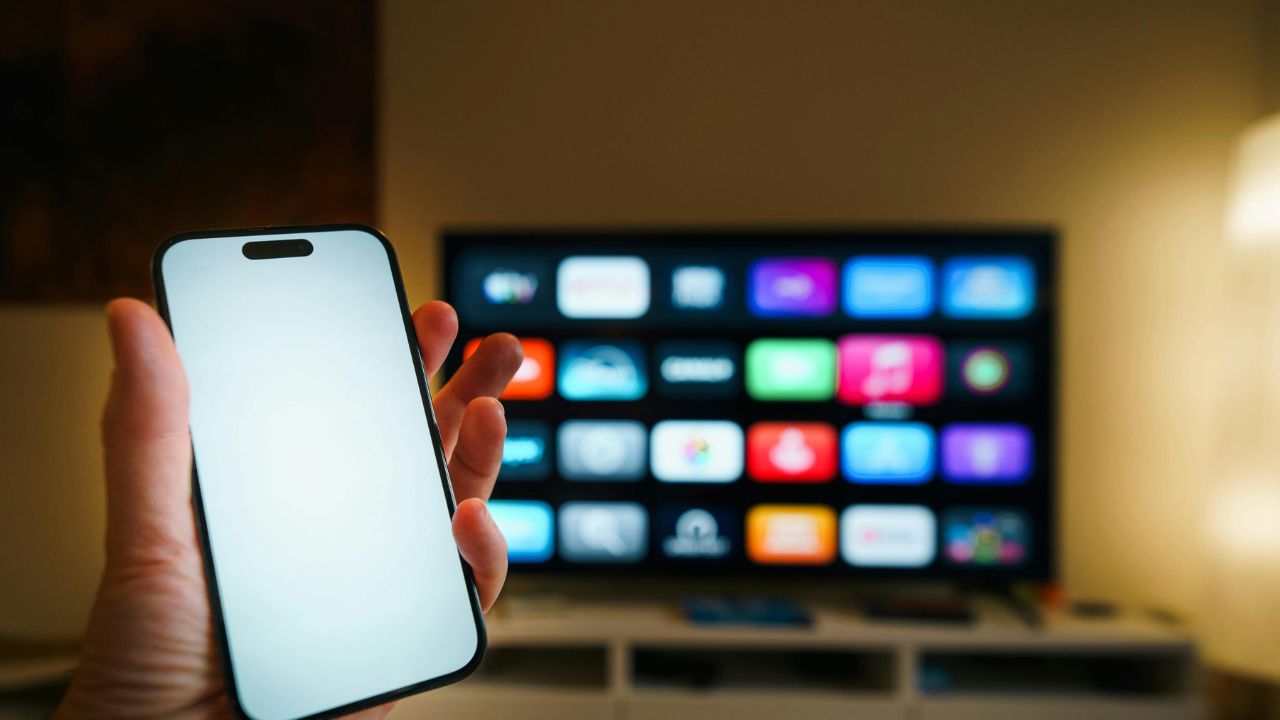
Few things are more frustrating than sitting down to watch your favorite show, only to find your LG TV apps not working. You click on Netflix, YouTube, or Prime Video, and nothing happens. You might see a spinning circle, a black screen, or an error message saying the app is unavailable.
When your smart TV acts like a conventional television, you do not need to panic. In most cases, the issue is not a broken television. Instead, it is usually a simple software glitch, a temporary network error, or an outdated system file.
This detailed guide will walk you through every step to fix your LG smart TV apps. We will cover everything from simple 60-second resets to advanced network tweaks. Let us dive in and get your streaming services working smoothly again.
Why Are My LG TV Apps Not Working?
Before fixing the problem, it helps to understand why LG TV apps not working issues happen in the first place. LG smart TVs run on a dedicated operating system called webOS. Just like a smartphone or a computer, webOS can run out of memory, encounter internet bugs, or suffer from corrupted temporary data.
Here is a quick overview of the most common reasons your LG TV apps might freeze, crash, or refuse to open:
| Common Root Cause | What Actually Happens | How It Affects Your Apps |
| Stuck System Cache | The TV saves temporary data that becomes corrupted over time. | Apps freeze on launch or show a black screen. |
| Quick Start+ Glitches | This feature puts the TV in a sleep state instead of turning it off fully. | Errors accumulate in the RAM, causing apps to crash. |
| Network & DNS Issues | The TV loses proper communication with the app servers. | Apps load slowly, buffer constantly, or fail to log in. |
| Incorrect Time/Date | The TV’s internal clock does not match the app’s security server. | Security certificates fail, blocking access to the app store. |
| Outdated Firmware | Old webOS software becomes incompatible with updated apps. | Apps refuse to open until a system update is installed. |
Understanding these core issues will make the troubleshooting process much easier. Let us look at the step-by-step methods to get your apps back online.
1. Perform a Cold Boot (Real Power Cycle)
When your LG TV apps not working, turning the TV off and on with your remote control usually does not help. This is because modern LG TVs do not actually shut down when you press the power button. Instead, they enter a low-power standby mode so they can turn back on instantly.
If an app freezes in the background, it stays frozen in the TV’s temporary memory (RAM). To clear this, you need to perform a cold boot. This forces webOS to completely shut down and restart fresh.
How to Cold Boot Your LG TV
- Turn off the TV using your remote control.
- Unplug the power cord directly from the wall outlet or surge protector.
- Leave the TV unplugged for at least 60 seconds.
- While the TV is unplugged, press and hold the physical Power Button on the TV frame for 15 seconds. This drains any leftover electrical energy from the internal capacitors.
- Plug the power cord back into the wall and turn on the TV.
- Wait 60 seconds on the home screen before opening any app.
[Remote Off] ➔ [Unplug for 60s] ➔ [Hold TV Power Button] ➔ [Plug In & Launch]
Turn Off Quick Start+
If a cold boot fixes your problem, you should disable the Quick Start+ feature. This prevents the same memory bugs from happening again next week.
- Press the Settings (gear icon) button on your remote.
- Select All Settings ➔ General.
- Navigate to System ➔ Additional Settings.
- Find Quick Start+ and toggle it to OFF.
(Note: On some newer models, this setting is located under General ➔ OLED Care ➔ Device Self Care).
2. Fix Internet and DNS Connections
Apps like Netflix, Disney+, and YouTube require a steady, secure connection to stream video files. If your network drops for even a second, webOS might lock up the app. Even if your smartphone connects to the internet perfectly, your TV might still struggle due to local wireless interference or a bad Domain Name System (DNS) configuration.
Run a Network Test
First, let us see if the TV recognizes the internet link:
- Open Settings ➔ All Settings ➔ General (or Connection on older models).
- Select Network or Internet Connection.
- Check the status. If it says “Connected to Internet,” your Wi-Fi is fine, and the issue is likely a software block. If it says “No Internet,” you need to fix the connection.
Change Your DNS Server Settings
Standard internet providers sometimes use slow or unstable DNS servers. Changing your TV to use a public DNS server like Google or Cloudflare can immediately solve app loading failures.
1.Open Advanced Network Settings:Requires Wi-Fi connection.
Go to Settings ➔ All Settings ➔ General ➔ Network. Click on your current connection type (Wi-Fi or Wired).
2.Edit IP Settings:Turn off automatic configuration.
Scroll down and select Advanced Wi-Fi Settings. Look for the Edit button at the bottom of the screen. Uncheck the box that says Set Automatically.
3.Enter Public DNS Server:Manual input.
Click on the DNS Server field. Clear the existing numbers and enter 8.8.8.8 (Google DNS) or 1.1.1.1 (Cloudflare DNS).
4.Save and Connect:Apply changes.
Click Connect or Save. Turn your TV off and back on to apply the network changes across all apps.
| DNS Provider | Primary Address | Why Choose It? |
| Google Public DNS | 8.8.8.8 | Highly reliable, bypasses regional server blocks. |
| Cloudflare DNS | 1.1.1.1 | Fastest response times, excellent privacy protection. |
3. Sync the Date and Time Settings
It sounds strange, but an incorrect clock is one of the biggest reasons for LG TV apps not working. Streaming apps use encrypted security tokens to protect user accounts and video data. If your LG TV’s internal clock does not match the actual current time, the app’s security server will reject the connection request.
This problem often happens after a home power outage or when a TV is disconnected from power for an extended period.
How to Update Time and Region
- Press the Settings button and open All Settings.
- Select General and open System.
- Click on Time & Date.
- Check if the time matches your local clock. If it is wrong, turn off Set Automatically and enter the correct time, date, and time zone manually.
- Go back to the System menu and click on Location.
- Ensure your LG Services Country matches your actual physical location. If it is set to a different country, the LG Content Store will block app downloads and updates.
4. Free Up System Memory and Storage space
Your LG smart TV has a limited amount of internal storage space and RAM. If you download dozens of apps, or if your streaming history builds up a large collection of cache data, your TV will slow down. Eventually, apps will crash immediately after you open them because there is no remaining memory to run them.
Use the LG Memory Optimizer
LG includes a built-in maintenance tool in webOS to clean out temporary files instantly.
- Go to Settings ➔ All Settings ➔ Support.
- Select TV Device Self-Care (or OLED Care on premium screens).
- Click on Device Self Care ➔ Memory Optimizer.
- The TV will scan itself, close background processes, and clear out cached memory files.
[Settings] ➔ [Support] ➔ [TV Device Self-Care] ➔ [Memory Optimizer] ➔ [Optimize Now]
Remove Unused Apps
If your storage space is full, removing two or three heavy apps you do not watch can stabilize the remaining software.
- Press the Home button to open the app ribbon.
- Scroll to the far right of the app list and click the Edit pencil icon (or long-press the OK/Wheel button while hovering over an app).
- Move over the app you want to delete and click the X icon that appears above it.
- Select Yes to confirm the uninstallation.
5. Update webOS Firmware and the Broken App
App developers constantly update their platforms to add new features and security patches. If your LG TV is running an old version of webOS, or if the app itself is outdated, the two systems will stop communicating properly.
How to Update LG TV System Software
- Go to Settings ➔ All Settings ➔ Support.
- Select Software Update.
- Click Check for Updates.
- If an update is found, select Download and Install. Keep your television turned on while the update completes. The TV will restart automatically once finished.
Important Safety Note: Never unplug your LG TV while a system firmware update is installing. Doing so can permanently corrupt the operating system, making the TV completely unusable.
How to Reinstall a Broken App
If only one specific app like Netflix or YouTube is failing while everything else works fine, the app file itself is likely corrupted. A clean reinstallation will fix it.
- Delete the problem app using the Home screen edit mode explained in Section 4.
- Perform a quick 60-second cold boot to ensure all old file traces are cleared from memory.
- Press the Home button and launch the LG Content Store (or Apps store on newer models).
- Use the search magnifying glass to find the app you deleted.
- Click Install. Once downloaded, launch the app and sign back into your user account.
6. Factory Reset to Initial Settings
If you have tried everything else and your LG TV apps not working issue persists across all platforms, your operating system might have a deep system conflict. The absolute final solution is to factory reset the television.
A factory reset completely wipes the TV’s internal memory. It restores the software back to the exact day it left the manufacturing facility. This clears out all bugs, but it also deletes your saved account sign-ins, custom calibrations, and downloaded apps.
How to Factory Reset Your LG TV
- Open Settings ➔ All Settings.
- Go to General ➔ System.
- Scroll down and look for Reset to Initial Settings.
- Select Reset All to confirm your choice.
- If you set a security PIN code in the past, enter it now (the factory default code is usually 0000 or 1234).
- Wait for the TV to finish the wipe process. It will turn off and boot back into the initial “Welcome” setup screen.
Troubleshooting Guide Summary Table
If you need a quick answer, check this summary table to find the fix that matches your specific app symptom.
| What You See on the Screen | Most Likely Cause | Best Troubleshooting Fix |
| Black screen on a single app | Corrupted app cache or outdated files. | Reinstall the specific app entirely. |
| “App Unavailable” or Store Errors | Location or clock time mismatch. | Sync your Time, Date, and Services Country. |
| Infinite spinning loading circle | Stuck background memory or bad DNS route. | Perform a Cold Boot and change DNS to 8.8.8.8. |
| Apps crash back to live TV | Low internal storage or RAM overload. | Run the Memory Optimizer tool and delete old apps. |
| All apps fail to load | Damaged webOS system configurations. | Update the TV firmware or execute a Factory Reset. |
Final Words
Dealing with LG TV apps not working issues can test your patience, but following a structured approach prevents you from doing unnecessary work. You do not want to jump straight to a factory reset if a simple 60-second power plug pull can fix the problem.
Start with the basics: drain the leftover power, check your home internet health, and ensure your TV clock shows the correct local time. These three small steps solve over 80% of all smart TV app errors. If your hardware continues to struggle after a complete system factory reset, it may indicate an internal Wi-Fi chip failure. In that case, reaching out to LG Support or using an external streaming stick like a Roku or Chromecast is your best next step to get your entertainment back on track.
Frequently Asked Questions (FAQs)
Why is the LG Content Store not working or loading?
The LG Content Store usually fails to load because of a bad internet connection or an incorrect time zone setting. Double-check your TV’s Date and Time settings under the system menu, restart your home router, and ensure your “LG Services Country” matches your actual region.
How do I clear the cache on an LG Smart TV?
Unlike android phones, webOS does not have a single “Clear Cache” button for individual apps. Instead, you can clear the entire system cache by turning off the TV, unplugging it from the wall outlet for 60 seconds, or running the built-in Memory Optimizer tool found in the Support menu.
Why does Netflix keep crashing on my LG TV?
If Netflix crashes while other apps work fine, the app data is likely corrupted. Go to the Home screen edit menu, delete the Netflix app, perform a cold boot on your TV, and download a fresh copy of Netflix from the LG Content Store.
Will a factory reset delete my pictures or screen calibrations?
A factory reset deletes all downloaded apps, saved login passwords, and customized network settings. However, it will not harm your physical screen panel. It simply resets your picture preferences back to the factory standard modes.