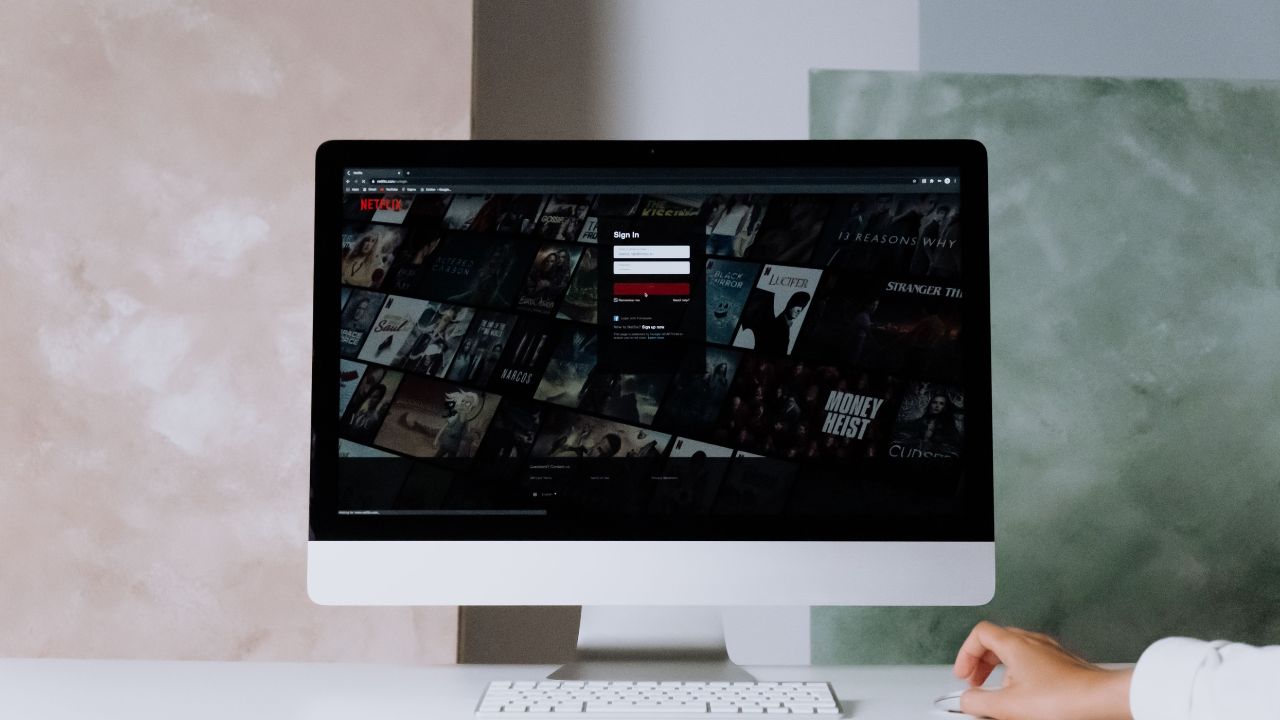
Imagine this. You sit down with your favorite snack. You want to watch a new movie on Disney Plus. You enter your email and password. Instead of playing the movie, the screen blinks. It takes you right back to the login page. You try again. The same thing happens.
You are stuck in the Disney Plus login loop.
This is a very common issue. It frustrates thousands of subscribers every day. This guide will help you understand why this error happens. More importantly, it will show you exactly how to fix it so you can go back to streaming.
What is the Disney Plus Login Loop?
The Disney Plus login loop is a glitch. It happens when the Disney Plus app or website fails to register your successful login. You type your correct username and password. The system accepts them, but instead of opening the home screen, it refreshes. It throws you back to the “Log In” page.
Sometimes, it displays a spinning wheel that never stops. Other times, it might give you a vague error code like Error Code 83 or Error Code 142. No matter how many times you enter your details, you cannot get past the front gate.
Why Do You Get Stuck in a Login Loop?
There is no single cause for this problem. It usually happens due to a breakdown in communication between your device and the Disney Plus servers.
Here are the most common reasons for this error:
- Corrupted Cache and Cookies: Your browser or device saves small files to load pages faster. If these files get corrupted, they confuse the login system.
- Outdated App Version: An old version of the Disney Plus app might have bugs that prevent secure logins.
- Server Outages: Sometimes, Disney Plus servers are down or overloaded.
- VPN Interference: If you use a Virtual Private Network (VPN), Disney Plus might block your IP address for security reasons.
- Ad-Blockers and Extensions: Some browser extensions stop the scripts required for a secure login to work.
At-a-Glance: Common Causes
| Cause | What It Means | Impact Level |
| Corrupted Cache | Temporary files are broken. | High |
| Outdated App | The app lacks the latest bug fixes. | Medium |
| Server Down | Disney Plus is having technical issues. | Critical |
| VPN Usage | Security systems block the connection. | High |
| Browser Extensions | Ad-blockers stop login scripts from running. | Medium |
Step-by-Step Solutions to Fix the Disney Plus Login Loop
Let us look at the easiest ways to fix this issue. Start with the first solution and move down the list until your app works again.
1. Check if Disney Plus is Down
Before you change any settings on your device, check if the problem is on Disney’s side. If the servers are down, no amount of troubleshooting will help. You just have to wait.
- Go to a website like Downdetector.
- Search for “Disney Plus”.
- Look at the live chart to see if other people are reporting issues at the same time.
- Check official Disney Plus social media accounts for status updates.
| Action Item | Tool to Use | What to Look For |
| Check Server Status | Downdetector / Social Media | Spike in outage reports |
2. Clear Your Browser Cache and Cookies
If you watch Disney Plus on a computer using Chrome, Firefox, Safari, or Edge, your browser stores data. This data can cause login loops. Clearing it gives the website a fresh start.
For Google Chrome:
- Click the three dots in the top right corner.
- Select Clear Browsing Data.
- Choose a time range (Select All time).
- Check the boxes for Cookies and other site data and Cached images and files.
- Click Clear data.
For Safari (Mac):
- Click Safari in the top menu bar.
- Select Preferences, then click the Privacy tab.
- Click Manage Website Data.
- Search for “Disney” and click Remove All.
| Browser | What to Clear | Expected Result |
| Chrome / Firefox / Edge / Safari | Cache and Cookies | Clears broken login data |
3. Restart Your Streaming Device
Electronic devices get tired. They run too many background processes over time. A simple restart can clear out temporary system glitches that cause the login loop.
- Smart TVs and Streaming Sticks (Roku, Fire TV, Apple TV): Unplug the power cable from the wall. Wait for 60 seconds. Plug it back in and turn it on.
- Smartphones and Tablets: Hold the power button down and choose Restart.
- Computers: Shut down your PC or Mac completely, wait a minute, and turn it back on.
| Device Type | Reboot Method | Time to Wait |
| Smart TV / Roku / Fire Stick | Unplug from power outlet | 60 seconds |
| Mobile Phone / Computer | System restart option | 30 seconds |
4. Update the Disney Plus App
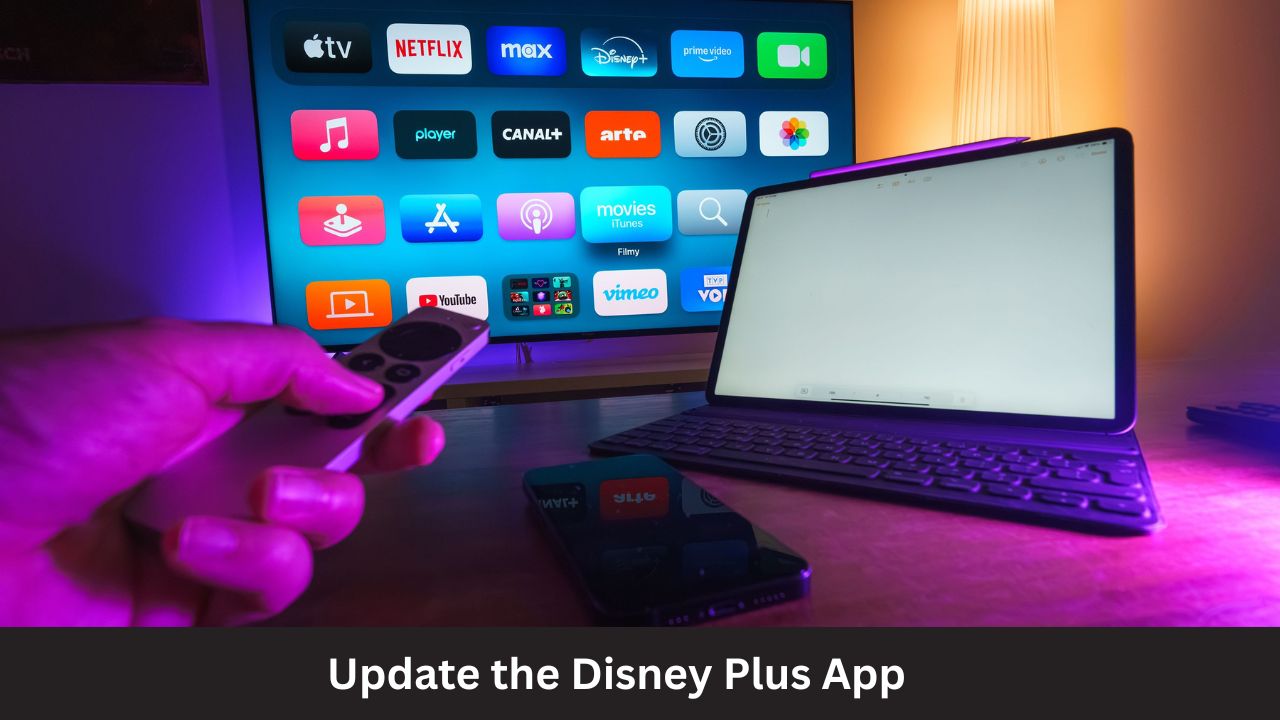
Using an old version of the app can cause major compatibility errors. Developers release updates constantly to fix security issues and bugs like login loops.
- Android Devices: Open the Google Play Store. Tap your profile icon, go to Manage apps & device, and update Disney Plus.
- iOS Devices (iPhone/iPad): Open the App Store. Search for Disney Plus. If it says Update, tap it.
- Smart TVs: Go to your TV’s app store settings and check for available updates.
| Platform | Location to Update | Action |
| Android | Google Play Store | Tap Update |
| iOS | Apple App Store | Tap Update |
| Smart TVs | System App Store | Check for updates |
5. Disable Your VPN or Proxy
Disney Plus uses strict geo-blocking tools to protect its content licenses. If you use a VPN, the streaming service might detect it. It will block you from logging in to prevent unauthorized access.
- Open your VPN application.
- Click Disconnect or turn it off.
- Close your browser or restart the Disney Plus app.
- Try logging in again with your local internet connection.
| Tool | Status Change | Purpose |
| Virtual Private Network (VPN) | Turn Completely OFF | Restores your real local IP address |
6. Try Incognito Mode or a Different Browser
Sometimes, hidden browser extensions or ad-blockers stop the Disney Plus sign-in page from working correctly. You can test this easily.
- Open an Incognito or Private window in your browser.
- Go to the Disney Plus website.
- Try to log in.
- If it works, an extension in your normal browser mode is causing the issue. You should disable your extensions one by one to find the culprit. Alternatively, try using a completely different browser like switching from Chrome to Edge.
| Test Environment | Action | Why It Works |
| Incognito / Private Window | Log in normally | Disables all extensions automatically |
7. Reset Your Home Network
A weak or unstable internet connection can interrupt the login handshake. The handshake is when your device proves to Disney’s servers that your password is correct. If the connection drops for a millisecond, the login fails.
- Unplug your modem and router from the power wall outlet.
- Wait for 2 full minutes.
- Plug the modem back in first. Wait for all the lights to turn green.
- Plug the router back in. Wait for the internet light to become stable.
- Reconnect your device and try to log in.
| Hardware | Action | Idle Time |
| Modem & Router | Unplug power cords | 2 minutes |
Advanced Troubleshooting Methods
If the standard steps do not work, you might need to try a few advanced tricks to bypass the loop.
Delete and Reinstall the App
When an app update does not fix the issue, the installation files themselves might be corrupted. Deleting the app completely removes these bad files.
- Uninstall the Disney Plus app from your phone, TV, or streaming stick.
- Restart the device after deleting the app.
- Go back to the official app store and download Disney Plus again.
- Open the fresh app and enter your credentials.
Try Logging In on a Different Device
This helps you find out if the problem belongs to your account or just one specific device. Try logging in on your mobile phone using mobile data instead of home Wi-Fi.
If you can log in on your phone using mobile data, your account is perfectly fine. The issue lies within your home network or your TV/computer.
At-a-Glance: Advanced Fixes
| Method | Target Area | Difficulty |
| Fresh Reinstallation | Corrupted app files | Medium |
| Mobile Data Test | Network isolation | Easy |
Frequently Asked Questions (FAQ)
Why does Disney Plus keep sending me back to the login screen?
This happens because your device cannot save your login session safely. It is usually caused by a full browser cache, an outdated app, or a security block from a VPN or ad-blocker.
How do I clear the cache for Disney Plus on my Smart TV?
Go to your TV’s Settings menu. Select Apps or Applications. Find Disney Plus from the list. Click on it and select Clear Cache and Clear Data. Restart your TV afterwards.
Can a password change fix the login loop?
Yes. Sometimes your account session gets glitched across multiple devices. Resetting your password forces Disney Plus to log out of all active devices worldwide. This resets your account status and often stops the loop.
Yes. Error Code 83 usually means Disney Plus thinks your device or connection is unsafe or incompatible. It often triggers a continuous loop back to the login page.
Does Disney Plus block ad-blockers?
Yes. Some strict ad-blockers stop the tracking scripts that Disney Plus uses to confirm your identity during login. Turning off your ad-blocker for the Disney website can resolve the loop.
Final Words
Getting stuck in a Disney Plus login loop is annoying, but it is not permanent. Most of the time, the issue is caused by a simple build-up of temporary cache files or an active VPN connection. By following this guide step-by-step, you can easily clear out the technical errors.
Start with simple steps like checking the server status or clearing your cookies. If those fail, a clean reinstall of the app or a quick router reboot will usually solve the problem. Once done, you can grab your popcorn, sit back, and enjoy your favorite movies without any more interruptions.