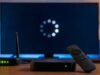
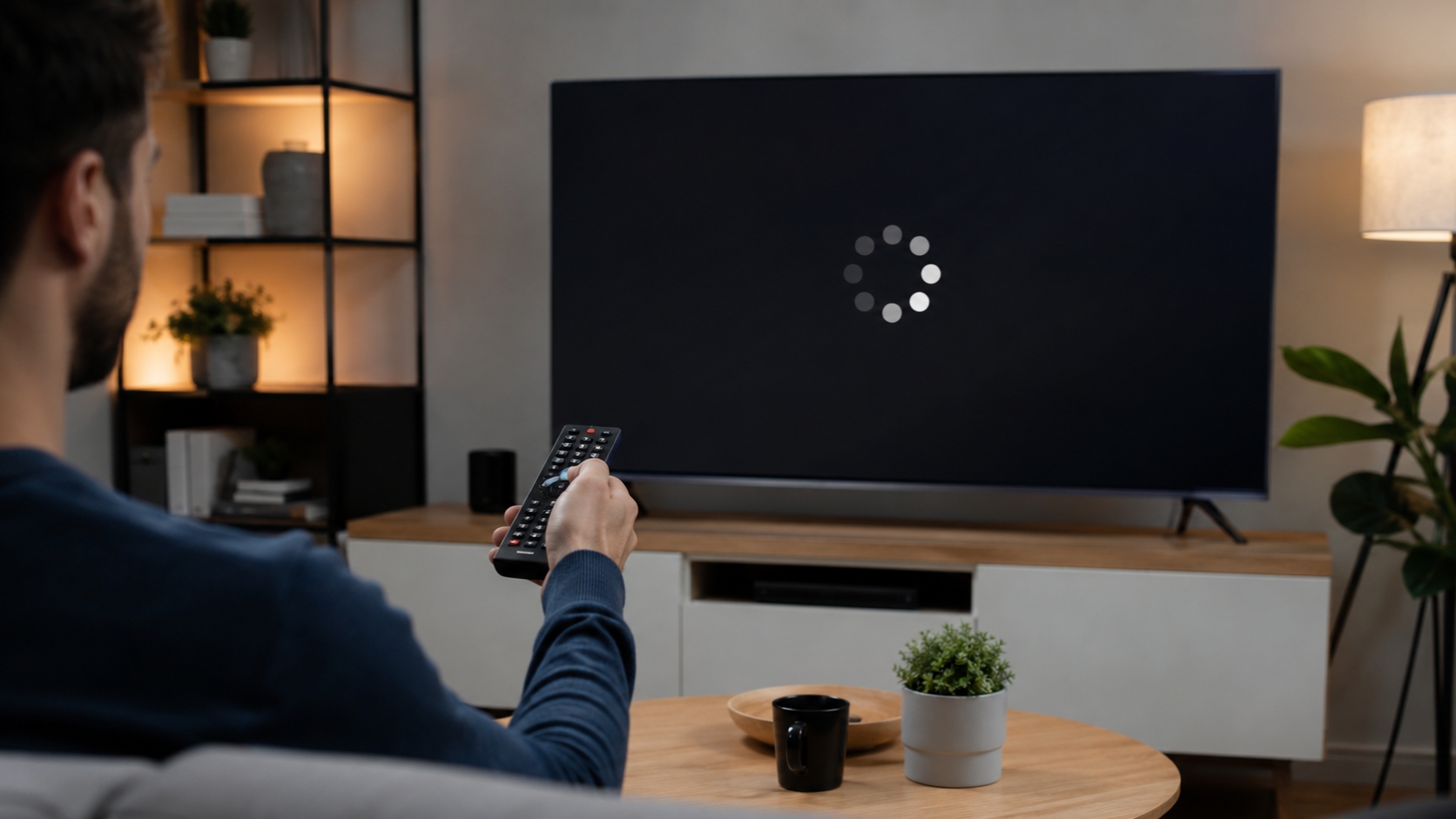
The loading circle keeps spinning, but the home screen never shows up. The remote doesn’t help. Turning the TV off and back on seems to land you in the same place.
A TV stuck on loading screen can look like a major hardware failure. Often, it isn’t. The problem may come from a software crash, a failed update, unstable power, a frozen app, or something connected through HDMI or USB.
The key is figuring out what has actually frozen.
A television stuck on the Samsung, LG, Sony, or TCL logo needs a different fix from a TV that works normally until Netflix opens. A Fire TV Stick frozen on its logo is also a separate issue from a Fire TV built directly into a television.
Start with the simple fixes. Don’t rush into a factory reset. That wipes your apps, account logins, Wi-Fi details, and custom settings.
Work Out What’s Actually Frozen
Before you unplug anything, take a close look at the screen.
The logo or message usually tells you which device is causing the trouble.
| What you see | What’s probably stuck | What to try first |
| Samsung, LG, Sony, TCL, Hisense, or Vizio logo | The TV itself | Restart or power-cycle the TV |
| Roku, Fire TV, Google TV, or Apple logo | The smart platform or streaming device | Restart that device |
| Netflix, YouTube, Prime Video, or another app logo | A single app | Close, update, or reinstall the app |
| “Updating” or a progress bar | Software installation | Wait before interrupting it |
| Logo appears, disappears, then returns | Boot loop | Disconnect accessories and try recovery steps |
| Menus work, but video keeps loading | Internet, app, account, or service issue | Test the network and app |
A spinning symbol doesn’t always mean the TV is still working. It may simply be stuck in a loop.
A repeated logo followed by another restart is different. That usually points to a boot loop.
Sony treats a frozen Android logo as a startup issue. Roku also separates stuck-logo problems from normal streaming or connection faults.
Why a TV Can Freeze During Startup
A smart TV does a lot when it powers on. It loads the operating system, apps, network services, account data, and connected devices.
If one part fails, the TV may never reach the home screen.
| Possible cause | Common sign |
| Temporary software crash | The problem appeared suddenly |
| Interrupted update | The freeze started during or after an update |
| Power issue | The TV restarts, clicks, or works differently on another outlet |
| HDMI or USB conflict | The TV starts after accessories are removed |
| App problem | Only one app stays on its loading screen |
| Network issue | Sign-in, setup, or streaming stalls |
| Corrupted system data | Restarting doesn’t help |
| Hardware failure | Recovery fails and the boot loop continues |
External devices deserve more attention than many people give them. A streaming stick, USB drive, receiver, or soundbar can interfere with startup.
That’s why Sony recommends removing USB devices during some Android TV recovery steps. Apple also suggests connecting an Apple TV directly to the television instead of running it through an HDMI switch or receiver.
TV Stuck on Loading Screen? Start Here
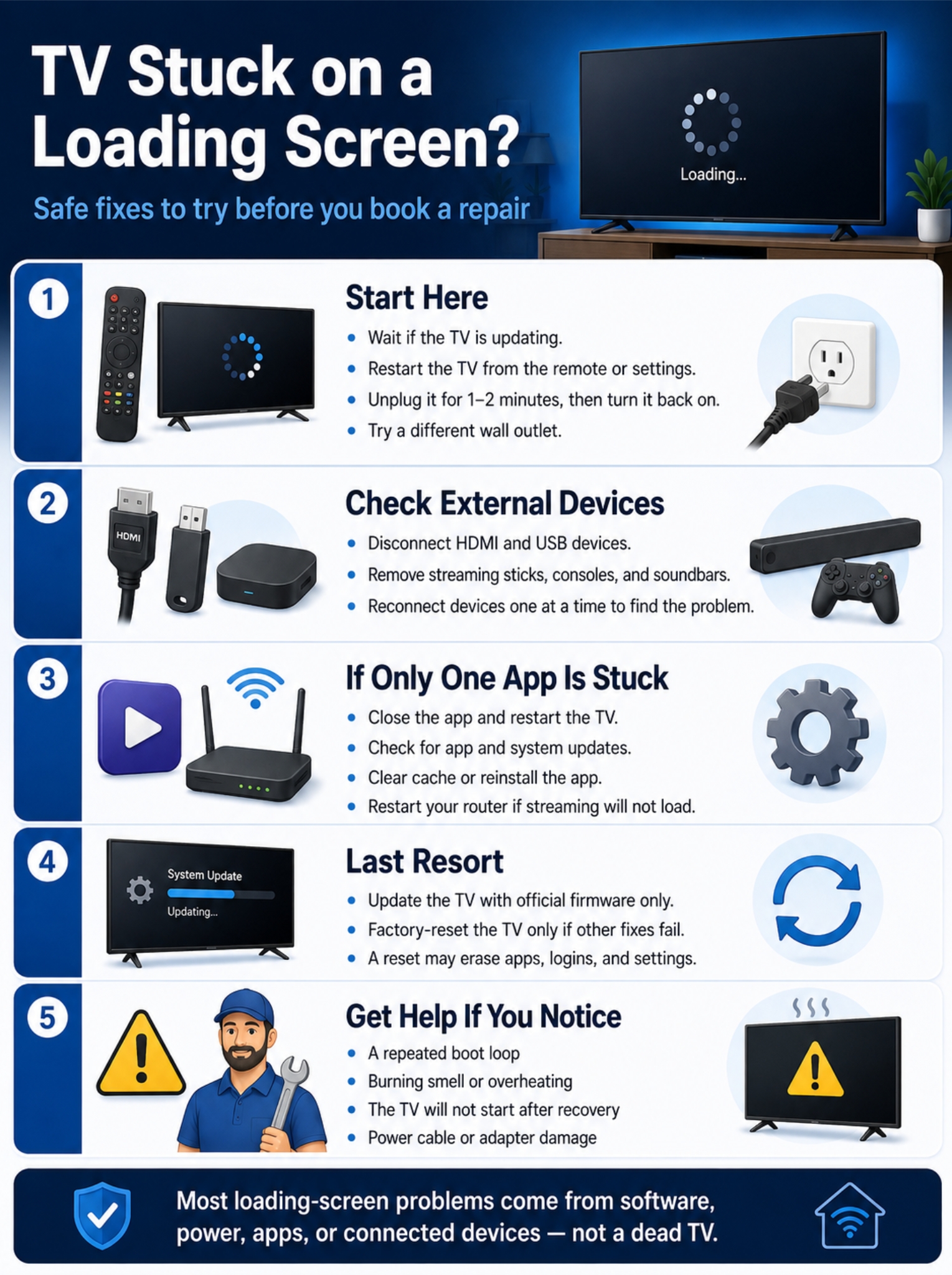
Work through these fixes in order.
Test the TV after each step. Once it starts normally, you can stop.
| Order | What to do | Will it erase anything? |
| 1 | Wait and check for an update message | No |
| 2 | Restart from the remote or settings | No |
| 3 | Unplug the TV for one to two minutes | No |
| 4 | Test the outlet and power adapter | No |
| 5 | Remove HDMI and USB devices | No |
| 6 | Check the app or network | Possibly app data |
| 7 | Install an official software update | No |
| 8 | Factory-reset the TV | Yes |
| 9 | Use brand-specific recovery mode | Yes |
| 10 | Arrange a repair | No |
1. Give an update time to finish
If the screen says “Updating,” “Applying update,” or shows a progress bar, don’t unplug the TV straight away.
Cutting the power during an update can damage the software.
The safe waiting time depends on the device.
Sony says some Android TV models frozen on the Android logo for more than five minutes can be unplugged and restarted.
Amazon says a Fire TV device stuck on its logo may need to stay powered for up to 25 minutes.
Apple recommends giving an Apple TV more time when it displays “Preparing Update” or “Applying Update.” A progress bar that hasn’t moved for more than an hour may need extra troubleshooting.
There’s no universal waiting time. Check the guidance for your exact model.
2. Restart the TV properly
A restart reloads the TV’s software without wiping your apps, accounts, or picture settings.
If the settings menu still works, look for an option such as:
Settings > System > Restart
The exact path varies.
On many Samsung TVs, holding the remote’s Power button until the screen turns off and back on triggers a cold boot.
Many Sony Android TV and Google TV models also support a restart by holding the Power button for several seconds.
These commands don’t work on every television, so use the on-screen restart option whenever possible.
3. Perform a full power cycle
If the TV won’t respond, unplug it.
- Turn the TV off if you can.
- Pull the power cable from the wall.
- Wait one to two minutes.
- Plug it back in.
- Turn it on again.
This simple step clears temporary memory and restarts processes that may have crashed.
Sony often recommends a two-minute unplug period. Google and Roku commonly use around one minute.
That makes one to two minutes a sensible general rule.
Avoid random button combinations while the TV is unplugged. Some physical-button procedures trigger a forced reset and may erase your settings.
Read Also: How to Fix HDMI No Signal on a Smart TV
4. Check the power source
A TV can show a logo even when it isn’t getting steady power.
Make sure the power cable is firmly connected. If the television uses an external adapter, check that connection too.
Try another wall outlet.
For the test, avoid power strips, smart plugs, and extension leads. Plug the TV straight into the wall.
If you’re using a Fire TV Stick or another streaming player, use the power adapter that came with it. A TV’s USB port may not supply enough stable power.
Amazon specifically recommends using the included Fire TV cable and adapter when the device freezes on its logo.
Remove HDMI, USB, and Other Devices
Next, strip the setup back to basics.
Turn off the television. Unplug it. Remove everything except the power cable.
| Disconnect this | Why it may matter |
| Streaming stick | It may be the device that’s actually frozen |
| Game console | It can affect input switching and HDMI control |
| Soundbar or receiver | It adds HDMI-CEC and signal-handling issues |
| USB drive | The TV may try to scan it during startup |
| External hard drive | It may draw power or contain damaged data |
| HDMI switch | It can interfere with signal detection |
| Ethernet cable | It helps rule out a network setup loop |
Turn the TV back on with nothing connected.
If it starts normally, reconnect one device at a time.
The problem will often return when you reconnect the faulty cable, drive, or accessory.
Can an HDMI cable freeze the TV?
A bad HDMI cable usually causes flickering, a black screen, or signal loss. It’s less likely to freeze the TV’s own brand logo.
Still, HDMI-connected devices can interfere through HDMI-CEC.
HDMI-CEC lets devices control one another. A game console can turn on the TV. A soundbar can change volume. A receiver can switch inputs.
When HDMI-CEC misbehaves, startup can become messy.
Manufacturers use different names for the feature:
- Samsung: Anynet+
- LG: Simplink
- Sony: Bravia Sync
- Panasonic: Viera Link
- Other brands: HDMI Control or CEC
If the TV works after removing accessories, reconnect them one by one. Replace suspect cables and temporarily disable HDMI-CEC.
Fix an App That Won’t Stop Loading
If the home screen works but one app keeps spinning, don’t reset the whole TV.
The issue is probably limited to that app, your account, or the streaming service.
| What’s happening | What to do |
| One app freezes | Close or reinstall it |
| Several apps fail | Restart the TV and router |
| Setup hangs on Wi-Fi | Try another connection |
| App opens but videos don’t play | Check the service and internet |
| Storage warning appears | Remove unused apps |
| Sign-in page loops | Sign out, restart, and sign in again |
Try these app fixes
Work through this list:
- Close the app.
- Restart the television.
- Check for app and system updates.
- Clear the app cache if the option exists.
- Clear app data if the cache doesn’t help.
- Uninstall and reinstall the app.
- Sign in again.
Clearing cache usually removes temporary files.
Clearing app data goes further. It may sign you out and erase local preferences.
Google’s official troubleshooting process follows a similar order: restart, check updates, clear app data, then use a factory reset only if the earlier fixes fail.
Samsung also recommends restarting, updating the TV, reinstalling the app, and resetting Smart Hub only as a last step.
Check whether the service is down
Sometimes the TV isn’t the problem.
If Netflix, YouTube, Prime Video, or another service fails on every device in your home, the service itself may be experiencing an outage.
Try the app on your phone or computer.
If it fails there too, wait for the provider to fix the issue.
Test the Internet Connection
A weak or blocked connection can leave setup pages, account screens, and streaming apps stuck.
Restart the modem and router.
Unplug both. Wait about a minute. Reconnect the modem first. Once it is fully online, reconnect the router.
Then try the TV again.
You can also test the television with a mobile hotspot.
If the TV works on the hotspot, the problem probably sits with your router, DNS settings, parental controls, VPN, security filter, or internet provider.
Roku includes testing another network or phone hotspot in its official Wi-Fi troubleshooting guidance.
Avoid downloading a large TV update over mobile data unless your plan can handle it.
Update the TV Software
Once you can reach the menu, check for a system update.
Software updates can fix crashes, failed apps, slow menus, and startup bugs.
| Platform | Typical update path |
| Samsung TV | Settings > Support > Software Update |
| LG webOS | All Settings > Support > Software Update |
| Google TV | Settings > System > About > System Update |
| Roku TV | Settings > System > Software Update |
| Fire TV | Settings > My Fire TV or Device & Software > About |
| Apple TV | Settings > System > Software Updates |
| Sony Google TV | Settings > System > About > System Software Update |
These paths can vary by model and software version.
Use only updates from the manufacturer.
LG and Sony both offer model-specific USB updates for some TVs. That can help when the network update fails, but you must download the file for the exact model.
Don’t install firmware from a third-party download site.
Don’t use a file meant for a similar-looking model.
And don’t unplug the TV while the update is installing.
Check internal storage
Smart TVs don’t have much storage.
Apps, cached files, downloads, and updates can fill it quickly.
Low storage usually causes app crashes, slow menus, and failed updates rather than a freeze at the first brand logo. Still, it’s worth checking if the TV feels slow or keeps showing storage warnings.
Delete apps you no longer use.
Clear large app caches.
Restart the TV afterward.
Brand-Specific Restart and Recovery Options
The brand name on the front of the TV doesn’t always tell you which software it runs.
A TCL or Hisense television may use Roku TV, Google TV, Android TV, or Fire TV.
Follow the instructions for the platform installed on your TV.
| Platform | Normal restart | Last-resort option |
| Samsung | Cold boot or settings restart | Factory reset |
| LG webOS | Power cycle | Reset to Initial Settings |
| Sony Google TV or Android TV | Restart or power reset | Model-specific forced reset |
| Roku TV | System restart | Recovery Mode |
| Fire TV | Restart or unplug | Factory reset or Recovery Mode |
| Google TV device | Restart or one-minute unplug | Hardware reset |
| Apple TV | System restart or brief unplug | Reset or Reset and Update |
Samsung TV
On many Samsung models, hold the remote’s Power button until the TV turns off and restarts.
If only one app is failing, update or reinstall the app first.
A factory reset is usually available under:
Settings > General & Privacy > Reset
Older models may use a different menu.
LG webOS
Recent LG televisions commonly use:
All Settings > General > System > Reset to Initial Settings
This removes apps, account details, passwords, and custom settings.
Use it only after the safer fixes fail.
Sony Android TV and Google TV
Sony recommends this order:
- Restart or power reset.
- Factory data reset.
- Forced factory reset.
The forced-reset process changes by model.
Some TVs use one physical button. Others use several. The wrong sequence may do nothing or start an unwanted reset.
Check the exact model number on the label before following Sony’s forced-reset instructions.
Roku TV
Start with a normal restart or unplug the TV for 60 seconds.
If that doesn’t work, some Roku TVs have a physical Reset button.
Recovery Mode goes further. It erases the TV and reinstalls Roku software.
Roku describes it as a deep recovery step, not a normal restart.
Use it only after simpler fixes fail.
Fire TV
For a Fire TV device frozen on the logo:
- Restart it.
- Use the included power cable and adapter.
- Leave it powered for up to 25 minutes.
- Remove unnecessary HDMI equipment.
A Fire TV player usually offers:
Settings > My Fire TV > Reset to Factory Defaults
A Fire TV smart television may use:
Settings > Device & Software > Reset to Factory Defaults
Apple TV
Restart it through:
Settings > System > Restart
You can also unplug the Apple TV for about five seconds and reconnect it.
The Reset and Update option erases the device and installs the latest available software.
Keep it connected to power until the process finishes.
Factory-Reset the TV Only When Nothing Else Works
A factory reset can fix damaged settings or system files.
It also wipes almost everything you’ve set up.
| What the reset may remove | What you’ll need afterward |
| Wi-Fi information | Network name and password |
| Streaming logins | Account details |
| Installed apps | Time to download them again |
| Picture and sound settings | Any custom values |
| Channel list | A fresh scan |
| Parental controls | PIN and restrictions |
| Linked accounts | Sign-in details |
Before resetting the TV, write down:
- The exact model number
- Wi-Fi details
- Streaming account information
- Custom picture settings
- Accessibility settings
- Channel or antenna setup
Use the on-screen reset option when possible.
Only use a recessed button or physical-button sequence when the manufacturer gives instructions for your exact model.
When It’s Probably a Hardware Problem
A software fix won’t repair a failed power board, damaged mainboard, or faulty storage chip.
| Warning sign | What to do |
| Recovery Mode fails again and again | Contact support |
| The TV keeps restarting after software reinstall | Arrange a repair |
| You smell burning | Unplug the TV immediately |
| The power cable is damaged | Stop using it |
| The TV has liquid damage | Disconnect power |
| The TV is still under warranty | Don’t open the case |
| The problem started after a surge | Request a hardware check |
Other warning signs include:
- Repeated clicking
- Flashing diagnostic lights
- A logo that appears and disappears nonstop
- Heavy heat around the back panel
- Lines or distortion on the screen
- A TV that only starts after several attempts
Don’t remove the back cover unless you’re trained to repair televisions.
Some internal parts can hold a dangerous electrical charge even after the TV has been unplugged.
If the television is under warranty, contact the manufacturer before paying a local repair shop.
Final Thoughts
A TV stuck on loading screen doesn’t always need a repair.
Start by checking which device is frozen. Restart it. Unplug the power. Remove HDMI and USB accessories. Then test the app, network, and software.
Take your time with updates. Use only official firmware. Keep factory reset and forced recovery for the end.
If the TV still won’t start after an official recovery, or it keeps restarting after the software has been reinstalled, stop repeating the same fixes.
That’s the point where a technician needs to take a look.
Frequently Asked Questions
Does leaving the TV unplugged overnight help?
Usually not.
Most official reset instructions call for anything from a few seconds to two minutes.
Leaving it unplugged overnight won’t normally fix a problem that a proper power cycle couldn’t solve.
Can a mobile hotspot help fix a loading loop?
It can help diagnose one.
If the TV loads normally on a hotspot, the television is probably fine. The problem may sit with your router, internet provider, DNS settings, VPN, or security controls.
Will clearing app cache sign me out?
Usually, no.
Clearing cache removes temporary files.
Clearing app data is different. That may remove your login and app settings.
Is Roku Recovery Mode the same as restarting?
No.
Recovery Mode erases the TV and reinstalls Roku software.
It’s a deep repair step, not a normal reboot.
Can low storage leave a TV stuck on its logo?
Ordinary low storage usually causes slow performance, app crashes, or failed updates.
A TV that never moves past its first logo may have a deeper software or storage fault.
Can I install firmware from another country?
Don’t do it unless the manufacturer clearly lists that file for your exact model.
Regional and model differences matter.
Using the wrong firmware can create a much bigger problem.
Can a USB drive stop the TV from starting?
Yes, on some models.
The TV may try to read or scan the drive during startup.
Remove USB drives and external storage before testing the TV again.
Is a boot loop the same as a frozen loading screen?
No.
A frozen screen stays on one logo or animation.
A boot loop restarts repeatedly. The logo appears, disappears, and comes back again.
Boot loops are more likely to involve corrupted software or hardware trouble.