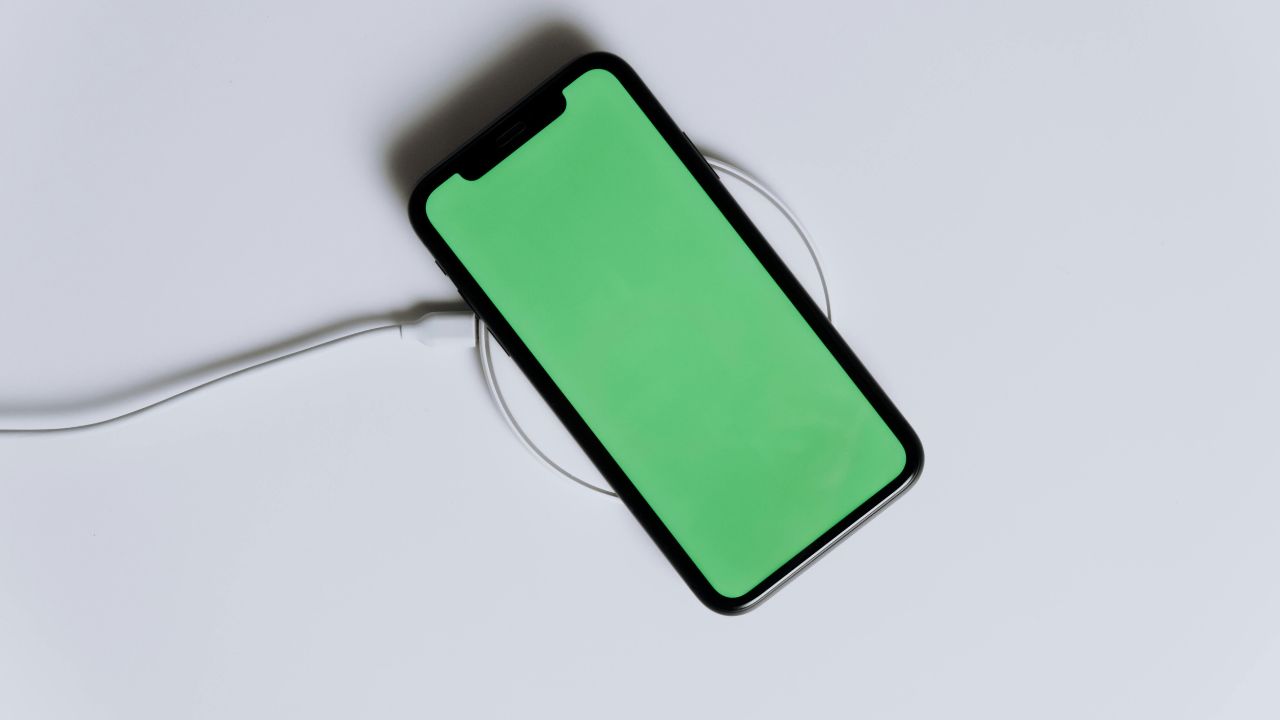
Did you plug in your iPhone only to realize the battery percentage is not moving? Or worse, does your phone screen remain completely black? It is a frustrating experience that almost every smartphone owner faces at some point.
When your iPhone stops charging, you might worry that your device is permanently broken or that you need to spend hundreds of dollars on a professional repair. However, the root cause is often much simpler than you think. Frequently, software glitches, a dirty charging port, or a damaged accessory are to blame.
This comprehensive guide covers the eight most common reasons your iPhone won’t charge. We provide clear, step-by-step solutions for each issue, helping you troubleshoot the problem at home like a pro.
Why Your iPhone Stopped Charging: The Core Components
Before we dive into specific fixes, it helps to understand how your iPhone charges. Charging requires four distinct elements to work together flawlessly:
- The iPhone Software: The internal operating system (iOS) detects the power source and manages the current flow.
- The iPhone Hardware: The physical charging port, battery, and logic board inside your device.
- The Charging Cable: The Lightning or USB-C cable that transfers power.
- The Power Source: The wall adapter, computer port, or wireless pad supplying the electricity.
If any of these links break, your iPhone will refuse to charge. Let us look at the eight reasons your phone is giving you trouble and how you can fix them.
1. A Glitch in the iOS Software
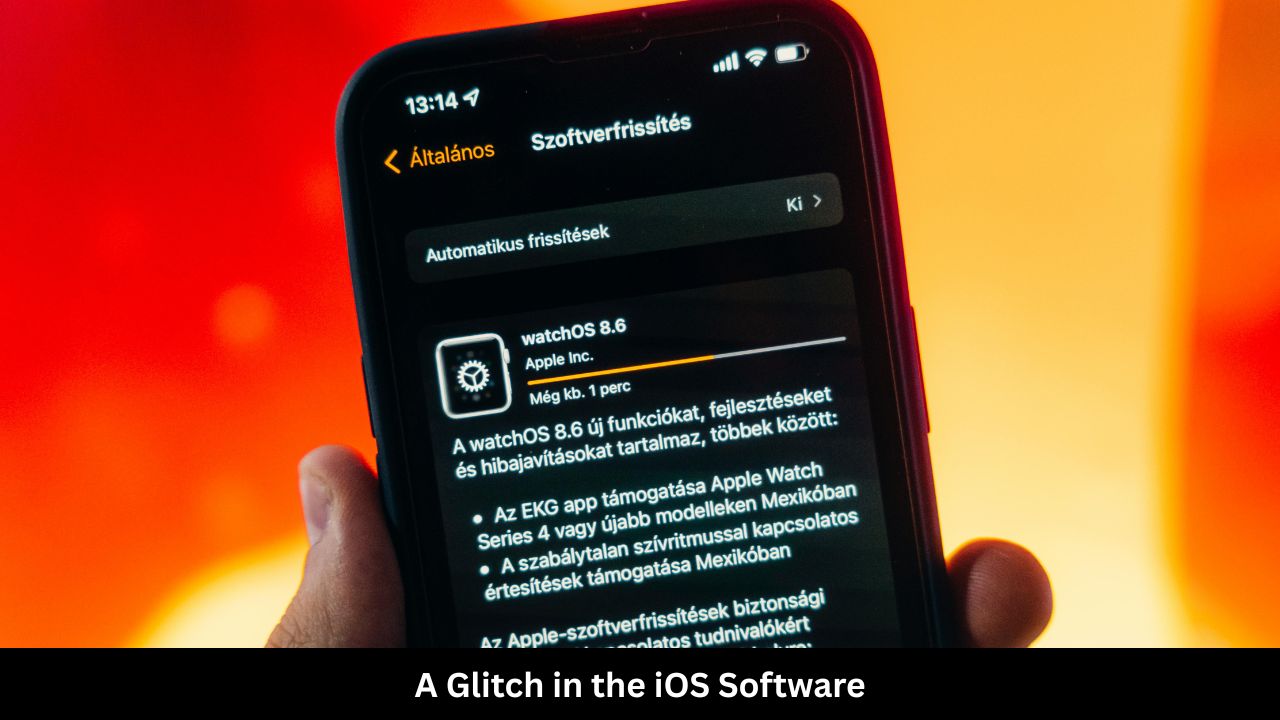
Many people believe that charging is purely a hardware process. In reality, the iOS software makes the ultimate decision to let power into the battery. If your software crashes or encounters a bug, it might stop recognizing the power cable entirely.
How to Fix It: Force Restart Your iPhone
A force restart clears the temporary memory of your iPhone and resets the software without deleting any of your personal data. The process varies depending on your iPhone model.
- For iPhone 8 or Later (Including iPhone 11, 12, 13, 14, 15, and 16): Press and quickly release the Volume Up button. Press and quickly release the Volume Down button. Finally, press and hold the Side button until the Apple logo appears on the screen.
- For iPhone 7 and 7 Plus: Press and hold both the Volume Down button and the Sleep/Wake button at the same time until you see the Apple logo.
- For iPhone 6s and Earlier: Press and hold both the Home button and the Top/Side button simultaneously until the Apple logo displays.
Quick Reference Table
| Software Issue | Primary Diagnostic | Best Resolution |
| Unresponsive iOS system | Phone is warm but screen is dark | Perform a Hard Force Restart |
| Outdated system software | Charging is intermittent | Update iOS via Settings |
2. Pocket Lint and Debris in the Charging Port
Your iPhone spends a lot of time inside pockets, purses, and backpacks. Over time, tiny pieces of lint, dust, and debris collect inside the charging port. Every time you plug in your cable, you compress this debris into the back of the port. Eventually, a thick barrier forms, preventing the cable pins from making solid physical contact with the port.
How to Fix It: Clean the Port Safely
You can clean your port at home using a few simple precautions. Never use metallic objects like paperclips, safety pins, or needles, as they can permanently scratch or break the delicate gold pins inside the port.
- Turn off your iPhone completely.
- Take a clean, wooden or plastic toothpick.
- Gently insert the toothpick into the charging port.
- Scrape the toothpick against the back wall of the port and pull upward.
- Repeat this process gently until no more lint or dirt comes out.
- Blow into the port gently or use a can of compressed air to clear out loose dust.
Quick Reference Table
| Port Problem | Visual Signs | Safe Cleaning Tools |
| Accumulated pocket lint | Cable does not sit flush against the frame | Wooden toothpick, compressed air |
| Broken internal pins | Cable loose or falls out easily | Professional repair assessment |
3. Damaged or Frayed Charging Cables
Charging cables go through a lot of wear and tear. They get twisted, bent, and pulled daily. The delicate internal copper wires inside your Lightning or USB-C cable can break near the connector head, even if the exterior rubber coating looks completely fine.
How to Fix It: Inspect and Swap Your Cable
Inspect your cable closely from end to end. Look for physical signs of damage, such as exposed wires, kinks, or discoloration on the gold contacts.
- Try using a completely different, working cable to see if your phone responds.
- Ensure your cable is certified by Apple. Look for the Made for iPhone (MFI) logo on the packaging. Non-certified, cheap cables often stop working after an iOS update because they lack the required internal authentication chips.
Quick Reference Table
| Cable Condition | Expected Behavior | Recommended Action |
| Frayed or bent wires | Intermittent charging when wiggled | Replace with an MFi-certified cable |
| Corroded gold pins | Black or green spots on connector | Clean with alcohol wipe or replace cable |
4. Faulty or Underpowered Power Sources
Sometimes, the issue is not your phone or your cable, but where you plug it in. Wall outlets can fail, power strips can trip their breakers, and certain USB ports do not provide enough electrical current to charge a modern smartphone efficiently. For example, old USB ports on keyboards or dashboard car monitors charge incredibly slowly or not at all.
How to Fix It: Switch the Power Source
You need to isolate the power source to see if it is causing the failure.
- If you are charging via a computer USB port, move the cable to a direct wall adapter.
- If you are using a wall adapter, try a different wall outlet in a separate room.
- Verify the power adapter has enough wattage. Modern iPhones charge best with a block rated for at least 20 Watts (W). Older 5W apple blocks will charge very slowly, especially if you are using the phone simultaneously.
Quick Reference Table
| Power Supply | Common Wattage | Charging Effectiveness |
| Legacy Computer USB Port | 2.5W to 5W | Extremely slow or unrecognized |
| Standard Apple Wall Cube | 5W | Slow, basic charging speed |
| Modern Fast Charger Block | 20W or higher | Optimal for rapid charging |
5. Optimized Battery Charging and Extreme Temperatures
Does your iPhone charge perfectly up to exactly 80%, and then stop entirely? This behavior is a built-in feature, not a hardware failure.
Apple uses a feature called Optimized Battery Charging to prolong the overall lifespan of your lithium-ion battery. The software learns your daily routine and pauses charging at 80% to reduce battery wear. Furthermore, if your iPhone gets too hot or too cold, iOS will halt charging at 80% to protect the battery chemistry from permanent damage.
How to Fix It: Manage Your Settings and Temperature
If you need your phone charged completely right away, you can manage this feature manually.
- Turn off Optimized Charging: Navigate to Settings > Battery > Battery Health & Charging and disable Optimized Battery Charging.
- Cool the Device Down: If your phone feels hot because you are playing games or sitting in direct sunlight, unplug it. Move it to a cooler environment, remove any protective case, and let it rest for fifteen minutes before plugging it back in.
Quick Reference Table
| Temperature/Feature | Battery Behavior | Simple Fix |
| Optimized Charging Active | Pauses exactly at 80% charge | Adjust settings in Battery Health menu |
| Overheating iPhone | Screen dims, charging stops entirely | Remove case, place in a cool shade |
6. Liquid Detection Alerts
Modern iPhones are water-resistant, but they are not completely waterproof. If moisture gets inside the charging port from splashes, rain, or sweat, your iPhone will trigger a safety alert. A warning reading “Liquid Detected in Lightning Connector” or “Liquid Detected” will pop up on your screen, and iOS will disable charging to prevent a short-circuit.
How to Fix It: Let the Port Dry Naturally
Do not try to force dry the port with a hairdryer or a microwave, as extreme heat can melt the internal components. Avoid the classic myth of putting your phone in a bowl of rice; small rice grains and starch dust can easily enter your phone and ruin the hardware.
- Unplug the cable immediately from your iPhone.
- Gently tap your iPhone against your hand with the charging port facing down to remove excess liquid.
- Leave your device in a dry area with some airflow for at least 2 to 5 hours.
- Once dry, attempt to plug the cable back in.
Quick Reference Table
| Warning Message | True Cause | Correct Dry Technique |
| “Liquid Detected” Alert | Moisture detected on port pins | Facing down in a well-ventilated room |
| Corrosive liquid exposure | Saltwater or soda entry | Rinse with distilled water first, then dry |
7. Wireless Charging Pad Issues
If you own an iPhone 8 or a newer model, your device supports wireless charging. If your phone refuses to charge on a wireless pad or a MagSafe charger, the issue could be physical interference or misalignment between the internal charging coils.
How to Fix It: Check Case Thickness and Alignment
Wireless charging relies on magnetic induction, which only works across very short distances.
- Remove Thick Cases: Heavy-duty cases, wallet cases holding credit cards, or cases with metal ring stands block the wireless signal. Remove the case entirely and place the phone on the pad.
- Center the Device: Ensure your iPhone sits exactly in the middle of the wireless charging pad. If it vibrates from an incoming notification, it can slide out of alignment.
Quick Reference Table
| Wireless Problem | Main Culprit | Quick Troubleshooting |
| Interrupted charging | Thick or metal phone case | Remove case before placing on charger |
| No charging light | Phone misaligned on wireless pad | Re-center the phone over the core coil |
8. Permanent Hardware or Battery Degradation
If you have tried different cables, cleaned out your charging port, and restarted your software, but your phone still refuses to take a charge, you may be dealing with physical hardware failure. Over several years of use, lithium-ion batteries naturally degrade. Alternatively, dropping your phone can crack the internal connections on the logic board or bend the physical charging port housing.
How to Fix It: Check Battery Health and Seek Pro Help
You can check if your battery needs to be retired by reviewing its health metrics.
- Open your iPhone Settings.
- Scroll down and tap on Battery.
- Select Battery Health & Charging.
- Look at the Maximum Capacity percentage. If this number falls below 80%, your battery is significantly degraded. You should schedule a replacement at an authorized Apple Service Provider.
Quick Reference Table
| Battery Health Status | Physical State | Next Steps |
| Maximum Capacity > 80% | Battery is healthy | Problem is likely a port or cable |
| Maximum Capacity < 80% | Battery is degraded | Schedule an official Apple battery swap |
Summary of Troubleshooting Steps
The table below outlines a quick action plan you can follow to resolve your iPhone charging issues efficiently:
| Order | Action Item | Target Cause | Time Required |
| 1 | Force Restart | Software system crash | 1 Minute |
| 2 | Clean the Port | Dust and lint blockage | 5 Minutes |
| 3 | Inspect the Cable | Frayed or broken wires | 1 Minute |
| 4 | Change Wall Outlets | Faulty electrical source | 1 Minute |
| 5 | Remove Phone Case | Wireless induction interference | 1 Minute |
Frequently Asked Questions (FAQ)
Why does my iPhone charge only when I hold the cable at a specific angle?
This problem indicates either a loose charging cable or dirt packed inside the charging port. Dirt prevents the cable from clicking into place securely. Clean your port with a wooden toothpick. If the problem continues, your cable pins or internal port pins are likely worn out and require replacement.
Can a completely dead iPhone battery be saved?
Yes. If an iPhone battery drains to absolute zero, the screen will remain black for several minutes after you plug it into power. Leave your phone on a high-quality wall charger uninterrupted for at least 30 minutes. It often takes time for the battery to build enough voltage to turn back on.
Is it safe to leave my iPhone charging overnight?
Yes, modern iPhones are smart enough to manage power safely overnight. Once the battery hits 100%, the internal charging circuit automatically stops drawing power. Using features like Optimized Battery Charging also helps protect your battery health during long overnight charges.
Why does my iPhone say “Accessory Not Supported”?
This message appears if your charging cable is not MFi-certified by Apple, if the cable is internally damaged, or if your charging port is dirty. Try switching to a genuine Apple cable to see if the error message goes away.
Final Words
A non-charging iPhone can disrupt your daily routine, but it does not mean your device has reached the end of its life. By following these eight systematic troubleshooting steps, you can easily diagnose and fix most charging problems at home. Remember to start with the simplest solutions first: restart your software, clean the charging port gently, and test alternative cables. Taking care of your physical accessories and monitoring your overall battery health will ensure your iPhone stays powered up and ready for use for years to come.