It is a quiet Friday night. You have your popcorn ready. You are excited to watch the latest blockbuster or a classic series. You click on the Max app, and nothing happens. Maybe the screen stays black. Maybe the loading circle spins forever. It is frustrating when your favorite streaming service refuses to cooperate.
Since HBO Max rebranded to Max, many users have faced technical glitches. These range from the app crashing on smart TVs to the website not opening on laptops. The good news is that most of these problems are easy to fix. You do not need to be a tech expert to get your show running again.
In this guide, we will walk you through nine proven methods to fix Max when it won’t load. We will cover everything from simple restarts to advanced settings. Let’s get your entertainment back on track.
| Quick Summary of Fixes | Estimated Time | Success Rate |
| Check Internet Connection | 1 Minute | High |
| Restart Your Device | 2 Minutes | Very High |
| Clear App Cache | 3 Minutes | High |
| Update the Max App | 2 Minutes | Medium |
| Check Max Server Status | 1 Minute | High |
1. Check Your Internet Connection
The most common reason Max won’t load is a weak internet connection. Streaming high-quality video requires a stable and fast signal. If your Wi-Fi is lagging, the app might time out before the home screen appears.
Max requires at least 5 Mbps for High Definition (HD) streaming and 25 Mbps for 4K Ultra HD. If multiple people in your house are using the internet, your bandwidth might be too low.
How to Troubleshoot Your Connection
First, run a speed test on your device. If the speed is low, try moving your router closer to your TV or computer. You can also try unplugging your router for 30 seconds and plugging it back in. This “power cycle” often clears up minor signal issues.
| Speed Requirement | Video Quality | Recommended Action |
| Under 5 Mbps | Buffering/No Load | Restart Router |
| 5 – 25 Mbps | Good for HD | Limit other devices |
| 25+ Mbps | 4K Ready | Check App Settings |
2. Restart Your Streaming Device
It sounds simple, but restarting your device is a powerful fix. Whether you use a Roku, Amazon Fire Stick, Apple TV, or a smartphone, small software errors can build up. These errors might stop the Max app from launching.
When you restart, you clear the temporary memory (RAM) of the device. This gives the app a fresh start. For smart TVs, do not just turn it off with the remote. Unplug the power cord from the wall for 60 seconds, then plug it back in. This ensures a total hardware reset.
| Device Type | How to Restart |
| Smart TV | Unplug for 60 seconds. |
| Fire Stick/Roku | Go to Settings > System > Restart. |
| Mobile Phone | Hold Power button and select Restart. |
| Web Browser | Close all tabs and restart the browser. |
3. Clear the Max App Cache and Data
Over time, apps store small files called “cache.” This cache helps the app load faster. However, if these files become corrupted, they do the opposite. They can cause the app to freeze or fail to open.
Clearing the cache is a common fix for Android users and Fire TV owners. Apple users usually need to delete and reinstall the app to clear the data.
Steps for Fire TV and Android
- Go to Settings.
- Select Applications or Apps.
- Find Max in the list.
- Select Clear Cache.
- Select Clear Data (Note: You will have to log in again).
| Action | What it Does | Does it Log You Out? |
| Clear Cache | Removes temp files | No |
| Clear Data | Resets app to factory | Yes |
| Reinstall | Full app refresh | Yes |
4. Update the Max App
Are you still using an old version of the app? Developers release updates to fix bugs. If Max recently changed its software, your old version might not be compatible anymore.
Most devices update apps automatically. However, if your storage is full or your settings are changed, the update might fail. Always check the App Store or Google Play Store to see if a “Update” button is visible for Max.
| Platform | Where to Find Updates |
| iPhone/iPad | App Store > Profile > Updates |
| Android | Google Play Store > My Apps |
| Apple TV | App Store > Purchased > Max |
| Samsung TV | Apps > Settings > Auto Update |
5. Check if Max is Down (Server Status)
Sometimes, the problem is not you. It is them. Streaming services occasionally experience outages. If the Max servers are down, no amount of restarting will help.
You can check the status of the service using third-party websites like DownDetector. If you see a huge spike in reports from other users, it means Max is having a general issue. In this case, you simply have to wait for their engineers to fix it.
| Resource | What to Look For |
| DownDetector | High peak in the last hour |
| Twitter (X) | Search “#MaxDown” |
| Official Support | Check @MaxHelp on social media |
6. Disable VPN and Proxy Services
Many people use a VPN for privacy or to watch content from other countries. However, Max has strict rules about location. If their system detects a VPN or a proxy, it may block the app from loading to prevent “geo-hopping.”
If you are using a VPN, turn it off. Close the Max app completely, then try opening it again. If the app loads instantly, you know the VPN was the cause. If you must use a VPN, try switching to a server located in your home country.
| VPN Status | App Behavior | Solution |
| VPN On | Black screen or “Not Available” | Disable VPN |
| Proxy Enabled | Login Error | Disable Proxy in Settings |
| Local Network | Normal Loading | No Action Needed |
7. Update Your Device Software
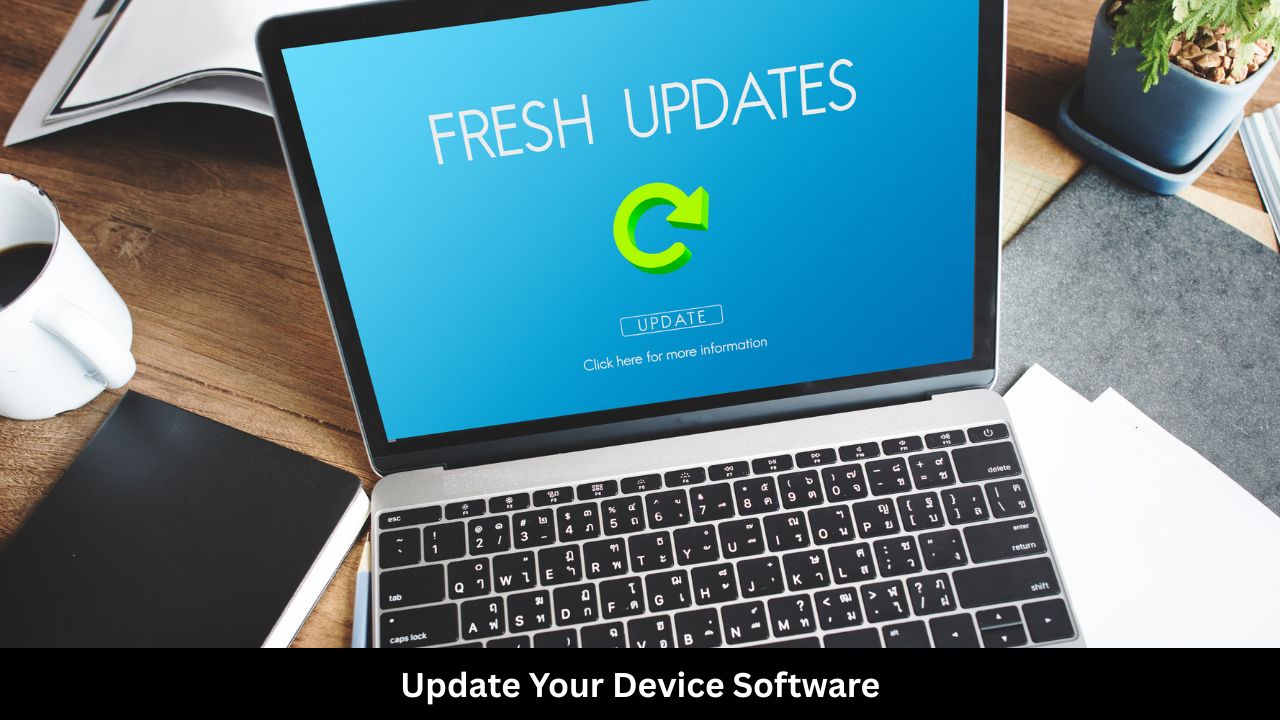
It is not just the app that needs updates. Your TV, phone, or console also needs the latest system software. An outdated operating system (OS) might lack the security features required to run the Max app.
Check your device settings for “System Update” or “Software Update.” If there is an update waiting, install it. This often improves the compatibility of all your streaming apps, not just Max.
| Device | Menu Path |
| Roku | Settings > System > System Update |
| Fire TV | Settings > My Fire TV > About > Check for Updates |
| PS5/Xbox | Settings > System > System Software |
8. Sign Out and Sign Back In
Sometimes your user session becomes “stale.” This means the app thinks you are logged in, but the server does not recognize your credentials. This can lead to a loading loop.
If you can reach the settings menu inside the app, sign out. If you cannot even open the app, try signing out from the Max website on a laptop. Under “Account” or “Devices,” you can choose “Sign Out of All Devices.” This forces a fresh login on your TV or phone.
| Method | Effectiveness |
| In-App Sign Out | Good for minor glitches |
| Web Sign Out (All Devices) | Best for account sync issues |
9. Check for HDMI and Hardware Issues
If you are watching Max on a TV via an external device like a cable box or a gaming console, the hardware connection matters. Max uses HDCP (High-bandwidth Digital Content Protection). If your HDMI cable is old or damaged, HDCP might fail, resulting in a screen that won’t load.
Try switching to a different HDMI port on your TV. Also, ensure you are using a high-speed HDMI cable. If you are using an HDMI splitter, remove it. Splitters often interfere with the security handshake required by streaming apps.
| Hardware Part | Possible Problem | Fix |
| HDMI Cable | Frayed or old | Replace with HDMI 2.0+ |
| HDMI Port | Loose connection | Try Port 2 or Port 3 |
| Splitter | Signal block | Connect directly to TV |
Frequently Asked Questions (FAQ)
Why is Max stuck on the logo screen?
This usually happens because of a corrupted cache or a slow internet connection. Try clearing the app cache or restarting your router.
Does Max work on all smart TVs?
No. Max works on most modern TVs like Samsung (2016+), LG (WebOS 3.5+), and Android TVs. If your TV is very old, you may need a streaming stick like a Roku or Fire TV.
Why does Max say “Service Not Available”?
This often happens if you are using a VPN or if you are traveling to a country where Max has not launched yet. Turn off your VPN to fix this.
How many devices can stream Max at once?
It depends on your plan. The “With Ads” and “Feature” plans allow 2 devices. The “Ultimate Ad-Free” plan allows up to 4 devices at once.
Final Words
Technical issues are a part of our modern digital life. While it is annoying when Max won’t load, the solution is usually just a few clicks away. Most users find that a simple power cycle of their router or a quick app update solves the problem immediately.
Remember to keep your hardware and software up to date. This prevents small bugs from turning into big headaches. If you have tried all nine steps and still cannot get the app to work, it might be time to contact Max Customer Support. They can check if there is a specific issue with your account billing or regional access.
Streaming should be easy and fun. By following these proven fixes, you can spend less time troubleshooting and more time enjoying your favorite movies and shows. Happy streaming!