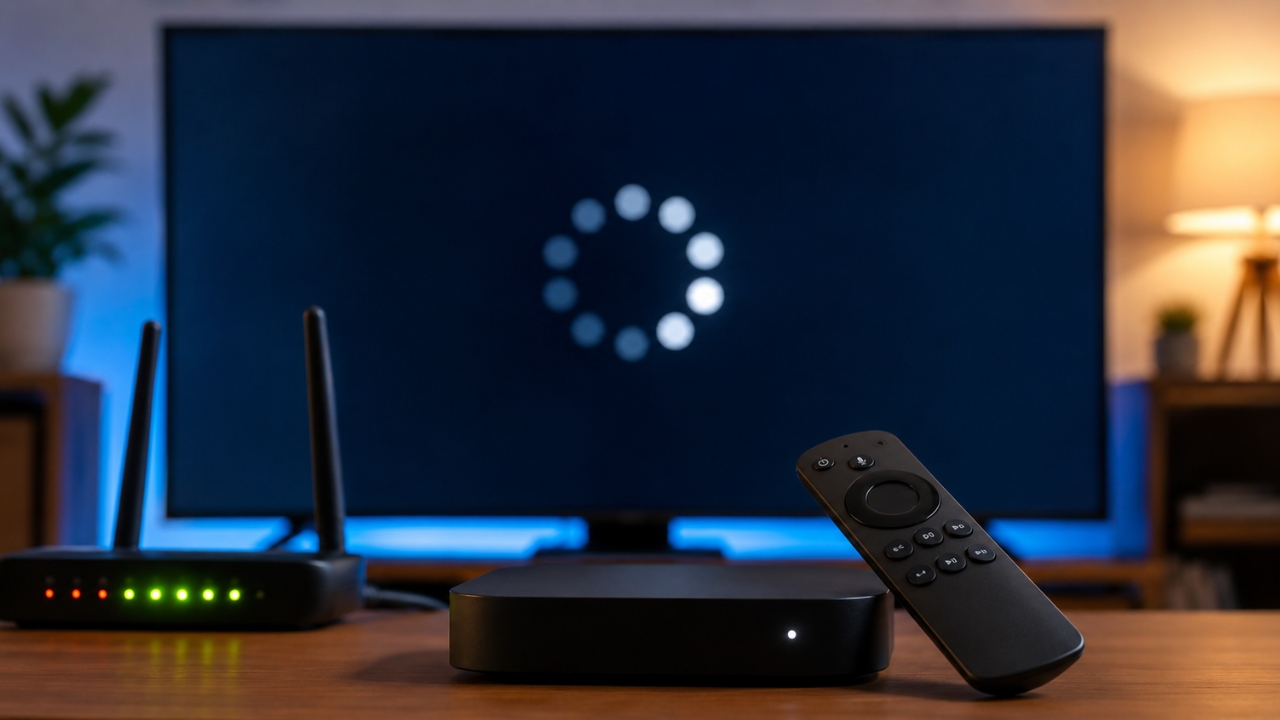
You open a streaming app, pick a movie, and wait.
Then the loading circle freezes. A message appears: streaming error code 0.
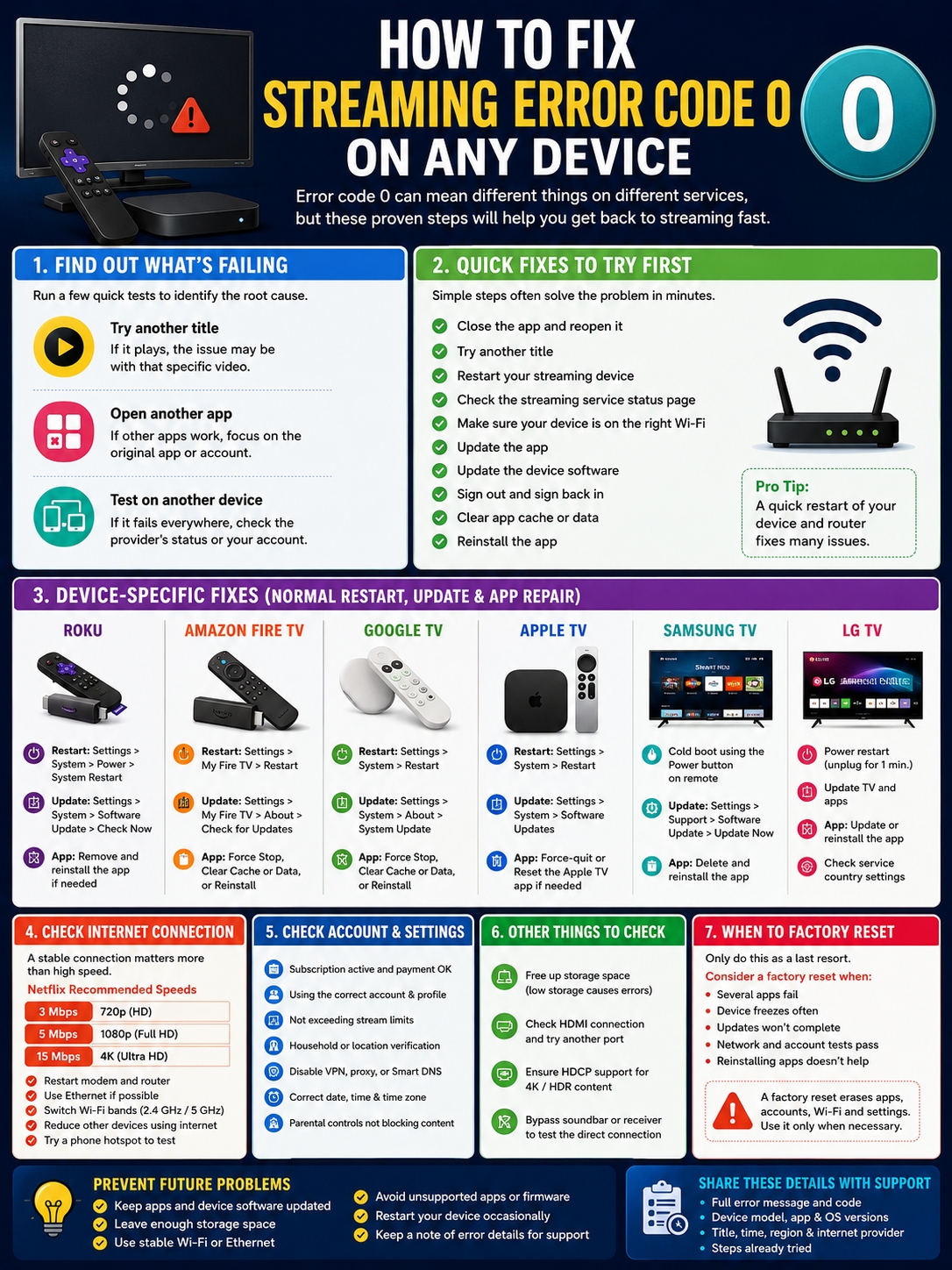
That number looks specific, but it usually isn’t. Different platforms use code 0 for different problems. On one service, it may mean the app failed to load. On another, it may point to a set-top box, account, or connection issue.
That’s why there isn’t one universal fix.
The quickest way forward is to narrow down what’s actually broken. Does the error affect one movie, one app, or every streaming service on the device?
Once you know that, the right fix becomes much easier to find.
What Does Streaming Error Code 0 Mean?
Streaming error code 0 is usually a general failure message. It can appear when an app can’t load, confirm your account, connect to a server, or start a video.
It doesn’t always mean your internet is down. It also doesn’t automatically mean your streaming device is faulty.
For example, NOW uses code 0 for an app-loading problem on Android devices. Its support guidance recommends updating the app, signing out, closing it, and signing back in.
TELUS uses the same number for a broader Optik TV error and may suggest restarting the digital box or checking the account.
The number is the same. The cause isn’t.
Common triggers include:
- A temporary app crash
- Outdated app software
- Old device firmware
- Corrupted app data
- An expired login session
- An unstable internet connection
- A provider outage
- A payment or subscription issue
- A VPN or regional restriction
- A problem with one movie or live event
- An HDMI or HDCP failure
| What Happens | Likely Problem | First Thing to Try |
| One movie won’t play | Title or playback issue | Try another title |
| One app fails | App, login, or provider problem | Open another app |
| Every app fails | Device or network problem | Restart the device |
| Phone works but TV doesn’t | TV app, Wi-Fi, firmware, or HDMI | Update and restart the TV |
| Error started after VPN use | Location check failed | Turn off the VPN |
| Screen turns black or purple | HDMI or HDCP issue | Reconnect the HDMI cable |
Find Out What’s Actually Failing
Before you reset anything, run three quick tests.
These checks can save a lot of time.
Try Another Video
Play a different movie, episode, channel, or live event in the same app.
If the second title works, the problem may be limited to the first one. The stream could be temporarily unavailable, damaged, restricted in your region, or affected by a rights issue.
There’s no point resetting the whole device when one title is the only thing that won’t play.
Open Another Streaming App
Try Netflix, YouTube, Prime Video, Disney+, or any other service installed on the same device.
If the second app works, your internet connection and device are probably fine. The issue is more likely tied to the original app, account, or provider.
If no streaming app works, look at the device or network instead.
Test the Same Service on Another Device
Open the affected service on a phone, tablet, computer, or another TV.
If it fails everywhere, check the provider’s official support or status page. You may be dealing with an outage or an account problem.
If it works elsewhere, the original device needs attention.
| Test Result | What It Usually Means | Where to Look Next |
| One title fails | Content-specific problem | Streaming provider |
| One app fails | App or account issue | App settings and login |
| Every app fails | Network or device problem | Wi-Fi and system software |
| Service fails on all devices | Outage or account issue | Provider status and billing |
| Service works through a hotspot | Home-network problem | Router, ISP, DNS, or filtering |
Streaming Error Code 0: Quick Fixes That Often Work
Start with the simplest steps. Test the app after each one.
- Close the app fully.
- Reopen it and try another title.
- Restart the streaming device.
- Check the provider’s status page.
- Confirm that the device is on the correct Wi-Fi network.
- Update the streaming app.
- Update the device software.
- Sign out and sign back in.
- Clear the app cache or data.
- Reinstall the app.
This order matters.
A restart may solve the problem in two minutes. A factory reset may take much longer and erase your settings without fixing anything.
| Fix | Best For | What It Refreshes |
| Close and reopen app | Temporary app freeze | Current app session |
| Restart device | Stuck system process | Memory and background tasks |
| Sign out and back in | Expired login | Account session |
| Clear cache | Broken temporary files | App cache |
| Clear app data | Damaged settings or login data | Full local app setup |
| Reinstall app | Repeated app failure | Entire app installation |
Repair the Streaming App
When only one service shows streaming error code 0, focus on that app first.
Force-Close the App
Pressing the Home button doesn’t always shut an app down. It may continue running in the background.
On Fire TV, go to:
Settings > Applications > Manage Installed Applications > Select App > Force Stop
On Google TV, open:
Settings > Apps > Select App > Force Stop
On Apple TV, press the TV button twice, find the app, and swipe up to close it.
Then reopen the app and test it again.
Clear the Cache
A cache stores temporary files that help an app load faster. Those files can sometimes become outdated or damaged.
On Fire TV, go to:
Settings > Applications > Manage Installed Applications > Select App > Clear Cache
On supported Google streaming devices, open:
Settings > System > Storage > Internal Shared Storage > Cached Data
Clearing the cache usually won’t sign you out. It simply removes temporary files.
Clear App Data
If clearing the cache doesn’t help, clear the app’s stored data.
On Google TV, go to:
Settings > Apps > See All Apps > Select App > Clear Data
Fire TV also provides a Clear Data option inside the app settings.
This is a stronger reset. It may remove:
- Saved login details
- App preferences
- Downloaded content
- Playback history stored on the device
- Temporary account data
Make sure you know your password before doing it.
Sign Out and Sign Back In
Streaming sessions sometimes expire without warning. The app may still show your profile even though the account token no longer works.
Sign out, close the app, restart the device, and sign in again.
Also check that:
- Your subscription is active
- The latest payment went through
- You’re using the correct account
- The right profile is selected
- You haven’t reached the stream limit
- The app isn’t waiting for household verification
Reinstall the App
If the app still won’t load, remove it and install a fresh copy.
On Roku, highlight the app, press the Star button, and choose Remove app.
On Samsung TVs, delete the app and download it again. Some preinstalled apps can’t be removed, but the TV may offer a Reinstall option.
A clean installation can fix damaged app files that a normal update doesn’t replace.
| App Fix | Use It When | What to Expect |
| Force-close | App is frozen | No data loss |
| Clear cache | App loads slowly or fails at random | Temporary files removed |
| Clear data | Login or settings seem broken | You’ll likely be signed out |
| Sign in again | Account session expired | Password required |
| Reinstall | One app keeps failing | Local app data removed |
Fix Error Code 0 on Roku
Start with a normal restart.
Go to:
Settings > System > Power > System Restart
If you don’t see the Power menu, look for System Restart directly under System.
You can also unplug the Roku device, wait about 10 seconds, and reconnect it.
Next, check for updates:
Settings > System > Software Update > Check Now
For one faulty app:
- Highlight the app.
- Press the Star button.
- Select Check for Updates.
- Remove the app if needed.
- Restart Roku.
- Reinstall the app.
Restarting before reinstalling is worth doing. It clears any leftover app process that may still be active.
A factory reset should come last. It removes apps, preferences, Wi-Fi details, and the link to your Roku account.
| Roku Fix | When to Use It |
| System restart | First step for most errors |
| Check for updates | App or system may be outdated |
| Remove and reinstall app | Only one service fails |
| Factory reset | Device-wide problems remain |
Fix Error Code 0 on Amazon Fire TV
Restart the device through:
Settings > My Fire TV > Restart
Some Fire TV models use Device & Software instead of My Fire TV.
Check for updates through:
Settings > My Fire TV > About > Check for System Update
For one broken app, go to:
Settings > Applications > Manage Installed Applications
From there, you can:
- Force-stop the app
- Clear its cache
- Clear its data
- Uninstall it
Start with Force Stop and Clear Cache. Use Clear Data only when those steps fail.
| Fire TV Fix | What It Does |
| Restart | Clears stuck system processes |
| Force Stop | Fully closes the app |
| Clear Cache | Removes temporary files |
| Clear Data | Resets the app |
| Reinstall | Replaces damaged app files |
Fix Error Code 0 on Google TV
Restart through:
Settings > System > Restart
Check for updates through:
Settings > System > About > System Update > Check for Update
If the problem affects one app, open:
Settings > Apps > See All Apps > Select App
Try:
- Force Stop
- Clear Cache
- Clear Data
- Uninstall Updates
- Reinstall
Read Also: How to Fix a Casting App That Won’t Find Your Device
Also check the active profile under:
Settings > Accounts & Sign In
A subscription may be linked to a different Google profile than the one currently active on the TV.
| Google TV Check | Why It Matters |
| System update | Fixes bugs and compatibility issues |
| Active profile | Subscription may belong to another account |
| Clear app data | Resets damaged local settings |
| Restart | Refreshes the full device session |
Fix Error Code 0 on Apple TV
Restart through:
Settings > System > Restart
You can also unplug the Apple TV, wait five seconds, and reconnect it.
Check for tvOS updates through:
Settings > System > Software Updates > Update Software
If one app is frozen:
- Press the TV button twice.
- Find the app.
- Swipe up to close it.
- Open it again.
If the Apple TV app fails on another smart TV, game console, or streaming device, open the app’s settings and choose Reset.
That removes saved accounts and settings from the app, so you’ll need to sign in again.
| Apple TV Fix | Best Use |
| Force-quit app | One app is stuck |
| Restart Apple TV | Several apps behave oddly |
| Update tvOS | Compatibility issue |
| Reset Apple TV app | Apple TV app itself is broken |
Fix Error Code 0 on Samsung Smart TV
Start with a cold boot.
Hold the Power button on the Samsung remote until the TV switches off and back on. You can also unplug it for about 30 seconds.
Then update the TV:
Settings > Support > Software Update > Update Now
If one app keeps failing, delete it and install it again.
Reset Smart Hub only after the earlier steps fail. That reset signs you out of your Samsung account and installed apps.
| Samsung Fix | When to Use It |
| Cold boot | First step |
| Software update | App compatibility problem |
| Reinstall app | One service fails |
| Reset Smart Hub | Several apps remain broken |
Fix Error Code 0 on LG Smart TV
Unplug the television for about one minute, reconnect it, and try the app again.
Then check for:
- TV software updates
- App updates
- Available storage
- Correct service country
- App reinstallation options
LG’s service-country setting can affect which apps appear and which services work.
A full reset returns the TV to its initial setup and removes accounts, preferences, and installed apps. Leave that step until last.
| LG Check | Why It Helps |
| Power restart | Clears temporary faults |
| Update TV software | Fixes system bugs |
| Update or reinstall app | Repairs one broken service |
| Check service country | Confirms regional availability |
| Factory reset | Last resort |
Check Your Internet Connection
A good speed-test result doesn’t always mean the connection is stable enough for streaming.
Video playback also depends on:
- Low packet loss
- A steady Wi-Fi signal
- Reliable DNS access
- Enough bandwidth for all active devices
- A router that isn’t overloaded
Netflix currently recommends at least:
- 3 Mbps for 720p HD
- 5 Mbps for 1080p Full HD
- 15 Mbps for 4K Ultra HD
These figures are Netflix recommendations, not universal rules for every service.
A busy home may need much more. Two 4K streams, cloud backups, gaming, and video calls can quickly use up available bandwidth.
Try these fixes:
- Unplug the modem and router
- Wait about 30 seconds
- Reconnect the modem first
- Let it come online
- Reconnect the router
- Test the app again
- Move the router closer to the TV
- Use Ethernet where possible
- Pause downloads and backups
- Switch Wi-Fi bands
- Forget the network and reconnect
- Test with a phone hotspot
Do not press the recessed reset button on the router unless you plan to erase its settings.
Use a Hotspot as a Test
Connect the streaming device to a phone hotspot for a few minutes.
If the app works through the hotspot, the streaming service and device are probably fine. The problem is likely inside your home network.
Possible causes include:
- Router filtering
- Custom DNS
- ISP routing
- Firewall settings
- Parental controls
- Network-level ad blocking
| Network Test | What the Result Suggests |
| Hotspot works | Home-network problem |
| All devices buffer | Router or ISP issue |
| Only the TV struggles | Weak signal near the TV |
| HD works but 4K fails | Not enough stable bandwidth |
| Errors happen at busy times | Network congestion |
Check Your Account and Subscription
An app can open normally even when the subscription behind it has a problem.
Sign in through the provider’s website and check:
- Subscription status
- Billing history
- Failed payment notices
- Device limits
- Household verification
- Regional restrictions
- Parental controls
- Plan access
Try another profile if the service supports more than one.
A child profile, restricted profile, or wrong household account may block certain content without making the cause obvious.
| Account Issue | Common Sign |
| Failed payment | Premium content won’t play |
| Wrong profile | Some titles are missing |
| Stream limit reached | Playback fails on an extra device |
| Household check required | Sign-in or location warning |
| Plan limitation | Certain channels or resolutions fail |
Turn Off VPNs, Proxies, and Smart DNS
Streaming services often check your location before starting playback.
A VPN, proxy, or Smart DNS service can interfere with that check. It may also route traffic through a server that the provider has blocked.
Turn it off, restart the app, and try again.
This is especially important when the error started after:
- Travelling abroad
- Changing VPN servers
- Installing a new router
- Adding a Smart DNS service
- Switching internet providers
| Tool | How It Can Affect Streaming |
| VPN | Changes your visible location |
| Proxy | Redirects app traffic |
| Smart DNS | Alters location checks |
| Router filter | May block required domains |
Correct the Date and Time
Set the device to use automatic date, time, and time zone settings.
A wrong clock can interfere with:
- Secure sign-in
- Playback tokens
- Digital certificates
- Subscription checks
- Regional settings
This problem often appears after a power outage, manual clock change, international travel, or factory reset.
| Time Problem | Possible Result |
| Wrong date | Login fails |
| Wrong time zone | Regional check fails |
| Clock far behind | Security certificate error |
| Manual time setting | Session token expires early |
Free Up Storage
Low storage can stop apps from updating or saving temporary playback files.
Remove unused apps when:
- Updates won’t install
- Several apps crash
- Menus feel slow
- Apps close without warning
- The device reports low space
Restart after clearing storage.
That gives the system a chance to rebuild temporary files cleanly.
| Low-Storage Sign | Recommended Fix |
| Updates fail | Remove unused apps |
| Device feels slow | Clear cache |
| Apps close at launch | Free more space |
| Several apps crash | Restart after cleanup |
Check HDMI and HDCP
HDMI is worth checking when you hear sound but see no picture, get a black or purple screen, or lose playback only in 4K or HDR.
Try this:
- Disconnect the HDMI cable.
- Reconnect both ends firmly.
- Try another HDMI port.
- Use another compatible cable.
- Restart the TV and streaming device.
- Bypass the receiver or soundbar.
- Connect the streaming device straight to the TV.
HDCP is the copy-protection system used by streaming devices and TVs.
For 4K or HDR playback, every part of the chain may need to support the correct HDCP version. That includes the TV, cable, receiver, switch, and streaming device.
| HDMI Symptom | Likely Cause |
| Black screen | Cable or port issue |
| Purple screen | HDCP handshake failure |
| Audio but no video | Video path problem |
| 1080p works but 4K fails | Cable or HDCP limitation |
| Works when receiver is removed | Receiver compatibility issue |
When Should You Factory-Reset the Device?
A restart and a factory reset are very different.
A restart closes current processes and reloads the system.
A factory reset wipes the device and returns it to its original setup.
Consider a factory reset only when:
- Several apps fail
- The device freezes outside streaming apps
- System updates won’t finish
- Network tests pass
- Reinstalling apps doesn’t help
- The manufacturer recommends it
Don’t reset the device when:
- One movie fails
- One live event fails
- The provider has an outage
- One app needs reinstalling
- Your subscription has expired
Before resetting, save:
- Wi-Fi passwords
- Streaming logins
- Parental-control PINs
- Picture settings
- Audio settings
- Any local files the device supports
| Situation | Factory Reset? |
| One title fails | No |
| One app fails | Usually no |
| Provider outage | No |
| Every app and menu freezes | Maybe |
| Device setup appears corrupted | Possibly |
How to Stop the Error From Coming Back
You can’t prevent every outage, but a little maintenance helps.
Keep automatic updates turned on. Leave enough free storage for app and system updates. Use Ethernet for fixed 4K setups when possible.
Avoid unofficial app builds, unsupported firmware, and overly complex DNS or VPN setups on devices used mainly for streaming.
It also helps to restart the device now and then instead of leaving it in standby for months.
Keep a note of:
- The exact error message
- Device model
- App name
- App version
- Time of failure
- Title or channel
- Whether another device worked
That information makes support calls much faster.
| Good Habit | Why It Helps |
| Turn on automatic updates | Prevents compatibility problems |
| Keep free storage | Allows apps to update properly |
| Use stable Wi-Fi or Ethernet | Reduces playback drops |
| Avoid unsupported apps | Lowers crash risk |
| Record error details | Speeds up troubleshooting |
Final Thoughts
Streaming error code 0 looks simple, but it can point to several different problems.
Start by checking the scope. Try another title, another app, and another device.
Then work through the basics: close the app, restart the device, check for an outage, update the software, and confirm the account.
If one app keeps failing, clear its cache, sign in again, or reinstall it. If every service fails, look at the network, device software, storage, or HDMI setup.
Don’t jump straight to a factory reset. Most streaming problems can be fixed without wiping the device.
When the same service fails on several devices, stop changing your settings. The issue is probably with the provider, account, or stream itself.
| What’s Failing | Best Next Step |
| One title | Try another title and report it |
| One app | Update, clear data, or reinstall |
| Every app | Check the device and network |
| One service on every device | Check outage and account status |
| Entire device | Update, restart, then consider reset |
Frequently Asked Questions
Is Streaming Error Code 0 the Same on Every Service?
No.
Each provider defines its own error codes. Code 0 may mean an app-loading issue on one platform and a broader device or account error on another.
Always check the message shown beside the code.
Why Does Streaming Work on My Phone but Not My TV?
That usually means the account and service are working.
Focus on the TV app, firmware, Wi-Fi signal, storage, active profile, and HDMI connection.
Update or reinstall the TV app before resetting the television.
Can an Ad Blocker Cause Streaming Error Code 0?
Yes, especially when the blocker runs through the router or DNS.
Streaming apps often connect to several domains for login, playback, ads, analytics, and digital-rights checks. Blocking one of those domains may stop the app from loading.
Disable the filter briefly and test again.
Why Does the Error Only Happen During Live Sports?
Live events often use different servers, location checks, stream limits, and rights controls.
They also attract large traffic spikes.
Try another live channel and an on-demand title. If only the event fails across several devices, the provider may be having trouble with that stream.
Will Lowering Video Quality Fix It?
It may help when the connection can’t hold a stable 4K stream.
It won’t fix:
- An expired subscription
- Broken app data
- A service outage
- A VPN restriction
- An unsupported device
- An HDMI or HDCP problem
Does Code 0 Mean My Device Is Too Old?
Not necessarily.
Check whether the device still receives updates and appears on the provider’s supported-device list.
An older device may still open the app but fail newer security, video, or digital-rights requirements.
What Information Should I Give Customer Support?
Share:
- The full error message
- The exact code
- Device brand and model
- App version
- Device software version
- Name of the title or channel
- Date and time of the error
- Country or region
- Internet provider
- Steps already tried
- Whether the service works elsewhere
A photo of the error screen can also help.