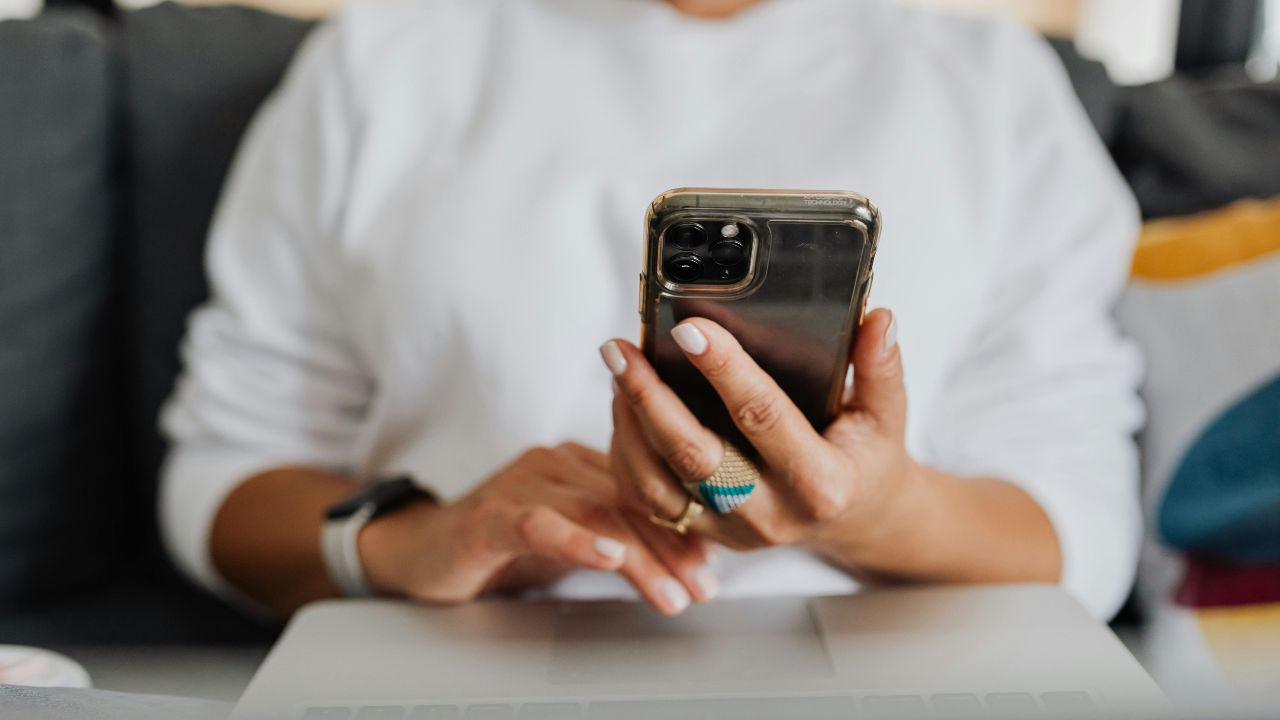
Are you trying to connect your laptop or tablet to your iPhone’s Personal Hotspot, but nothing is happening? You are not alone. A malfunctioning iPhone hotspot is a frustratingly common issue. Whether the hotspot network name is completely missing from your Wi-Fi list, or you connect only to see a “No Internet Connection” error, this problem can disrupt your workday, travel plans, or daily routine.
A Personal Hotspot turns your iPhone into a cellular router. It shares your cellular data connection with other devices via Wi-Fi, Bluetooth, or a physical USB cable. When this feature fails, the root cause could range from a minor software glitch or an outdated carrier setting to an incorrect network configuration or a data plan restriction.
Fortunately, most iPhone hotspot problems can be resolved at home without a trip to the Apple Store. This comprehensive, step-by-step troubleshooting guide will walk you through the most effective solutions to get your connection back up and running.
1. Verify Your Cellular Data Plan and Carrier Support
Before diving deep into your iPhone’s settings, you must ensure that your cellular plan actually supports the Personal Hotspot feature. Not all mobile data plans include hotspot data by default. Some carriers charge an extra fee for this service, limit the amount of hotspot data you can use per month, or require you to manually activate it on your account.
Furthermore, if you have exceeded your high-speed monthly data allowance, your carrier might throttle or completely cut off your hotspot capabilities while leaving standard smartphone data active.
How to Check and Verify Carrier Status
- Contact Your Mobile Carrier: Call your provider or log into their official mobile app to check your plan details. Look for “Personal Hotspot Allocation” or “Tethering Data.”
- Check Current Data Usage: Go to Settings > Cellular and scroll down to the Cellular Data section. Check the Personal Hotspot counter to see how much data you have consumed during the current billing cycle.
- Look for Account Alerts: If your account is temporarily suspended or has a past-due balance, data sharing features are often the first to be restricted.
| Checklist Item | Description | Action Required |
| Plan Compatibility | Ensure your plan includes tethering. | Contact carrier if missing. |
| Data Limit Status | Check if high-speed data is exhausted. | Upgrade plan or buy data add-on. |
| Carrier Account Status | Ensure your mobile account is active and paid. | Check carrier app for alerts. |
2. Toggle Personal Hotspot and Cellular Data
Sometimes, the simplest solution is the most effective. If your iPhone’s cellular radio or hotspot system experiences a temporary software hiccup, toggling the switches off and back on can refresh the connection broadcast signal.
This basic reset forces your iPhone to stop broadcasting its network name (SSID), shut down the tethering engine, and restart the wireless protocol from scratch.
Step-by-Step Toggle Process
- Open the Settings app on your iPhone.
- Tap on Cellular and turn off the Cellular Data switch. Wait 10 seconds, then toggle it back green.
- Go back to the main Settings menu and tap Personal Hotspot.
- Turn off the switch next to Allow Others to Join.
- Wait roughly 5 to 10 seconds, then turn Allow Others to Join back on.
- Try connecting your secondary device (laptop, tablet, or phone) to the network.
[Settings] ➔ [Cellular] ➔ Toggle Cellular Data OFF/ON
[Settings] ➔ [Personal Hotspot] ➔ Toggle Allow Others to Join OFF/ON
| Action | Duration | Expected Outcome |
| Toggle Cellular Data | Keep off for 10 seconds | Refreshes the phone’s connection to cell towers. |
| Toggle Personal Hotspot | Keep off for 5–10 seconds | Restarts the Wi-Fi/Bluetooth network broadcast. |
3. Enable Maximize Compatibility (For Older Devices)
If you are trying to connect an older laptop, an older gaming console, or an older smartphone to your iPhone, they might not support the modern wireless bands used by newer iPhones.
By default, newer iPhone models (iPhone 12 and later) broadcast their Personal Hotspot over the faster, more efficient $5\text{ GHz}$ Wi-Fi band. However, many older devices are built to only recognize and connect to the older, slower $2.4\text{ GHz}$ Wi-Fi band. Enabling the Maximize Compatibility feature forces your iPhone to switch its broadcast frequency down to $2.4\text{ GHz}$.
How to Turn on Maximize Compatibility
- Open the Settings app on your iPhone.
- Select Personal Hotspot.
- Scroll down to find the Maximize Compatibility toggle.
- Flip the switch to On (it will turn green).
- Search for the hotspot network again on your secondary device.
Note: Enabling this feature may slightly lower the maximum internet speed on connected devices, but it significantly improves the connection reliability and visibility for older hardware.
| Wi-Fi Band | Target Device Type | Pros | Cons |
| 5 GHz (Default) | Modern laptops, tablets, new phones | Faster speeds, less interference | Shorter range, incompatible with old tech |
| 2.4 GHz (Compatible) | Older laptops, smart TVs, legacy devices | Longer range, highly compatible | Slower data speeds, more crowded band |
4. Perform a Hard Reset / Force Restart on Your iPhone
A standard restart is helpful, but a hard reset or “Force Restart” clears out temporary cache files and completely restarts the operating system’s kernel. This process does not erase any personal data, photos, or documents from your phone. Instead, it forcefully cuts power to running system loops, stopping broken background scripts that might be locking up your wireless hardware.
How to Force Restart an iPhone (iPhone 8, X, XR, XS, 11, 12, 13, 14, 15, and 16 Series)
- Press and quickly release the Volume Up button.
- Press and quickly release the Volume Down button.
- Press and hold down the Side/Power button.
- Keep holding the Side button even when the “Slide to Power Off” screen shows up.
- Release the button only when the white Apple Logo appears on the screen.
Press Vol Up ➔ Press Vol Down ➔ Hold Side Button until Apple Logo appears
| iPhone Model Category | Physical Button Combination | Holding Time |
| iPhone 8 and Newer | Vol Up (click), Vol Down (click), Hold Side | 10 to 15 seconds |
| iPhone 7 / 7 Plus | Hold Volume Down + Sleep/Wake Button together | 10 to 15 seconds |
| iPhone 6s / Older | Hold Home Button + Top/Side Power Button together | 10 to 15 seconds |
5. Check and Apply Carrier Settings Updates
Mobile carriers frequently push out small, silent software updates to your iPhone. These are called Carrier Settings Updates. They contain critical adjustments to cellular network bands, data routing protocols, hotspot configurations, and performance patches. If your carrier changes something on their network towers and your iPhone does not have the corresponding carrier update, features like the Personal Hotspot can stop working completely.
How to Manually Force a Carrier Settings Update Check
- Make sure your iPhone is connected to a reliable Wi-Fi network or has active cellular bars.
- Open the Settings app.
- Tap on General, then tap About.
- Stay on the About page for roughly 30 to 60 seconds.
- If an update is available, a pop-up window will appear on your screen saying “Carrier Settings Update: New settings are available. Would you like to update them now?”
- Tap Update. If no pop-up appears within a minute, your carrier settings are already fully up to date.
| Update Element | What it Configures | Why it Matters for Hotspots |
| APN Settings | Access Point Name data paths | Directs your hotspot data to the correct internet gateway. |
| MMS / VoLTE | Voice and media protocols | Keeps background communication channels open. |
| Network Keys | Security Handshakes | Authenticates your phone to verify tethering access permissions. |
6. Reset Network Settings to Factory Default
If you have tried the basic steps and your hotspot still won’t work, a corruption in your iOS network configuration database could be the issue. Over time, saved Wi-Fi networks, Bluetooth pairings, VPN configurations, and cellular roaming logs can conflict with one another.
Performing a Reset Network Settings wipe clears out all wireless data caches. It resets cellular configurations back to factory defaults and flushes the DNS cache.
Warning: This step will erase all your saved Wi-Fi networks and passwords, remembered Bluetooth devices, and active VPN setups. Make sure you know your home Wi-Fi password before proceeding.
How to Reset Network Settings
- Open the Settings app on your device.
- Tap on General.
- Scroll all the way down to the bottom and select Transfer or Reset iPhone.
- Tap the Reset button at the bottom of the screen.
- Choose Reset Network Settings from the pop-up options menu.
- Enter your iPhone pass-code to confirm, then wait for the phone to reboot.
| What is Erased during Reset | What is Preserved / Safe |
| Saved Wi-Fi Network Names & Passwords | Personal Photos, Videos, and Live Camera Rolls |
| Bluetooth Pairing Connections & History | Text Messages, iMessages, and Contact Lists |
| Virtual Private Network (VPN) Logins | Installed Apps, Game Saves, and App Data |
7. Turn Off Content & Privacy Restrictions
Apple’s Screen Time settings include highly restrictive parental controls and security adjustments. Sometimes, these configurations unintentionally block changes to cellular data features or prevent system radios from broadcasting data to external clients. If you have active restrictions on, the Personal Hotspot toggle might appear grayed out or un-clickable.
How to Check Screen Time Settings
- Open your Settings menu.
- Tap on Screen Time.
- Select Content & Privacy Restrictions.
- If this toggle is on, scroll down to the section titled Allow Changes.
- Look for Cellular Data Changes and ensure it is set to Allow.
- Navigate back to the hotspot page to see if functionality returns.
| Restriction Category | Correct Troubleshooting Status | Impact on Hotspot Functionality |
| Content & Privacy | Temporarily turn OFF to test | Unblocks hardware control privileges. |
| Cellular Data Changes | Set to “Allow” | Prevents system from locking out the hotspot menu. |
8. Log Out of iCloud and Log Back In
Apple’s ecosystem relies heavily on your Apple ID account credentials to authorize seamless connections between devices, such as the Instant Hotspot feature. Instant Hotspot allows your iPad or Mac to turn on and connect to your iPhone’s hotspot without you needing to enter a password, provided both devices use the same iCloud account.
If your iCloud account authentication token expires or gets corrupted, your iPhone might reject incoming connection requests from your other Apple devices.
How to Refresh iCloud Account Authentication
- Launch the Settings app.
- Tap your Apple ID Profile Name at the very top of the screen.
- Scroll all the way down to the bottom and tap Sign Out.
- Enter your Apple ID password to turn off “Find My iPhone” when prompted.
- Choose whether to keep a copy of your data on the phone (your data remains safe in iCloud).
- Once signed out, restart your phone, return to the Settings screen, and tap Sign In to your iPhone to log back in.
| Account Sync Status | Expected Behavior | Troubleshooting Focus |
| Healthy iCloud Token | Instant Hotspot functions smoothly without pass-keys. | No action required. |
| Expired iCloud Token | Devices fail to see each other or drop connections. | Sign out and sign back into Apple ID. |
9. Update iOS to the Latest Version
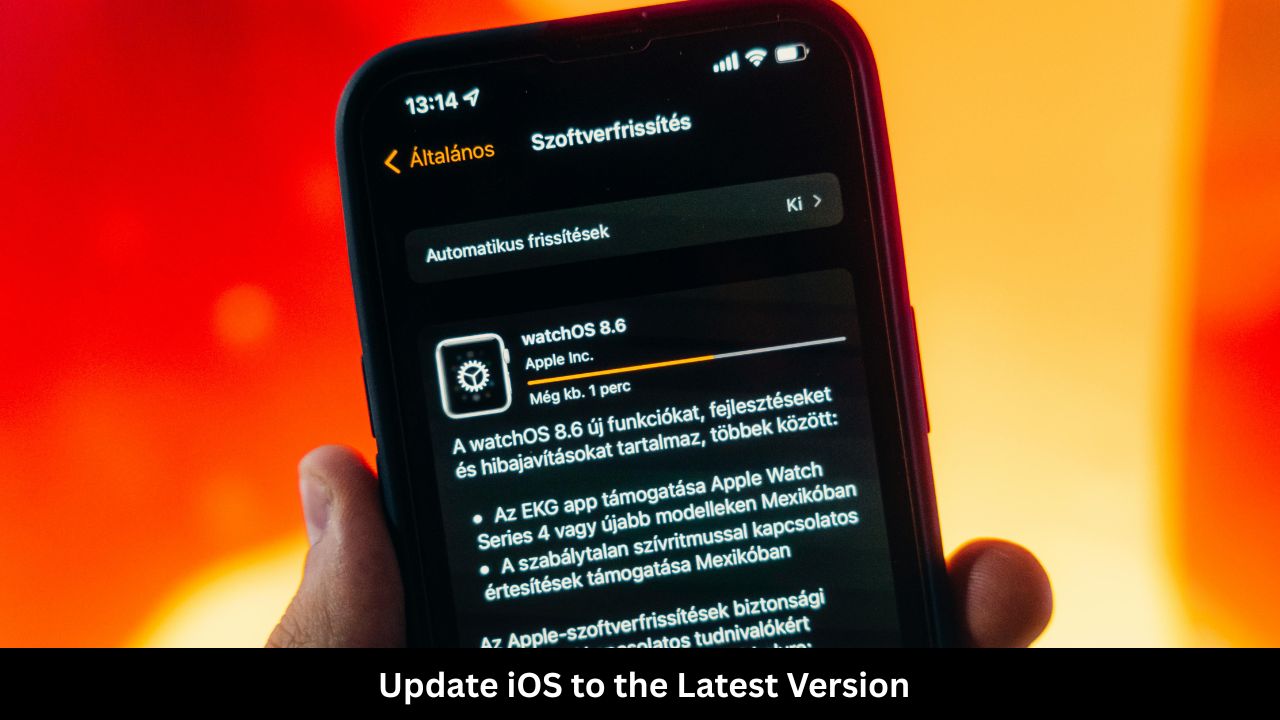
Operating system bugs can affect your iPhone’s wireless radios. Apple regularly addresses these bugs by releasing iOS system updates. If you are running an outdated version of iOS, you may be experiencing a known software bug that has already been patched in a newer release. Keep your system updated to ensure your wireless modems operate with the latest software fixes.
How to Download and Install an iOS System Update
- Connect your iPhone to an external charger and a stable Wi-Fi network.
- Open the Settings app.
- Tap on General, then tap Software Update.
- Your device will automatically scan Apple’s servers for any available updates.
- If an update is waiting, tap Download and Install.
- Enter your passcode and let the update complete fully. Do not interrupt the process.
| iOS Version Status | Potential Issue | Recommended Resolution |
| Outdated Firmware | Susceptible to older system bugs and radio driver errors. | Perform immediate over-the-air update. |
| Current Firmware | Safe from known core system glitches. | Look at carrier or hardware issues. |
10. Troubleshoot Alternative Hotspot Connection Methods
If your secondary device cannot find or connect to your iPhone’s hotspot via Wi-Fi, remember that your iPhone supports two other connection methods: Bluetooth and a physical USB Cable. Testing these alternatives can help determine if the problem is specific to your phone’s Wi-Fi radio or a broader system issue.
Method A: Connecting via Bluetooth
- Go to Settings > Bluetooth on your iPhone and ensure Bluetooth is turned on.
- Turn on Bluetooth on your Mac, PC, or tablet.
- Pair the two devices together using the standard Bluetooth PIN verification code.
- Once paired, go to your secondary device’s network management settings and choose to connect via Bluetooth network tethering.
Method B: Connecting via USB Cable
- Ensure you have the latest version of iTunes installed if you are using a Windows PC. (Macs do not need iTunes).
- Connect your iPhone directly to your computer using an official Apple USB-to-Lightning or USB-C cable.
- On your iPhone, a prompt may appear asking: “Trust This Computer?” Tap Trust and enter your passcode.
- Open your computer’s network settings interface. Your computer should detect the iPhone as a wired LAN network adapter and connect to the internet automatically.
| Connection Path | Hardware Used | Best Use Case Scenario | Max Relative Speed |
| Wi-Fi Hotspot | Built-in Wi-Fi Chipset | Connecting multiple wireless devices at once. | High |
| USB Cable | Physical Cable Port | Maximum security, desktop PCs without Wi-Fi cards. | Ultra High |
| Bluetooth | Bluetooth Antenna | Conserving battery life on both devices. | Low |
Final Words
Experiencing an iPhone hotspot failure can slow down your day, but following these steps systematically usually resolves the issue. Start with simple steps like checking your cellular plan, toggling switches, and restarting your device before moving on to network resets or firmware updates.
If you have tried all ten troubleshooting steps in this guide—including resetting your network configurations, updating your software, and testing a wired USB connection—and your hotspot still fails to connect or broadcast, you may be dealing with a hardware issue. In rare cases, internal Wi-Fi/Bluetooth antenna elements or cellular modems can fail physically due to drops or water exposure.
If you suspect hardware failure, the best next step is to back up your iPhone via iCloud or a computer and make an appointment at an authorized Apple Store Genius Bar or contact Apple Support online to run diagnostic tests on your internal chips.
Frequently Asked Questions (FAQ)
Why is my iPhone hotspot not showing up on my laptop?
This usually happens because the network cache on your laptop needs to be refreshed, or your iPhone has stopped actively broadcasting its Wi-Fi signal. To fix this, turn your iPhone’s hotspot setting off and back on, keep the Personal Hotspot settings screen open on your iPhone, and refresh the Wi-Fi scan list on your laptop.
Does using a Personal Hotspot cost extra money?
The hardware feature itself is free on your iPhone, but mobile network carriers control access to it. Some carriers require a specific plan or charge an additional monthly fee to allow tethering. If your plan does not support hotspots, turning the feature on may result in an error message directing you to contact your carrier.
Why does my iPhone hotspot disconnect automatically?
To save battery power and cellular data, iOS is designed to automatically turn off the hotspot broadcast signal if no devices are actively using the connection for several minutes. If your connected laptop goes to sleep, the iPhone will disconnect. Waking the laptop up or keeping the iPhone screen turned on can prevent unexpected disconnections.
Will resetting my network settings delete my text messages or photos?
No. Resetting your network settings only erases your saved Wi-Fi networks, Wi-Fi passwords, Bluetooth device pairings, and VPN profiles. It does not delete any personal data, text messages, photos, emails, apps, or camera rolls from your iPhone.
Why is my hotspot connection extremely slow?
Slow hotspot performance is typically caused by weak cellular reception on your iPhone, network congestion on your carrier’s towers, or reaching your monthly high-speed hotspot data limit. Ensure your phone has at least 3-4 signal bars, and try turning on “Maximize Compatibility” to see if performance improves.