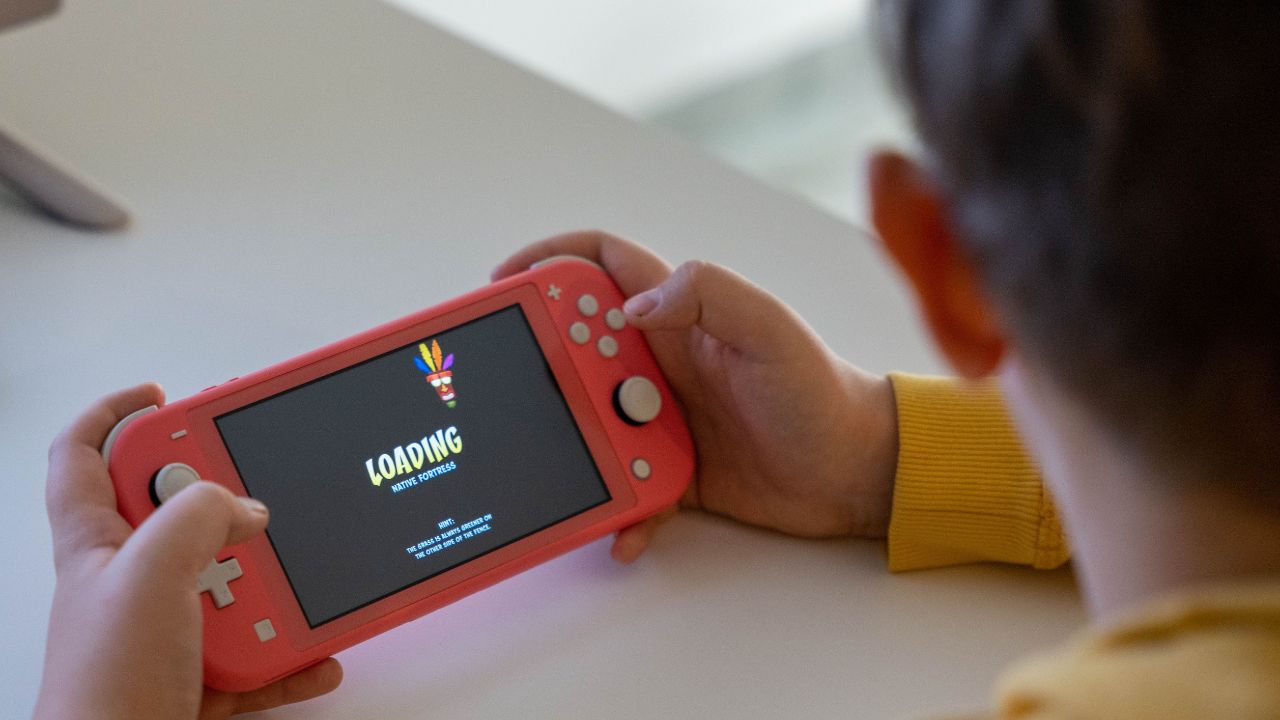
You open Disney+, pick your profile, and then nothing happens. The logo spins. The screen freezes. The app sits there like it forgot why it exists.
That’s annoying, especially when the kids are waiting for Bluey, you’re ready for Marvel, or you just want one quiet episode before bed.
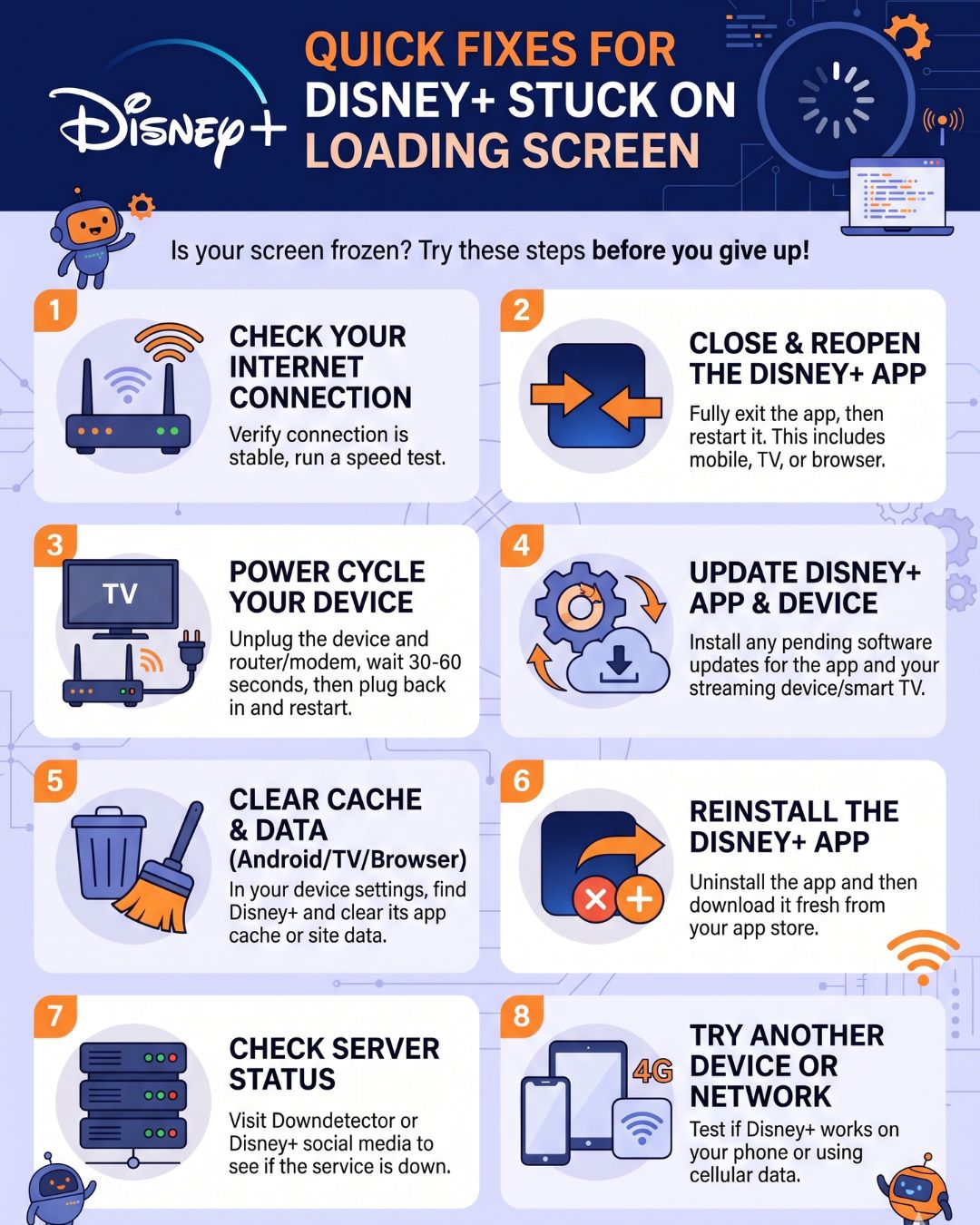
This guide covers Disney+ Stuck on Loading Screen: Quick Fixes in a simple order. Start with the fast checks. Then move into device-specific fixes for phones, browsers, smart TVs, Roku, Fire TV, Apple TV, consoles, and more.
Most loading problems come from one of five things: a weak connection, old app data, an outdated app, a device issue, or a Disney+ service problem. The good news? You can fix many of them in a few minutes.
Quick Overview: What to Try First
Try these fixes in order. Don’t jump straight to deleting the app unless the simple steps fail.
| Fix | Best For | Time Needed |
| Restart Disney+ | Frozen logo, blank screen | 30 seconds |
| Check Disney+ outage status | Login loops, error codes, widespread issues | 1 minute |
| Test internet speed | Buffering, slow loading | 2 minutes |
| Power cycle device/router | App stuck after launch | 3–5 minutes |
| Clear cache/data | Repeated loading screen | 2–5 minutes |
| Update app/device | App opens but won’t load | 5–10 minutes |
| Reinstall Disney+ | Corrupt app files | 5 minutes |
| Try another device | Device-specific issue | 2 minutes |
Why Disney+ Gets Stuck on the Loading Screen
A loading screen is not always a Disney+ problem. Sometimes the app works fine, but your device can’t finish the connection.
Here are the most common causes:
- Disney+ servers are having login or streaming trouble.
- Your internet is too slow or unstable.
- The Disney+ app cache is corrupted.
- Your device software is outdated.
- The app version is old.
- Your browser is unsupported or out of date.
- Your smart TV has low storage or bad app data.
- A VPN, DNS, or network filter is blocking the connection.
- Your device is no longer fully supported.
The fastest way to fix it is to work from the outside in. First check if Disney+ is down. Then check your internet. After that, clean up the app and device.
Disney+ Stuck on Loading Screen: Quick Fixes
1. Fully Close Disney+ and Open It Again
This sounds too simple, but it often works. Disney+ can freeze during launch if the app gets stuck in memory.
Don’t just press the Home button. Fully close the app from the app switcher or device menu. Then open Disney+ again.
On a phone, swipe the app away. On a smart TV or streaming stick, exit the app, go back to the home screen, and relaunch it. On a browser, close the Disney+ tab and open a fresh one.
If Disney+ loads after this, the problem was likely a temporary app hang.
| What to Do | Why It Helps |
| Force close the app | Clears the frozen app session |
| Reopen Disney+ | Starts a fresh connection |
| Restart browser tab | Fixes stuck web loading |
2. Check If Disney+ Is Down
Before you blame your Wi-Fi, check if Disney+ itself is having trouble. A service outage can cause loading loops, login errors, blank screens, or “something went wrong” messages.
This matters because no local fix can solve a server-side outage. You can restart your router ten times and still get the same frozen screen.
Check the Disney+ Help account on X, the Disney+ Help Center, and outage trackers such as Downdetector. If many users report the same issue, wait and try again later.
A recent Disney+ login outage in June 2026 showed why this step matters. Many users reported login and app problems at the same time, which pointed to a platform issue rather than home network failure.
| Sign | What It Means |
| Many users report problems | Likely Disney+ service issue |
| Other apps work fine | Disney+ may be the problem |
| Same issue on every device | Check outage status first |
3. Test Your Internet Speed
Disney+ needs a stable connection, not just a connection that “works.” A weak signal can load the home screen halfway and then freeze.
Run a speed test on the same device or network. Disney+ recommends at least 5 Mbps for HD, 8 Mbps for live content, and 25 Mbps for 4K UHD streaming.
Speed is only one part of the story. Wi-Fi drops, high latency, and crowded networks can also break the app. If someone is downloading large files or gaming online, pause that and test Disney+ again.
Move closer to the router if you’re on Wi-Fi. If possible, use Ethernet for smart TVs, consoles, and streaming boxes.
| Streaming Type | Recommended Speed |
| HD | 5 Mbps |
| Live content | 8 Mbps |
| 4K UHD | 25 Mbps |
4. Power Cycle Your Device and Router
A normal restart helps. A full power cycle helps more.
Turn off your TV, phone, console, or streaming device. Unplug the power cable if the device allows it. Wait at least 60 seconds. Plug it back in and open Disney+ again.
Do the same with your router and modem. This clears temporary network issues and gives your device a fresh connection.
This fix works well when Disney+ keeps hanging after the logo screen, especially on smart TVs and streaming sticks.
| Device | Best Power Cycle Step |
| Smart TV | Unplug TV for 60 seconds |
| Router | Unplug modem/router, then reconnect |
| Streaming stick | Restart from settings or unplug power |
5. Clear Disney+ Cache and App Data
Cache helps apps load faster. But old or broken cache can do the opposite. It can trap Disney+ in a loading loop.
On Android phones and tablets, go to Settings, open Apps, choose Disney+, then open Storage. Clear the cache first. If that fails, clear data too. Clearing data may sign you out, so keep your login details ready.
On Fire TV, Android TV, and some smart TVs, you can clear cache from the app settings menu. On browsers, clear cache and cookies for Disney+ or use a private window to test.
Start with cache. Clear data only if the problem stays.
| Option | Use It When |
| Clear cache | App freezes but account is fine |
| Clear data | Cache clear did not work |
| Browser cookies | Disney+ website loops or won’t load |
6. Update the Disney+ App
Old app versions can break after Disney+ changes something on its side. That may lead to loading issues, login loops, or video playback errors.
Open your device’s app store and search for Disney+. If you see an Update button, install it.
On smart TVs, also check system app updates. Some TVs update apps in the background, but not always. If automatic updates are off, your Disney+ app may be several versions behind.
After updating, restart the device before opening Disney+ again.
| Device | Where to Check |
| iPhone/iPad | App Store |
| Android | Google Play Store |
| Fire TV | Appstore / Manage Installed Apps |
| Smart TV | TV app store or app settings |
| Console | Store or system menu |
7. Update Your Device Software
The app is only half of the setup. Disney+ also depends on your device operating system.
A phone, TV, console, or streaming stick with old software may struggle with newer Disney+ app builds. Browser playback can also fail if the browser or operating system is outdated.
Check for system updates. Install them. Then restart your device.
This step matters more on older smart TVs. Many streaming problems happen because the TV software gets left behind, even when the app still appears on the screen.
| Device Type | Update to Check |
| Phone/tablet | iOS, iPadOS, or Android update |
| Smart TV | TV firmware update |
| Roku/Fire TV/Apple TV | System update |
| Browser | Latest browser version |
8. Make Sure Your Device Is Supported
Disney+ works across many devices, but not every old device gets full support forever. If your device is too old, the app may open but fail to load properly.
Disney+ supports web browsers, phones, tablets, streaming sticks, game consoles, smart TVs, and set-top boxes. Still, each category has minimum requirements.
For example, Disney+ supports Android phones and tablets running Android 5.0 or later. It supports iPhone and iPad on iOS 16.5 or later. Browser support also depends on using current versions of major browsers.
If Disney+ works on your phone but not on an old TV, the TV may be the issue. A Roku, Fire TV Stick, Apple TV, or Chromecast may be a cheaper fix than replacing the whole TV.
| Check | Why It Matters |
| Device model | Older devices may lose support |
| OS version | Disney+ needs supported software |
| Browser version | Old browsers may fail to load |
9. Disable VPN, Proxy, or DNS Filters
A VPN can cause Disney+ loading problems. So can proxy tools, custom DNS settings, school/work filters, or router-level ad blockers.
Disney+ uses location and account checks. If your connection looks unusual, the app may stall, block playback, or show an error.
Turn off the VPN or proxy. Restart Disney+. If it loads, you found the cause.
Also test with mobile data on your phone. If Disney+ loads on mobile data but not on Wi-Fi, your home network settings may be blocking it.
| Tool | Possible Problem |
| VPN | Location or access conflict |
| Proxy | Login/session issue |
| Custom DNS | Failed Disney+ connection |
| Ad blocker/router filter | Blocked app requests |
10. Reinstall Disney+
If nothing else works, remove Disney+ and install it again. This gives you a clean version of the app and removes broken files.
On phones and tablets, uninstall the app, restart the device, then reinstall it from the official app store.
On Roku, Fire TV, Apple TV, Android TV, and some smart TVs, remove the Disney+ app or channel, restart the device, and add it again.
This is one of the best fixes when Disney+ keeps getting stuck on the loading screen even after cache clearing.
| Step | What It Fixes |
| Uninstall Disney+ | Removes broken app files |
| Restart device | Clears memory |
| Reinstall app | Adds a fresh copy |
| Sign in again | Starts a new account session |
Device-Specific Disney+ Loading Screen Fixes
Disney+ Stuck on Loading Screen on Smart TV
Smart TVs often hold old app data for months. That can make Disney+ slow, frozen, or stuck at launch.
Try this order:
- Restart the Disney+ app.
- Restart the TV.
- Unplug the TV for 60 seconds.
- Update the TV firmware.
- Clear Disney+ cache if your TV allows it.
- Delete and reinstall Disney+.
- Use a streaming stick if the TV is old.
Older smart TVs can struggle even when Netflix or YouTube still works. Each streaming app has its own requirements.
Disney+ Stuck on Loading Screen on Roku
On Roku, start with a system restart. Go to Settings, then System, then Power, then System restart. If your Roku does not show the Power option, look under System restart.
Then remove Disney+ and add it again from the Roku Channel Store.
Also check for Roku software updates. A stale Roku system can affect channel loading.
Disney+ Stuck on Loading Screen on Fire TV Stick
Fire TV devices can slow down when storage gets tight or cache builds up.
Go to Settings, then Applications, then Manage Installed Applications. Choose Disney+ and clear cache. If needed, clear data too.
Restart the Fire TV Stick. If the app still hangs, uninstall and reinstall Disney+.
Also remove unused apps if your Fire TV storage is almost full.
Disney+ Stuck on Loading Screen on iPhone or iPad
Close Disney+ from the app switcher. Then reopen it.
If that fails, update Disney+ from the App Store. Also check your iOS or iPadOS version. Disney+ support depends on modern iOS versions.
Try switching from Wi-Fi to mobile data. If Disney+ works on mobile data, your Wi-Fi may be the problem.
Disney+ Stuck on Loading Screen on Android
Force close Disney+. Then clear cache.
Go to Settings, then Apps, then Disney+, then Storage. Tap Clear Cache. If it still fails, tap Clear Data.
Update Disney+ from Google Play. Also check Android system updates.
Disney+ Stuck on Loading Screen in Browser
Use a supported browser and update it first. Disney+ supports current versions of major browsers such as Chrome, Firefox, Edge, and Opera on supported systems.
Clear cache and cookies for Disney+. You can also try an incognito or private window.
Turn off extensions that block scripts, ads, cookies, or tracking. Some privacy tools can break streaming login pages.
When the Loading Screen Is Really an Error Code
Sometimes Disney+ shows a loading screen first, then throws an error. Error Code 83 is one common example.
Disney+ says Error Code 83 may appear when you use an unsupported device, an unsupported access method, or an unstable internet connection.
So don’t treat every error as the same. If you see an error code, search that code in the Disney+ Help Center. The fix may be different from a normal frozen loading screen.
| Error Type | Likely Cause |
| Error 83 | Device, access, or connection issue |
| Login error | Account or service issue |
| Buffering error | Internet or app cache issue |
| Blank screen | Browser, app, or device issue |
Mistakes to Avoid
Don’t reset your whole TV first. That should be a last step.
Don’t clear data before you know your Disney+ login details. Clearing data may sign you out.
Don’t ignore outages. If Disney+ is down for everyone, local fixes won’t help.
Don’t keep using an old browser. Browser updates often fix video playback and login issues.
Don’t assume your internet is fine because one other app works. Disney+ may need a steadier connection for certain streams.
FAQs About Disney+ Loading Problems
Why does Disney+ load on my phone but not on my TV?
Your TV app may have old cache, outdated firmware, or weaker device support. Try updating the TV, clearing Disney+ cache, and reinstalling the app. If the TV is older, use a streaming stick.
Can too many Disney+ profiles cause the loading screen problem?
Usually, no. Profiles may affect what you see after login, but they rarely freeze the app at launch. If one profile causes trouble, try another profile and then edit or reset the problem profile settings.
Why does Disney+ get stuck only at night?
Your home network may be crowded at night. Internet providers can also slow down during peak hours. Run a speed test when the issue happens, not hours later.
Does clearing Disney+ data delete my watch history?
Clearing app data signs you out and removes local app files. Your watch history and profiles are tied to your Disney+ account, not just the device.
Why is Disney+ stuck after I changed my password?
Your old login session may still be stored on the device. Sign out if possible, clear app data, restart the device, and sign in again with the new password.
Can a VPN make Disney+ freeze on the loading screen?
Yes. VPNs, proxies, and custom DNS tools can interfere with region checks, login, and streaming requests. Turn them off and test Disney+ again.
Should I factory reset my smart TV for Disney+?
Only as a last resort. Try restarting, updating, clearing cache, and reinstalling Disney+ first. A factory reset removes settings and apps, so it’s not the first fix.
Conclusion
When Disney+ freezes, don’t panic and don’t start with the hardest fix. Work through the basics first: restart the app, check outages, test your internet, power cycle your device, clear cache, update everything, and reinstall Disney+ if needed.
Most problems come down to app data, weak Wi-Fi, old software, or a temporary Disney+ issue.
Use this guide on Disney+ Stuck on Loading Screen: Quick Fixes whenever the app hangs again. Start at the top, move step by step, and you’ll usually know within a few minutes whether the issue is your device, your network, or Disney+ itself.