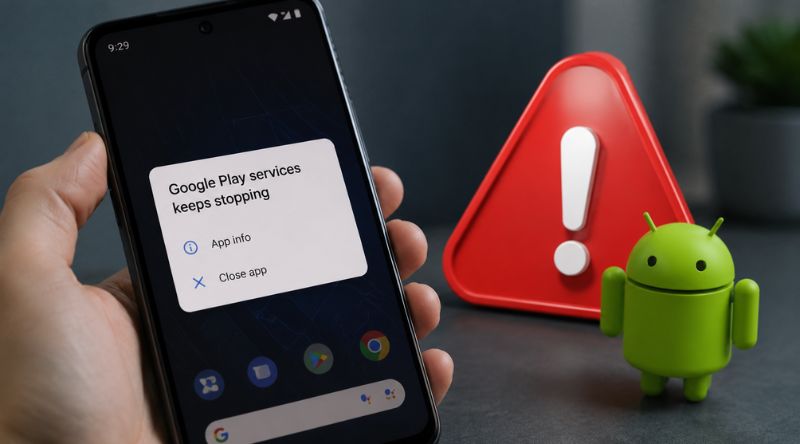
Few things disrupt your phone’s rhythm quite like a rogue background process loop. One minute you are checking an email or opening a map, and the next, a persistent popup takes over your screen. If you are reading this, you are likely dealing with a frustrating error loop on your Android device.
This error is more than just an annoying notification. Because this background framework connects your apps to Google’s core features, a crash can cause your apps, location tracking, and push notifications to stop working entirely. Fortunately, you can resolve this loop without replacing your phone or risking your data.
Here is a practical breakdown of how to fix Google Play Services keeps stopping using eight reliable methods, ranging from quick setting adjustments to targeted system clearing.
Why This Topic Matters
Google Play Services isn’t an app you open to watch videos or chat. It is a vital background architecture running silently on your Android system. It handles core authentication for your Google accounts, syncs your contacts, manages privacy settings, and powers location-based tracking across third-party applications.
When this framework encounters a corrupted cache file, an out-of-sync system clock, or a conflicting OS update, it can enter a crash loop. Because so many applications rely on it, a glitch here can cause a domino effect across your entire device. Learning how to fix Google Play Services keeps stopping allows you to restore system stability and keep your applications running reliably.
Complete Troubleshooting Overview
Before diving into the detailed steps, here is an overview of the primary methods used to fix this issue, ranked from the simplest solution to advanced fixes.
| Fix Order | Troubleshooting Method | Primary Target | Expected Complexity |
| Method 1 | Reboot Your Android Device | Temporary System Glitches | Very Low |
| Method 2 | Clear Cache and Data for Google Play Services | Corrupted Data Packages | Low |
| Method 3 | Clear Cache and Data for Google Play Store | App Synchronisation Breaks | Low |
| Method 4 | Uninstall and Reinstall Updates | Faulty or Broken Updates | Medium |
| Method 5 | Reset App Preferences | Blocked Background Permissions | Medium |
| Method 6 | Wipe the Google Services Framework Cache | System Communication Errors | Medium |
| Method 7 | Remove and Re-add Your Google Account | Authentication and Token Sync Issues | High |
| Method 8 | Free Up System Storage Space | Memory Allocation Failures | Low |
Top 8 Methods to Fix Google Play Services
Item #1: Reboot Your Android Device
Most users overlook a simple device restart, but it remains a highly effective troubleshooting step for minor software conflicts. Over time, temporary background files and active RAM allocations can conflict, causing background tasks to stall.
A fresh reboot completely clears the active system memory, closes run-away threads, and allows the OS to launch its core processes from a clean state. If a minor system glitch is causing your service loops, a quick power cycle will often resolve it immediately.
+————————————————————+
| 1. Press and hold the physical Power button. |
| 2. Select ‘Restart’ or ‘Power Off’ from the system menu. |
| 3. Wait 30 seconds, then power the device back on. |
+————————————————————+
| Key Aspect | Details |
| When to Use | As your immediate first line of defense before modifying any system settings. |
| Risk Level | Zero risk. No personal data or system files are modified. |
| Expected Outcome | Clears temporary system bugs and restores smooth background operation. |
Item #2: Clear Cache and Data for Google Play Services
If a restart doesn’t clear the popup, the issue may be a corrupted cache file. The cache stores temporary files to help your system load features faster. However, if a file downloads incorrectly or gets interrupted, it can cause the background process to crash continuously.
Clearing the cache deletes these temporary files without affecting your personal documents. If the crash loop continues after clearing the cache, you can use the “Clear All Data” option to reset the background architecture entirely.
1.Open Settings & Apps:Step 1.
Navigate to your phone’s primary Settings menu, scroll down, and select Apps or Apps & Notifications.
2.Locate Google Play Services:Step 2.
Tap on See all apps or use the top-right search tool to type in Google Play Services, then select it.
3.Clear Cache First:Step 3.
Tap on Storage & cache. Select Clear Cache to wipe temporary files safely.
4.Wipe Storage Data:Step 4.
If the error remains, tap Manage Space or Clear Storage, then choose Clear All Data.
Important Note: Wiping all data under this section may temporarily remove transit passes or virtual payment cards from Google Wallet. You can easily re-add them once the platform stabilizes.
| Key Metric | Details |
| Primary Benefit | Removes broken temporary code fragments causing system loops. |
| Typical Time Needed | 2 minutes. |
| Data Impact | Safe for files; requires re-adding digital payment cards. |
Item #3: Clear Cache and Data for Google Play Store
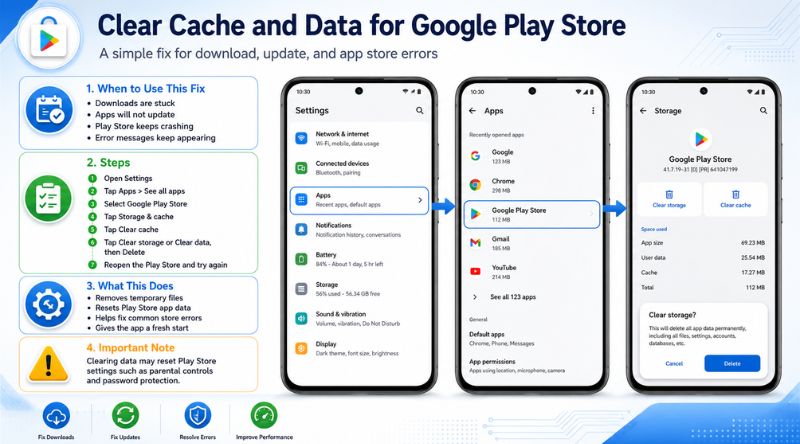
Because the Google Play Store operates alongside Play Services, a stall in the store’s download queue can cause the background environment to crash. Corrupted store data can block background updates, triggering the error loop.
Clearing the Play Store’s database stops stuck downloads, drops broken connections, and forces the storefront to re-verify its connection with Google’s servers.
Settings -> Apps -> Google Play Store -> Storage & Cache -> Clear Cache & Clear Data
| Key Aspect | Details |
| Why It Works | Cleans out stuck app updates and loops inside the download directory. |
| Next Action | Open the Play Store after clearing to let it reload its basic directory. |
| Side Effects | Resets your internal Play Store preferences and search history. |
Item #4: Uninstall and Reinstall Updates
Automatic background updates can occasionally deploy with corrupted files or compatibility issues unique to your phone’s processor architecture. When this happens, the newly updated files will fail to load, causing continuous background crashes.
To fix this, you can roll back the software to its factory-installed version. This eliminates the problematic update, allowing you to trigger a clean update download directly from the cloud.
| Step Number | System Action Required |
| 1 | Open Settings and head back into your Apps listing. |
| 2 | Select Google Play Services from the main app registry. |
| 3 | Tap the three vertical dots located at the top-right corner of the screen. |
| 4 | Select Uninstall updates and confirm the system warning prompt. |
| 5 | Restart your device, open your browser, and update to the latest version. |
| Evaluation Metric | Details |
| Success Rate | High for old phones or devices running older versions of Android. |
| Prerequisites | A stable internet connection to fetch the new update files afterward. |
| Core Advantage | Eradicates deep bugs introduced by flawed over-the-air updates. |
Item #5: Reset App Preferences
Android allows users to customize background access, modify notification channels, and change default app assignments. However, if you accidentally restrict background data or disable a critical system dependency, it can cause the platform to crash when it attempts to run background tasks.
Resetting your global app preferences restores all default settings for disabled apps, background data restrictions, and permission assignments without deleting your personal data or app files.
Settings -> Apps -> See All Apps -> Three Dots (Top Right) -> Reset App Preferences
| Operational Area | Action Taken by System |
| Disabled Apps | Automatically re-enables all default system utilities. |
| Permission Profiles | Restores default background permissions across the OS. |
| Data Restrictions | Wipes background data limitations that block Google synchronisation. |
Item #6: Wipe the Google Services Framework Cache
The Google Services Framework is a separate background system that handles cloud messaging and device communications with Google’s servers. If this framework stalls, it can cause Play Services to crash as it waits for a response that never arrives.
Clearing the cache for this system utility resolves communication delays, forcing your device to establish a clean connection with Google’s cloud infrastructure.
1.Reveal Hidden System Apps:Step 1.
Go to Settings > Apps, tap the three dots in the top-right corner, and select Show system or Show system processes.
2.Find the Services Framework:Step 2.
Scroll down to locate Google Services Framework within the expanded listing.
3.Execute Cache Wipe:Step 3.
Tap Storage & cache, select Force Stop, and then tap Clear Cache.
| Functional Detail | Analysis |
| Risk Factors | Wiping Data here can change your device ID; stick strictly to Clear Cache. |
| Target Mechanism | Restores cloud notification tokens and sync processes. |
| Time Required | Under 1 minute. |
Item #7: Remove and Re-add Your Google Account
Sometimes the issue stems from an authentication problem rather than local files. If you recently changed your password or if an account sync gets interrupted, your phone may use an invalid security token, causing background verification processes to crash.
Removing your Google Account from the device clears these active security tokens. When you sign back in, the system generates new, verified tokens that sync correctly with Google’s servers.
| Step Sequence | Action Matrix |
| Step A | Launch Settings and select Passwords & accounts or Users & accounts. |
| Step B | Select your primary Google email address from the account registry. |
| Step C | Tap Remove Account and confirm the deletion prompt. |
| Step D | Restart your phone, return to the menu, and tap Add account. |
Pro Tip: Make sure you know your Google account password and two-factor authentication details before removing the account so you can log back in smoothly.
| Evaluation Vector | Details |
| Authentication Stability | Excellent; resolves stubborn account sync loops. |
| Data Safety | Your data remains secure in the cloud and will resync automatically once you sign back in. |
| Complexity Level | High; requires manual password entry and security verification steps. |
Item #8: Free Up System Storage Space
Android devices require a minimum amount of free storage space to write temporary files and run background tasks smoothly. If your phone’s internal storage is completely full, system services cannot allocate memory, causing them to crash immediately upon launch.
Clearing out old downloads, deleting large video files, or removing unused apps can free up the storage space your background services need to function properly.
Settings -> Storage -> Review Files -> Free Up Space / Delete Large Media
| Storage Parameter | Safety Recommendation |
| Critical Free Space Target | Maintain a minimum of 10% to 15% of your total storage capacity as free space. |
| Impact on Apps | Prevents background database crashes across all installed applications. |
| Recommended Utility | Use the built-in Files by Google tool to safely find and remove duplicate files. |
How to Fix Google Play Services Keeps Stopping
When troubleshooting this issue, follow a structured approach rather than changing multiple settings at once. Begin by checking your network connection. A unstable connection can interrupt background processes, making it appear as though the service itself is broken. Switching from cellular data to a stable Wi-Fi network can often resolve these synchronization errors.
Additionally, ensure your system clock is accurate. If your phone’s time differs significantly from the actual time, security certificates will fail to validate, causing background services to shut down automatically. Always enable Set time automatically within your system settings to avoid certificate mismatches.
Frequently Asked Questions
Why does this error keep popping up even when I’m not using the Google Play Store?
The framework runs constantly in the background to handle tasks like location tracking, push notifications, and account syncing for multiple apps. As a result, a corrupted background file can trigger the error popup even when your phone is idle or when you are using a non-Google app.
Will clearing data for Google Play Services delete my photos or text messages?
No. Wiping this database will not delete personal files like photos, videos, documents, or SMS history. It only resets temporary system configurations, local cache tables, and digital passes or payment cards stored inside Google Wallet.
If you cannot select this option, the utility likely has active administrative privileges on your device, often used for features like “Find My Device.” To unlock the button, go to Settings > Security > Device admin apps, temporarily deactivate the permissions for those services, and try uninstalling the updates again.
Can a custom Android ROM or a rooted device cause this crash loop?
Yes. Custom ROMs often require separate installation packages for Google apps (known as GApps). If these packages do not match your system version, or if root modifications alter core system files, background services may crash repeatedly. For modified devices, flashing a compatible, updated GApps package is usually required.
Conclusion
Encountering a persistent system error can be frustrating, but knowing how to fix Google Play Services keeps stopping helps you quickly resolve these software conflicts. In most cases, clearing the temporary cache files or rolling back a flawed background update will restore your phone’s performance without requiring a factory reset.
Start with simple steps like a device reboot or cache clear before moving on to advanced options like re-adding your Google account. Keeping your storage clear and ensuring automatic time sync is active will help prevent these background loops from returning.