You click a website. Chrome thinks for a second. Then it shows a blank error page: ERR_CONNECTION_RESET.
It’s annoying because the message sounds technical, but the cause is often simple. Your browser, router, VPN, DNS, firewall, or the website server may have cut the connection before the page could load.
This guide on Chrome Error ERR_CONNECTION_RESET: 8 Easy Fixes walks you through the fixes in the right order. Start with the fast checks. Then move to DNS, proxy, VPN, security software, and browser reset steps.
The goal is simple: get Chrome loading pages again without breaking your setup.
What Does ERR_CONNECTION_RESET Mean in Chrome?
ERR_CONNECTION_RESET means Chrome tried to connect to a website, but the connection was suddenly closed. Think of it like calling someone and the line dropping before the conversation starts.
This can happen before the page loads, while a login page opens, or when a site tries to send secure HTTPS data. It does not always mean the website is down. It also does not mean your device has been hacked.
Common causes include:
- Unstable Wi-Fi or router issues
- Corrupted Chrome cache or cookies
- A bad browser extension
- VPN or proxy conflicts
- DNS problems
- Firewall or antivirus filtering
- Broken TCP/IP network settings
- Server-side blocking or temporary downtime
Chrome Error ERR_CONNECTION_RESET: 8 Easy Fixes at a Glance
Start with the fixes that change the least. Don’t jump straight into advanced network resets unless the quick steps fail.
| Order | Fix | Best For | Difficulty |
| 1 | Check the website and internet connection | One site or all sites failing | Easy |
| 2 | Restart router, modem, and device | Random drops, slow Wi-Fi | Easy |
| 3 | Clear Chrome cache and site data | One website keeps failing | Easy |
| 4 | Disable extensions and test Incognito | Ad blockers, privacy tools, VPN add-ons | Easy |
| 5 | Turn off VPN and proxy temporarily | Work networks, VPN users | Easy |
| 6 | Check firewall and antivirus settings | Security software blocking Chrome | Medium |
| 7 | Flush DNS and change DNS server | DNS lookup issues | Medium |
| 8 | Reset TCP/IP and Chrome settings | Persistent connection errors | Medium |
Chrome Error ERR_CONNECTION_RESET: 8 Easy Fixes You Should Try First
Use this checklist from top to bottom. After each fix, close Chrome and reopen the page. That way, you’ll know which step actually solved the problem.
1. Check Whether the Website or Your Internet Is the Problem
Before changing settings, confirm where the issue starts. ERR_CONNECTION_RESET can happen because of your device, your network, or the website itself.
Open another website first. Try a large site like Google, YouTube, or a news site. Then open the same failing page in another browser, such as Edge or Firefox. If the page fails everywhere, the issue may not be Chrome.
Also test another device on the same Wi-Fi. If your phone and laptop both fail, your router, ISP, DNS, or the website may be the problem.
Try these checks:
- Open the same site in another browser.
- Open the same site on mobile data.
- Restart the page with Ctrl + F5.
- Check if only one page fails or every website fails.
- Ask someone else to open the same page from another network.
If only one website fails, wait a few minutes. The website may be blocking traffic, facing server issues, or having a temporary SSL/CDN problem.
| Quick Check | What It Tells You |
| Other websites work | The issue may be site-specific |
| All websites fail | Your device or network is likely involved |
| Site works on mobile data | Wi-Fi, router, ISP, or DNS may be the cause |
| Site fails in all browsers | It may not be a Chrome-only problem |
2. Restart Your Router, Modem, and Computer
This fix sounds basic, but it works often. Routers hold temporary connection data. Over time, they can get stuck, overheat, or fail to handle new connections properly.
Turn off your router and modem. Wait at least 30 seconds. Then turn them back on and wait until the connection is stable. After that, restart your computer or phone.
Don’t just disconnect Wi-Fi and reconnect. A full router restart clears temporary network issues better.
This step can help when Chrome shows ERR_CONNECTION_RESET after:
- A power cut
- Long router uptime
- ISP line drops
- Switching between VPN and normal browsing
- Too many connected devices
- Weak Wi-Fi signal
If you use public Wi-Fi, switch to mobile hotspot for a quick test. Public networks often use filters, captive portals, and strict firewall rules that can reset connections.
| Step | Action |
| 1 | Turn off router and modem |
| 2 | Wait 30–60 seconds |
| 3 | Turn modem on first, then router |
| 4 | Restart your device |
| 5 | Open Chrome and test the page again |
3. Clear Chrome Cache, Cookies, and Site Data
Chrome stores cached images, cookies, scripts, and site files to load pages faster. That’s useful most of the time. But old or corrupted site data can break a connection.
If ERR_CONNECTION_RESET appears on one website again and again, clear that site’s data first. This is better than clearing everything, especially if you don’t want to lose logins from other websites.
On desktop Chrome:
- Open Chrome.
- Click the three-dot menu.
- Go to Settings.
- Open Privacy and security.
- Select Third-party cookies or Site data.
- Search for the website name.
- Delete its stored data.
- Reload the website.
You can also use Delete browsing data and choose cached images, files, cookies, and site data. Use “All time” only if the problem is widespread.
After clearing data, close Chrome fully and reopen it. Don’t leave old tabs running in the background.
| Option | Use It When |
| Clear one site’s data | Only one website fails |
| Clear cached images/files | Pages load broken assets |
| Clear cookies/site data | Login, redirect, or session errors happen |
| Clear all browsing data | Many websites fail in Chrome |
4. Disable Extensions and Test in Incognito Mode
Extensions can change how Chrome loads websites. Ad blockers, coupon tools, privacy extensions, download managers, password tools, and VPN add-ons can interrupt scripts or block connections.
A fast way to test this is Incognito mode. Most extensions are off there by default, unless you allowed them manually.
Press:
- Windows/Linux: Ctrl + Shift + N
- Mac: Command + Shift + N
Now open the failing website. If it works in Incognito, an extension or stored browser data is probably causing the issue.
Next, go to:
Chrome menu > Extensions > Manage Extensions
Turn off all extensions. Then turn them back on one by one. Test the page after each one. This helps you find the exact extension causing the reset.
Pay extra attention to:
- Ad blockers
- Script blockers
- VPN extensions
- HTTPS/privacy tools
- Security extensions
- Shopping/coupon add-ons
- Old or unsupported extensions
Remove extensions you don’t recognize. A clean browser is safer and faster.
| Test | Meaning |
| Site works in Incognito | Extension or stored data may be the cause |
| Site fails in Incognito | Network, DNS, proxy, or server issue is more likely |
| Site works after disabling one add-on | That extension was likely interfering |
| Site fails after all extensions are off | Move to network fixes |
5. Turn Off VPN and Proxy Temporarily
VPNs and proxies route your traffic through another server. That can help privacy or work access, but it can also trigger ERR_CONNECTION_RESET.
Some websites block VPN IP addresses. Some VPN servers get overloaded. Some proxies are misconfigured. Office or school networks may also force traffic through filters that reset certain connections.
Turn off your VPN first. Then close Chrome and reopen it. Test the page again.
If you use Windows, check proxy settings:
- Open Settings.
- Go to Network & internet.
- Select Proxy.
- Turn off manual proxy if you don’t use one.
- Keep automatic detection on if needed.
On macOS:
- Open System Settings.
- Go to Network.
- Select your active connection.
- Check Proxies.
- Remove anything you don’t use.
Do not turn off a company proxy if your workplace requires it. Ask your IT team first.
| Cause | What to Try |
| VPN server issue | Switch VPN location or turn VPN off |
| Blocked VPN IP | Use normal connection |
| Wrong proxy | Remove manual proxy setting |
| Work/school filtering | Contact admin or test on mobile data |
6. Check Firewall, Antivirus, and Security Apps
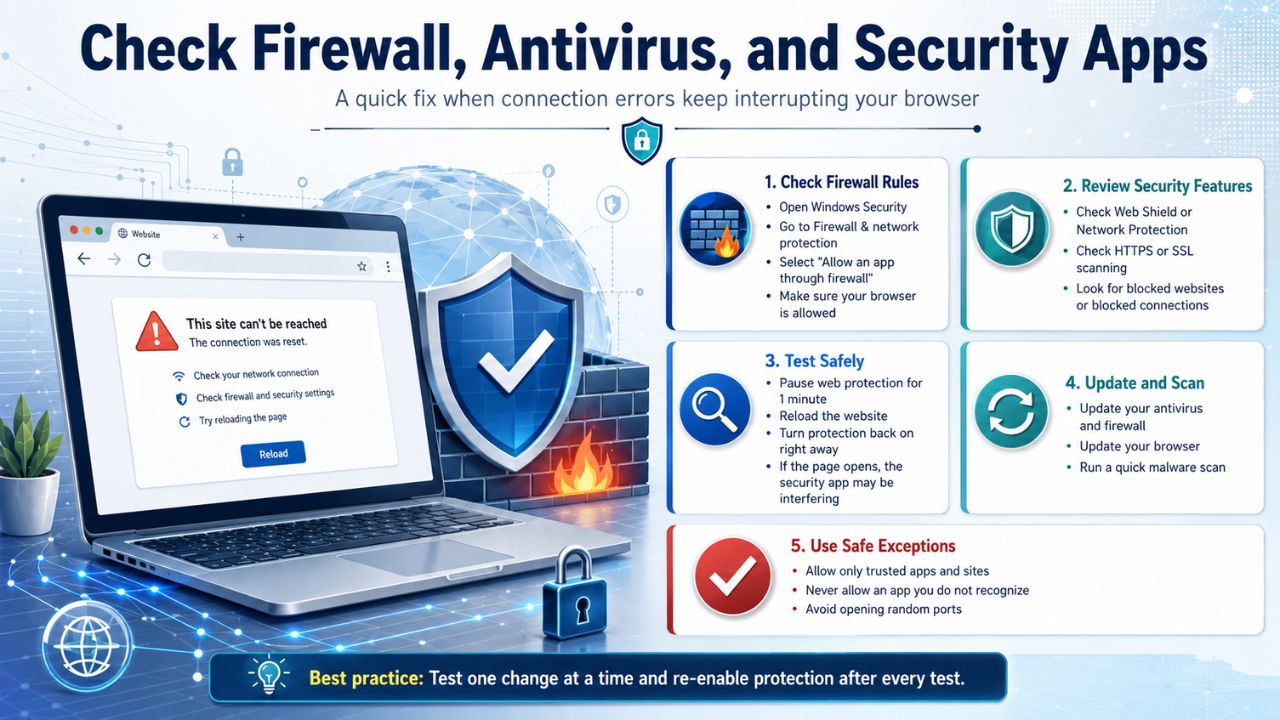
Firewall and antivirus tools inspect traffic to protect you. But sometimes they block safe websites or interfere with HTTPS scanning.
This can happen after a security software update. It can also happen when a firewall rule blocks Chrome, a website, or a port.
Do not browse for long with protection turned off. Use a short test only.
Try this:
- Open your security app.
- Check if Chrome is blocked.
- Look for web shield, HTTPS scanning, or network protection.
- Temporarily pause web filtering for a minute.
- Test the website.
- Turn protection back on.
If the page works only when security filtering is off, don’t leave it that way. Add the website as an allowed site if you trust it, update the security app, or contact the vendor.
Also check Windows Security:
- Open Windows Security.
- Go to Firewall & network protection.
- Select Allow an app through firewall.
- Make sure Chrome is allowed on the network you use.
If you’re on a work device, don’t change managed security settings. Ask IT.
| Setting | Why It Matters |
| Firewall app rules | Chrome may be blocked |
| HTTPS scanning | Secure connections may reset |
| Web shield | Safe pages may be filtered by mistake |
| Parental controls | Some sites may be blocked silently |
7. Flush DNS and Change DNS Server
DNS turns website names into IP addresses. If DNS cache is stale or your ISP’s DNS server has issues, Chrome may fail before the page loads.
On Windows, flush DNS:
- Click Start.
- Type cmd.
- Open Command Prompt.
- Run this command:
ipconfig /flushdns
Then restart Chrome and try the page again.
You can also try a trusted public DNS server. Two common choices are:
- Google Public DNS: 8.8.8.8 and 8.8.4.4
- Cloudflare DNS: 1.1.1.1 and 1.0.0.1
On Windows 11:
- Open Settings.
- Go to Network & internet.
- Select Wi-Fi or Ethernet.
- Find DNS server assignment.
- Click Edit.
- Choose Manual.
- Turn on IPv4.
- Enter your chosen DNS addresses.
- Save and reconnect.
Changing DNS can help when the error appears for several websites, especially after ISP outages or router changes.
| DNS Fix | Best For |
| Flush DNS cache | Old or bad local DNS entries |
| Change DNS server | ISP DNS trouble |
| Restart router after DNS change | Network-wide refresh |
| Test mobile data | Confirms ISP or router issue |
8. Reset TCP/IP and Chrome Settings
Use this step when the earlier fixes fail. It resets deeper network settings and restores Chrome’s default behavior.
On Windows, open Command Prompt as administrator and run:
netsh int ip reset resetlog.txt
Then restart your computer.
You can also reset Winsock if Chrome and other apps still cannot connect:
netsh winsock reset
Restart again after running the command.
This can help when network settings are damaged by VPN software, malware cleanup, old firewall tools, or broken adapter settings.
Now reset Chrome settings:
- Open Chrome.
- Click the three-dot menu.
- Go to Settings.
- Select Reset settings.
- Click Restore settings to their original defaults.
- Confirm the reset.
This may turn off extensions and reset startup pages, search engine settings, and pinned tabs. It will not fully reinstall Chrome, but it can remove bad browser configuration.
If Chrome still fails after this, update Chrome. Go to:
Chrome menu > Help > About Google Chrome
Install updates if available, then relaunch.
| Reset Option | What It Fixes |
| TCP/IP reset | Broken Windows network stack |
| Winsock reset | Socket/catalog issues |
| Chrome reset | Bad browser settings |
| Chrome update | Bugs and outdated browser files |
Extra Tips for Android, iPhone, and Mac Users
ERR_CONNECTION_RESET is not only a Windows problem. Chrome on Android, iPhone, iPad, and macOS can show similar connection errors.
For Android:
- Switch from Wi-Fi to mobile data.
- Clear Chrome cache from app settings.
- Turn off Private DNS temporarily.
- Disable VPN apps.
- Update Chrome from Google Play.
For iPhone and iPad:
- Turn Wi-Fi off and on.
- Test mobile data.
- Update Chrome from the App Store.
- Disable VPN or content filters.
- Restart the device.
For Mac:
- Turn off proxy settings you don’t use.
- Remove unused VPN profiles.
- Change DNS under Network settings.
- Update Chrome.
- Restart your router.
If the same website fails on every device, the issue may be on the website side.
When Is ERR_CONNECTION_RESET Not Your Fault?
Sometimes, there’s nothing wrong with your browser. The website may be blocking traffic, failing at the server level, or having a CDN or SSL issue.
You may not be able to fix it yourself if:
- The site fails on every device and network.
- Only that website fails.
- The site blocks your country, VPN, or IP range.
- The error appears after login only.
- The site works for others but not your IP address.
- The website owner has a firewall rule blocking you.
If you run the website, check your hosting firewall, SSL certificate, CDN settings, server logs, and security plugin rules. If you’re only a visitor, wait or contact the website support team.
Chrome Error ERR_CONNECTION_RESET: 8 Easy Fixes Checklist
Use this short checklist when you don’t want to read the full guide again.
- Test another website and browser.
- Restart your router and computer.
- Clear Chrome cache and site data.
- Open the site in Incognito.
- Disable extensions.
- Turn off VPN or proxy temporarily.
- Check firewall and antivirus rules.
- Flush DNS or change DNS.
- Reset TCP/IP if needed.
- Reset or update Chrome.
Most users won’t need every step. The first four fixes solve many cases.
FAQs About ERR_CONNECTION_RESET in Chrome
Why does ERR_CONNECTION_RESET happen on only one website?
That usually means the issue is tied to that site, your saved data for that site, or how the site treats your network. Clear that site’s cookies and cache first. Then test it on mobile data.
Does ERR_CONNECTION_RESET mean my internet is down?
Not always. Your internet may work fine while one connection fails. If other websites load, your internet is probably active.
Can a VPN cause ERR_CONNECTION_RESET?
Yes. Some websites block VPN traffic. A weak VPN server can also reset connections. Turn the VPN off for a quick test, or switch to another VPN location.
Can antivirus software cause this error?
Yes. Web protection, HTTPS scanning, or firewall rules can interrupt a connection. Test briefly, then turn protection back on. Don’t leave your system exposed.
Why does the error disappear in Incognito mode?
Incognito often runs without regular cookies and most extensions. If the page works there, the issue may be cached data, cookies, or a Chrome extension.
Should I reinstall Chrome to fix ERR_CONNECTION_RESET?
Reinstalling Chrome should be a late step. Try cache clearing, extensions, DNS, VPN/proxy checks, and Chrome reset first. Reinstall only if Chrome stays broken while other browsers work.
Is ERR_CONNECTION_RESET a server error?
It can be. A server, CDN, firewall, or hosting setup can reset a connection. But the same error can also come from your router, DNS, VPN, proxy, or local security software.
Can changing DNS really fix ERR_CONNECTION_RESET?
Yes, if the problem comes from DNS lookup issues or ISP DNS trouble. It won’t fix every case, but it’s safe and worth trying after basic browser fixes.
Conclusion
ERR_CONNECTION_RESET looks scary, but most cases are fixable. Start small. Test the site, restart your router, clear Chrome data, and check extensions. Then move to VPN, proxy, firewall, DNS, and network reset steps.
This Chrome Error ERR_CONNECTION_RESET: 8 Easy Fixes guide gives you a clean order to follow, so you don’t waste time changing random settings. Try one fix at a time, test the page, and stop when Chrome starts working again.