You double-click an app you just downloaded, expecting it to open. Instead, a frustrating window pops up: “App Name is damaged and can’t be opened. You should move it to the Trash.” It looks like a catastrophic file failure, but usually, your app is completely fine. This is the notorious Gatekeeper security mechanism at work. If you are stuck staring at this popup, this guide on the Mac App Is Damaged Error: How to Fix in 2026 will walk you through exactly why it happens and how to clear the error in seconds.
Why This Error Happens on macOS
Apple designed macOS to be incredibly secure. Gatekeeper, the built-in security system, checks every app against known malware signatures and developer certificates before letting it run.
When you see this warning, it typically means one of three things:
- The app was modified or corrupted during download.
- The developer’s security certificate has expired or isn’t recognized by Apple.
- The app’s extended attributes have been flagged by the macOS quarantine system.
In 2026, with Apple Silicon (M-series chips) and modern macOS updates strictly enforcing code-signing policies, older apps or third-party tools outside the official Mac App Store trigger this defense mechanism more often than ever.
Overview: Quick Fix Methods
| Method | Best Used For | Risk Level |
| 1. The Finder Bypass | Minor certificate mismatches | Very Low |
| 2. Clearing Quarantine Attributes | Web-downloaded third-party apps | Low |
| 3. Re-signing the Application | Legacy apps on Apple Silicon | Medium |
| 4. Global Gatekeeper Disabling | Power users running custom builds | High |
4 Ways to Resolve the Issue
Method #1: The Finder Right-Click Bypass
Sometimes, all macOS needs is a manual confirmation that you trust the file source. Opening the app through Finder overrides the initial automated block.
This method works well for reputable open-source software or apps from independent developers who haven’t registered directly with Apple’s developer program. It tells Gatekeeper to create an exception for this specific file.
| Action | Steps to Execute | Expected Outcome |
| Locate App | Open your Applications folder in Finder. | Highlights the flagged app. |
| Open Menu | Right-click (or Control-click) the app icon. | Opens the contextual menu. |
| Launch App | Click Open from the menu, then click Open again in the dialogue box. | Bypasses the warning permanently. |
Method #2: Removing the Quarantine Attribute via Terminal
When you download a file from a web browser, macOS attaches a hidden “quarantine” tag to it. If the app throws an error, you can strip this tag away using a simple Terminal command.
This is the most reliable fix for uncorrupted files. It cleans the app’s metadata so macOS treats it as a locally created file rather than an untrusted download.
1.Open Terminal:Step 1.
Press Cmd + Space to open Spotlight, type Terminal, and hit Enter.
2.Input the Attribute Command:Step 2.
Type the following command, making sure to leave a space at the absolute end: xattr -cr
3.Drag and Drop the App:Step 3.
Drag the problematic app from your Applications folder directly into the Terminal window. This automatically fills in the file path.
4.Execute:Step 4.
Press Enter. Close Terminal and launch your app normally.
| Command Element | Function | Importance |
| xattr | Extended attributes tool | Targets file metadata |
| -cr | Clear recursively | Removes all flags inside the bundle |
| File Path | Directs command to target | Ensures system files stay untouched |
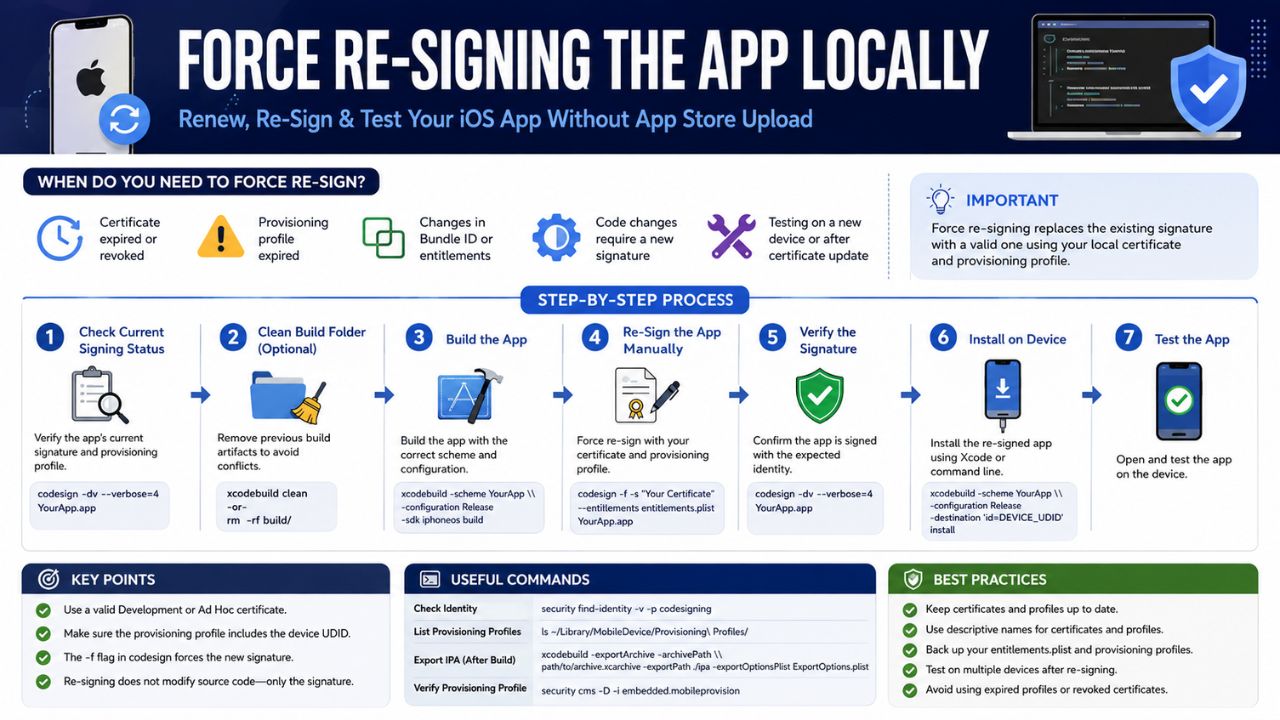
Method #3: Force Re-Signing the App Locally
If the app fails to open because its developer signature is broken or expired, you can use your Mac’s internal command-line tools to self-sign the binary.
This process gives the app a fresh, localized signature that satisfies Apple’s security daemon on M1, M2, or M3 Macs, which require all native ARM code to be signed.
| Step | Action Required | Command / Action |
| 1 | Open Terminal | Open a fresh command line window. |
| 2 | Input Sign Command | Type: codesign –force –deep –sign – (include the trailing space). |
| 3 | Add Path & Run | Drag the app into Terminal and hit Enter. |
Method #4: Re-Enabling the “Anywhere” Gatekeeper Option
By default, macOS only allows apps from the App Store and identified developers. You can unlock a hidden third option—”Anywhere”—to stop Gatekeeper from blocking unverified software entirely.
Warning: Unlocking this option lowers your system’s defenses. Only use it as a last resort, and turn it back off once your app is up and running.
| Configuration State | Terminal Command | Security Level |
| Enable Anywhere Option | sudo spctl –master-disable | Reduced Defense |
| Restore Default Settings | sudo spctl –master-enable | High Security |
To use this, execute the disable command in Terminal, enter your Mac password, and then head over to System Settings > Privacy & Security. You will see the new “Anywhere” option selected under the security section.
Mac App Is Damaged Error: How to Fix in 2026
If the automated terminal steps feel a bit daunting, always double-check the simplest variables first. Sometimes, a download genuinely gets corrupted midway through a spotty Wi-Fi connection. Deleting the application completely, clearing your browser’s download cache, and downloading a fresh copy solves the problem without touching the terminal line. Additionally, ensure your system clock is set correctly; mismatched system times can cause your Mac to incorrectly view valid developer certificates as expired.
Frequently Asked Questions
Why did this error become more common recently?
Apple has tightened its security architecture on Apple Silicon machines. macOS now actively blocks older, unsigned Intel-based apps running via Rosetta 2 if they lack updated security headers.
Does removing the quarantine attribute damage my Mac?
No. The xattr -cr command only modifies the metadata tag added during download. It does not alter the actual executable code of the application.
What if the app still crashes immediately after using these fixes?
If the app still crashes, it is likely incompatible with your specific version of macOS, or the app bundle itself is missing critical internal files. Check the developer’s repository for a recent patch.
Conclusion
The Mac App Is Damaged Error: How to Fix in 2026 doesn’t mean your machine is broken or that you have downloaded malware. It is simply your operating system playing things safe. By using the right-click Finder override or clearing the download flags via Terminal, you can get your software running smoothly in seconds. Just remember to verify that you trust the software provider before bypassing these built-in Apple safety guardrails.