An Android TV box that keeps restarting can ruin a simple movie night. One minute Netflix, YouTube, or IPTV is loading. The next minute the screen goes black, the logo appears, and the box starts from zero again.
The good news? This problem often comes from simple things. A weak power adapter, full storage, a bad app, overheating, corrupt cache, or a failed update can all trigger reboot loops. You don’t always need a new device.
This guide explains How to Fix an Android TV Box That Keeps Restarting with safe, practical steps. Start from the easy fixes. Move to deeper resets only when needed.
Quick Overview: Common Causes and Fast Fixes
| Problem | Common Sign | Best First Fix |
| Weak power supply | Box restarts when apps open | Use the original adapter |
| Overheating | Box reboots after 20–30 minutes | Improve airflow |
| Full storage | Apps crash, freeze, or restart | Clear cache and uninstall apps |
| Bad app | Restart happens after opening one app | Clear app data or remove app |
| Corrupt system cache | Slow boot, freezing, random reboot | Clear cache or update firmware |
| Faulty HDMI-CEC behavior | Box restarts when TV turns on/off | Turn off HDMI-CEC |
| Bad USB device | Restart after plugging storage | Remove USB drives and SD cards |
| Failed update | Box stuck on logo | Factory reset or firmware reinstall |
| Malware or unsafe APK | Pop-ups, unknown apps, overheating | Remove sideloaded apps |
| Hardware fault | Restarts even after reset | Repair or replace |
Why Your Android TV Box Keeps Restarting
Android TV boxes are small computers. They need stable power, enough storage, clean software, and proper cooling. When one of those fails, the box may reboot to protect itself or recover from a crash.
Google’s own support pages recommend clearing app data and using factory reset only after easier troubleshooting steps. Google also warns that a factory reset erases device data, so it should not be the first move.
There’s one more thing to know. Not every “Android TV box” is a certified Android TV or Google TV device. Google says Play Protect certified devices pass Android compatibility testing and are allowed to include Google apps such as the Play Store. Uncertified devices may not get proper system or app updates, which can make restart problems harder to fix.
How to Fix an Android TV Box That Keeps Restarting
1. Check the Power Adapter First
A weak power adapter is one of the most common reasons an Android TV box restarts again and again. The box may boot fine at first, then crash when Wi-Fi, video playback, or a heavy app pulls more power.
Use the original adapter if you still have it. Many Android TV boxes need 5V/2A, 5V/3A, or 12V power, depending on the model. Don’t guess. Check the label on the box or the old adapter.
Also avoid powering the box from a TV USB port. TV USB ports often provide less power than a wall adapter. That can cause boot loops, flickering, and random shutdowns.
| What to Check | What to Do |
| Adapter rating | Match voltage and amp rating |
| Cable condition | Try a short, good-quality cable |
| Power source | Plug into a wall socket |
| TV USB power | Avoid it for Android TV boxes |
| Power strip | Test directly from the wall |
2. Do a Full Power Cycle
A restart is not the same as a full power cycle. A power cycle cuts electricity from the device and clears temporary glitches.
Unplug the Android TV box from power. Remove HDMI, USB drives, SD cards, Ethernet, and other accessories. Wait 60 seconds. Then reconnect only power and HDMI.
Sony’s support guide for Google TV and Android TV devices recommends trying a power reset before moving to factory reset, because a power reset usually does not erase personal settings.
| Step | Action |
| 1 | Unplug the power cable |
| 2 | Remove USB, SD card, and Ethernet |
| 3 | Wait 60 seconds |
| 4 | Connect only HDMI and power |
| 5 | Test for 10–15 minutes |
3. Stop Overheating
Android TV boxes are small, but they can get hot. Cheap boxes often have weak cooling, small vents, and low-quality thermal pads. When heat builds up, the box may freeze or restart.
Place the box in an open area. Don’t keep it behind the TV, inside a closed cabinet, or under another device. If the box feels very hot to the touch, turn it off for 20 minutes and test it again.
You can also remove dust from the vents. Use a soft brush or compressed air. Don’t open the box unless you know what you’re doing.
| Heat Problem | Fix |
| Box sits behind TV | Move it to open space |
| Closed cabinet | Keep door open or move box |
| Dusty vents | Clean gently |
| Hot power adapter | Replace adapter |
| Heat after long use | Add breaks or use a cooling pad |
4. Clear Cache and Free Up Storage
Low storage can make Android TV unstable. Apps need free space for updates, temporary files, and playback data. When storage is almost full, the box may slow down, crash apps, or restart.
Google’s support for Chromecast with Google TV and Google TV Streamer explains how to clear cached data from internal shared storage. The path is usually Settings > System > Storage > Internal shared storage > Cached data.
On many Android TV boxes, the menu may look like this:
- Settings
- Device Preferences or System
- Storage
- Internal shared storage
- Cached data
- Clear cache
| Storage Fix | Why It Helps |
| Clear cached data | Removes temporary junk |
| Delete old APK files | Frees internal storage |
| Remove unused apps | Reduces background load |
| Clear downloads folder | Frees hidden space |
| Restart after cleanup | Reloads system cleanly |
5. Uninstall Apps You Don’t Use
Too many apps can drain storage and memory. Some apps also run in the background and crash the system.
Google’s Android TV help page says users can delete apps from Settings > Apps by choosing a downloaded app and selecting Uninstall. Apps can also be removed from the Play Store.
Start with apps you installed recently. If the restarts began after adding a new launcher, VPN, IPTV app, file manager, cleaner app, or unofficial streaming app, remove that app first.
| App Type | Risk Level |
| Official Play Store apps | Lower risk |
| Old apps not updated | Medium risk |
| APKs from random sites | High risk |
| “Cleaner” apps | Often unnecessary |
| Unknown launchers | Can cause home screen loops |
6. Clear Data for the Problem App
Sometimes one app causes the restart. You open YouTube, Kodi, Netflix, IPTV, or a browser, and the box reboots. In that case, don’t reset the whole device yet.
Clear cache first. If that fails, clear data. Sony’s Android TV support explains that users can go to Apps, select the app, clear cache, and then clear data if the issue continues.
Be careful with “Clear data.” It may remove logins, settings, watch history inside the app, and downloaded content.
| Option | What It Does |
| Clear cache | Removes temporary files |
| Clear data | Resets the app |
| Force stop | Stops the app process |
| Uninstall updates | Rolls app back if available |
| Reinstall app | Gives a clean copy |
7. Update the Android TV Box Firmware
Old firmware can create restart issues, app crashes, Wi-Fi problems, and Play Store errors. Updates often include security patches, bug fixes, and app compatibility improvements.
On Google TV devices, Google lists firmware and system update information through official Chromecast and Google TV Streamer support. The page was updated in June 2026, which shows that supported streaming devices still receive firmware tracking and update details.
Try this path:
- Open Settings.
- Go to System or Device Preferences.
- Select About.
- Choose System update.
- Install any available update.
- Keep the box plugged in until it finishes.
| Update Tip | Reason |
| Use stable Wi-Fi | Avoid failed downloads |
| Don’t unplug power | Prevent firmware corruption |
| Restart after update | Clears old system state |
| Check app updates too | Fixes app-level crashes |
| Avoid random firmware files | Wrong firmware can brick the box |
8. Remove USB Drives, SD Cards, and External Storage
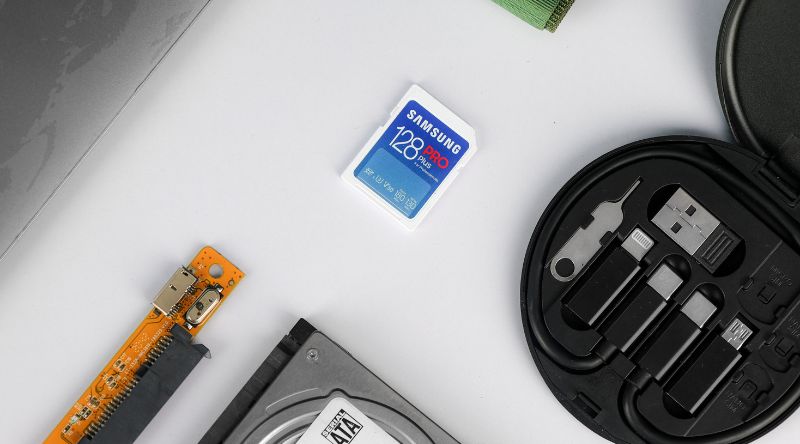
A bad USB drive or SD card can trigger boot loops. The box may try to scan it at startup, fail, and restart.
Unplug every external device. That includes USB drives, keyboards, webcams, game controllers, SD cards, hard drives, and USB hubs. Then boot the Android TV box with only power and HDMI.
If the box works fine after that, reconnect accessories one by one. The last item you plug in before the restart is likely the problem.
| Device | Possible Issue |
| USB flash drive | Corrupt files |
| SD card | Bad sectors |
| External hard drive | Too much power draw |
| USB hub | Power instability |
| Game controller | Driver conflict |
9. Turn Off HDMI-CEC
HDMI-CEC lets your TV and Android TV box control each other. It can turn devices on, switch inputs, and control volume. It’s useful, but it can also cause odd behavior.
If your box restarts when the TV turns on, when you change HDMI inputs, or when another device wakes up, disable HDMI-CEC.
The setting may appear as:
- HDMI-CEC
- CEC Control
- Consumer Electronic Control
- Anynet+
- Bravia Sync
- Simplink
- VIERA Link
| Where to Check | What to Turn Off |
| TV settings | HDMI-CEC |
| Android box settings | CEC control |
| Soundbar settings | Auto power sync |
| HDMI switch | Device control |
| Remote settings | Power sync |
10. Check for Unsafe Sideloaded Apps
Many Android TV box users install APK files outside the Play Store. Some are safe. Some are not. A bad APK can run in the background, overload the box, show ads, mine data, or crash Android.
Google says Play Protect checks apps before download from Google Play and also checks devices for harmful apps from other sources. It can warn users, deactivate harmful apps, or remove them.
Open the Play Store and check Play Protect. Remove anything suspicious. Also turn off “Install unknown apps” permission for apps that don’t need it.
| Safety Check | Best Action |
| Unknown APK installed | Remove it |
| App asks for strange permissions | Deny or uninstall |
| Pop-ups on home screen | Check recently installed apps |
| Device gets hot when idle | Look for background apps |
| Play Protect warning | Follow the warning |
11. Try Safe Mode If Your Box Supports It
Safe Mode starts Android with only basic system apps. It helps you check if a third-party app is causing the restart.
Google’s Android help says that if a problem goes away in Safe Mode, an app is likely causing it. If the problem continues in Safe Mode, the cause may be deeper system software or hardware.
Not every Android TV box supports Safe Mode in the same way. Some certified Android TV and Google TV devices do. Many cheap boxes don’t.
Try this:
- Hold the power button on the remote.
- Long-press Power off if the menu appears.
- Choose Safe Mode if shown.
- Test the box.
- Restart normally to exit Safe Mode.
| Safe Mode Result | Meaning |
| Restart stops | Bad app is likely |
| Restart continues | System or hardware issue |
| Safe Mode unavailable | Use app removal instead |
| Box freezes before menu | Try reset or firmware recovery |
| Works after uninstalling app | App was the cause |
12. Factory Reset as a Last Software Fix
A factory reset wipes your apps, accounts, settings, Wi-Fi details, and local data. Use it only after the easier steps fail.
Google’s Google TV support says factory reset is found under Settings > System > About > Factory reset, and it warns that the process erases all device data. Google’s Chromecast reset guide also lists the same broad path for supported Google TV devices.
Before resetting:
- Note your Google account.
- Save Wi-Fi password.
- Back up app login details.
- Remove external storage.
- Keep the box plugged in.
| Reset Type | When to Use |
| Restart | First basic step |
| Power cycle | When box freezes |
| App reset | One app crashes |
| Factory reset | Whole system is unstable |
| Firmware reinstall | Box stuck on logo after reset |
When a Factory Reset Doesn’t Fix It
If the Android TV box still restarts after a clean factory reset, you may have a hardware fault. Common causes include a dying power adapter, damaged internal storage, overheating chips, poor soldering, or bad firmware from the manufacturer.
This is also where uncertified boxes become frustrating. Google says uncertified devices may not be secure and may not receive Android system or app updates. That means some bugs may never get a proper fix.
At that point, compare repair cost with replacement cost. If the box is cheap, old, or unsupported, replacing it with a certified Android TV or Google TV streaming device may save time.
How to Prevent Restart Problems Later
A little care can stop the same issue from coming back.
- Keep at least 1–2 GB of free storage if possible.
- Use the original power adapter.
- Keep the box in open air.
- Update apps from the Play Store.
- Avoid random APK download sites.
- Restart the box once a week.
- Don’t install too many launchers or cleaners.
- Remove unused IPTV lists and old APK files.
- Keep firmware updated.
- Buy certified devices when possible.
Uncommon FAQs About Android TV Box Restart Issues
Why does my Android TV box restart only when I open YouTube or Netflix?
That usually points to an app problem, storage issue, or weak power adapter. Clear the app cache first. Then clear app data, update the app, or reinstall it.
Can a bad HDMI cable make an Android TV box restart?
A bad HDMI cable usually causes flicker, black screen, or signal loss. It rarely causes a true reboot. Still, test another HDMI cable if the restart happens when the TV changes input or resolution.
Why does my Android TV box keep restarting after a firmware update?
The update may have failed, or the firmware may not match your exact model. Try a factory reset first. If the box stays stuck on the logo, you may need the correct firmware from the manufacturer.
Can full storage cause a boot loop?
Yes, it can. Android needs free space for system files, app updates, and temporary data. Clear cache, remove unused apps, and delete old APK files.
Should I install a “RAM booster” or “cleaner” app?
No, avoid them. Many cleaner apps create more problems than they solve. Use Android’s built-in storage and app settings instead.
Why does my Android TV box restart when I plug in a USB drive?
The USB drive may be corrupt, or it may draw too much power. Remove it, boot the box, and test another drive.
Is it safe to use APKs on an Android TV box?
Only use APKs from trusted sources. Google Play Protect can check for harmful apps, but sideloading still adds risk. Random APKs can cause crashes, ads, overheating, and security issues.
How do I know if my Android TV box is certified?
Open the Play Store, go to Settings, and check Play Protect certification status. Google says certified devices pass Android compatibility testing and can include Google apps under license.
Should I replace my Android TV box if it keeps restarting?
Replace it if it still restarts after power checks, cooling fixes, app cleanup, firmware updates, and factory reset. Constant rebooting after a clean reset often points to hardware failure.
Conclusion
Now you know How to Fix an Android TV Box That Keeps Restarting without jumping straight to a factory reset. Start with power, heat, storage, and apps. Then check updates, remove unsafe APKs, and test accessories.
Use factory reset only after the easy steps fail. If the box still restarts after a clean reset, the problem is likely hardware, bad firmware, or an uncertified device with poor support. In that case, a certified replacement may be the smarter buy.