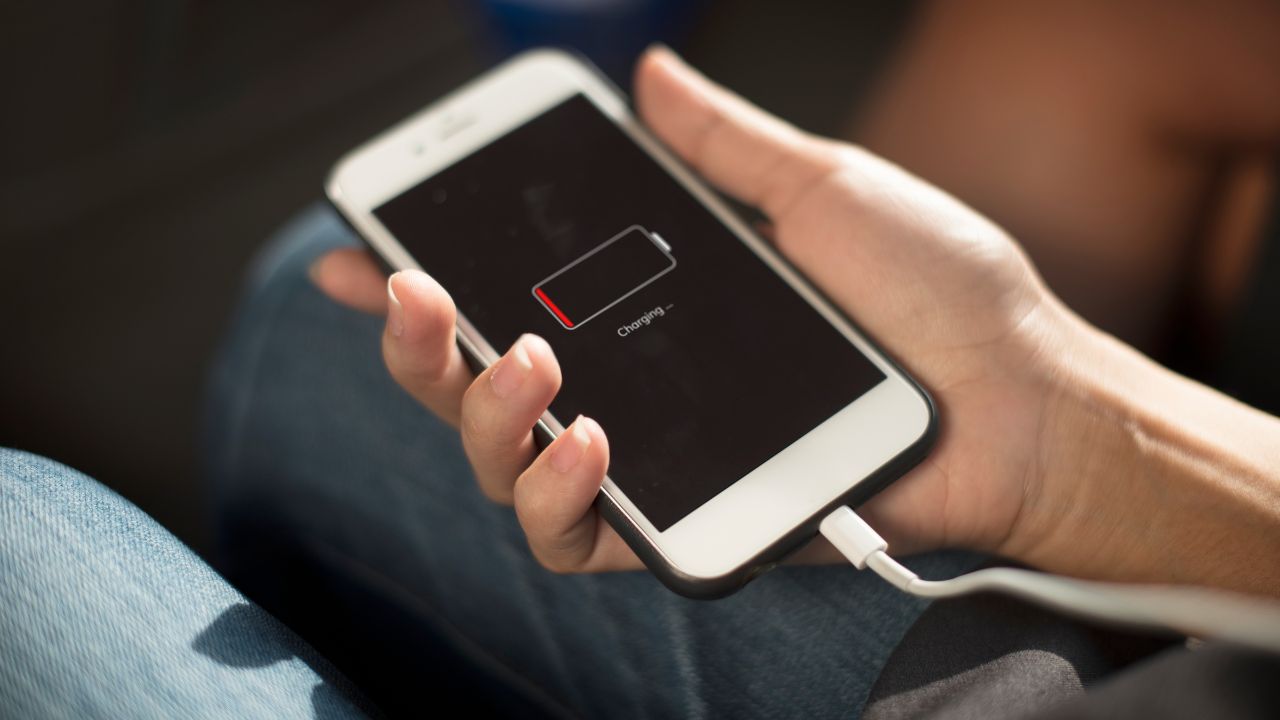
Before fixing the problem, you must find the cause. iOS provides a detailed breakdown of which apps use the most energy. Sometimes, a single social media app or a background game is responsible for 40% of your drain.
Check your settings to see “Activity” versus “Background” time. If an app shows 5 minutes of use but 4 hours of background activity, it is a major culprit.
| Metric | What to Look For | Action Needed |
| High Background Activity | Apps running while the screen is off. | Disable Background App Refresh. |
| No Signal Areas | iPhone searching for a tower constantly. | Use Airplane Mode in dead zones. |
| Top App Usage | Apps you use most (YouTube, Instagram). | Limit usage or lower brightness. |
2. Optimize Background App Refresh
Background App Refresh allows apps to check for new content even when you are not using them. While convenient, it is a primary reason an iPhone battery drains fast. In 2026, most apps do not need to update every second.
You can turn this off entirely or select only essential apps like Mail or Maps. By limiting this, you stop the processor from waking up hundreds of times a day.
| Setting Option | Battery Impact | Recommendation |
| Off | Highest Savings | Best for maximum life. |
| Wi-Fi Only | Medium Savings | Prevents drain on cellular data. |
| Wi-Fi & Cellular | High Drain | Avoid if battery is a priority. |
3. Adjust Display and Brightness Settings
The screen is the largest consumer of power on any smartphone. With the Always-On display features found in newer iPhones, the drain can be constant. Lowering the peak brightness and using “Dark Mode” can save significant energy, especially on OLED screens where black pixels are essentially “turned off.”
| Feature | Battery Benefit | How to Fix |
| Auto-Brightness | High | Enable in Accessibility settings. |
| Dark Mode | Moderate to High | Enable in Display & Brightness. |
| Always-On Display | Moderate | Turn off if you don’t need the clock visible. |
4. Manage 5G and Connectivity
5G is incredibly fast, but it requires more power to maintain a stable connection than 4G (LTE). If you are in an area with a weak 5G signal, your iPhone will work harder to stay connected, causing the battery to drop quickly. Switching to “5G Auto” or “LTE” can provide a much-needed boost.
| Connection Type | Power Consumption | Best Use Case |
| 5G On | High | Downloading large files. |
| 5G Auto | Medium | General daily use. |
| LTE (4G) | Low | Areas with poor 5G coverage. |
5. Update Your Software (iOS 19 and Beyond)
Apple frequently releases updates that include “under-the-hood” battery optimizations. However, immediately after a major update, your iPhone might run hot and drain fast for 48 hours. This is because the system is indexing files and photos. Give it two days to settle before worrying.
6. Limit Location Services and GPS
GPS is a battery killer. Many apps ask for your location “Always,” which means they track you even when the app is closed. Change these settings to “While Using the App.” This ensures that the GPS chip only draws power when you actually need it.
| App Category | Suggested Permission | Battery Saving |
| Maps/Navigation | While Using | High |
| Weather | While Using | Moderate |
| Social Media | Never or While Using | High |
7. Enable Low Power Mode Strategically
You do not have to wait until you hit 20% to turn on Low Power Mode. If you know you will be away from a charger all day, turn it on at 80%. It reduces background activity, lowers the screen refresh rate (ProMotion), and turns off some visual effects.
8. Turn Off “Raise to Wake”
Every time you pick up your phone or it shifts in your pocket, the screen turns on. If you move your phone frequently, this adds up to hundreds of unnecessary screen activations. Disabling “Raise to Wake” ensures the screen only turns on when you touch it.
9. Check Battery Health and Peak Performance
Batteries are consumables. Over time, they lose their ability to hold a charge. If your “Maximum Capacity” is below 80%, it may be time for a professional battery replacement. In 2026, Apple’s software can also tell you if your battery is “supporting normal peak performance.”
| Health Percentage | Status | Action |
| 95% – 100% | Excellent | No hardware action needed. |
| 85% – 94% | Good | Manage settings to save life. |
| Below 80% | Service Recommended | Consider a battery replacement. |
10. Reduce System Visual Effects (Motion)
iOS uses many “parallax” effects and animations that make the interface look smooth. These require the GPU (Graphics Processing Unit) to work. By turning on “Reduce Motion,” you simplify the animations and save a small but helpful amount of power.
11. Manage Mail Fetch Settings
If you have your email set to “Push,” your iPhone is constantly listening for new mail. Switching this to “Fetch” (checking every 15 or 30 minutes) or “Manual” can significantly stop the iPhone battery from draining fast, especially if you get a lot of emails.
12. Turn Off Unnecessary Widgets
Widgets on your home screen or lock screen are mini-apps that run constantly to show you live data, like stocks or weather. Each widget is a small leak in your battery. Delete the ones you do not use daily to keep the system lean.
Final Words on iPhone Battery Management
Maintaining a healthy battery in 2026 is about balance. You do not need to turn off every feature that makes the iPhone great. Instead, focus on the big wins: screen brightness, background app activity, and 5G management. If you follow these 12 steps, you will see a noticeable difference in how long your device lasts during a busy day. Remember, the best battery habit is to keep your phone between 20% and 80% charge whenever possible to extend the long-term health of the lithium-ion cells.
Frequently Asked Questions (FAQ)
Q1: Why does my iPhone get hot while charging?
A: It is normal for an iPhone to feel warm, but if it gets very hot, it may be due to using a high-wattage charger or a thick case that traps heat. Heat is the enemy of battery life.
Q2: Does Dark Mode really save battery?
A: Yes, on iPhones with OLED screens (iPhone X and newer), black pixels use zero power. Using Dark Mode can increase battery life by up to 30% in high-use scenarios.
Q3: Should I close all my apps to save battery?
A: No. Apple’s system is designed to freeze apps in the background. Force-closing them and then re-opening them actually uses more power than leaving them alone.
Q4: Is 5G really the cause of my battery drain?
A: In areas with weak signal, yes. 5G requires the phone to toggle between different frequencies more often, which consumes more energy than a stable LTE connection.