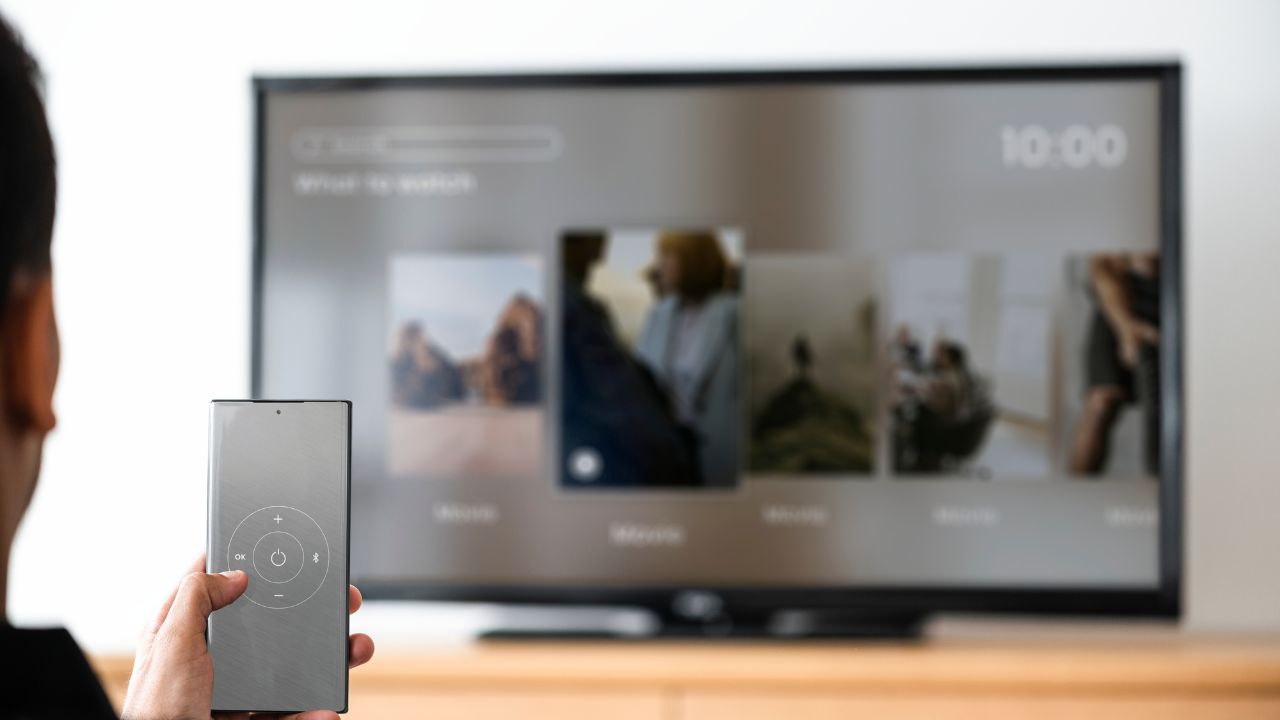
Imagine this scenario. You sit down on your couch after a long day of work. You have your snacks ready, and you want to watch your favorite show on your Samsung Smart TV. You press the power button, open Netflix, but nothing loads. Instead, you see a frustrating error message: “Not connected to the internet.”
You check your smartphone, and the internet works perfectly there. So, why is your Samsung Smart TV refusing to connect to the WiFi network?
This is a very common issue that many Samsung TV owners face. It does not mean your television is permanently broken. Most of the time, the problem happens because of minor software bugs, incorrect network settings, or temporary router glitches.
In this detailed guide, we will look at 9 simple, effective, and proven ways to fix a Samsung Smart TV that will not connect to WiFi. We will explain each step clearly so you can get back to streaming your favorite content in no time.
Quick Overview of the Fixes
Before we dive into the deep details of each troubleshooting method, let us take a quick look at what we will cover. The table below gives a snapshot of the 9 fixes, how hard they are to perform, and how much time they take.
Summary of WiFi Troubleshooting Methods
| Fix Number | Troubleshooting Method | Difficulty Level | Time Required | Primary Goal |
| Fix 1 | Power Cycle the Samsung TV (Cold Boot) | Very Easy | 2 Minutes | Clear temporary system cache memory |
| Fix 2 | Restart Your Internet Router and Modem | Easy | 5 Minutes | Refresh the home network connection |
| Fix 3 | Change the DNS Server Settings Manually | Medium | 3 Minutes | Bypass internet service provider blocks |
| Fix 4 | Update Your Samsung TV Firmware via USB | Medium | 15 Minutes | Fix internal software bugs and errors |
| Fix 5 | Turn Off the Instant On Feature | Easy | 2 Minutes | Prevent boot-up network conflicts |
| Fix 6 | Reset the Network Settings to Default | Easy | 3 Minutes | Clear corrupted network configurations |
| Fix 7 | Check the 2.4 GHz vs. 5 GHz WiFi Band | Easy | 4 Minutes | Ensure correct frequency compatibility |
| Fix 8 | Perform a Full Factory Reset on the TV | Hard | 10 Minutes | Restore the television to original settings |
| Fix 9 | Use an Ethernet Cable or Wired Connection | Easy | 2 Minutes | Bypass wireless hardware issues completely |
Why Does My Samsung TV Keep Disconnecting From WiFi?
Before we start fixing the problem, it is helpful to understand why it happens. Knowing the root cause can help you prevent the issue from happening again in the future.
Here are the most common reasons your Samsung TV won’t connect to WiFi:
- Corrupted Cache Data: When you turn your TV off using the remote, it goes into standby mode. It never truly shuts down. Over time, temporary files build up and cause bugs.
- IP Address Conflicts: Your internet router gives an IP address to every device in your home. Sometimes, two devices try to use the same address, causing a conflict.
- Outdated Firmware: If your television software is old, it might not work well with modern router security systems.
- Distance and Obstacles: If your router is too far away from the TV, or if there are thick walls between them, the wireless signal becomes too weak.
- Mac Address Blocks: Sometimes, security settings on your router accidentally block the specific ID (MAC address) of your Samsung TV.
Now that we know the causes, let us walk through the 9 ways to fix this problem.
Fix 1: Power Cycle Your Samsung TV (The Cold Boot)
The first and easiest solution is to perform a cold boot. This is different from just turning the TV off and on with your remote control. A cold boot completely drains the electricity from the television and clears its internal memory. This action wipes away temporary software glitches that might block your WiFi connection.
There are two easy ways to perform a cold boot on a Samsung Smart TV.
Method A: Using Your Remote Control
- Turn your Samsung TV on.
- Press and hold down the Power button on your remote control.
- Keep holding the button down. The TV will turn off.
- Do not let go of the button yet. Wait until the TV turns back on automatically and shows the Samsung logo.
- Release the power button and check your internet connection.
Method B: Unplugging the Power Cord
- Turn off your TV using the remote.
- Walk over to the wall outlet and unplug the main power cord.
- Leave the TV unplugged for a full 60 seconds. This allows all residual power to leave the circuit boards.
- While it is unplugged, press and hold the power button on the TV itself for 15 seconds to drain any remaining energy.
- Plug the power cord back into the wall outlet.
- Turn on your TV and see if it connects to your wireless network.
Cold Boot Reference Table
| Action Steps | What It Clears | Success Rate | Best Used For |
| Hold remote power button OR unplug the TV cord for 60 seconds. | Temporary cache files, RAM glitches, and frozen background apps. | Very High (Approx. 60%) | Minor bugs that happen after sudden electricity drops or long use. |
Fix 2: Restart Your Internet Router and Modem
Sometimes, the issue is not your Samsung TV at all. The problem might come from your home network router or modem. Routers are small computers that manage data traffic. Just like computers, they can become slow, overloaded, or frozen when too many devices connect at the same time.
Restarting your internet hardware refreshes your broadband connection and assigns a clean IP address to your television.
How to Properly Restart Your Network Hardware:
- Walk over to your modem and router.
- Disconnect the power cables from the back of both devices.
- Wait for at least 60 seconds. This gives the internet service provider (ISP) equipment time to reset its status.
- Plug the modem back in first. Wait for all the lights on the front to turn solid green or stop blinking. This usually takes 2 minutes.
- Next, plug your wireless router back in. Wait another 2 minutes for the WiFi signal to start broadcasting.
- Go back to your Samsung Smart TV, open the network menu, and try to connect to your WiFi network again.
Router Troubleshooting Specifications
| Device Type | Wait Time | Key Light Behavior to Watch | Expected Outcome |
| Modem | 60 Seconds | Online/Internet light must be solid. | Re-establishes a fresh link with your ISP. |
| Router | 60 Seconds | 2.4G / 5G wireless indicators must flash normally. | Assigns a brand new, clear IP address to the TV. |
Fix 3: Change the DNS Server Settings Manually
DNS stands for Domain Name System. It acts like a phonebook for the internet. It translates website names into numbers that computers understand. By default, your Samsung TV uses the DNS settings provided by your internet provider. If these settings are unstable, your TV will disconnect from the internet even if it says it is connected to the WiFi.
Changing your DNS server to a public, stable provider like Google can bypass this issue completely.
Step-by-Step DNS Change Guide:
- Press the Home or Menu button on your Samsung remote.
- Navigate to Settings and select General.
- Choose Network, and then click on Network Status.
- In this menu, you will see your current connection status. Click on IP Settings.
- Scroll down to DNS Setting and change the option from “Get Automatically” to “Enter Manually”.
- Select the DNS Server field.
- Enter the number 8.8.8.8 or 8.8.4.4 using the on-screen keyboard. These are the official Google Public DNS numbers.
- Click OK to save the changes. Wait for the network status test to finish.
Best Public DNS Servers for Smart TVs
| DNS Provider Name | Primary Server Address | Secondary Server Address | Primary Benefit |
| Google Public DNS | 8.8.8.8 | 8.8.4.4 | Extremely stable, fast speeds, high reliability. |
| Cloudflare DNS | 1.1.1.1 | 1.0.0.1 | High privacy protection and rapid response time. |
| Cisco OpenDNS | 208.67.222.222 | 208.67.220.220 | Security filtering that blocks malicious websites. |
Fix 4: Update Your Samsung TV Firmware via USB
Outdated system software can cause severe compatibility issues between your smart television and modern routers. If your TV firmware is old, it might struggle to understand new security protocols like WPA3.
Since your TV cannot connect to the internet to download an update wirelessly, you must perform a manual update using a USB flash drive and a regular computer.
How to Complete a Manual Firmware Update:
- Open a web browser on your computer and visit the Samsung Support Website.
- Type your exact TV model number into the search bar. You can find this number on a sticker on the back of your television.
- Go to the Downloads and Manuals section.
- Download the latest Upgrade File (USB type) to your computer.
- Insert an empty USB flash drive into your computer.
- Extract or unzip the downloaded file directly onto the main directory (root folder) of the USB drive. Do not put it inside another folder.
- Safely eject the USB drive from your computer.
- Turn on your Samsung TV and plug the USB drive into one of its USB ports.
- Press Home on your remote, go to Settings, select Support, and choose Software Update.
- Click Update Now. The TV will ask if you want to look at the USB drive. Select Yes.
- The TV will read the files and start updating. Do not turn off your TV while the update is running. It will restart automatically when finished.
Firmware Update Details
| Requirement | Value / Condition | Why It Matters |
| USB Drive Format | FAT32 or exFAT | Samsung TVs cannot read NTFS or APFS formatted drives. |
| File Location | Root Directory (No subfolders) | The TV’s automatic scanning system will miss hidden files. |
| Safety Warning | Keep power continuous | Turning off power during an update can permanently damage the TV. |
Fix 5: Turn Off the “Instant On” Feature
Samsung Smart TVs have a special feature called “Instant On” or “Samsung Instant On.” This setting allows the television to turn on in less than two seconds. While this sounds great, it has a downside.
To turn on that quickly, the TV never truly shuts down its internal network card. This can cause the network card to glitch and lock up over time, preventing it from obtaining a fresh IP address from your router when you wake it up. Turning this feature off forces the system to reboot cleanly every time you turn the power on.
How to Deactivate Samsung Instant On:
- Press the Menu or Home button on your remote control.
- Open the Settings menu.
- Go to the General category.
- Look for an option named Instant On or Samsung Instant On.
- Switch the setting toggle from On to Off.
- Turn off your TV using the remote control.
- Wait 30 seconds, then turn the TV back on. Go to your network menu and try to log into your home WiFi network.
Instant On Comparison
| Feature Status | Boot Speed | Network Stability | Power Consumption |
| Instant On Enabled | Extremely Fast (1-2 Secs) | Low (Prone to IP drops and connection freezes) | Slightly higher standby draw |
| Instant On Disabled | Normal (5-10 Secs) | High (Fresh network search every single boot) | Eco-friendly lowest standby draw |
Fix 6: Reset Your TV Network Settings to Default
If your Samsung TV won’t connect to WiFi after trying the basic steps, your network configuration files might be corrupted. This can happen if you change routers, update your WiFi password, or experience a power outage.
Resetting the network settings will erase all saved WiFi connections, passwords, and custom configurations. This gives your wireless card a completely blank slate to start over.
How to Reset Your Network Configurations:
- Grab your remote control and click the Home button.
- Open Settings and select the General menu option.
- Click on the Network category.
- Inside the Network menu, scroll down until you see Reset Network and click it.
- A confirmation message will appear on your screen warning you that all saved connection info will be deleted. Select Yes or Reset.
- Wait for your television to finish the reset process. It will automatically restart itself when done.
- Once the TV turns back on, navigate to Settings > General > Network > Network Settings, pick your home WiFi network name, type your password, and check if it connects.
Network Reset Checklist
| What is Deleted | What is Retained | Next Step Required |
| Saved WiFi Passwords, Custom DNS Configurations, Manual Static IP Settings. | Installed apps, Netflix/YouTube logins, personal picture calibrations. | Re-select your Home SSID network and type the correct password carefully. |
Fix 7: Check the 2.4 GHz vs. 5 GHz WiFi Band
Modern internet routers broadcast internet signals across two separate frequency bands: 2.4 GHz and 5 GHz.
The 2.4 GHz band travels a long distance and can pass through thick walls easily, but it offers slower data speeds. The 5 GHz band offers blazing-fast internet speeds, but it has a short broadcast range and struggles to pass through solid obstacles.
Older Samsung Smart TVs do not have wireless cards that support 5 GHz networks. If your router combines both bands into a single name (SSID), your TV might get confused and disconnect.
How to Fix Frequency Band Conflicts:
- Grab your phone or computer and log into your internet router’s administration portal. You can find instructions for this on a sticker under your physical router.
- Locate the Wireless Wireless Settings tab.
- Look for a feature named Smart Connect, Band Steering, or Whole Home WiFi. This feature combines both bands into one name. Turn this feature off.
- Rename your networks so you can tell them apart. For example, name them MyHomeWiFi_2.4G and MyHomeWiFi_5G.
- Set the security setting for the 2.4 GHz network to WPA2-PSK [AES]. This is the most compatible setting for smart TVs.
- Go back to your Samsung TV. Scan for networks and try connecting to the 2.4 GHz network if your TV is far away from the router, or the 5 GHz network if the router is in the same room.
Comparison of WiFi Frequencies for Samsung TVs
| Wireless Frequency Band | Signal Range Capacity | Speed Performance | Wall Penetration Power | Samsung TV Compatibility |
| 2.4 GHz | Excellent (Up to 150 feet) | Moderate (Up to 450 Mbps) | Strong | Compatiable with every Samsung TV model. |
| 5 GHz | Short (Up to 50 feet) | Very Fast (Up to 1300 Mbps) | Weak | Only supported on 4K/8K newer models. |
Fix 8: Perform a Full Factory Reset on Your TV
If none of the software adjustments have solved the issue, your television might have a deeper problem within its operating system files. A full factory reset is your last resort. This action will completely wipe your entire television. It returns the software back to the exact condition it was in when it first left the factory box.
This process will delete all your downloaded streaming applications, clear your picture calibrations, and sign you out of all personal streaming accounts.
How to Factory Reset a Samsung Smart TV:
- Click the Home button on your remote control to open the main dashboard.
- Go into Settings and select General.
- Scroll down to find the Reset option. (On some older Samsung models, go to Settings > Support > Self Diagnosis > Reset).
- Your TV will ask for a security PIN code before it allows you to proceed. If you have never changed this code, the default factory PIN is 0000.
- Once you type the PIN, a warning box will appear on the screen. Select Reset to confirm.
- The screen will turn black, and the TV will turn off and on several times. This process can take up to 5 minutes.
- When the initial setup welcome screen appears, follow the on-screen steps to select your language, connect to your WiFi network, and complete the setup.
Factory Reset Information
| Data Lost | Data Kept | Default Factory PIN | Expected System State |
| Downloaded apps, account logins, custom picture modes, saved network paths. | Factory pre-installed core system apps (e.g., system settings menu). | 0000 (or 1111 on select older international sets) | Pure, clean operating system free of user bugs. |
Fix 9: Use an Ethernet Cable or Wired Connection
If you have tried all eight steps and your Samsung Smart TV still refuses to connect to your wireless network, your TV’s internal wireless card might be physically broken. Wireless cards can fail due to heat exposure or electrical surges over time.
Fortunately, you can easily bypass a broken wireless card by using a stable, wired connection with an Ethernet cable.
How to Set Up a Wired Internet Connection:
- Locate a high-quality Cat5e or Cat6 Ethernet network cable.
- Plug one end of the cable into an empty yellow LAN port on the back of your home internet router.
- Plug the opposite end of the cable into the square LAN port located on the back or side panel of your Samsung TV.
- Turn on your television.
- Press the Home button on the remote control, open Settings, and choose General.
- Select Network and click on Network Settings.
- Change the Network Type setting from Wireless to Wired.
- The television will instantly recognize the cable connection and connect to the internet without requiring any passwords.
Wired vs. Wireless Performance Index
| Connection Type | Maximum Stability | Setup Effort | Signal Interference | Max Speed Potential |
| Wireless (WiFi) | Moderate (Can drop due to walls/appliances) | Low (No physical cables needed) | High | Affected by distance and other home devices. |
| Wired (Ethernet Cable) | Perfect (Zero connection drops) | Medium (Requires running a physical wire) | Zero | Full, unthrottled maximum speed from your modem. |
Frequently Asked Questions (FAQ)
Why is my Samsung TV saying “Local Only” connection?
This means your TV successfully connected to your home router, but the router itself is not receiving an internet signal from your service provider. Try restarting your modem or contact your ISP to check for an outage in your neighborhood.
Can a microwave interfere with my Samsung TV WiFi connection?
Yes. If your TV connects to a 2.4 GHz network, appliances like microwaves, baby monitors, and Bluetooth speakers can cause interference. These devices all share the same frequency band. Moving your router closer or switching to a 5 GHz network will fix this.
What should I do if my TV asks for a PIN during a reset and 0000 doesn’t work?
If 0000 fails, someone may have changed the security code. Try other standard default codes like 1111, 1234, or 2222. If those fail, you can reset your PIN by putting the TV in standby mode and pressing the following buttons on your remote control in sequence: Mute > 8 > 2 > 4 > Power.
Will using an external streaming stick fix my TV’s internet problems?
Yes. If your Samsung TV’s internal wireless card is completely broken, you can plug an external device like a Roku, Amazon Fire Stick, or Google Chromecast into one of the TV’s HDMI ports. These streaming devices have their own built-in WiFi antennas and will connect to your internet easily.
Final Words
Experiencing network issues on your Samsung Smart TV can be annoying, but it is rarely a sign of a fatal hardware failure. In most cases, a simple power cycle or an adjustment to your network settings will fix the problem immediately.
By following the nine steps outlined in this guide, you can methodically identify and fix the issue. Start with the easiest options, like a cold boot, before moving on to advanced steps like changing DNS numbers or performing a factory reset. If your internal WiFi card is broken, switching to a wired Ethernet cable or using an external streaming stick will give you a stable connection for smooth streaming.