Are you thinking about taking a break from Netflix? Maybe the monthly subscription price is getting too high for your budget. Maybe you have run out of shows to watch, or you want to try alternative streaming platforms like Disney+, HBO Max, or Amazon Prime Video.
When people decide to cancel their subscription, they usually worry about one major thing: their personalized data.
No one wants to lose their carefully curated watch history, the custom “My List” bookmarks, or the highly accurate algorithm recommendations built over several years. If you share your account with family members or friends, losing their custom profiles can be highly frustrating too.
The good news is that you can cancel your Netflix subscription without losing your profile data permanently. Netflix has built-in features that save your information for a specific period. You can even move your profile out to a completely separate account if needed.
This comprehensive guide will show you exactly how to pause your billing while keeping your favorite profile settings completely safe.
What Happens to Your Data When You Cancel Netflix?
When you click the cancellation button on Netflix, your account does not disappear instantly. Understanding the hidden timeline of your data is the first step to protecting it.
The 10-Month Grace Period
Netflix uses a standard data retention policy for all canceled accounts. From the exact moment your official billing cycle ends, Netflix keeps all your profile data saved on their servers for exactly 10 months.
During this 10-month window, the following assets remain perfectly frozen in time:
- Your specific recommendations based on past viewing choices.
- Your complete viewing history (every single TV episode and movie you ever watched).
- Your custom profiles (including profile names, custom avatars, and individual maturity ratings).
- Your gameplay saves for Netflix mobile games.
- Your personalized “My List” collection.
If you reactivate your subscription at any point within those 10 months using your original email address and password, everything will look exactly the way you left it. However, if you stay away for 11 months or longer, Netflix will permanently delete this data from their database to save server space.
Immediate Access vs. Account Expiration
Another common point of confusion is when your access actually stops. When you cancel your subscription today, your account does not turn off immediately. You can continue streaming movies and shows until the very last day of your current billing period.
For example, if your monthly billing date is on the 15th of every month, and you cancel on the 5th, you still have 10 full days of streaming left. You have already paid for those days, so Netflix keeps the doors open for you.
| Feature Status | During 10-Month Grace Period | After 10 Months |
| Streaming Access | Suspended (Unless reactivated) | Permanently Suspended |
| Viewing History | Saved securely on servers | Deleted permanently |
| Custom Profiles | Maintained and frozen | Deleted permanently |
| “My List” Selection | Saved perfectly | Deleted permanently |
| Account Login | Active (To update billing) | Active (But empty data) |
Step-by-Step Guide: How to Cancel Netflix Properly
Canceling your Netflix subscription is a straightforward process, but you must do it correctly depending on how you pay for it. If you signed up through a web browser, you must cancel via a browser. If you pay through Apple or Google, you must use your smartphone settings.
Method 1: Canceling via Web Browser (PC, Mac, or Mobile Browser)
This is the most common method for users who pay Netflix directly via credit card, debit card, or PayPal.
1.Log In to Your Account:Step 1.
Open your preferred web browser on your computer or smartphone. Navigate to the official Netflix website. Log in using your primary account credentials. Note that you cannot perform this full process through the standard Netflix Smart TV application.
2.Select the Primary Profile:Step 2.
Click on your primary profile icon in the top-right corner of the landing screen. A drop-down menu will appear. Click on the option labeled Account.
3.Initiate Cancellation:Step 3.
Look at the very top section titled “Membership & Billing”. You will see a prominent gray button that reads Cancel Membership. Click this button to proceed.
4.Confirm the Cancellation:Step 4.
Netflix will redirect you to a confirmation page. They might offer you a cheaper plan to convince you to stay. Ignore these offers and click the blue Finish Cancellation button to lock in your decision.
Method 2: Canceling via Apple iOS Devices (iPhone or iPad)
If you originally signed up for Netflix inside the iOS app using Apple In-App Purchases, your billing goes through Apple, not Netflix.
- Step 1: Open the Settings app on your iPhone or iPad.
- Step 2: Tap your Apple ID Name located at the very top of the settings menu.
- Step 3: Tap on the Subscriptions option.
- Step 4: Find Netflix in your list of active subscriptions and tap it.
- Step 5: Tap Cancel Subscription at the bottom, then confirm your choice.
Method 3: Canceling via Android Devices (Google Play Store)
If your monthly Netflix bill is handled by Google Play, follow these specific steps on your mobile device.
- Step 1: Open the Google Play Store app on your Android device.
- Step 2: Tap your profile picture icon in the top right-hand corner.
- Step 3: Select Payments & Subscriptions from the menu, then tap Subscriptions.
- Step 4: Select Netflix from your list of active services.
- Step 5: Tap Cancel Subscription and follow the on-screen prompts to confirm.
| Cancellation Method | Platform Needed | Processing Entity | Time to Complete |
| Web Browser | Computer or Phone Browser | Netflix Direct | Under 2 minutes |
| Apple iOS | iPhone or iPad Settings | Apple App Store | Under 1 minute |
| Android Play | Google Play Store App | Google Play Billing | Under 1 minute |
Alternative Method: Use the Netflix Profile Transfer Feature
What happens if you are sharing an account with a friend, ex-partner, or roommate, and that person decides to cancel the primary account? If they hit cancel, your profile will disappear after 10 months along with theirs.
To solve this specific problem, Netflix introduced a powerful tool called Profile Transfer. This tool lets you move a fully established profile out of the shared account and into a brand-new, independent subscription.
What Data Travels with Profile Transfer?
When you use the Profile Transfer feature, you do not have to start from scratch. The system clones your specific identity and moves it safely. The migration moves:
- Your unique profile name, icon, and custom settings.
- Your entire personal watch history recommendation data.
- Your custom list additions.
- Your saved games and game history.
How to Transfer Your Profile Safely
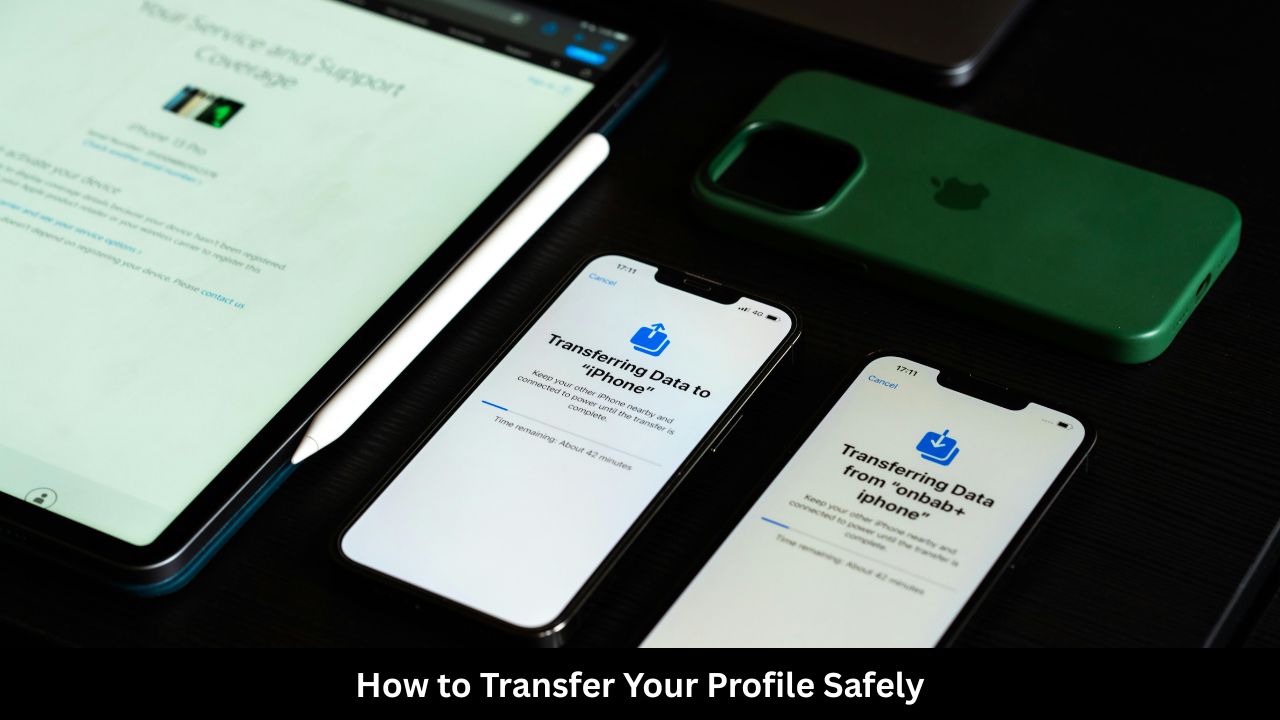
To safely migrate your profile before an account gets canceled or deleted, follow these instructions:
- Step 1: Log into the shared Netflix account using a web browser.
- Step 2: Go to the main Account settings page.
- Step 3: Scroll down to the Profiles & Parental Controls section. Click on the specific profile you want to move.
- Step 4: Look for the link that says Transfer this profile and click it.
- Step 5: Enter the brand-new email address and password you want to use for your independent account.
- Step 6: Select a new plan and enter your own payment details. Netflix will smoothly migrate your data over immediately.
Important Note: Profile Transfer must be enabled by the primary account holder first. If you do not see the option, the main account owner needs to go into the account settings and turn on “Allow Profile Transfers.”
| Feature Attribute | Profile Transfer | Standard Account Cancellation |
| Target Audience | Shared account users moving out | Main account owners taking a break |
| New Account Needed | Yes, requires a fresh email | No, uses your existing email |
| Data Safety Timeline | Permanent migration (No time limit) | Temporary retention (10 months max) |
| Immediate Cost | Yes, must buy a new plan | No, turns off future billing |
How to Download a Backup of Your Netflix Watch History
If you plan to be away from Netflix for much longer than the 10-month grace period, your data will eventually be deleted. To protect your memories, you can manually download your entire viewing history as a spreadsheet. This gives you a permanent, lifetime record of every single title you have ever watched.
Downloading Your History Data File
This feature is highly recommended for data lovers who want a physical backup file.
- Step 1: Open Netflix on a web browser and go to your Account page.
- Step 2: Scroll down to Profiles & Parental Controls and click on your profile name.
- Step 3: Find the setting labeled Viewing Activity and click the View link next to it.
- Step 4: You will see a complete list of your recently streamed content. Scroll down to the very bottom of the page.
- Step 5: Click the blue link titled Download All.
Netflix will instantly generate and download a standard .CSV file to your device. You can open this file using spreadsheet software like Microsoft Excel or Google Sheets. It contains a neat list with the exact titles of the shows and the dates you watched them.
| File Format Provided | Data Included | Software Needed to Open | Storage Location |
| CSV Spreadsheet File | Title Name, Date Watched | Excel / Google Sheets | Your Local Hard Drive |
How to Reactivate Netflix and Restore Your Profile
If you change your mind during your streaming break, reactivating your account is incredibly simple. If you are still within the 10-month window, your profiles will look completely untouched.
The Reactivation Process
- Go to the official Netflix website.
- Log in using your old email address and password.
- You will be greeted by a banner that says “Welcome Back. Let’s restart your membership.”
- Confirm your current payment method or insert a new credit card.
- Click Restart Membership.
Your account is now instantly active again, and all your old profiles will be waiting for you on the home screen.
What if You Wait Longer Than 10 Months?
If you log back into your account after 11 or 12 months, your login credentials will often still work. However, when you open the application, you will find an empty account. Your profiles will be gone, your watch history will be blank, and you will have to create new profiles and retrain the recommendation algorithm from day one.
| Reactivation Timeline | Profile State | Algorithm State | Action Required |
| Within 10 Months | Fully intact and active | Highly accurate and saved | Click “Restart Membership” |
| After 10 Months | Completely deleted | Reset to factory defaults | Create brand-new profiles |
Frequently Asked Questions (FAQ)
Will Netflix delete my profiles immediately after I cancel my subscription?
No. Netflix keeps all your profile data, history, and preferences saved on their servers for 10 months after your final billing cycle ends.
Can I delete a single profile without canceling my entire subscription?
Yes. Go to the “Manage Profiles” screen inside the app or browser. Click the pencil icon on the specific profile you want to remove, and click Delete Profile. Be careful, as this action is permanent and cannot be undone.
How do I make sure Netflix deletes my account data completely right away?
If you do not want to wait 10 months for automatic deletion, you must contact Netflix privacy teams directly. Send an explicit deletion request email from your registered account email address to privacy@netflix.com. They will wipe your data sooner.
Does canceling my membership delete my Netflix mobile game saves?
Your mobile game saves are tied directly to your profile. They will stay safe for the standard 10-month grace period. If you do not reactivate within 10 months, your game saves will be wiped out along with the rest of your profile data.
Can I pause my Netflix subscription instead of canceling it?
Netflix does not currently offer a native “pause” button for subscriptions. The official way to pause your billing is to cancel the membership using the steps listed above, and then simply log back in to reactivate it whenever you are ready.
Final Words
Canceling your Netflix subscription does not mean you have to say goodbye to your personal watch history or custom setups. Netflix handles account cancellation gracefully by providing a generous 10-month safety net for all users. Whether you choose to take a temporary break or use the innovative Profile Transfer feature to jump onto a brand-new account, your digital viewing identity remains secure.
Take control of your entertainment subscriptions today. Step away to save money, check out other platforms, and rest easy knowing that Netflix will keep your digital seat warm for up to 10 months.