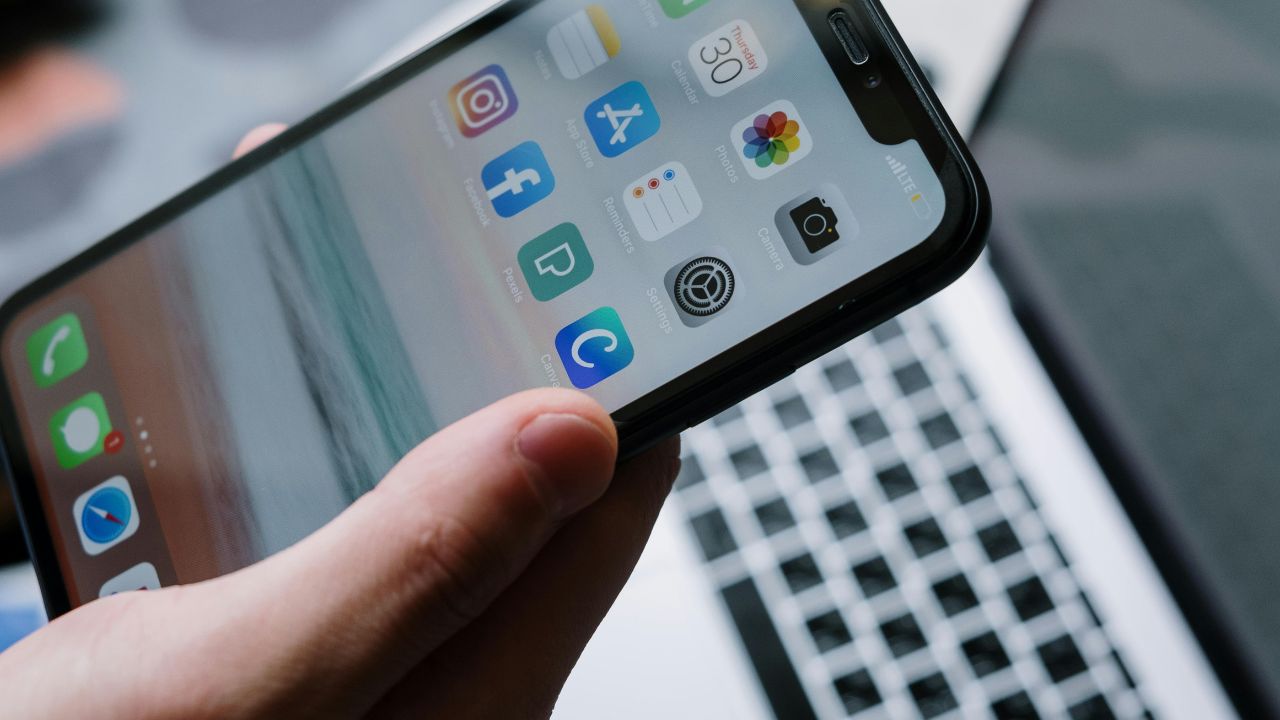
Updating your iPhone software is usually a great thing. It brings new features, fresh emojis, and better security to your mobile device. However, many users face a frustrating issue right after installation. They tap on their favorite application, and it immediately closes.
If your iPhone apps are crashing after an update, you are not alone. This is a very common issue that happens across various models. The good news is that you do not need to be a tech expert to fix this problem. Most of the time, the solution is simple and takes only a few minutes.
This complete guide will show you exactly why your applications are closing unexpectedly and how you can fix them. We will use easy words and clear steps to get your mobile device working perfectly again.
Why Do iPhone Apps Crash After an iOS Update?
Before we fix the problem, it helps to understand why it happens. When Apple releases a new version of its operating system, it changes the internal code of your phone. This change can sometimes disrupt how your downloaded software behaves.
Here is a summary of the most common reasons for application instability:
| Common Reason | What It Means | Impact on Your iPhone |
| Software Incompatibility | The app code does not match the new iOS code. | The app refuses to load and shuts down. |
| Corrupted Cache Data | Temporary files become broken during the update. | The system gets confused when reading files. |
| Low Internal Storage | Your phone does not have enough free space to run tasks. | Apps freeze or shut down instantly. |
| Unstable Beta Software | You are using a test version of iOS. | System bugs cause random app crashes. |
| Outdated App Version | The app has not been updated by its developer. | The app cannot communicate with the new system. |
How to Fix iPhone Apps Crashing (Step-by-Step)
If your mobile applications stop responding or close randomly, follow these easy methods in order.
1. Force Close and Reopen the App
Sometimes, an application simply gets stuck in a bad state when it tries to launch. Force closing it stops all its background processes so it can start fresh.
1.Open the App Switcher:Step 1.
On an iPhone with Face ID, swipe up from the bottom edge of the screen and pause in the middle. On an iPhone with a Home button, double-click the Home button.
2.Find the Crashing App:Step 2.
Swipe left or right through the preview cards to find the application that keeps closing.
3.Swipe Up to Close:Step 3.
Flick the app preview card firmly up and off the top of the screen. This completely terminates its operation.
4.Relaunch the App:Step 4.
Go back to your Home Screen and tap the app icon to open it again.
2. Restart Your iPhone
A simple system reboot clears away minor software glitches, refreshes your phone’s temporary memory (RAM), and reloads the operating system code cleanly.
| iPhone Model Type | How to Turn Off |
| iPhones with Face ID | Press and hold the Side button and either Volume button until the power slider appears. |
| iPhones with a Home Button | Press and hold the Side or Top power button until the slider appears. |
After the slider shows on your screen, drag it to the right. Wait 30 seconds until the screen goes completely black. Then, press and hold the Side power button until the Apple logo appears to turn your device back on.
3. Check for Pending App Updates
App developers must modify their own software code to match Apple’s new operating system rules. If you update your iOS but do not update your applications, they might fail to run.
| Step Number | Action to Take | Where to Look |
| Step 1 | Open the App Store on your mobile device. | Home Screen |
| Step 2 | Tap your Profile Icon in the top right corner. | Account Page |
| Step 3 | Scroll down to the Available Updates section. | Pending List |
| Step 4 | Tap Update All to download the latest software versions. | Top of the List |
4. Delete and Reinstall the Crashing App
If an application still closes unexpectedly, its local files might be corrupted. Deleting the app removes all broken data, and downloading it again gives you a clean copy.
Important Note: Deleting an app may erase its local data. Ensure your accounts are linked to a cloud service (like iCloud or Google) so you do not lose your progress.
- Touch and hold the app icon on your Home Screen.
- Tap Remove App from the pop-up menu.
- Select Delete App to confirm.
- Open the App Store, search for the application, and tap the cloud icon to download it again.
5. Free Up iPhone Internal Storage Space
When you install a major iOS update, the system temporary files take up a lot of room. If your storage is completely full, your apps will not have enough space to save temporary files while running, which causes them to crash instantly.
| Storage Status | Recommended Action |
| Less than 2 GB free | Critical state. Delete unused videos and large apps immediately. |
| 2 GB to 5 GB free | Low storage state. Offload unused apps to save space. |
| More than 5 GB free | Safe storage state. Storage is likely not the cause of your crashes. |
To check your storage space, navigate to Settings > General > iPhone Storage. If your space is limited, use the “Offload Unused Apps” option. This deletes the application but saves your personal documents and data safely.
Advanced Troubleshooting Methods

If the basic steps do not stop the crashes, the issue might be deeper inside your system settings or firmware configuration.
Reset All Settings
Sometimes, old system configurations conflict with new updates. Resetting your settings does not delete your photos, videos, or personal data. However, it will reset your Wi-Fi passwords, Bluetooth connections, wallpaper, and notifications to default factory choices.
- Open the Settings application.
- Navigate to General and scroll down to the bottom.
- Tap Transfer or Reset iPhone.
- Tap Reset and select Reset All Settings.
- Enter your device passcode to confirm the action.
Avoid Using iOS Beta Software
If you installed an iOS developer beta or public beta version, your apps will crash frequently. Beta versions are unfinished test software meant for developers. They contain many active bugs. If you are running beta software, you will need to wait for the official public release or restore your iPhone to a stable, older iOS version using a computer.
Summary of Fixes for Easy Reference
Here is a quick diagnostic summary checklist to help you find the right solution at a glance:
| If Your App Does This: | The Most Likely Cause Is: | The Best Solution Is: |
| Closes the exact moment you tap it | Outdated app version code | Download updates from the App Store |
| Freezes during use, then closes | Low system memory or RAM | Restart your iPhone |
| Only one specific app crashes | Corrupted local application files | Delete and reinstall the application |
| Many different apps crash randomly | System conflict after update | Reset All Settings on the iPhone |
| Crashes when you try to upload a photo | Missing system privacy access | Check app permissions in Settings |
Final Words
Dealing with iPhone apps crashing after an update can be incredibly annoying, but it is rarely a sign of broken hardware. In almost every case, the issue comes down to a simple mismatch between the new iOS code and old application data. By forcing the app to close, installing pending updates, and performing a quick system restart, you can easily restore your device back to perfect health.
Keep your storage clean, keep your apps updated, and your iPhone will run smoothly and reliably every single day.
Frequently Asked Questions (FAQ)
Why are all my apps crashing at the same time on my iPhone?
When multiple applications crash together, it usually means your iPhone is running extremely low on internal storage or there is a system-wide glitch caused by the recent update. Try restarting your phone and check your available storage space under your general settings.
Will I lose my data if I delete a crashing app?
If the application stores your information in the cloud (like social media profiles or online games), you will not lose anything. You just need to log back in. However, if the app saves files only on your phone’s memory, deleting it will remove that local data.
How do I know if an app is compatible with my new iOS version?
You can visit the App Store, search for the application, and scroll down to the “Information” section. Look for “Compatibility” to see which software versions the app supports. You can also read recent user reviews to see if other people are facing the same issues.
Can an outdated app cause my entire iPhone to lag?
Yes. If an application is not optimized for your new software, it can run processes in the background that consume excessive battery energy and processing power. This can make your whole phone feel slow or warm to the touch.
What should I do if a specific app still crashes after trying all these fixes?
If you have updated, reinstalled, and restarted your device but the app still fails, the problem lies with the developer’s software code. Open the App Store, search for the app, look for the developer contact option, and report the bug to them directly.