A blue screen can turn a normal day into a repair job. One minute your PC is fine. The next minute, Windows restarts and shows a stop code that looks like it was written for engineers: IRQL_NOT_LESS_OR_EQUAL.
The good news? This error usually points to a small group of causes. Microsoft says Error 0xA, also known as IRQL_NOT_LESS_OR_EQUAL, often happens when a driver or system memory tries to access invalid memory. Common causes include faulty or outdated drivers, memory problems, and hardware issues.
This guide explains Windows BSOD IRQL_NOT_LESS_OR_EQUAL: Fixed in plain English. You’ll learn what the error means, what to try first, and when to stop guessing and check the hardware.
What Does IRQL_NOT_LESS_OR_EQUAL Mean?
IRQL stands for Interrupt Request Level. Windows uses it to decide which tasks get attention first inside the system.
When this stop code appears, Windows has detected a low-level problem. A driver, kernel process, or memory operation tried to touch something it should not touch. Microsoft’s driver documentation describes bug check 0xA as an invalid memory access at a raised interrupt request level, often tied to bad memory pointers or driver code that should not be accessed at that level.
For everyday users, that usually means one of these things:
- A driver is broken, outdated, or incompatible.
- RAM is unstable or failing.
- A recent Windows update, app, or device changed something.
- Storage corruption damaged system files.
- A BIOS, firmware, or overclock setting is causing crashes.
- Security or antivirus software is clashing with Windows.
This stop code can appear on Windows 11 and Windows 10. Since Windows 10 reached end of support on October 14, 2025, users still on Windows 10 should be extra careful about updates, drivers, and long-term security. Microsoft says Windows 10 still works after support ends, but it no longer receives regular fixes, new features, or security updates unless covered by special support options.
Quick Overview: Best Fixes for IRQL_NOT_LESS_OR_EQUAL
| Fix | Best For | Difficulty | Restart Needed |
| Unplug new hardware | Crashes after adding a device | Easy | Yes |
| Boot into Safe Mode | BSOD loop or driver conflict | Medium | Yes |
| Update drivers | Outdated GPU, Wi-Fi, audio, chipset drivers | Easy | Often |
| Roll back drivers | Crashes after a driver update | Easy | Yes |
| Run Windows Update | Missing patches and optional drivers | Easy | Yes |
| Run Memory Diagnostic | Suspected RAM trouble | Easy | Yes |
| Scan system files | Damaged Windows files | Medium | Sometimes |
| Check disk health | File system or drive errors | Medium | Yes |
| Use Driver Verifier carefully | Advanced driver hunting | Advanced | Yes |
| Restore or reinstall Windows | Last-resort repair | Medium | Yes |
Top 10 Fixes for Windows BSOD IRQL_NOT_LESS_OR_EQUAL: Fixed
1. Remove New Hardware First
Start with the obvious change. If the crash began after plugging in a printer, dock, webcam, external drive, controller, USB hub, capture card, or Bluetooth adapter, remove it.
Windows loads device drivers when hardware connects. A bad or outdated driver can trigger the stop code before you even open an app. Microsoft’s blue screen guidance recommends removing newly added hardware as an early troubleshooting step for stop code errors.
Shut down the PC fully. Unplug the new device. Start Windows again. Use the PC for a while and check if the crash returns.
If the blue screen stops, don’t plug the device back in yet. Download the latest driver from the device maker’s website first. For laptops, also check your PC maker’s support page. Dell, HP, Lenovo, ASUS, Acer, MSI, and Microsoft Surface devices often need model-specific chipset, BIOS, and power drivers.
| What to Check | What It Means | Best Action |
| New USB device | Driver may be unstable | Unplug and test |
| New internal part | Firmware or compatibility issue | Check BIOS and driver support |
| New dock or hub | Common cause of USB and display glitches | Update dock firmware |
| New controller | Gamepad drivers can crash older systems | Reinstall device driver |
2. Start Windows in Safe Mode
Safe Mode loads Windows with only basic drivers and services. That makes it useful when a bad driver or startup app keeps causing crashes.
If your PC can still boot, press Shift while clicking Restart. Then go to Troubleshoot > Advanced options > Startup Settings > Restart. After restart, choose 4 for Safe Mode or 5 for Safe Mode with Networking. Microsoft’s Startup Settings page also notes that BitLocker users may need their recovery key before using some recovery options.
Once you’re in Safe Mode, do three things:
- Uninstall the last app, driver, or utility you installed.
- Remove third-party antivirus or tuning tools if the crash started after installing them.
- Open Device Manager and check for devices with warning signs.
Safe Mode is not the final fix. It’s a clean room. If Windows runs fine there, your problem is likely a driver, service, startup app, or third-party tool.
| Safe Mode Result | What It Suggests | Next Step |
| No crash in Safe Mode | Driver or app conflict | Update or remove recent software |
| Still crashes in Safe Mode | Hardware or deep system issue | Test RAM and storage |
| Can’t enter Safe Mode | Boot issue | Use Startup Repair or recovery media |
| Safe Mode with Networking works | Basic network driver is stable | Replace Wi-Fi or Ethernet driver |
3. Update Problem Drivers
Drivers are the biggest suspect with IRQL_NOT_LESS_OR_EQUAL. Focus on the drivers that work close to the system: graphics, Wi-Fi, Ethernet, Bluetooth, audio, chipset, storage, and external device drivers.
Open Device Manager. Expand categories like Display adapters, Network adapters, Sound, video and game controllers, and Storage controllers. Right-click a device and choose Update driver. Microsoft’s Device Manager guidance says Windows can search automatically for updated driver software, or you can browse to a downloaded driver package.
Also check Settings > Windows Update > Advanced options > Optional updates. Microsoft notes that Windows 11 installs recommended drivers automatically through Windows Update, while optional driver updates must be installed manually when available.
For gaming PCs, don’t rely only on Device Manager. Get GPU drivers from NVIDIA, AMD, or Intel. For laptops, check the manufacturer’s support page before installing generic chipset or power drivers.
| Driver Type | Why It Matters | Best Source |
| GPU driver | Common crash source during gaming or video | NVIDIA, AMD, Intel, or laptop maker |
| Wi-Fi/Bluetooth | Can crash during sleep, wake, or streaming | PC maker or adapter maker |
| Chipset | Controls board-level communication | PC or motherboard maker |
| Storage/NVMe | Can affect boot and file access | PC, SSD, or motherboard maker |
4. Roll Back a Recently Updated Driver
Newer is not always better. A fresh driver can introduce a bug, especially on older laptops, gaming desktops, or systems with mixed hardware.
Open Device Manager. Right-click the device you suspect. Choose Properties > Driver > Roll Back Driver. If the button is greyed out, Windows does not have an older driver stored.
This fix makes sense when the blue screen started right after:
- A graphics driver update
- A Windows optional driver update
- A new Wi-Fi or Bluetooth driver
- A motherboard utility update
- A driver installed by a game launcher, RGB app, VPN, or security tool
After rolling back, restart the PC and test it. If the system becomes stable, pause before reinstalling that same driver. Check the vendor’s release notes or wait for a newer version.
| Symptom | Likely Driver | What to Try |
| BSOD during games | GPU driver | Roll back GPU driver |
| BSOD after sleep | Wi-Fi, Bluetooth, chipset | Roll back power/network drivers |
| BSOD when copying files | Storage/NVMe driver | Roll back storage controller |
| BSOD after app install | Virtual driver or filter driver | Remove the app |
5. Run Windows Update and Check Known Fixes
Windows updates can fix driver, kernel, and compatibility issues. They can also replace a bad driver with a stable one.
Go to Settings > Windows Update and select Check for updates. Install available updates. Then restart.
This step matters more than people think. System stability often depends on a mix of Windows patches, firmware, and driver updates. Microsoft also publishes release health pages and support notes when known update issues affect Windows devices.
For Windows 10 users, the situation changed after October 14, 2025. Windows 10 version 22H2 was the final version, and Microsoft’s lifecycle page says Windows 10 Home and Pro reached end of support on that date. If your PC supports Windows 11, upgrading is the safer long-term path.
| Update Area | Where to Check | Why It Helps |
| Windows updates | Settings > Windows Update | Fixes OS bugs |
| Optional drivers | Advanced options > Optional updates | Adds vendor driver updates |
| Firmware/BIOS | PC maker support page | Fixes hardware compatibility |
| App updates | Microsoft Store or vendor app | Fixes app-level driver tools |
6. Test Your RAM
Bad RAM can cause random blue screens. So can unstable memory settings, mixed RAM kits, XMP/EXPO profiles, dust, or poor contact in the RAM slot.
Search for Windows Memory Diagnostic in the Start menu. Choose Restart now and check for problems. Let the test run. Your PC will restart during the process.
Microsoft’s own IRQL_NOT_LESS_OR_EQUAL support page lists memory issues as one of the common causes of Error 0xA. Microsoft support content also points users toward Windows Memory Diagnostic when faulty RAM may be causing intermittent Windows problems.
If the tool reports memory problems, shut down the PC and reseat the RAM if you know how. Test one RAM stick at a time. If your PC is under warranty, contact the manufacturer before opening it.
Gamers and PC builders should also test with memory overclocking turned off. Enter BIOS/UEFI and disable XMP, EXPO, or aggressive memory profiles. Run the PC at default memory speed for a day.
| RAM Check | What It Means | Fix |
| Error found | RAM may be faulty or unstable | Reseat or replace RAM |
| No error found | RAM may still be unstable under load | Test with one stick or run longer tests |
| Crash with XMP/EXPO on | Memory overclock issue | Disable profile or lower speed |
| Crash after RAM upgrade | Mixed kit or bad stick | Test sticks separately |
7. Repair Windows System Files
Corrupt system files can trigger driver crashes, update failures, and strange blue screens. Windows includes repair tools for this.
Open Command Prompt as Administrator. Run these commands one at a time:
DISM /Online /Cleanup-Image /RestoreHealth
Then run:
sfc /scannow
Microsoft says System File Checker checks protected system files and helps fix problems that may cause Windows to malfunction. Microsoft also recommends using DISM first in some repair workflows, then running SFC.
Do not close the window while the scan is running. If SFC says it repaired files, restart the PC. If it says it could not repair some files, run it again in Safe Mode.
| Command | Purpose | When to Use |
| DISM /RestoreHealth | Repairs Windows image health | Before SFC |
| sfc /scannow | Checks protected system files | After DISM |
| Restart | Applies repairs cleanly | After successful repair |
| Safe Mode SFC | Runs with fewer conflicts | If SFC fails |
8. Check Your Drive for Errors
A failing SSD or hard drive can corrupt drivers, system files, and paging data. That can lead to stop codes that look like driver errors.
Open Command Prompt as Administrator and run:
chkdsk /f C:
Windows may ask to schedule the scan on the next restart. Type Y, press Enter, and restart.
Microsoft’s CHKDSK documentation says the command checks file system and metadata errors, and parameters like /f can fix errors on the volume.
Also check your SSD health through the vendor’s tool. Samsung Magician, Crucial Storage Executive, Western Digital Dashboard, Kingston SSD Manager, and other vendor tools can show SMART health and firmware updates.
Watch for these signs:
- Blue screens during file copying
- Very slow boot
- Apps freezing before the crash
- Clicking sounds on old hard drives
- “Disk” or “Ntfs” errors in Event Viewer
- Windows repair running often at startup
| Drive Symptom | Possible Cause | Best Action |
| CHKDSK finds errors | File system damage | Let Windows repair |
| SMART warning | Drive health risk | Back up and replace drive |
| BSOD during large transfers | Storage driver or failing drive | Update driver and test drive |
| Slow boot plus crashes | Disk or system corruption | Back up first, then repair |
9. Use Driver Verifier Only If You’re Comfortable
Driver Verifier is powerful, but it can make a bad driver crash faster. That is useful for diagnosis, not casual fixing.
Microsoft describes Driver Verifier as a Windows testing tool that monitors kernel-mode and graphics drivers to detect actions that could destabilize the system. Microsoft also says Verifier.exe is the preferred tool for creating and changing Driver Verifier settings, and it is located in the Windows System32 folder.
Use this only after you create a restore point and back up important files.
Basic safe approach:
- Create a restore point.
- Open Command Prompt as Administrator.
- Run verifier.
- Choose standard settings.
- Select non-Microsoft drivers.
- Restart and use the PC.
- If it crashes, note the driver shown or analyze the dump.
To turn it off, open Command Prompt as Administrator and run:
verifier /reset
Then restart.
Do not run Driver Verifier on all drivers unless you know what you are doing. It can create a boot loop on unstable systems.
| Driver Verifier Rule | Why It Matters |
| Back up first | It can force crashes |
| Test non-Microsoft drivers | Third-party drivers are more likely suspects |
| Turn it off after testing | It adds overhead |
| Use restore point | Helps recover from loops |
10. Restore, Reset, or Reinstall Windows
If nothing works, step back. The issue may be too deep for quick repairs.
Try System Restore first if you have a restore point from before the problem started. Microsoft’s recovery guidance lets users access System Restore from Windows Recovery Environment under Troubleshoot > Advanced options > System Restore.
If Windows will not start, use Startup Repair. Microsoft lists it under Windows Recovery Environment > Troubleshoot > Advanced options > Startup Repair.
If the crash started after an update and you cannot reach the desktop, uninstall the latest update from WinRE: Troubleshoot > Advanced options > Uninstall Updates. Microsoft supports this path for removing recent Windows updates when you can’t access Windows normally.
Reset should be a later step. It can keep personal files, but apps and settings may be removed. A clean reinstall is the final option, and you should back up your files first.
| Recovery Option | Keeps Files? | Best For |
| System Restore | Usually yes | Undoing recent system changes |
| Startup Repair | Yes | Boot problems |
| Uninstall Updates | Yes | Crashes after update |
| Reset this PC | Optional | Deep Windows repair |
| Clean reinstall | No, unless backed up | Last resort |
Windows BSOD IRQL_NOT_LESS_OR_EQUAL: Fixed — What to Do First
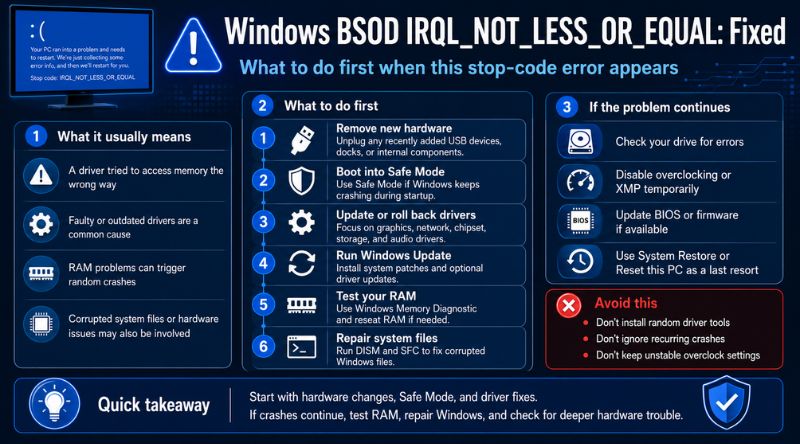
Don’t try every fix at random. Use the pattern of the crash.
If the BSOD started after a device change, remove that device. If it started after a driver update, roll back that driver. If it happens during games, check GPU, audio, and chipset drivers. If it happens when waking from sleep, focus on Wi-Fi, Bluetooth, power, BIOS, and chipset updates.
If the crash seems random, test RAM and storage early. Random crashes often point to memory instability, drive trouble, or low-level hardware issues.
Here’s a smart order:
- Unplug new hardware.
- Boot into Safe Mode if Windows keeps crashing.
- Update or roll back drivers.
- Run Windows Update.
- Test RAM.
- Run DISM and SFC.
- Run CHKDSK.
- Check BIOS, firmware, and overclock settings.
- Use Driver Verifier only if needed.
- Restore, reset, or reinstall Windows.
This order saves time. It also avoids risky steps too early.
Common Causes You Should Not Ignore
Some causes look small but create big crashes.
A VPN can install a network filter driver. Antivirus software can install file system filters. RGB tools can install low-level hardware drivers. Old printer software can add drivers that Windows no longer likes.
Also check overclocking. CPU, GPU, and RAM overclocks can pass a short benchmark but still crash during normal work. If you see IRQL_NOT_LESS_OR_EQUAL after enabling XMP, undervolting, or tuning fan and power software, reset those settings.
Heat matters too. A hot CPU, failing fan, dusty laptop, or old thermal paste can make a stable PC act broken. Use a hardware monitor and check temperatures during gaming, rendering, or heavy browsing.
Uncommon FAQs About IRQL_NOT_LESS_OR_EQUAL
Can IRQL_NOT_LESS_OR_EQUAL be caused by Wi-Fi drivers?
Yes. Network drivers run close to the system. A bad Wi-Fi, Ethernet, Bluetooth, VPN, or firewall driver can trigger this stop code. Update the network adapter driver from your PC maker or adapter maker.
Can a game cause IRQL_NOT_LESS_OR_EQUAL?
A game usually does not cause this error by itself. But it can expose a bad GPU driver, audio driver, anti-cheat driver, unstable RAM, or overheating issue. If the crash only happens during games, start with GPU drivers, anti-cheat software, and memory stability.
Should I disable antivirus to fix this BSOD?
Do not leave your PC unprotected. But if the crash started right after installing third-party antivirus, uninstall it temporarily and test. Windows Security will still provide built-in protection. Microsoft also offers Microsoft Defender Offline scan for stubborn malware checks.
Is Driver Verifier safe?
It is safe when used carefully, but it is not beginner-friendly. It can intentionally force a crash when it finds a bad driver. Create a restore point first and know how to turn it off with verifier /reset.
Can low disk space cause this error?
Low disk space is not the classic cause of IRQL_NOT_LESS_OR_EQUAL. Still, it can make updates, paging, logs, and repairs fail. Free space helps Windows repair itself properly.
Do I need to replace my RAM?
Only if testing points to RAM trouble. First, reseat the RAM, disable XMP/EXPO, and test one stick at a time. Replace RAM if errors repeat or if the PC becomes stable after removing one stick.
Can BIOS updates fix IRQL_NOT_LESS_OR_EQUAL?
Yes, especially on newer hardware or laptops. BIOS and firmware updates can improve memory compatibility, power behavior, sleep stability, and hardware support. Use the update tool from your PC or motherboard maker.
Why does the BSOD mention ntoskrnl.exe?
ntoskrnl.exe is the Windows kernel. Seeing it in a crash report does not always mean the kernel is the cause. A bad driver or unstable hardware can crash inside kernel space and make ntoskrnl.exe appear in the report.
Conclusion
The stop code looks scary, but the repair path is clear. Most cases come down to drivers, memory, hardware, system files, or recent changes.
Start simple. Remove new hardware. Update or roll back drivers. Test RAM. Repair system files. Check your drive. Then move to advanced tools only if the crash continues.
With the right order, Windows BSOD IRQL_NOT_LESS_OR_EQUAL: Fixed becomes less of a mystery and more of a step-by-step cleanup. If the same blue screen keeps coming back after every software fix, stop guessing and test the hardware before more data gets lost.