
Your streaming app starts crashing the night before a flight. You restart your phone. Nothing changes. You check for updates, but the app still won’t open.
Reinstalling looks like the obvious fix. Then you remember the movies, episodes, albums, or podcasts already saved for offline use.
Can you reinstall streaming app software without losing those downloads?
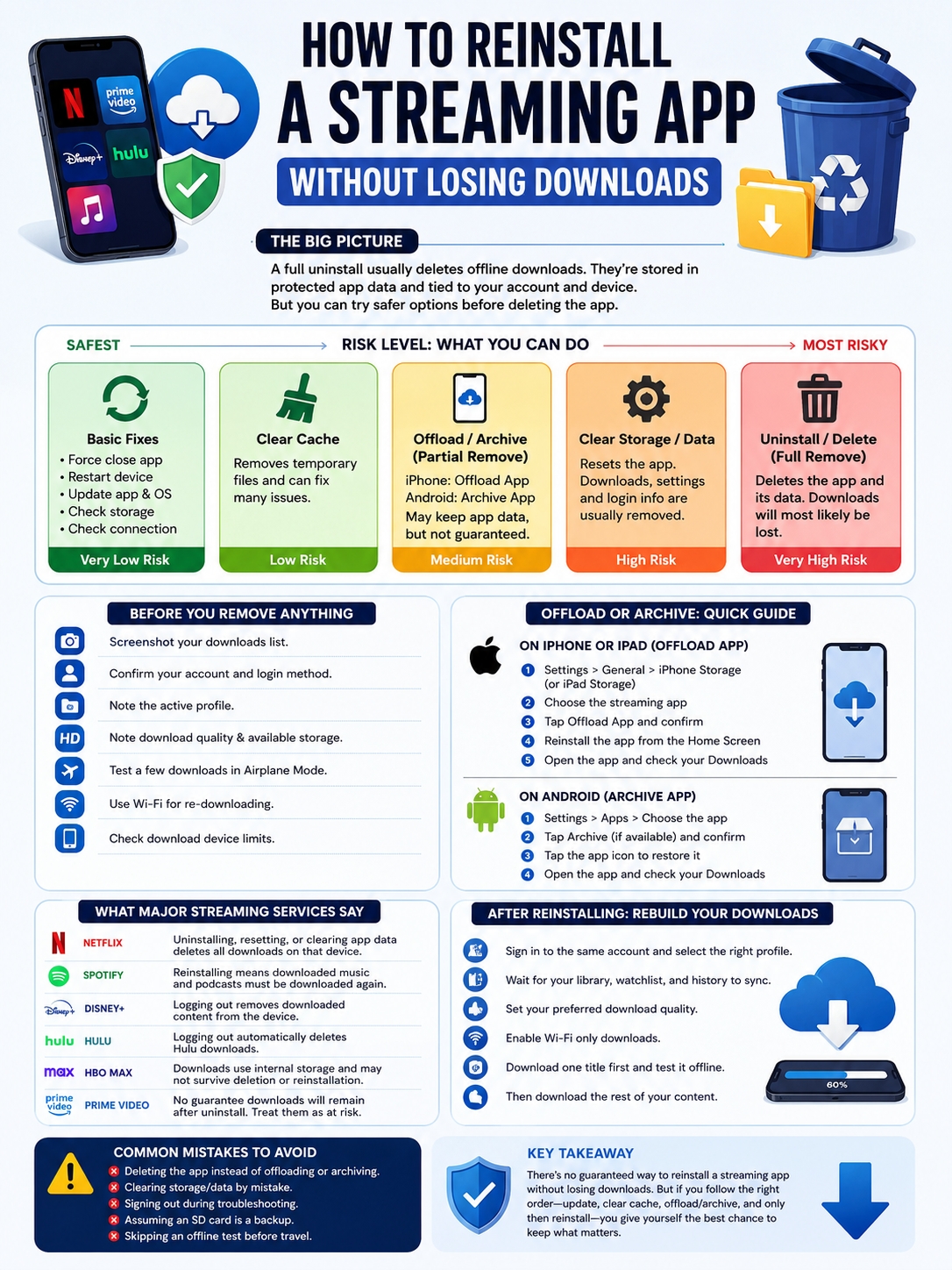
In most cases, a full uninstall will remove them.
Streaming downloads don’t work like normal video or music files. The app stores them in protected folders and connects them to your account, subscription, device, and playback licence. Remove the app, and you may remove the files, the licence data, or both.
That doesn’t mean you should give up straight away. You can try several safer fixes first. On an iPhone or iPad, you may be able to offload the app instead of deleting it. Some Android devices also support app archiving. Clearing the cache can fix certain problems without touching downloaded content.
None of these options gives you a perfect guarantee. Each streaming service handles offline files differently. Still, a careful approach gives you a much better chance of avoiding an empty Downloads page.
Can You Reinstall Streaming App Software Without Losing Downloads?
A complete uninstall normally removes offline downloads.
Netflix says uninstalling or resetting its app deletes every downloaded title stored on that device. Clearing the app’s data has the same result. Spotify also tells users that they’ll need to download their music and podcasts again after reinstalling the app.
Android follows the same general rule. Files stored inside an app’s private folder are usually deleted when the app is uninstalled.
Apple gives iPhone and iPad users another option. Its Offload App feature removes the app software but keeps its documents and data. Android’s app archiving feature works in a similar way on supported devices.
Those tools are safer than deleting the app, but they don’t promise that every protected download will still play. A streaming service may require a fresh licence after the app returns.
| Action | Does It Remove the App? | Risk to Downloads | When to Use It |
| Force close | No | Very low | The app is frozen |
| Restart the device | No | Very low | The app is behaving strangely |
| Update the app | No | Low | A bug or compatibility issue appears |
| Clear cache | No | Usually low | Temporary files may be damaged |
| Offload on iPhone or iPad | Removes app software | Medium | Before choosing Delete App |
| Archive on Android | Removes much of the app software | Medium | Before a full uninstall |
| Clear storage or app data | No | Very high | Only when a full reset is acceptable |
| Delete or uninstall | Yes | Very high | The final option |
The safest rule is easy to remember: don’t select Delete App, Uninstall, Clear Storage, or Clear Data unless you’re prepared to download everything again.
Why Offline Downloads Disappear So Easily
A downloaded Netflix episode isn’t a normal MP4 file. A Spotify album isn’t a folder of ordinary MP3s.
Streaming apps store offline media inside controlled areas of your phone or tablet. The files may be encrypted. The app also checks whether you still have an active subscription, whether the device is authorised, and whether the title’s download licence has expired.
Spotify confirms that downloads on an iPhone are encrypted. Android also limits access to folders created for individual apps.
That’s why signing back in may restore your profile, watchlist, and viewing history while leaving the Downloads section empty.
| Information | Where It Usually Lives | Returns After Login? |
| Account details | Streaming service servers | Yes |
| Subscription information | Streaming service servers | Yes |
| Profiles | Streaming service servers | Usually |
| Watchlists and saved titles | Streaming service servers | Usually |
| Viewing or listening history | Streaming service servers | Usually |
| App preferences | Device or account | Sometimes |
| Downloaded media | Local device storage | Usually not |
| Offline playback licences | Local app data | Usually not |
| Download quality settings | App data | Sometimes |
You may even find old download files on an SD card or inside a folder. That doesn’t mean they’ll work. The new app installation may not have the licence or encryption information needed to read them.
Copying a download folder somewhere else won’t create a dependable backup.
What to Do Before Removing the App
A little preparation can save a lot of frustration later.
Open the app’s Downloads section and take screenshots. Record complete seasons, individual episodes, playlists, albums, and podcast queues. Your watchlist won’t always show exactly what you saved offline.
Check your login details too. Many people joined through Apple, Google, Facebook, a mobile network, or a television provider. They later try to sign in with an email address and end up in a different account.
| Check Before Reinstalling | Why It Helps |
| Screenshot your downloads | Gives you a rebuilding list |
| Confirm your email address | Prevents signing into the wrong account |
| Check the original login method | Apple or Google login may work differently |
| Note the active profile | Downloads can be profile-specific |
| Check download quality | Higher quality uses more storage |
| Review free space | New downloads need room |
| Test titles offline | Confirms they still work |
| Check device limits | Old devices may still count |
| Connect to Wi-Fi | Helps account data sync |
Before you change anything, switch on Airplane Mode and play a few seconds of the most important downloads.
This test catches a common problem: a title may still appear in the app even though its offline licence has expired.
Also check whether the movie or episode is still available on the service. Streaming catalogues change. If a title has left the platform, you may not be able to download it again.
Netflix users should also review their registered download devices. An old phone or tablet may still count toward the account’s limit. Some Netflix titles also have annual download limits because of licensing agreements. Repeatedly deleting and downloading the same title can eventually trigger a restriction.
Read Also: How to Fix a Streaming App That Won’t Update on TV
Try These Fixes Before You Reinstall Streaming App Software
Reinstalling should sit near the bottom of your troubleshooting list.
Most app problems come from temporary errors, outdated software, low storage, damaged cache files, or a poor connection. None of those problems automatically requires an uninstall.
| Troubleshooting Step | What It May Fix | Risk to Downloads |
| Force close the app | Frozen processes | Very low |
| Restart the phone or tablet | Temporary system errors | Very low |
| Update the app | Bugs and compatibility problems | Low |
| Update the operating system | Device support issues | Low |
| Free up storage | Crashes and failed downloads | Low |
| Change networks | Wi-Fi or mobile-data problems | None |
| Clear cache only | Corrupted temporary files | Usually low |
| Sign out | Account errors | High on some services |
| Clear storage or data | Serious local problems | Very high |
| Reinstall the app | Persistent software failure | Very high |
Try the following order:
- Force close the app.
- Reopen it.
- Restart the device.
- Check the app store for an update.
- Check for an operating system update.
- Make sure the device has enough free storage.
- Test another Wi-Fi network.
- Set the date and time to automatic.
- Clear only the cache on Android.
- Test the app again.
Pay close attention to the words cache, storage, and data. They don’t mean the same thing.
Clearing the cache removes temporary files. It may fix loading, playback, or login problems.
Clearing storage or app data resets the whole app. That can erase settings, login details, and offline downloads.
Netflix confirms that clearing its app data removes downloaded shows and movies. It also signs the user out.
Signing out isn’t always harmless either. Disney+ and Hulu both state that logging out removes downloaded content from the device. Don’t use logout as a casual first step when you have a large offline library.
How to Offload a Streaming App on iPhone or iPad
Apple offers two options that sound similar but behave very differently.
Offload App removes the app software while keeping its documents and data.
Delete App removes the software and its related data.
That makes offloading the better choice when you need to reinstall streaming app software on an iPhone or iPad.
| iPhone or iPad Option | What It Removes | What It Means for Downloads |
| Update App | Replaces old software | Usually the safest option |
| Offload App | App software | Downloads may remain |
| Reinstall Offloaded App | Restores the software | Licences may still need refreshing |
| Delete App | App and related data | Downloads will probably disappear |
| Reset app data | Local app information | Downloads will probably disappear |
How to Offload and Reinstall the App
- Open Settings.
- Tap General.
- Select iPhone Storage or iPad Storage.
- Choose the streaming app.
- Tap Offload App.
- Confirm your choice.
- Tap Reinstall App, or select the cloud icon on the Home Screen.
- Open the app while connected to the internet.
- Check the Downloads section before signing out or changing settings.
Apple says offloading keeps documents and data. It doesn’t promise that a streaming provider’s offline licences will remain active.
A title may still fail because its licence expired, the service removed it, your plan changed, or the app requires a new download.
Netflix clearly warns that deleting its iPhone or iPad app removes downloaded titles. Offloading is worth trying. Deleting should be treated as a full reset.
How to Repair or Archive a Streaming App on Android
Android users may have two safer choices: clearing the cache or archiving the app.
Google says an archived app loses most of its software, permissions, temporary files, and notifications. The device keeps the app icon and personal data.
The archive option doesn’t appear on every phone or for every app. Even when it does, protected offline files may still depend on licences that need to be renewed.
| Android Action | What It Does | Download Risk |
| Update | Installs a newer app version | Low |
| Force stop | Ends the current app process | Very low |
| Clear cache | Removes temporary files | Usually low |
| Archive | Removes app software and temporary files | Medium |
| Clear storage | Deletes local app data | Very high |
| Uninstall | Removes the app and private files | Very high |
Clear the Cache, Not the Storage
The wording differs between phone brands, but the usual steps are:
- Open Settings.
- Select Apps.
- Choose the streaming app.
- Tap Storage and Cache.
- Select Clear Cache.
- Reopen the app.
Don’t tap Clear Storage or Clear Data unless you’re ready to lose local app information.
Try Android App Archiving
When the option appears:
- Open Settings.
- Tap Apps.
- Choose the streaming app.
- Select Archive.
- Confirm the action.
- Restore the app by tapping its icon.
- Check your downloads straight away.
Archiving is safer than uninstalling. It isn’t a guaranteed backup method.
A normal uninstall removes files stored in the app’s private folder. That includes the area where many streaming services keep offline media and licence information.
How Major Streaming Services Handle Downloads
The exact rules differ, but the message is consistent: offline downloads are temporary and tied to the app.
| Service | What Its Support Guidance Says |
| Netflix | Uninstalling, resetting, or clearing app data deletes downloads on that device |
| Spotify | Reinstalling means downloaded music and podcasts must be downloaded again |
| Disney+ | Logging out removes downloaded content |
| Hulu | Logging out deletes Hulu downloads on the device |
| HBO Max | Downloads use internal device storage and shouldn’t be expected to survive deletion |
| Prime Video | Amazon doesn’t promise that downloads will survive an uninstall |
Spotify currently allows up to 10,000 downloaded tracks on each of five devices. Users must go online at least once every 30 days to keep those downloads active.
Netflix uses plan-based and licensing-based limits. Its ad-supported plans may limit the number of downloads allowed each month. Individual films and episodes can also have annual download limits.
HBO Max currently allows 30 downloads on its Standard plan and 100 on Premium across supported mobile devices. Unwatched downloads generally expire after 30 days. Once you start watching, you normally have 48 hours to finish.
Video quality also matters. HBO Max says an hour-long download at its Good quality setting may use around 1 to 2 GB. Its downloads use internal device storage rather than an SD card.
Plans, limits, and expiry rules can change. They may also vary by country. Check the service’s official help page before deleting a large offline library.
How to Restore Your Offline Library After Reinstallation
Once a full uninstall has happened, the old downloads usually can’t be recovered through the app.
The practical fix is to install the app again, sign into the correct account, and rebuild the library.
| Recovery Step | What to Do |
| Install the app | Use the official app store |
| Sign in | Use the original account and login method |
| Choose the profile | Select the same profile used before |
| Wait for syncing | Let watchlists and history return |
| Check quality settings | Lower quality saves space |
| Turn on Wi-Fi-only downloads | Avoid mobile-data charges |
| Download one test title | Make sure downloads work |
| Test offline playback | Use Airplane Mode |
Follow this order:
- Download the official app from the App Store, Google Play, or Amazon Appstore.
- Sign in with the same account.
- Select the correct profile.
- Wait for watchlists, playlists, and viewing history to sync.
- Open the download settings.
- Choose the preferred quality.
- Turn off downloading over mobile data.
- Download one small title first.
- Switch on Airplane Mode.
- Check that the title plays.
- Download the rest of your content.
Start with what you need soonest. Don’t fill the device with three full seasons when you only need two episodes for a short trip.
Leave some storage free as well. Apps need room for updates, subtitles, audio tracks, temporary files, and licence checks.
Mistakes That Often Delete Downloads
The most common problems come from choosing the wrong setting.
| Mistake | What Can Happen | Better Option |
| Confusing cache with storage | The app resets and downloads disappear | Clear cache only |
| Choosing Delete instead of Offload | iPhone app data is removed | Use Offload App |
| Reinstalling without recording titles | You forget what was saved | Take screenshots |
| Signing out during troubleshooting | Disney+ or Hulu downloads disappear | Restart first |
| Treating an SD card as a backup | The new app may reject the files | Plan to download again |
| Running a storage-cleaner app | Local app files may be erased | Exclude important apps |
| Changing plans before a trip | Offline access may disappear | Check plan features |
| Skipping an offline test | A download fails when no internet is available | Test in Airplane Mode |
It’s also easy to assume that a downloaded movie belongs to you like a purchased video file.
It doesn’t.
A streaming download gives you temporary offline access. It still depends on your account, subscription, device, app data, and the service’s licensing rules.
Final Thoughts
There’s no guaranteed way to fully uninstall and reinstall streaming app software while keeping every offline download.
Your safest order is:
- Force close the app.
- Restart the device.
- Update the app.
- Check your storage and connection.
- Clear only the Android cache.
- Try Offload App on an iPhone or iPad.
- Try Android app archiving when available.
- Uninstall only after the other options fail.
Offloading and archiving may preserve some app data, but they can’t guarantee that protected downloads will remain playable.
Netflix and Spotify make the risk clear. A full reinstall removes downloads or forces you to save them again. Disney+ and Hulu can also delete offline content when you log out.
Before taking a destructive step, screenshot your library, confirm your account details, review device limits, and make sure you have reliable Wi-Fi.
When a full reinstall becomes unavoidable, assume you’ll need to download the content again. That’s much better than discovering an empty library after you’ve already left home.
Frequently Asked Questions
| Question | Quick Answer |
| Can iCloud restore streaming downloads? | Don’t rely on it |
| Will an SD card save them? | Not after every uninstall |
| Can recovery software bring them back? | The files may be encrypted and unusable |
| Is updating safer than reinstalling? | Yes, in most cases |
| Can logging out remove downloads? | Yes |
| Can a plan change delete downloads? | Yes |
Will an iCloud or Device Backup Restore Downloads?
Don’t count on it.
A phone backup may restore app settings or account information. Protected streaming files may still need a fresh playback licence or a complete new download.
Can an SD Card Protect Netflix Downloads?
Netflix supports SD card storage on some Android and Fire devices. That doesn’t make the card a backup.
Netflix says uninstalling the app deletes downloads stored on the device. The reinstalled app may not recognise any files left behind.
Can Recovery Software Restore Deleted Streaming Files?
It may find fragments of deleted data. That doesn’t mean the files will play.
Streaming media can be encrypted and linked to licence data from the original app installation. Without that information, a recovered file may be useless.
Why Does an Old Device Still Count Toward My Limit?
The service may still list it as an authorised download device.
Netflix lets users remove old devices from the Mobile Download Devices page. Removing a device also removes the Netflix downloads stored on it.
Can Changing My Plan Delete Downloads?
Yes.
HBO Max states that changing to a plan without offline viewing removes existing downloads. Other services may apply similar rules when a user moves to an ad-supported or lower-cost plan.
Why Did Downloads Disappear Without Reinstalling?
Several things can cause it:
- You logged out.
- The app’s data was cleared.
- The licence expired.
- The title left the platform.
- The SD card failed.
- Your subscription changed.
- The app reached a device limit.
- A cleaner app removed local files.
Is Updating Safer Than Reinstalling?
Yes.
An update normally replaces old app software without wiping its local data. That’s why you should always check for an update before deleting the app.