Android Auto usually works quietly in the background. You plug in your phone, or it connects wirelessly, and your car display shows Maps, calls, messages, and music.
Then one day, nothing happens.
The screen stays blank. The car says “unable to connect.” Your phone charges but Android Auto doesn’t start. Or wireless Android Auto keeps dropping after a few seconds. Annoying? Very.
This guide explains How to Fix Android Auto Not Connecting in 2026 with simple steps you can follow before blaming your phone, your car, or the latest update.
Google’s current Android Auto help page says Android Auto on a car display needs an Android phone running Android 9.0 or higher, an active data plan, a compatible car or stereo, and, for wired use, a high-quality USB cable. Wireless Android Auto also needs a compatible car or stereo, 5 GHz Wi-Fi support, and Android 11.0 or higher for broad wireless compatibility.
That means most connection problems come from five places: phone settings, USB cable, Bluetooth/Wi-Fi pairing, car infotainment settings, or software updates.
Let’s fix them one by one.
Quick Check Before You Start
Before trying advanced fixes, check the basics. This saves time.
| Check | What You Need |
| Phone software | Android 9.0 or higher for wired Android Auto |
| Wireless support | Android 11.0 or higher, 5 GHz Wi-Fi, compatible car |
| Car support | Android Auto-compatible car or aftermarket stereo |
| Connection | Active mobile data plan |
| Cable | Short, high-quality USB data cable |
| Setup state | Car in Park, infotainment system turned on |
Google also notes that Android Auto is built into modern Android phones. You don’t need a separate Android Auto app download to use it on a car display.
How to Fix Android Auto Not Connecting in 2026: 12 Practical Fixes
1. Check If Your Phone and Car Still Meet the Requirements
Start here. A phone, car, or stereo can look compatible but still fail because one key requirement is missing.
For wired Android Auto, Google lists three basics: Android 9.0 or higher, an active data plan, and a compatible car or stereo. For wireless Android Auto, your phone must support 5 GHz Wi-Fi, and your car or stereo must support wireless Android Auto.
Also check your region. Google says most Android Auto features may not work outside supported countries.
What to do:
- Open Settings on your phone.
- Go to About phone.
- Check your Android version.
- Visit your car maker’s support page or Google’s Android Auto compatibility list.
- Check if your stereo supports wired only, wireless only, or both.
Do not assume every USB port in a car supports Android Auto. Some ports only charge. Some cars support Android Auto only through a specific front USB port.
| Problem | What It Means | Fix |
| Old Android version | Phone may not support current Android Auto | Update Android |
| Charging-only USB port | Phone charges but won’t project | Try another car USB port |
| Car not compatible | Android Auto won’t launch | Check car/stereo support |
| Unsupported country | Features may fail | Confirm regional support |
2. Restart the Phone and Car Infotainment System
This sounds basic, but it often works. Android Auto depends on several moving parts: your phone, Google Play services, Bluetooth, Wi-Fi, the car’s head unit, and the cable connection.
A small glitch in any of these can block the handshake.
Restart your phone first. Then turn off the car. Open the door for a minute if your car keeps the infotainment system awake after shutdown. Start the car again and reconnect.
Google also recommends restarting the car’s infotainment system when Android Auto has trouble connecting.
Steps:
- Unplug your phone.
- Restart your phone.
- Turn the car off.
- Wait 60 seconds.
- Restart the car.
- Connect again while the car is in Park.
| Best For | Why It Helps |
| Random connection failures | Clears temporary glitches |
| Blank car display | Restarts the head unit |
| Wireless dropouts | Resets Bluetooth/Wi-Fi handshake |
| After updates | Reloads services cleanly |
3. Replace the USB Cable With a Short Data Cable
If wired Android Auto stopped working, check the cable early. Many “Android Auto not connecting” cases come from weak, old, or charging-only USB cables.
Google says not all USB cables work with all cars. It recommends a high-quality cable, under 3 feet or 1 meter, with no USB hubs or extensions. Google also says if Android Auto worked before and no longer works, replacing the USB cable will likely fix the issue.
That’s a strong hint.
A cable can charge your phone and still fail Android Auto. Charging needs power. Android Auto also needs stable data transfer.
Try this:
- Use the cable that came with your phone.
- Avoid long cables.
- Avoid cheap gas-station cables.
- Skip USB hubs.
- Skip cable extensions.
- Try another known data cable.
| Cable Type | Good for Android Auto? |
| Original phone cable | Usually yes |
| Short USB-IF certified cable | Usually yes |
| Long cable | Risky |
| Charging-only cable | No |
| Cable with hub or extension | Not recommended |
4. Clean the USB Port and Try Another Port
Dust in a phone’s USB-C port can break the connection. The phone may still charge, but data transfer can fail.
Check both ends: the phone port and the car USB port.
Use a flashlight. Look for lint, dust, or loose movement. Do not push metal tools into the port. Use a soft brush or compressed air carefully.
Also try a different USB port in the car. In many vehicles, only one port supports Android Auto. Other ports may be for charging, media storage, or rear passengers.
Steps:
- Turn off the car.
- Inspect the phone USB-C port.
- Clean gently.
- Inspect the cable connector.
- Try the main front USB port.
- Check the owner’s manual if needed.
| Symptom | Likely Cause | Fix |
| Phone charges only | Wrong port or weak cable | Try data port/cable |
| Android Auto connects then drops | Loose cable or dirty port | Clean and test |
| Car sees phone as storage | Wrong USB mode | Reconnect and approve prompts |
| No reaction at all | Bad port or cable | Try another port/cable |
5. Turn On Bluetooth, Wi-Fi, Location, and Mobile Data
Wireless Android Auto needs more than Bluetooth. Bluetooth starts the pairing, but Wi-Fi handles much of the connection. Location and mobile data also matter during setup.
Google says for best results during wireless setup, keep Bluetooth, Wi-Fi, and Location Services turned on. It also says the phone should be within mobile data coverage.
Turn these on before pairing:
- Bluetooth
- Wi-Fi
- Location
- Mobile data
Also turn off Airplane Mode. If you use Battery Saver, turn it off during setup. Some phones limit background activity when power saving is on.
| Setting | Why It Matters |
| Bluetooth | Starts wireless pairing |
| Wi-Fi | Carries the wireless Android Auto connection |
| Location | Helps setup and nearby device handling |
| Mobile data | Supports Maps, messages, and services |
| Battery Saver | Can block background behavior |
6. Forget the Car and Pair Again
If Android Auto worked before but now refuses to connect, your saved car profile may be broken.
This happens after phone updates, car software updates, Bluetooth resets, or switching phones. The easiest fix is to forget the car on your phone and remove the phone from the car’s Bluetooth list. Then pair again from scratch.
Google’s help page suggests using Forget all cars when you’re having trouble connecting to a second car. This can also help when a saved connection becomes messy.
Try this:
- On your phone, open Settings.
- Go to Connected devices.
- Open Connection preferences.
- Tap Android Auto.
- Open Previously connected cars.
- Tap the menu.
- Choose Forget all cars.
- Remove your phone from the car’s Bluetooth list.
- Pair again.
| Reset Area | What to Remove |
| Phone Android Auto settings | Previously connected cars |
| Phone Bluetooth | Car name |
| Car infotainment | Old phone profile |
| Wi-Fi saved networks | Car hotspot/direct connection if shown |
7. Update Android Auto, Google Play Services, and Android System
In 2026, Android Auto is tied closely to Android system components. That means the fix may not be only inside “Android Auto.” Google Play services and Google System updates can also affect car connection behavior.
Google’s June 2026 Google System Services release notes included [Auto] bug fixes for Device Connections related services in Google Play services v26.22. Google’s April 2026 notes also listed Auto-related bug fixes for Device Connections and System Management & Diagnostics services.
So yes, updates matter.
Update these:
- Android system update
- Google Play system update
- Android Auto
- Google Play services
- Google Maps
- Your music or podcast app
- Car infotainment firmware, if available
Steps on most Android phones:
- Open Settings.
- Go to System.
- Tap Software update.
- Install any pending update.
- Open Security & privacy.
- Check Google Play system update.
- Open the Play Store.
- Update Android Auto-related apps.
| Update | Why It Helps |
| Android OS | Fixes system bugs |
| Google Play services | Handles connection services |
| Android Auto | Updates projection features |
| Google Maps | Fixes navigation issues |
| Car firmware | Fixes head unit bugs |
8. Clear Android Auto Cache and App Data
If settings or temporary files break, Android Auto may fail to start. Clearing cache can help without removing your main phone data.
Clearing storage is stronger. It resets Android Auto settings and may remove saved cars. Use it when basic fixes fail.
Steps may vary by phone, but this path works on many Android devices:
- Open Settings.
- Tap Apps.
- Tap See all apps.
- Find Android Auto.
- Tap Storage & cache.
- Tap Clear cache first.
- Try connecting again.
- If it still fails, tap Clear storage or Clear data.
After clearing data, reconnect your car and follow the setup prompts again.
| Option | What It Does | When to Use |
| Clear cache | Removes temporary files | First attempt |
| Clear storage/data | Resets Android Auto settings | Persistent failure |
| Force stop | Stops stuck process | Before reconnecting |
| Reopen setup | Builds new connection | After data reset |
9. Check App Permissions and Notification Access
Android Auto needs access to key phone functions. If permissions are blocked, features may fail or setup may not complete.
Check permissions for:
- Phone
- Contacts
- SMS/messages
- Location
- Microphone
- Nearby devices
- Notifications
Also check Google Maps and your music app. Sometimes Android Auto connects, but navigation, calls, or audio fail because a supporting app lacks permission.
Steps:
- Open Settings.
- Go to Apps.
- Choose Android Auto.
- Tap Permissions.
- Allow needed permissions.
- Repeat for Google Maps, Phone, and your media app.
If your phone has strict privacy settings, review them too. Some security modes can limit USB or background behavior.
| Permission | Why It Matters |
| Location | Navigation and setup |
| Phone | Calls through car display |
| Contacts | Caller names and dialing |
| Microphone | Voice commands |
| Notifications | Message alerts |
| Nearby devices | Bluetooth and pairing |
10. Disable Battery Saver, VPN, and Aggressive Background Limits
Modern Android phones are strict about battery and privacy. That’s good. But these features can sometimes interfere with Android Auto.
Battery Saver may delay background services. A VPN can affect Google Maps, music apps, and messaging. Some phone brands also have aggressive app sleeping tools.
Before connecting, try this:
- Turn off Battery Saver.
- Turn off Data Saver.
- Pause VPN.
- Allow Android Auto unrestricted battery use.
- Allow Google Maps unrestricted battery use.
- Keep the phone unlocked during first setup.
Steps vary by phone, but usually:
- Open Settings.
- Go to Apps.
- Tap Android Auto.
- Open Battery.
- Choose Unrestricted or Optimized, not restricted.
- Repeat for Google Maps and your media app.
| Feature | Possible Issue | Fix |
| Battery Saver | Delays Android Auto startup | Turn off during setup |
| Data Saver | Blocks app data | Allow Android Auto/Maps |
| VPN | Can affect online services | Pause and test |
| App sleeping | Stops background services | Set unrestricted battery |
11. Check Car Settings and Infotainment Firmware
Sometimes the phone is fine. The car is the problem.
Android Auto may be turned off inside the infotainment system. The car may also remember an old phone profile and refuse a fresh connection.
Google recommends checking whether Android Auto is turned on in the car’s infotainment system. For aftermarket receivers, Google says to check the manufacturer’s website for firmware updates.
Try these steps:
- Open the car’s phone projection settings.
- Make sure Android Auto is enabled.
- Remove old phones from the car.
- Restart the infotainment system.
- Check for firmware updates.
- If you use an aftermarket stereo, check Pioneer, Kenwood, Sony, Alpine, or your stereo brand’s support page.
Some cars also have separate toggles for Apple CarPlay and Android Auto. If the system is stuck on CarPlay mode, switch it back.
| Car-Side Check | Why It Matters |
| Android Auto enabled | Required for launch |
| Old phone profiles | Can block new pairing |
| Firmware update | Fixes head unit bugs |
| Correct USB port | Some ports only charge |
| Projection setting | May need manual approval |
12. Reinstall Updates or Reset Network Settings
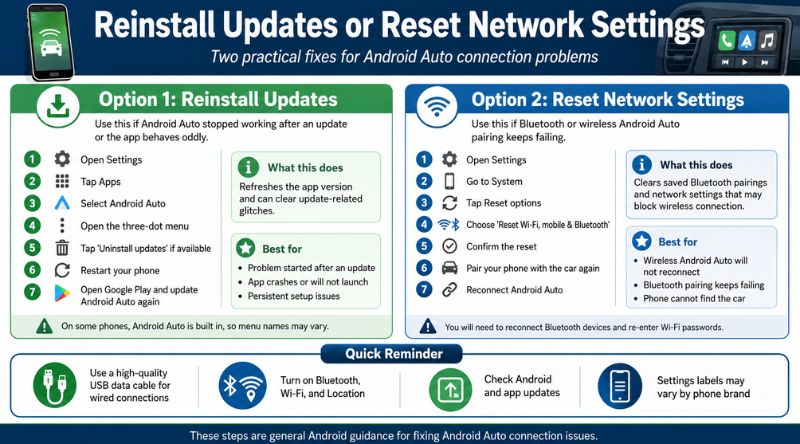
If Android Auto broke right after an update, you may need a deeper reset.
On many Android phones, Android Auto is a system component. You may not be able to uninstall it fully. But you can often uninstall updates from the Play Store or app settings, then update it again.
Try this only after easier fixes:
- Open Settings.
- Go to Apps.
- Select Android Auto.
- Tap the three-dot menu.
- Choose Uninstall updates, if available.
- Restart the phone.
- Open the Play Store.
- Update Android Auto again.
If wireless still fails, reset network settings. This removes saved Wi-Fi networks and Bluetooth pairings, so use it carefully.
Path on many phones:
Settings > System > Reset options > Reset Wi-Fi, mobile & Bluetooth
Then pair the car again.
| Advanced Fix | What It Resets | Use When |
| Uninstall updates | Android Auto app version | Issue started after update |
| Update again | Fresh app build | Update corruption suspected |
| Reset network settings | Bluetooth, Wi-Fi, mobile settings | Wireless pairing keeps failing |
| Factory reset car profile | Car-side saved device data | Car refuses phone |
Common Android Auto Connection Problems and Fast Fixes
| Problem | Likely Cause | Fast Fix |
| Phone charges but Android Auto won’t start | Bad cable or wrong port | Use short data cable and correct USB port |
| Wireless Android Auto drops | Bluetooth/Wi-Fi pairing issue | Forget car and pair again |
| Android Auto worked yesterday | Update, cable, or cached data issue | Restart, replace cable, clear cache |
| Car says “device not supported” | Compatibility or old Android version | Check phone/car requirements |
| Maps opens on phone, not car | Projection not starting | Check car settings and Android Auto permissions |
| Audio works but screen is blank | Head unit issue | Restart infotainment system |
| Setup loops | Corrupt saved profile | Forget all cars and reset pairing |
How to Prevent Android Auto Connection Problems
A few habits can stop most issues before they return.
- Keep one good USB cable in the car.
- Replace damaged cables early.
- Keep Android and Google Play services updated.
- Update the car’s infotainment system when available.
- Avoid pairing the same phone repeatedly without deleting old profiles.
- Keep Bluetooth, Wi-Fi, and Location on for wireless Android Auto.
- Don’t use USB hubs or long cable extensions.
- Restart your phone once in a while.
The boring fixes work because Android Auto depends on a clean, stable connection.
Uncommon FAQs About Android Auto Not Connecting
Why does Android Auto charge my phone but not open?
Your cable or USB port may support charging but not stable data transfer. Use a short, high-quality data cable and plug it into the car’s main Android Auto USB port.
Why does Android Auto ask me to unlock my phone first?
Some phones may require unlock during setup, after restart, or after security changes. Keep the phone unlocked during the first connection. Then check Android Auto settings and phone security settings.
Does wireless Android Auto work only through Bluetooth?
No. Bluetooth starts the pairing, but wireless Android Auto also uses Wi-Fi. That is why Wi-Fi must stay on even if you think you’re only using Bluetooth.
Why does Android Auto stop after a phone update?
A system update can change USB behavior, Bluetooth pairing, app permissions, or Google Play services. Update Android Auto and Google Play services, then forget and re-pair the car.
Can a car support wired Android Auto but not wireless Android Auto?
Yes. Many cars support wired Android Auto only. Wireless Android Auto requires support from both the phone and the car or stereo.
Should I use an Android Auto wireless adapter?
A wireless adapter can help if your car supports wired Android Auto but not wireless Android Auto. But test your wired connection first. If wired Android Auto is unstable, the adapter may not fix the real issue.
Why does Android Auto fail in rental cars?
Rental cars often have many saved phones. Delete old profiles if allowed, use the correct USB port, and approve all phone prompts while parked.
Will clearing Android Auto data delete my photos or phone files?
No. It resets Android Auto settings. It does not delete your photos, contacts, or personal files. You may need to set up your car connection again.
Final Checklist: How to Fix Android Auto Not Connecting in 2026
Use this order for the fastest result:
- Restart phone and car.
- Check phone and car compatibility.
- Use a short, high-quality USB data cable.
- Try the correct USB port.
- Turn on Bluetooth, Wi-Fi, Location, and mobile data.
- Forget the car and pair again.
- Update Android, Android Auto, Google Play services, and Google Maps.
- Clear Android Auto cache.
- Check permissions.
- Disable Battery Saver, Data Saver, and VPN.
- Check car infotainment settings.
- Uninstall Android Auto updates or reset network settings if needed.
Conclusion
Most Android Auto connection problems are fixable at home. Start with the cable, port, pairing, and updates. Those solve the majority of cases.
The key is to work in order. Don’t jump straight to factory resets. Try the small things first, then move to deeper fixes only if needed.
If nothing works after all steps, check with your vehicle maker or stereo manufacturer. Your car may need a firmware update or service check.
That’s the cleanest way to handle How to Fix Android Auto Not Connecting in 2026 without wasting hours in the driveway.