
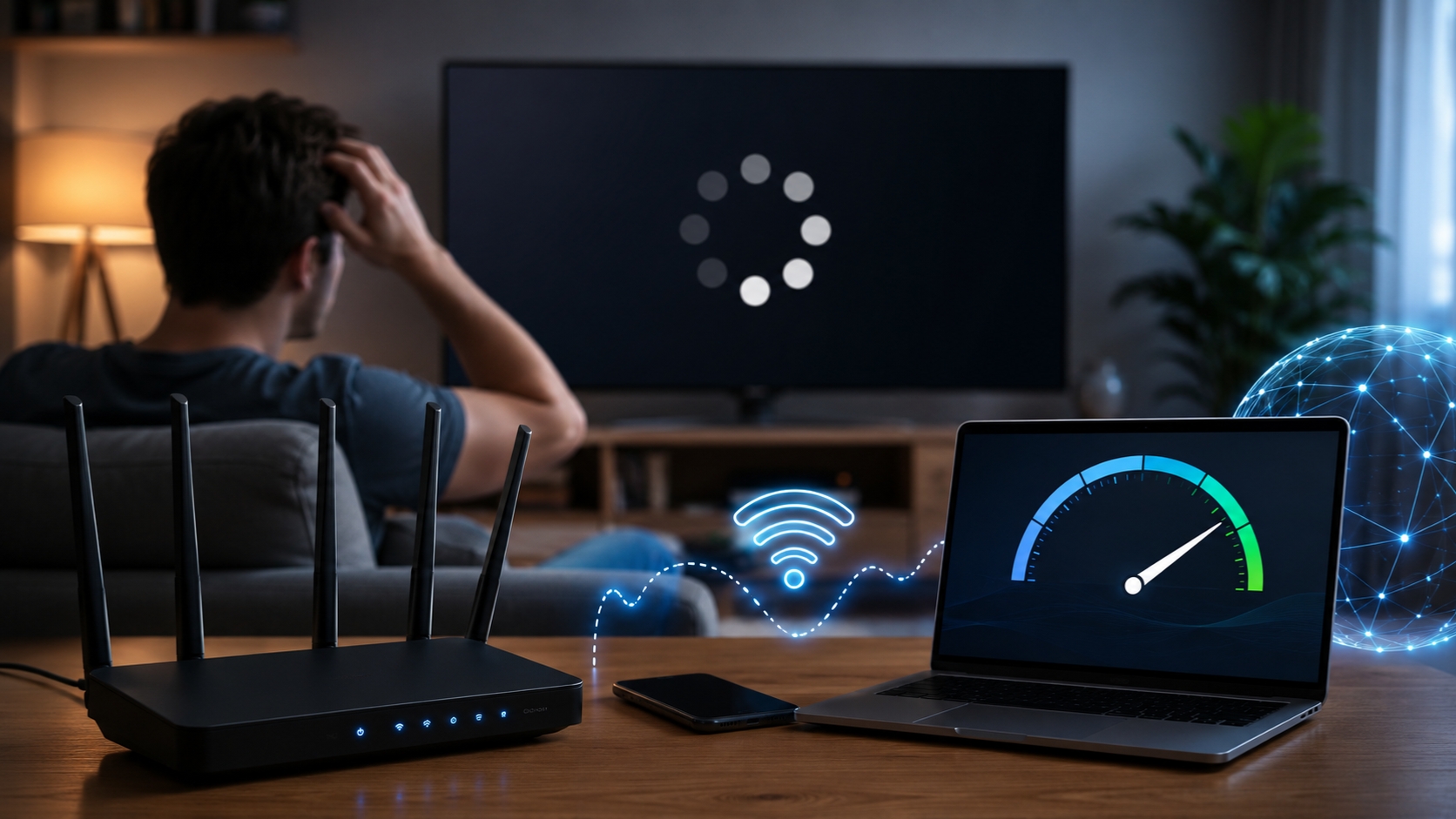
Your speed test says 300 Mbps. Web pages open fast. Downloads finish without a fuss. Then you start a movie and get stuck staring at a spinning loading icon.
That’s buffering with fast internet, and it’s more common than you’d think.
The reason is simple: a speed test only shows part of the picture. Streaming also depends on how steady your connection is, how good your Wi-Fi signal is, whether packets are getting lost, how busy your network is, and whether the streaming app or device is having trouble.
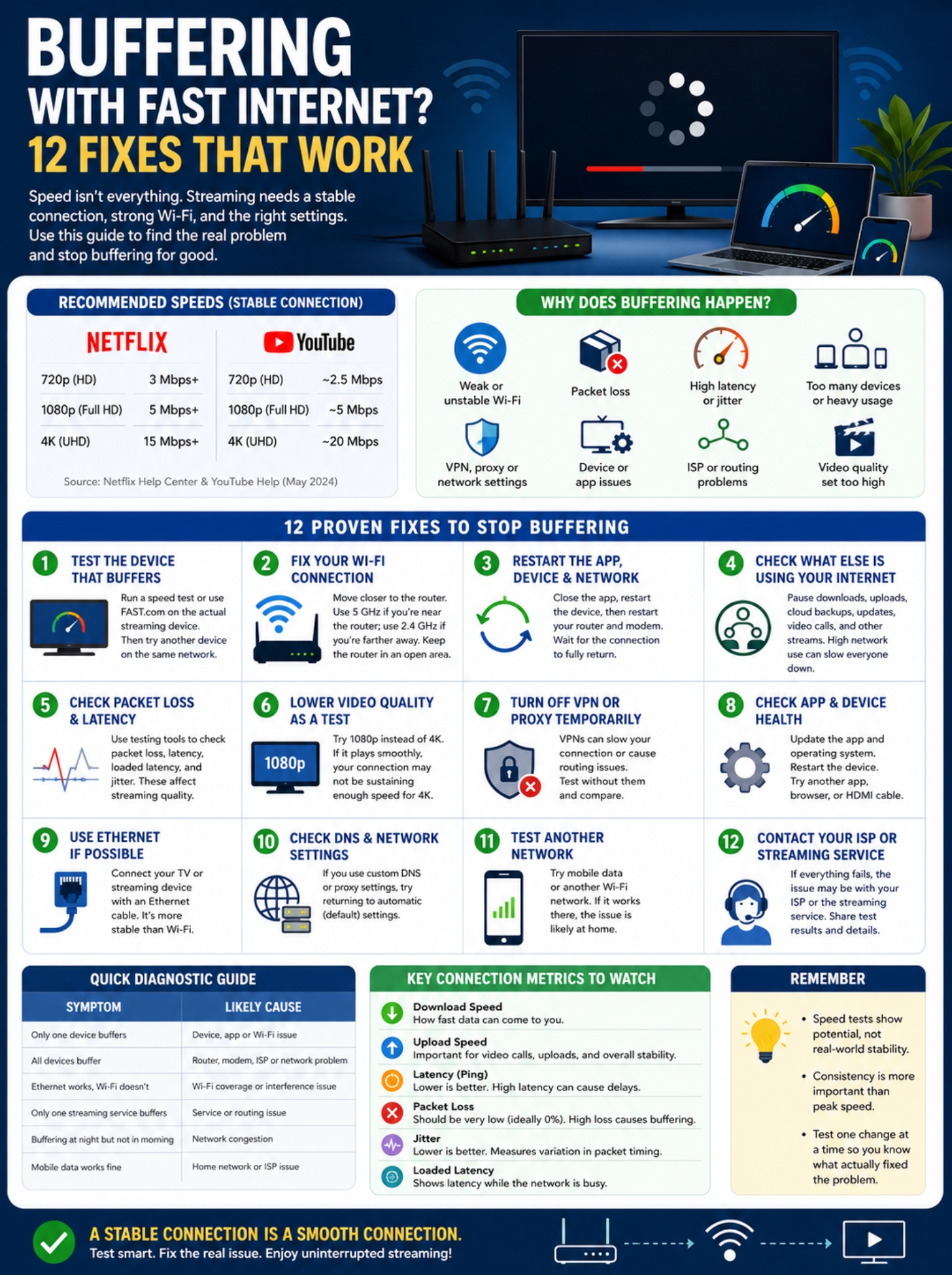
You may already have more bandwidth than you need. Netflix recommends at least 3 Mbps for 720p, 5 Mbps for 1080p, and 15 Mbps for 4K UHD. YouTube lists about 2.5 Mbps for 720p, 5 Mbps for 1080p, and 20 Mbps for 4K.
So if you’re paying for 100, 300, or 500 Mbps and your video still buffers, upgrading your internet plan probably shouldn’t be your first move.
Start by finding out where the connection is breaking down.
Why Can Fast Internet Still Buffer?
Streaming video doesn’t arrive as one giant file. Your player downloads small chunks ahead of time and keeps them ready so playback can continue smoothly.
If those chunks stop arriving fast enough, the video catches up with what has already downloaded. That’s when buffering starts.
This can happen even when your connection looks fast on paper.
| Possible problem | What it does |
| Weak Wi-Fi | Makes the connection unstable |
| Packet loss | Forces data to be sent again |
| Network congestion | Slows or disrupts traffic |
| Heavy household use | Leaves less bandwidth for streaming |
| Device or app issue | Causes playback trouble even on a good network |
| VPN or custom network settings | Can interfere with routing or connectivity |
| ISP or service problem | Affects certain platforms or routes |
| Video quality set too high | Demands more sustained bandwidth |
The big thing to remember is this: streaming needs steady speed, not just high peak speed.
A connection that briefly hits 500 Mbps can still perform badly if it keeps dropping, stalling, or losing packets.
Buffering With Fast Internet? Test the Device That Actually Buffers
One of the easiest mistakes is running a speed test on the wrong device.
If your laptop gets 400 Mbps beside the router, that tells you very little about the smart TV two rooms away.
Test as close to the problem as possible.
Netflix lets you check connection speed directly on supported TVs and streaming devices through Get Help > Check your Network. On phones, tablets, and computers, FAST.com is a quick option.
Compare Devices and Connections
Try the same video on another device using the same network.
Then test Ethernet if your streaming device supports it.
YouTube also recommends using a wired connection when troubleshooting playback problems.
| Test result | What it probably means |
| Only one device buffers | Device, app, or Wi-Fi issue |
| Every device buffers | Router, modem, ISP, or wider network problem |
| Ethernet works but Wi-Fi doesn’t | Wireless connection is the likely culprit |
| Only one streaming service buffers | Service or routing issue may be involved |
| Another internet connection works fine | Home network or ISP needs closer attention |
Don’t trust one speed test and call it done. Run a few tests while the buffering is actually happening.
Fix the Wi-Fi Before You Upgrade Your Internet Plan
Wi-Fi is often where a fast connection starts falling apart.
Your router might be receiving hundreds of Mbps from your ISP, but that speed still has to travel through walls, furniture, appliances, and wireless interference before it reaches your TV.
Netflix recommends moving the router and streaming device closer together, keeping the router away from other wireless equipment, and placing it in an open area above floor level.
Apple gives similar advice and also suggests trying another Wi-Fi frequency when available.
2.4 GHz vs. 5 GHz: Which Is Better?
There’s no one-size-fits-all answer.
5 GHz can offer more capacity and less congestion, but it doesn’t travel through walls as well as 2.4 GHz.
That means:
- Use 5 GHz when the device is close to the router.
- Try 2.4 GHz if the device is several rooms away.
- Don’t assume 5 GHz will always be faster in real-world use.
- Let modern routers handle band steering if it works well.
If you have Wi-Fi 6E, some devices may also use the 6 GHz band. It offers more wireless spectrum, but you still need compatible hardware and decent signal conditions.
Try Ethernet Before Buying New Hardware
If your TV, game console, or streaming box has an Ethernet port, use it for a quick test.
If buffering disappears over Ethernet, you’ve learned something important: your internet connection may be fine, and Wi-Fi may be the real problem.
| Wi-Fi fix | When to try it |
| Move closer to the router | Weak signal |
| Put router in an open area | Too many obstacles |
| Try another Wi-Fi band | Band-specific congestion or range issue |
| Use Ethernet | Need to rule out Wi-Fi |
| Add mesh or access point | Coverage problem is confirmed |
| Update router firmware | Possible router software issue |
Don’t rush out and buy a mesh system because one movie buffered. Test first.
Read Also: How to Fix HDMI No Signal on a Smart TV
Restart the App, Device, Router, and Modem
Restarting is basic, but it works often enough to be worth trying.
Netflix and Apple both include device and network restarts in their troubleshooting guidance.
Try this order:
- Close the streaming app.
- Restart the TV, phone, computer, or streaming device.
- Test the video again.
- If the problem stays, restart your router and modem.
- Wait for the network to reconnect.
- Try the same stream again.
| What you restart | What it can help rule out |
| Streaming app | App glitch or stuck session |
| TV, phone, PC, or streaming box | Device problem |
| Router | Local network issue |
| Modem or gateway | Broadband connection issue |
If restarting fixes the problem for a few hours and it keeps coming back, don’t make daily reboots your permanent solution. Something else needs attention.
Check What Else Is Using Your Internet
Your internet speed is shared across every active device.
That means a fast plan can still feel slow if several things are happening at once.
Common bandwidth hogs include:
- game downloads;
- cloud backups;
- operating system updates;
- video calls;
- multiple 4K streams;
- large uploads;
- security cameras;
- file syncing.
YouTube recommends closing unnecessary tabs, browsers, and programs when troubleshooting streaming issues.
Don’t Forget Upload Traffic
People usually focus on download speed, but upload traffic can cause trouble too.
Cloud backups, security cameras, livestreaming, and large file transfers can keep your upstream connection busy. Once the network gets overloaded, latency can spike and everything starts feeling sluggish.
Pause heavy activity for a few minutes and test the stream again.
| Activity | What to do |
| Game download | Pause it |
| Cloud backup | Pause syncing |
| Multiple streams | Stop the others briefly |
| Large upload | Pause the transfer |
| Software update | Let it finish or pause it |
| Video call | Retest after the call |
Some routers also let you prioritize certain devices or types of traffic. That can help, but use those settings carefully. Giving one device priority can mean less bandwidth for everything else.
Look Beyond Mbps: Packet Loss, Latency, and Jitter Matter Too
If you’re still seeing buffering with fast internet, stop focusing only on the download number.
A good connection has to be stable too.
Packet Loss
Packet loss happens when some data never reaches its destination.
When that happens, the missing data may need to be sent again. That can slow down delivery and hurt streaming performance.
The FCC has found that packet loss tends to get worse during congestion and that high packet loss can reduce usable throughput.
Latency
Latency is the delay between sending and receiving data.
Recorded video can handle more latency than online gaming or video calls because the player can buffer content ahead of time. But high or inconsistent latency can still point to congestion or routing problems.
Jitter
Jitter is the variation in packet timing.
Instead of chasing one “perfect” jitter number, compare how stable your connection looks in different situations:
- Wi-Fi versus Ethernet;
- quiet hours versus busy hours;
- idle network versus heavy traffic.
Cloudflare’s internet quality tests also look at download speed, upload speed, latency, loaded latency, jitter, and packet loss rather than using one Mbps score.
| Metric | Why it matters |
| Download speed | Determines how quickly video data arrives |
| Upload speed | Heavy uploads can load the network |
| Latency | Shows response delay |
| Loaded latency | Shows how the network behaves under traffic |
| Packet loss | Shows failed data delivery |
| Jitter | Shows timing variation |
If you see repeated packet loss or unstable latency even over Ethernet, it may be time to contact your ISP.
Lower Video Quality as a Quick Test
Dropping from 4K to 1080p doesn’t mean you should accept lower quality forever.
It’s just a useful test.
If 4K buffers but 1080p runs smoothly, the connection probably isn’t sustaining enough bandwidth for the higher-quality stream at that moment.
Here are the current official recommendations:
| Video quality | Netflix | YouTube |
| 720p HD | 3 Mbps+ | About 2.5 Mbps |
| 1080p Full HD | 5 Mbps+ | About 5 Mbps |
| 4K UHD | 15 Mbps+ | About 20 Mbps |
These numbers are platform-specific, not universal.
Different services use different codecs, bitrates, frame rates, HDR settings, and adaptive streaming methods. Live streams can also behave differently from recorded video.
And remember: if three people are streaming at once, they’re sharing the same connection.
Turn Off Your VPN or Custom Network Settings Temporarily
VPNs can sometimes interfere with streaming performance.
They send your traffic through another server before it reaches the streaming service. Depending on the server location, load, or route, that can make the connection slower or less stable.
Apple warns that VPNs and third-party security software can sometimes interfere with network connections. Netflix also recommends turning off a VPN when troubleshooting certain connection problems.
Try this:
- Disconnect the VPN.
- Restart the streaming app.
- Play the same video.
- Compare the result.
If the buffering stops, the VPN server or route may be part of the problem.
What About DNS?
Changing DNS gets recommended far too often as a magic fix.
It isn’t.
A bad or custom DNS setup can cause connection problems, but changing to a random public DNS provider won’t automatically make video streaming faster.
Netflix actually recommends returning custom DNS settings to automatic/default values when troubleshooting certain network issues.
So if you’ve manually changed DNS before, restoring the default setting is a sensible test.
| Setting | Best troubleshooting move |
| VPN | Test without it temporarily |
| Proxy | Return to normal/default settings if appropriate |
| Custom DNS | Test automatic/default DNS |
| Custom router settings | Review or reset supported settings |
| Security software | Check whether it’s interfering |
If you need a VPN for work, privacy, or security, don’t leave it off permanently just to watch video. Try another server or contact the VPN provider instead.
Make Sure It’s Actually Buffering
Not every choppy video problem comes from the internet.
Sometimes the video isn’t buffering at all.
Netflix says skipping, glitching, distorted video, and stuttering can point to a problem with the device or the video cable connecting it to the TV.
That matters because the fix is completely different.
Try:
- restarting the device;
- updating the streaming app;
- updating the operating system;
- trying another browser;
- testing another device;
- checking the HDMI cable;
- comparing Wi-Fi with Ethernet.
| Symptom | Where to look first |
| Loading circle and playback stops | Network or buffering issue |
| Video skips or glitches | Device or display path |
| Only one app fails | App or service |
| Only one browser fails | Browser or extension |
| Every service buffers | Network is more likely |
| One TV has problems | TV, Wi-Fi, or cable |
Don’t factory-reset your router or wipe your device as an early step. Start with the easy, reversible checks.
When the Problem Is Your ISP or the Streaming Service
Sometimes you’ve done everything right and the problem still isn’t inside your home.
Your ISP may be having trouble with a particular route. A streaming service may be having a regional problem. Traffic can also get congested somewhere between the two.
Netflix recommends contacting your ISP after you’ve ruled out device, Wi-Fi, and home network issues.
A good way to check is to play the same video through another connection.
Try:
- home Wi-Fi;
- mobile data;
- another Wi-Fi network;
- Ethernet.
| Comparison | What it helps you figure out |
| Wi-Fi vs Ethernet | Wireless problem |
| Home internet vs mobile data | Home network or ISP issue |
| Netflix vs YouTube | Service-specific issue |
| One device vs several | Device issue |
| Morning vs evening | Possible congestion |
If every device works fine on another network but struggles on your home broadband, give your ISP useful details.
Tell them:
- when the buffering happens;
- which services are affected;
- whether Ethernet also has the problem;
- whether multiple devices are affected;
- whether you’ve seen packet loss or unstable latency.
That gives support staff something concrete to work with.
The Best Order to Fix Buffering With Fast Internet
Troubleshooting gets messy when you change too many things at once.
Use this order instead:
- Test the device that actually buffers.
- Try another video or streaming service.
- Restart the app.
- Restart the streaming device.
- Pause downloads, uploads, and other streams.
- Move closer to the router.
- Try another Wi-Fi band.
- Test Ethernet.
- Lower the video resolution.
- Test without a VPN or custom network settings.
- Update the app, device, and router firmware.
- Try another internet connection.
- Contact the ISP or streaming service if the problem remains.
| Stage | What you’re checking |
| Steps 1–4 | Device or app issue |
| Steps 5–8 | Home network or Wi-Fi |
| Steps 9–10 | Bandwidth demand or network settings |
| Steps 11–12 | Software or ISP path |
| Step 13 | Provider-side problem |
This approach saves time and can save money too.
There’s no point buying a new router, mesh system, or faster plan before you know what’s actually causing the problem.
Final Thoughts
Buffering with fast internet usually means your Mbps number is only telling half the story.
Start with the device that’s actually having trouble. Test its connection. Compare Wi-Fi with Ethernet. Pause heavy downloads and uploads. Restart the basics. Then try a lower video quality and see what changes.
If the problem keeps coming back, look at packet loss, latency, and overall stability instead of obsessing over peak speed.
Most of all, don’t spend money before you isolate the cause.
If Ethernet works and Wi-Fi doesn’t, fix the wireless setup. If only one device struggles, focus on that device. If one streaming service fails while everything else works, the problem may be outside your home.
A 500 Mbps connection can still buffer.
A stable connection is what really matters.
Frequently Asked Questions
Can a speed test show 500 Mbps while streaming still buffers?
Yes. A speed test measures performance to a specific test server for a short period. Your streaming service may use a different route, and the connection has to stay stable for much longer.
Packet loss, congestion, Wi-Fi interference, and latency spikes can still cause buffering even when the speed test looks excellent.
Why does my smart TV buffer while my phone works fine?
The TV may have weaker Wi-Fi hardware, a worse location, or a device-specific problem.
Your phone might be closer to the router or connected to a better Wi-Fi band. Try running a connection test near the TV or connecting the TV to Ethernet.
Can upload traffic cause buffering?
Yes.
A large upload, cloud backup, security camera, or video call can load your network and increase latency. If buffering happens while uploads are running, pause them and test again.
Does changing DNS stop buffering?
Usually not.
Bad DNS settings can cause connection problems, but switching DNS providers isn’t a guaranteed streaming fix. If you’ve manually changed DNS settings, try returning them to automatic/default.
Why does 5 GHz Wi-Fi buffer while 2.4 GHz works?
5 GHz usually offers more capacity, but it has shorter effective range and struggles more with walls.
If your TV is far from the router, 2.4 GHz may actually be more stable.
Why does 1080p work but 4K keeps buffering?
4K needs more sustained bandwidth.
Netflix recommends at least 15 Mbps for 4K, while YouTube lists about 20 Mbps. If your connection keeps dipping below what the stream needs, 1080p may play fine while 4K buffers.
Should streaming have zero packet loss?
Ideally, packet loss should be very low or absent during normal use.
One odd test result doesn’t prove anything, but repeated packet loss that lines up with buffering is worth investigating.