
You turn on your console, cable box, laptop, or streaming stick. The TV lights up, but instead of a picture, you get two frustrating words: No Signal.
It looks serious. Most of the time, it isn’t.
An hdmi no signal smart tv message simply means the television can’t detect a usable video signal through the HDMI input you selected. The TV may be set to the wrong input. The source device may still be asleep. The cable may have slipped loose. Sometimes, the source sends a picture format the TV or HDMI port can’t handle.
The best approach is simple: start with the obvious checks and work your way up. Don’t reset the whole TV or buy a new cable before you know what’s actually wrong.
Official support guidance from Sony, Samsung, LG, Roku, Google, Microsoft, Apple, and PlayStation follows the same basic pattern. Check the input. Restart the devices. Reseat the cable. Then test each part of the connection one at a time.
What Does HDMI No Signal Actually Mean?
| What Appears on the Screen | What It Usually Points To |
| “No Signal” message | The selected HDMI input isn’t receiving video |
| Black screen, but TV menus still work | Cable, source, port, or format problem |
| Picture cuts in and out | Weak cable connection or unstable signal |
| Sound works, but there’s no picture | Video format, HDCP, receiver, or cable issue |
| 1080p works, but 4K doesn’t | Cable bandwidth, port, or enhanced HDMI setting |
| TV menus don’t appear either | Possible TV display or hardware problem |
The message doesn’t automatically mean your television is broken.
If the TV can still show its settings menu, volume bar, apps, or the words “No Signal,” the screen itself is working. The issue is more likely sitting somewhere between the external device and the HDMI input.
The signal normally follows this route:
Source device → HDMI cable → receiver or soundbar → TV HDMI port
Not every setup includes a receiver or soundbar, but every extra device creates another place where the signal can fail.
The trick is to test one link at a time. Changing several settings together only makes the problem harder to track.
HDMI No Signal Smart TV: Start With These Quick Checks
| Step | What to Check | What It Rules Out |
| 1 | Select the correct HDMI input | Wrong source selection |
| 2 | Wake or restart the source device | Sleep or standby mode |
| 3 | Reconnect both ends of the cable | Loose connection |
| 4 | Unplug and restart both devices | Temporary HDMI connection error |
| 5 | Try another HDMI port | Bad or incompatible port |
| 6 | Test another cable | Damaged or unsuitable cable |
| 7 | Connect the source straight to the TV | Receiver, soundbar, dock, or switch problem |
| 8 | Lower the resolution | Unsupported video format |
| 9 | Check enhanced HDMI settings | 4K, HDR, or 120Hz compatibility |
| 10 | Install software updates | Firmware bug |
| 11 | Try another source device | Faulty source |
| 12 | Run the TV’s built-in tests | Possible hardware issue |
Pick the Right HDMI Input
Start by looking at the back or side of the television.
The ports may be marked:
- HDMI 1
- HDMI 2
- HDMI 3
- ARC
- eARC
- Game
- 4K 120Hz
Now press the Input, Source, or Home button on the remote. Choose the number that matches the port you’re using.
It sounds almost too simple, but this mistake happens all the time. A cable plugged into HDMI 2 won’t show anything while the TV is set to HDMI 1.
Some smart TVs also rename inputs. HDMI 1 may appear as “Game Console,” “Cable Box,” or “Blu-ray.” Check the physical port number when you’re unsure.
Make Sure the Source Device Is Awake
Look at the device connected to the TV.
Is the console fully on? Is the cable box stuck in standby? Did the laptop go to sleep? Is the streaming stick getting enough power?
Press the power button on the device itself instead of relying only on its remote. Watch for a normal power light or startup screen.
Streaming players deserve extra attention. A TV’s USB port may not provide enough power for some models. The device may light up but fail to boot properly. Try the original wall adapter instead.
Restart the HDMI Connection the Right Way
| Step | What to Do |
| 1 | Turn off the TV and connected device |
| 2 | Unplug both from power |
| 3 | Remove the HDMI cable from both ends |
| 4 | Wait about 60 seconds |
| 5 | Plug the HDMI cable back in firmly |
| 6 | Reconnect the TV to power |
| 7 | Turn on the TV and choose the correct input |
| 8 | Turn on the source device |
A normal remote-control shutdown doesn’t always fully restart a smart TV. Many models stay partly active in standby mode.
Unplugging the television gives its HDMI hardware a cleaner reset.
The same goes for the source device. Pulling out only the HDMI cable won’t reboot a streaming player, console, or cable box. Disconnect its power too.
Wait about a minute before reconnecting everything. Then turn on the TV first, select the right input, and start the external device.
Why does this work?
HDMI devices exchange information when they connect. They check supported resolution, refresh rate, audio, HDR, and content protection. People often call this process the HDMI handshake.
If that exchange fails, the devices may sit there waiting for each other. A full restart forces them to begin again.
When an hdmi no signal smart tv error appears after sleep mode or a power cut, this is one of the best places to start.
Check the HDMI Cable and Ports
| Test | What Happens | What It Suggests |
| A second cable works | Picture returns | First cable is faulty or unsuitable |
| Another HDMI port works | Device displays normally | First port or its settings may be the issue |
| Another source works | TV shows a picture | Original device is causing the problem |
| The source works on another TV | Picture appears elsewhere | Original TV, port, or setting needs attention |
| A direct connection works | Picture comes back | Receiver, switch, soundbar, or adapter is involved |
Pull Out the Cable and Inspect It
Disconnect the HDMI cable from both the TV and the source.
Check for:
- A bent connector
- A loose plug
- Cuts in the cable jacket
- Sharp bends behind the television
- Dust inside the port
- A cable hanging heavily from the socket
- A loose HDMI socket
Push both ends back in firmly.
HDMI plugs don’t lock in place, so they can slowly work loose. This happens often with wall-mounted televisions where the cable bends sharply behind the screen.
If the picture changes when you touch or move the cable, either the cable or port may be damaged.
Try a Different HDMI Port
Move the device to another HDMI input and update the TV source to match.
This test tells you whether the original port is the problem.
Keep in mind that HDMI ports aren’t always identical. One may support ARC or eARC. Another may handle 4K at 120Hz. A third may support only lower refresh rates.
Check the TV manual before choosing a permanent port, especially for a PS5, Xbox Series X, gaming PC, or high-end media player.
Test a Known-Good HDMI Cable
A damaged cable may fail completely. A weaker cable may work at 1080p but struggle with 4K, HDR, or 120Hz.
For 4K at 60Hz and many HDR setups, use a certified Premium High Speed HDMI Cable.
For 4K at 120Hz, VRR, and other high-bandwidth features, use a certified Ultra High Speed HDMI Cable.
Don’t judge a cable by price alone. An expensive cable isn’t automatically better. Certification and supported bandwidth matter more.
You may see products marketed as “HDMI 2.1 cables,” but official cable names use terms such as Premium High Speed and Ultra High Speed.
Fix Resolution, HDR, and Refresh-Rate Problems
| Problem | What to Try First |
| 4K produces no picture | Switch the source to 1080p |
| 120Hz fails | Change the refresh rate to 60Hz |
| HDR causes a black screen | Turn HDR off for testing |
| VRR causes dropouts | Disable VRR temporarily |
| Console won’t display | Start it in Safe Mode or low-resolution mode |
| Receiver blocks the picture | Connect the source directly to the TV |
Sometimes, nothing is physically broken. The source is simply sending a format the television can’t display through that port.
This often happens after moving a console or computer from one screen to another. The device may remember the old display’s settings and continue sending a resolution or refresh rate the new TV doesn’t support.
Start with a basic setup:
- 1920 × 1080 resolution
- 60Hz refresh rate
- HDR off
- Variable Refresh Rate off
- Standard color settings
Once you get a stable picture, turn the advanced features back on one at a time.
That order matters. If you enable HDR, 120Hz, VRR, and enhanced color together, you won’t know which feature caused the problem.
Read Also: How to Fix Android Screen Cast Not Working to TV
Use Safe Mode on a PlayStation
PlayStation Safe Mode lets you start the console with basic video settings.
On supported models, you can change the resolution and troubleshoot HDCP-related problems. This helps when the console was previously connected to a different display or set to an unsupported format.
HDCP mainly affects protected video content. It may be the issue when menus appear normally, but streaming apps, Blu-ray playback, or protected videos show a black screen.
It’s less likely to be the cause when the TV can’t detect the console at all.
Check Display Output on Windows
Press Windows + P and choose one of these options:
- Duplicate
- Extend
- Second screen only
You can also go to:
Settings > System > Display > Multiple displays > Detect
If Windows sees the TV but the screen stays black, lower the resolution and refresh rate.
Set the TV to 1080p at 60Hz first. Once that works, raise the settings slowly.
Graphics drivers can also cause display trouble. Install the latest stable driver from the laptop or graphics-card manufacturer when the connection keeps failing.
Check Mac Adapters and Docks
A Mac should normally detect a connected TV on its own.
The problem gets trickier when you add a USB-C adapter, Thunderbolt dock, hub, or converter. Each extra part can limit the signal or fail completely.
Try a direct connection when possible. Test another adapter if the TV doesn’t appear in the Mac’s display settings.
Also check whether the adapter supports the resolution and refresh rate you’re trying to use. Some cheap adapters claim 4K support but only handle 4K at 30Hz.
Turn On the Right Enhanced HDMI Setting
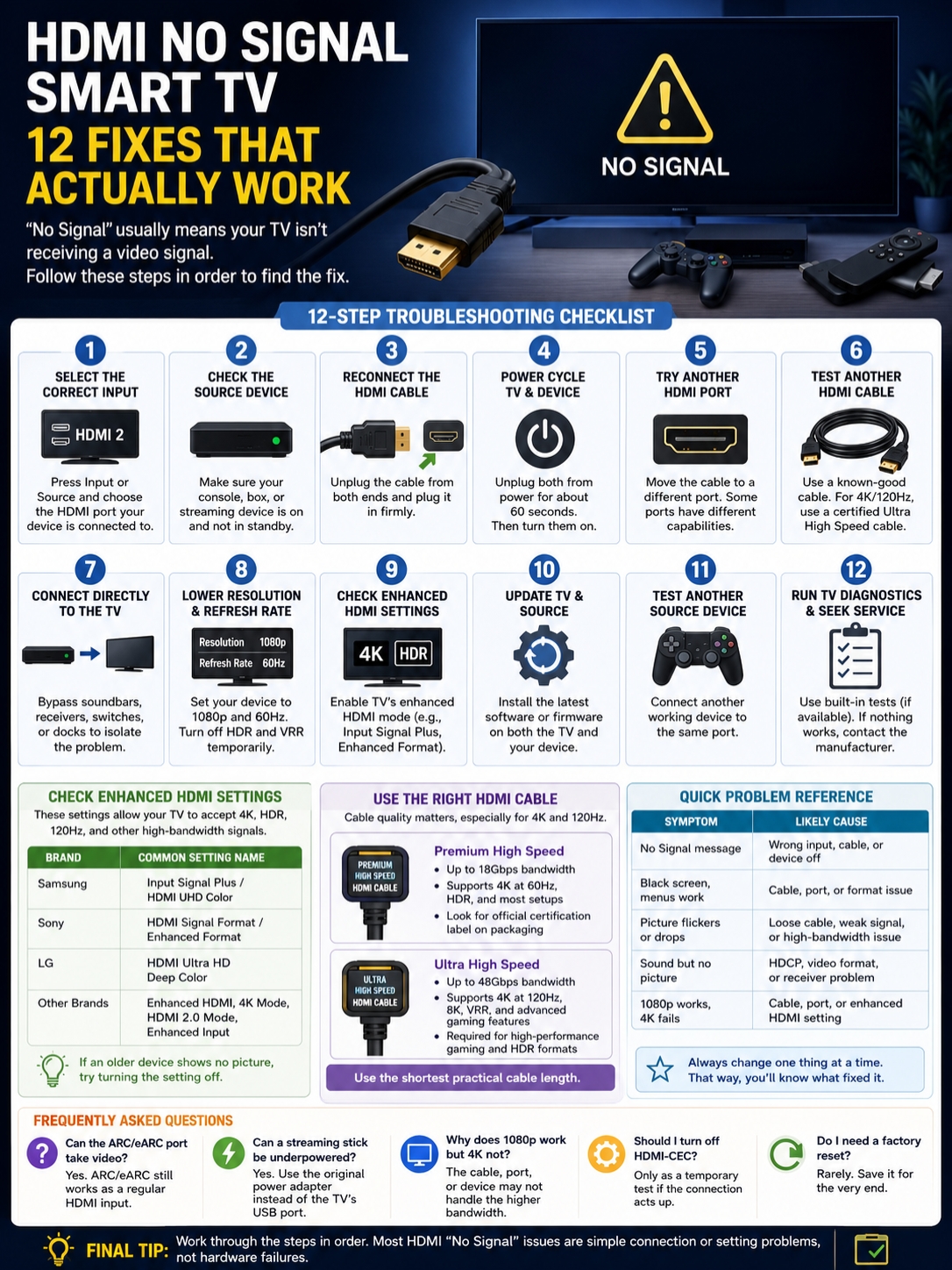
| TV Brand | Common Setting Name |
| Samsung | Input Signal Plus or HDMI UHD Color |
| Sony | HDMI Signal Format or Enhanced Format |
| LG | HDMI Ultra HD Deep Color |
| Other brands | Enhanced HDMI, HDMI 2.0 Mode, 4K Mode, or Enhanced Input |
Many smart TVs keep HDMI inputs in a basic compatibility mode by default.
That mode works with older devices, but it may block advanced formats such as:
- 4K at 60Hz
- 4K at 120Hz
- HDR
- Wider color formats
- VRR
- High-bandwidth PC output
Samsung often calls the setting Input Signal Plus. Older models may use the name HDMI UHD Color.
Sony commonly uses HDMI Signal Format with options such as Enhanced Format, Enhanced Format (VRR), or similar names.
LG usually calls it HDMI Ultra HD Deep Color.
Turn the feature on for a modern console, gaming PC, or 4K HDR player.
There’s one catch.
Older cable boxes, adapters, and media players may behave badly when enhanced mode is active. If an older device suddenly shows no picture, try turning the setting off for that HDMI port.
Menu names change by model and year, so check the TV manual rather than copying a path from another television.
Remove Soundbars, Receivers, Switches, and Docks
| Device in the HDMI Chain | What Can Go Wrong |
| AV receiver | It may not pass the source’s video format |
| Soundbar | Its HDMI input may have limited bandwidth |
| HDMI switch | It may fail to switch or carry high-bandwidth video |
| Splitter | It can create HDCP or display-detection problems |
| Capture card | It may limit resolution or refresh rate |
| USB-C dock | It may not support the selected output |
| Long in-wall cable | It may lose signal at higher bandwidth |
Connect the source directly to the television.
Instead of this:
Console → AV receiver → TV
Try this:
Console → TV
If the picture returns, you’ve found the weak link.
The receiver, soundbar, switch, or dock may not support the format being sent. A receiver that handles 1080p may fail with 4K HDR. Another may support 4K at 60Hz but not 4K at 120Hz.
The extra equipment may also need its own enhanced HDMI setting. Some receivers use labels such as Standard, Enhanced, 8K Enhanced, or 4K Signal Format.
Don’t assume a new-looking device supports every current video feature. Check its HDMI pass-through specifications.
Test the Source Device
| Source Device | What to Check |
| Cable or satellite box | Restart it and inspect its power and service connection |
| Streaming player | Use the original cable and power adapter |
| Game console | Start at 1080p and 60Hz |
| Windows laptop | Use Windows + P and Detect |
| Mac | Try a direct cable or another adapter |
| Blu-ray player | Lower the output resolution |
| Camera | Make sure HDMI output is enabled |
When the hdmi no signal smart tv message appears with only one connected device, stop blaming the television.
Test the source on another TV or monitor.
If it fails there too, the source may have:
- A damaged HDMI output
- Incorrect video settings
- Faulty software
- A bad power supply
- A broken adapter
- A startup problem
Now test a different source on the original TV port.
If the second device works, the television and cable are probably fine. The problem follows the original source.
Cable and satellite boxes can also confuse the issue. A “No Signal” message may refer to the HDMI link or the provider’s service signal.
Here’s an easy way to tell:
- If the box menu appears, HDMI is working.
- If the menu appears but channels don’t, contact the TV provider.
- If nothing from the box appears, keep troubleshooting the HDMI connection.
Update the TV and Run Built-In Tests
| Action | Why It Helps |
| Update TV software | Fixes known HDMI and compatibility bugs |
| Update the source device | Corrects display-output problems |
| Run HDMI diagnostics | Checks the cable and connection |
| Run a picture test | Separates TV faults from external-source faults |
| Factory-reset the TV | Clears settings as a last resort |
Check for software updates on both the television and the source device.
TV makers regularly fix connection bugs through firmware updates. Consoles, streaming devices, and receivers also receive HDMI-related fixes.
After updating, restart everything rather than testing immediately.
Some Samsung TVs include an HDMI troubleshooting tool under Device Care or Self Diagnosis. LG models may offer a Picture Test, Screen Self-Diagnosis, or HDMI cable check.
A built-in picture test can tell you a lot.
If the TV’s own test image looks normal, the screen and basic picture system are working. The problem is probably outside the television.
A factory reset should come near the end, not the beginning.
It wipes apps, accounts, network settings, and picture adjustments. It won’t fix a damaged cable, loose port, or failed HDMI board.
When the HDMI Port May Be Damaged
| Sign | What It May Mean |
| One port never detects any device | Damaged port or input circuit |
| HDMI plug moves inside the socket | Broken socket or solder joint |
| Picture changes when the cable moves | Loose cable or damaged port |
| Every HDMI input fails | TV software or input-board problem |
| TV menus also fail | Wider display or power issue |
It may be time to contact a repair technician when:
- Several working devices fail
- More than one tested cable fails
- Every HDMI port shows no signal
- The socket feels loose
- The port has visible damage
- Built-in diagnostics report an error
- The same source works normally on another TV
Don’t force a loose HDMI plug or twist it inside the socket. The port connects to an internal circuit board. Extra pressure can make the damage worse.
A single dead port doesn’t always justify a repair. You can often use another input unless you need a feature tied to the damaged port, such as eARC or 4K at 120Hz.
Frequently Asked Questions
| Question | Quick Answer |
| Can the ARC port take video? | Yes, it still works as a normal HDMI input |
| Can a streaming stick lack power? | Yes, especially through a weak TV USB port |
| Why does 1080p work but 4K fail? | The cable, port, or device may not handle the higher signal |
| Should I turn off HDMI-CEC? | Only as a temporary test |
| Do I need a factory reset? | Usually not |
Why does HDMI work only after I unplug the TV?
Unplugging forces the television’s HDMI system to restart. If the issue keeps coming back, update both devices, test another cable, and check sleep or quick-start settings.
Can I use the ARC or eARC port for a console?
Yes. ARC and eARC add audio-return features, but the port can still accept video. Check whether another input offers better gaming features such as 4K at 120Hz or VRR.
Why does the TV detect the device but show a black screen?
The source may be sending an unsupported resolution, refresh rate, HDR format, or protected video signal. Set it to 1080p at 60Hz and turn HDR off for testing.
Why does the picture disappear when HDR starts?
HDR places more demand on the connection. Turn on the TV’s enhanced HDMI mode and test a certified cable that supports the signal.
Can a USB-C hub cause an HDMI no-signal error?
Yes. The hub may not support the resolution or refresh rate you selected. It may also need more power. Try another adapter or a direct connection.
Does an expensive HDMI cable improve picture quality?
Not when both cables work correctly. HDMI sends a digital signal. A costly cable won’t make the image sharper. Buy the right certified cable for the format you need.
Why does the TV lose the signal when the console wakes up?
The TV and console may fail to rebuild the HDMI connection after sleep. Update both devices and test with HDMI-CEC or quick-start features turned off.
Can a long HDMI cable cause no signal?
Yes. Long runs become harder to manage at high bandwidth. Test a short cable near the TV. If that works, the long cable or in-wall installation is the likely problem.
Final Thoughts
| Start Here | Leave Until Later |
| Check the input | Factory reset |
| Wake the source device | Service appointment |
| Reconnect the cable | HDCP changes |
| Unplug both devices | Buying a new TV |
| Try another cable and port | Internal repair |
| Connect directly to the TV | Replacing all your equipment |
An hdmi no signal smart tv error usually comes down to one weak link.
Start with the input and source power. Reconnect the cable. Unplug both devices for about a minute. Then try another HDMI port, another cable, and a direct connection to the television.
If 1080p works but 4K, HDR, or 120Hz doesn’t, check the HDMI port, cable certification, and enhanced signal setting.
Work through the steps in order. Don’t jump straight to a factory reset or repair shop.
When several working devices and cables fail across every HDMI port, run the TV’s built-in tests and contact the manufacturer or a qualified technician