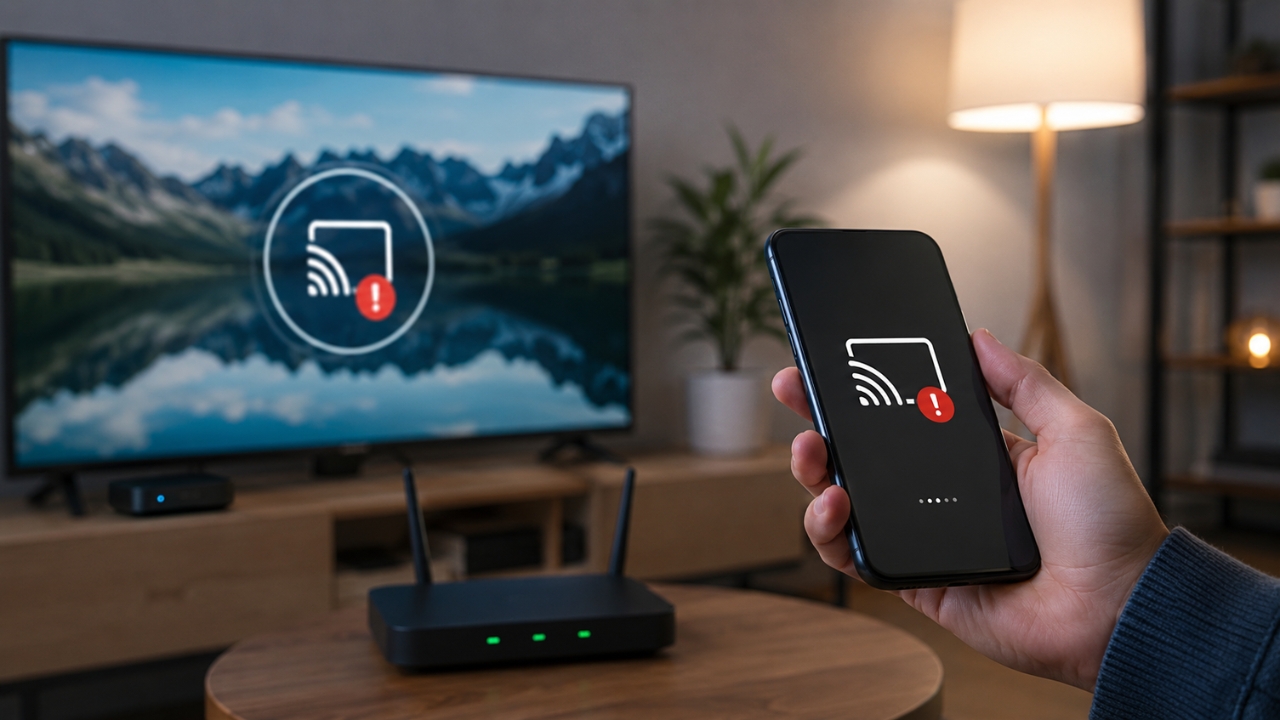
Your TV is on. Your phone has Wi-Fi. The streaming app opens without a problem. Then you tap the Cast, AirPlay, or Screen Mirroring button and find nothing.
No TV. No speaker. No streaming stick. Just an empty device list.
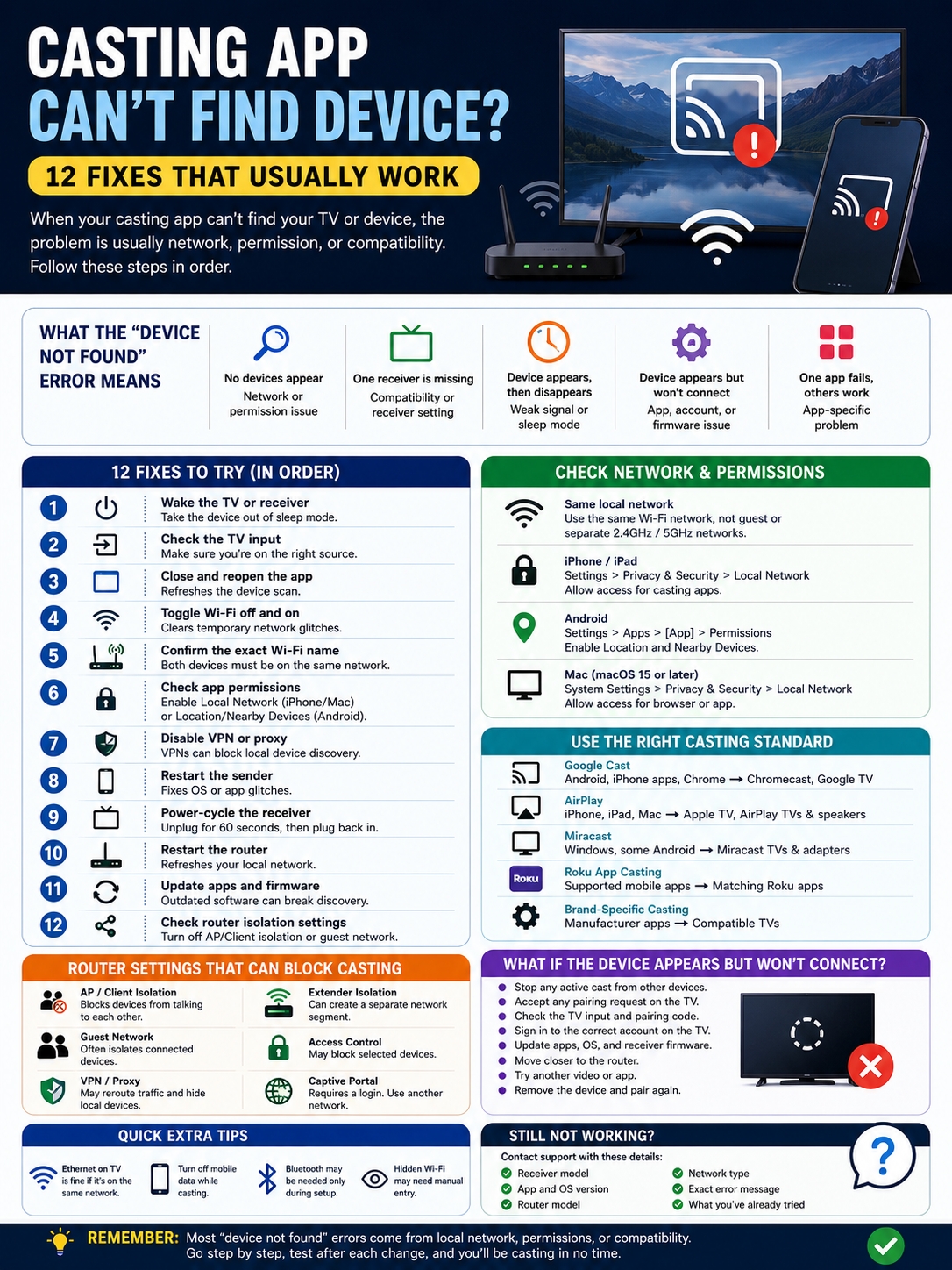
When a casting app cant find device, the problem usually starts before the video even loads. Your phone, computer, and receiver aren’t discovering each other on the local network.
The cause is often simple. One device may be on guest Wi-Fi. The app may not have local network access. The receiver may be asleep. A VPN may be getting in the way. In other cases, the phone and TV may support different casting standards.
You probably don’t need to reset everything. Start with the quick checks below and move down the list only if the device stays missing.
What a “Device Not Found” Error Really Means
A missing device can point to several different problems. The fastest way to fix it is to work out where the connection breaks.
| What You See | Most Likely Cause | First Thing to Check |
| No devices appear | Network or permission problem | Wi-Fi and local network access |
| One receiver is missing | Compatibility or receiver setting | Casting standard |
| Device appears, then vanishes | Weak signal or sleep mode | Restart the receiver |
| Device appears but won’t connect | App, account, or firmware issue | Update and reconnect |
| One app fails, others work | App-specific problem | Reinstall or update the app |
| Every app fails | Network or receiver issue | Router and receiver settings |
Casting starts with discovery. The sender searches the local network for compatible receivers. Only after it finds one can it start a connection.
That’s why a working internet connection doesn’t prove much. Your phone and TV can both stream from the web while remaining unable to talk to each other inside your home network.
Casting App Cant Find Device? Start With These Quick Fixes
Before opening router menus or changing permissions, try the basics. Temporary connection glitches cause a surprising number of casting failures.
| Step | What to Do | What It Fixes |
| 1 | Wake the TV or receiver | Sleep and standby problems |
| 2 | Check the TV input | Wrong source or receiver screen |
| 3 | Close and reopen the app | Frozen device scan |
| 4 | Toggle Wi-Fi off and on | Stale network connection |
| 5 | Restart the sender | Phone or computer glitch |
| 6 | Power-cycle the receiver | Receiver discovery failure |
| 7 | Restart the router | Local network fault |
Start by waking the TV, speaker, streaming stick, or smart display. Some devices stop advertising themselves while they sit in deep sleep.
Next, close the app fully. Don’t just leave it running in the background. Turn Wi-Fi off on the phone or computer, wait a few seconds, then turn it back on.
Open the app again and check the device list.
Still nothing? Restart the equipment in this order:
- Close the casting app.
- Restart the phone, tablet, or computer.
- Unplug the receiver from power.
- Wait about one minute.
- Plug the receiver back in.
- Restart the router if the device remains missing.
- Wait until Wi-Fi is fully available before testing again.
For Chromecast and Google TV devices, unplug the power cable rather than removing only the HDMI connection. Disconnecting HDMI does not fully restart the device.
Avoid a factory reset at this point. It erases saved settings but won’t fix a blocked permission or an isolated network.
Check the Wi-Fi Network and App Permissions
If the quick reset doesn’t help, check the network next.
Google Cast, AirPlay, and Roku app casting normally need the sender and receiver on the same local network. Miracast works differently, so don’t treat it as the same system.
| Platform | Setting to Check | Why It Matters |
| iPhone or iPad | Local Network permission | Lets apps find nearby devices |
| Mac | Local Network permission | Allows browser or app discovery |
| Android with Google Home | Location and Nearby Devices | Helps find and set up receivers |
| Chromecast or Google TV | Exact Wi-Fi name | Different networks block discovery |
| Roku app casting | Same wireless network | Required for supported app casting |
| Windows Miracast | Wi-Fi switched on | Needed for wireless display discovery |
Compare the Exact Wi-Fi Name
Don’t stop at “both devices are connected.”
Check the full network name on both devices. A phone on “Home-5G” may not be able to see a TV on “Home-Guest,” even though both have internet access.
Guest networks often block connected devices from communicating with one another. That feature improves security, but it also breaks casting.
You don’t always need both devices on the same Wi-Fi band. A phone on 5 GHz can usually cast to a TV on 2.4 GHz when the router places both bands on the same local network.
Problems start when the router separates the bands, creates different subnets, or isolates clients.
If your Wi-Fi name or password changed recently, check the receiver. It may still be trying to connect to the old network.
Restore Local Network Access on iPhone and iPad
On an iPhone or iPad, open:
Settings > Privacy & Security > Local Network
Find the casting app and switch access on.
Apple requires apps to ask before they connect to devices on the local network. If you denied the request the first time, the app may still reach the internet but fail to find your TV.
Google Home may also ask for Bluetooth during setup. Bluetooth doesn’t carry the stream, but it can help the app locate a nearby Chromecast or Google TV device.
Check Permissions on Android
On Android, open:
Settings > Apps > [Casting App] > Permissions
Check Location and Nearby Devices if the app uses them.
Google Home may need Location access during setup. The wording varies by phone brand, so you may see options such as Nearby Devices, Nearby Share, or Devices Nearby.
Don’t grant every permission automatically. Turn on only the ones connected to device discovery and setup.
Read Also: How to Fix a Streaming App That Won’t Update on TV
Check Local Network Access on a Mac
On newer versions of macOS, open:
System Settings > Privacy & Security > Local Network
Allow access for the browser or app you use to cast.
This setting matters because a browser can work normally online while still being blocked from scanning your home network.
Make Sure Both Devices Use the Same Casting Standard
This is where many people lose time.
Cast, AirPlay, and Screen Mirroring icons can look similar, but they don’t all use the same technology.
| Casting Method | Common Senders | Common Receivers |
| Google Cast | Android, iPhone apps, Chrome | Chromecast, Google TV, Cast-enabled TVs |
| AirPlay | iPhone, iPad, Mac | Apple TV, AirPlay-enabled TVs and speakers |
| Miracast | Windows and some Android devices | Miracast TVs and adapters |
| Roku app casting | Supported mobile apps | Matching Roku apps |
| Brand-specific sharing | Manufacturer apps | Compatible TVs from the same brand |
A Miracast-only television won’t appear in an iPhone’s AirPlay list.
A Chromecast won’t appear in the Windows wireless display menu.
A Windows laptop may project to a Miracast display but still fail to find a Chromecast through the same menu.
Some Android phones have also dropped Miracast support. Google Pixel devices, for example, rely on Google Cast rather than Miracast-style screen mirroring.
It also helps to understand the difference between casting and mirroring.
App casting sends a video or audio stream to the receiver. Your phone becomes a remote.
Screen mirroring copies everything on your phone or computer screen.
App-to-app casting opens the matching TV app and hands playback over to the receiver.
Browser casting sends a tab, desktop, or supported video through a browser such as Chrome.
Before trying more fixes, confirm that the sender and receiver support the same method.
Check Router Settings That Can Hide Devices
If a casting app cant find device even though both products show the same Wi-Fi name, the router may be blocking local traffic.
| Router Feature | What It Does | What to Try |
| AP isolation | Separates wireless devices | Turn it off on trusted home Wi-Fi |
| Client isolation | Blocks device-to-device traffic | Disable it temporarily |
| Guest network | Isolates connected users | Move both devices to the main network |
| VPN or proxy | Reroutes traffic | Disconnect during testing |
| Extender isolation | Splits the local network | Test near the main router |
| Access control | Blocks selected devices | Check the blocked-device list |
| Captive portal | Requires a browser login | Use another network |
Look for settings named:
- AP isolation
- Client isolation
- Wireless isolation
- Guest device isolation
- Device access control
- MAC filtering
- Multicast filtering
AP isolation is one of the biggest troublemakers. It allows each device to reach the internet but stops devices from communicating with one another.
That’s useful on public Wi-Fi. It’s not useful when you’re trying to cast from your phone to your TV.
Hotels, dorms, offices, and public networks often use this kind of setup. Even when the TV and phone join the same Wi-Fi, casting may still fail.
Turn Off VPN and Proxy Services Temporarily
A VPN can also hide local devices.
Some VPN apps send all traffic through a remote server. That can stop the phone or computer from seeing receivers on the home network.
Disconnect the VPN and check the device list again. If the receiver returns, look for a setting such as:
- Allow LAN traffic
- Local network sharing
- Bypass VPN for local devices
- Split tunneling
Turn the VPN back on after the test.
Test Without a Wi-Fi Extender
Extenders and mesh systems can create separate network segments.
Move both devices closer to the main router and test again. If casting works there, the extender may be isolating clients or using a separate network name.
Update the extender firmware and check its isolation settings before making permanent changes.
Don’t disable your router’s firewall or Wi-Fi encryption. Casting doesn’t require you to weaken the whole network.
Try the Right Fix for Your Device
Once you’ve ruled out a general network problem, move to the platform-specific checks.
| Platform | Main Check | Common Limitation |
| Chromecast or Google TV | Google Home and Cast permissions | Older hardware may no longer be supported |
| Apple AirPlay | AirPlay enabled and same Wi-Fi | Receiver must support AirPlay |
| Windows Miracast | Windows key + K | Both devices need Miracast |
| Roku | Same network and matching app | Casting and mirroring work differently |
| Fire TV | Mirroring or AirPlay setting | Features vary by model |
Chromecast and Google TV
Open Google Home and check whether the device appears there.
If it doesn’t, check Local Network access on iPhone or iPad and Location access on Android.
Update the casting app before testing again. Then try more than one Cast-enabled app.
YouTube and Netflix sometimes handle discovery differently from other apps. Don’t rely on either one as your only test.
If every app fails, the problem is probably the receiver or network. If only one app fails, focus on that app.
Older Chromecast hardware may also be part of the problem. Google no longer supports the first-generation Chromecast with regular software and security updates. If an old unit keeps dropping offline, replacement may make more sense than repeated resets.
Apple AirPlay
Make sure both devices are awake, updated, close to each other, and connected to the same Wi-Fi network.
Check that AirPlay is enabled on the TV, Apple TV, or Mac.
To use a Mac as an AirPlay receiver, open:
System Settings > General > AirDrop & Handoff
Turn on AirPlay Receiver.
Also check who can connect. A restrictive setting may stop another device from appearing or pairing.
If the receiver is part of an Apple Home setup, check the home’s Speakers & TV access settings.
Windows Miracast
Press:
Windows key + K
Windows will scan for supported wireless displays.
If Windows says the PC doesn’t support Miracast, no app setting will add the missing hardware feature.
Make sure Wi-Fi is turned on. Then update the graphics driver, wireless adapter driver, and receiver firmware.
When projecting to another Windows PC, the receiving computer needs the Wireless Display optional feature. It must also allow connections under Projecting to this PC.
Windows 10 reached the end of standard support on October 14, 2025. In 2026, Windows 11 is the supported option for most users.
Roku
Roku casting and Roku screen mirroring are not the same thing.
For app casting, the supported app usually needs to be available on both the phone and Roku. Both devices must also use the same local network.
Some apps show the casting icon only after you start playing a video.
For Android or Windows screen mirroring, check Roku’s mirroring settings and blocked-device list.
Apple devices should use AirPlay on compatible Roku models rather than the Android and Windows mirroring method.
Fire TV
For Miracast screen mirroring, open:
Settings > Display & Sounds > Enable Display Mirroring
If the option is missing, that Fire TV model may not support Miracast mirroring.
Some Fire TV smart televisions also support AirPlay. On compatible models, look under:
Settings > Display & Sounds > AirPlay & HomeKit
The menu varies by model and Fire OS version.
What If the Device Appears but Won’t Connect?
Finding the receiver means discovery is working. A failed connection points to a different issue.
| What Happens | Likely Cause | What to Do |
| Connection times out | Weak signal or frozen receiver | Move closer and restart |
| Pairing code never appears | Wrong mode or input | Reopen the receiver screen |
| TV app opens but video fails | Account or app problem | Sign in and update |
| Connection keeps dropping | Unstable Wi-Fi | Test near the router |
| One title fails | Content or app restriction | Try another title |
| Device rejects every attempt | Sender is blocked | Check the receiver’s block list |
Stop any active casting session from another phone or computer.
Check that the TV is on the right input. Accept any pairing request that appears on screen.
Update both sides of the connection. That includes:
- The phone or computer operating system
- The casting app
- The TV or receiver firmware
- The browser
- The router firmware
If one app keeps failing while others work, reinstall that app.
If every app can find the receiver but none can connect, remove the receiver from saved devices and pair it again.
Less Obvious Reasons a Casting App Can’t Find a Device
Some failures don’t fit the usual Wi-Fi explanation.
| Problem | Why It Happens | Best Fix |
| TV uses Ethernet | Router separates wired and wireless clients | Allow LAN communication |
| Phone switches to mobile data | Wi-Fi becomes unstable | Turn off mobile data temporarily |
| Receiver name changed | App shows an unfamiliar name | Check device settings |
| Security app blocks discovery | Local traffic is filtered | Allow local network access |
| TV is in energy-saving mode | Receiver stops advertising itself | Disable deep sleep temporarily |
| App needs playback first | Cast icon appears late | Start a video before checking |
Can the TV Use Ethernet While the Phone Uses Wi-Fi?
Yes.
The TV and phone don’t need to use the same connection type. They only need to belong to the same local network.
The problem appears when the router separates wired and wireless devices.
Can Mobile Data Interfere?
Sometimes.
A phone may switch between Wi-Fi and mobile data when the wireless signal weakens. That can interrupt discovery.
Turn mobile data off briefly and test again.
Can Security Apps Block Casting?
Yes.
Firewalls, parental-control tools, privacy apps, and antivirus software may block local traffic.
Pause the relevant feature for a quick test. If casting starts working, create a limited local-network exception instead of leaving security turned off.
Final Thoughts
When a casting app cant find device, start with the simple things.
Wake the receiver. Reopen the app. Toggle Wi-Fi. Make sure both devices are on the same local network.
Then check app permissions, casting compatibility, VPN settings, guest Wi-Fi, and router isolation.
Don’t change five settings at once. Test after each step. That makes the real problem much easier to spot.
Most missing-device errors come down to local discovery, not broken hardware. Once the phone and receiver can see each other again, casting usually starts working without a reset.
FAQs About Casting Problems
Why Can One Phone Find the TV but Another Can’t?
The second phone probably has a permission, network, VPN, or app problem.
Compare the Wi-Fi name, Local Network access, app version, and VPN status on both phones.
Can a Wi-Fi Extender Stop Casting?
Yes.
An extender can create a separate network or isolate connected devices. Test both devices near the main router.
Why Is the Cast Icon Missing From One App?
The app may not support the receiver. It may also show the icon only after playback starts.
Check the app’s device support page and try another title.
Does Bluetooth Need to Stay On?
Usually not.
Bluetooth may help during initial setup, but normal casting normally uses Wi-Fi.
Can a Hidden Wi-Fi Network Cause Problems?
Yes.
A hidden network won’t appear automatically during setup. You may need to type the network name and password manually.
Why Does Restarting the Router Fix It Only for a While?
That often points to router firmware, a weak extender, unstable address assignment, or an isolation setting.
Update the router and test the receiver through the main access point.
Should I Factory Reset the Receiver?
Only as a last step.
First check Wi-Fi, permissions, VPN settings, compatibility, router isolation, firmware, and another sender device.
A factory reset won’t repair an incompatible casting standard or a blocked local network.