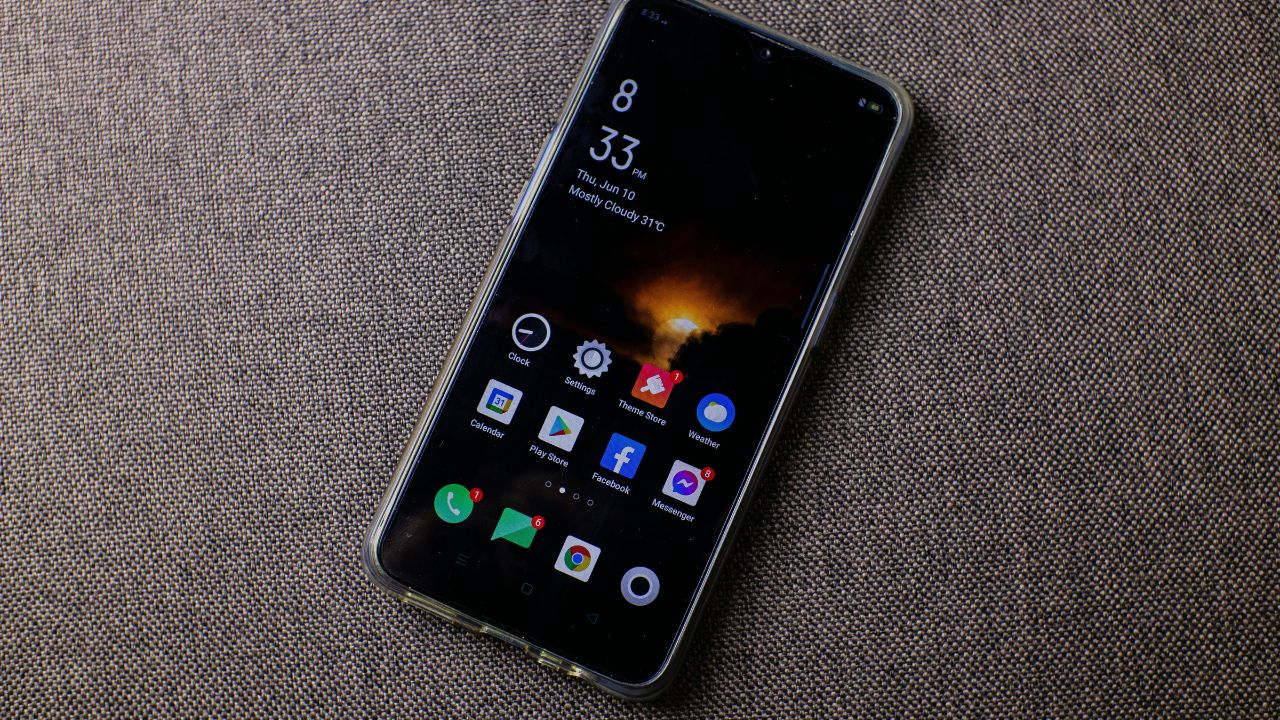
Do you feel like your phone lives on the charger? You pick it up in the morning at 100%, and by lunchtime, the battery bar turns red. It is a frustrating issue that millions of smartphone users face every day.
When your Android battery drains so fast, it ruins your daily plans. You might miss important calls, lose access to navigation maps, or find yourself stranded without a way to pay digitally.
Many people believe that a fast-draining battery means they need a new phone. However, the problem usually comes down to hidden settings, hungry apps, or poor charging habits. This deep-dive guide will show you exactly why your battery drops so quickly and how you can fix it using real, tested solutions.
1. High Screen Brightness and Refresh Rates
Your display is almost always the biggest power consumer on any mobile device. Modern Android screens are large, bright, and incredibly sharp. While they look amazing, driving all those pixels requires an immense amount of electrical energy.
The Max Brightness Trap
Many users manually set their brightness slider to 80% or 100%. Keeping your screen at maximum brightness indoors forces the display backlights to work at full capacity. This single habit can cut your battery life in half.
High Refresh Rates (90Hz vs. 120Hz)
Newer Android phones offer high refresh rates like 90Hz or 120Hz. A standard screen refreshes its image 60 times per second (60Hz). A 120Hz screen doubles that speed to make scrolling look buttery smooth. The catch? The graphics processing unit (GPU) and display panel have to work twice as hard, which creates a massive draw on the power cell.
The Solution: Auto-Brightness and Dynamic Refresh
Turning on Adaptive Brightness allows your phone to read the light levels around you using an ambient light sensor. It dims the screen in dark rooms and brightens it only under direct sunlight. Additionally, changing your display settings from a locked 120Hz to Dynamic/Standard 60Hz will instantly add hours to your daily usage time.
| Screen Setting Factor | High Consumption State | Battery-Saving Solution | Estimated Battery Gain |
| Brightness Level | Manual 90% – 100% | Adaptive/Auto-Brightness | 15% to 20% |
| Refresh Rate | Locked 120Hz | Standard 60Hz or Dynamic | 10% to 15% |
| Screen Timeout | 2 Minutes or 5 Minutes | 15 Seconds or 30 Seconds | 5% |
2. Rogue Background Apps and Push Notifications
Have you ever checked your phone after leaving it in your pocket for an hour, only to find it lost 8% of its charge? This is called idle drain, and it is usually caused by background app activity.
What Apps Do When You Rest
Just because you close an app does not mean it stops running. Apps like social media networks, navigation systems, and free mobile games stay active in the background. They constantly ping remote servers to check for updates, send push notifications, sync files, and track your location.
The Problem with Bloatware
Many Android phones come with pre-installed software from carriers or manufacturers, commonly known as bloatware. These apps often launch themselves quietly during system bootup. They run background services that chew through your processor cycles and system memory (RAM), draining your cell without your knowledge.
The Solution: Restrict Background Activity
Android includes a built-in power manager that tracks exactly what each app consumes.
- Open your phone’s Settings.
- Go to Battery > Battery Usage.
- Look at the list to find apps with high percentages.
- Tap the rogue app and select Restricted under background usage. This prevents the app from waking up your processor when you are not actively using it.
| App Type | Why It Drains Battery | Recommended Action |
| Social Media Apps | Constant syncing, background data refreshes | Set to ‘Optimized’ or ‘Restricted’ |
| Free Mobile Games | Background ad tracking and notifications | Force stop when not playing |
| Pre-installed Bloatware | Unused services running in the background | Disable or uninstall via settings |
3. Poor Cellular Network Signals
Most people do not realize that their physical location impacts their battery life. Your phone is a two-way radio that communicates with cell towers miles away. When that connection is weak, your phone has to compensate.
The Signal Search Dynamic
If you live in a rural area, work inside a concrete building, or ride in an underground subway, your cell signal will drop to one or two bars. When this happens, your phone’s internal modem realizes it might lose connection. To stay connected, it boosts its internal transmitter power to maximum limits.
[Weak Cell Signal] —> [Modem Increases Transmitter Power] —> [High Power Draw & Heat] —> [Rapid Battery Drain]
This constant search for a stable signal generates noticeable heat and causes the battery level to plunge, even if the screen is turned off completely.
The 5G Battery Tax
5G networks offer blazing-fast download speeds, but building 5G infrastructure takes time. In many areas, 5G signals are spotty. When your phone constantly switches back and forth between 4G LTE and 5G, the modem uses an incredible amount of power to manage the handoff between different network frequencies.
The Solution: Wi-Fi Calling and 4G Caps
If you spend your workday in a building with terrible cellular reception, connect to the local Wi-Fi network and enable Wi-Fi Calling. This shifts the voice and data load away from the power-hungry cellular modem. If your area has weak 5G coverage, go to Network Settings and change your preferred network type to 4G/LTE Only.
| Network Condition | Power Consumption Impact | Practical Solution |
| Weak 1-2 Bar Signal | Extremely high power draw as modem boosts radio waves | Switch to Wi-Fi; use Airplane mode if signal is dead |
| Spotty 5G Coverage | High drain caused by constant 4G/5G switching | Set preferred network type to 4G/LTE only |
| Active Bluetooth/Hotspot | Continuous background beacon scanning | Turn off when sharing is complete |
4. Location Services and GPS Tracking
Location tracking is incredibly helpful for calling a ride, mapping driving routes, or finding local restaurants. However, constant location tracking is one of the quickest ways to drain an Android battery.
GPS vs. Network Location
Real GPS tracking requires your phone to communicate directly with satellites orbiting the Earth. This hardware process takes a huge amount of energy. Some apps request high-accuracy location tracking, which forces the GPS chip to run continuously in the background.
Silent Location Requests
Many apps do not actually need your precise location to function properly. Shopping apps, weather widgets, and social media platforms track your location mainly to serve targeted advertisements. If twenty apps check your coordinates multiple times an hour, your battery will empty rapidly.
The Solution: Clean Up Location Permissions
Take control of your privacy and your battery by managing location access. Go to Settings > Location > App Permissions. Review the list and change permissions from “Allow all the time” to “Allow only while using the app” for everything except essential emergency tracking tools.
| Permission Type | Battery Impact | Best Practices |
| Allow All the Time | Critical drain; app tracks you 24/7 | Restrict for all non-navigation apps |
| Only While Using App | Low drain; only works when app is open | Ideal setting for maps, weather, and ride-sharing |
| Don’t Allow | Zero drain; maximizes overall battery | Use for games, editors, and retail apps |
5. Outdated Software and System Glitches
Sometimes, your battery drains fast not because of what you are doing, but because of an internal software bug. Operating systems are highly complex, and small coding errors can cause major power issues.
The Post-Update Indexing Period
Have you noticed your battery draining faster immediately after a major Android version update? This is actually normal for the first 24 to 48 hours. The system is busy re-indexing your photos, files, and app caches in the background. However, if the drain continues after three days, you are likely dealing with a software bug.
Unoptimized App Code
App developers frequently update their platforms. If a developer releases an update with messy or unoptimized code, it can put your phone into a “wake lock” state. A wake lock happens when an app prevents your phone’s processor from entering its deep-sleep mode, forcing the CPU to run at high speeds indefinitely.
The Solution: Keep Everything Updated
Always update your device to the latest software patch. Manufacturers frequently release small monthly updates that include specific battery performance optimizations and bug fixes. Open the Google Play Store, tap your profile icon, select Manage apps and device, and run all pending app updates to patch buggy code.
| Software Element | Potential Risk | Corrective Action |
| Android OS | Corrupt system cache, missing power patches | Install monthly security updates regularly |
| Third-Party Apps | Memory leaks, perpetual CPU wake locks | Enable auto-updates in Google Play Store |
| System Cache | Leftover junk files from old updates | Clear cache partition via Recovery Mode |
6. Accounts Syncing Too Frequently
Android excels at keeping your digital life synchronized across devices. Your emails, calendar events, cloud photos, and contact lists stay updated in real time. However, this seamless experience requires constant network activity.
The Sync Cycle Exploded
When auto-sync is turned on for multiple accounts (like Google, Microsoft Outlook, Yahoo, and Facebook), your phone constantly communicates with cloud servers. Every time an email arrives, a photo is taken, or a calendar appointment changes, data flows back and forth. If you have multiple email accounts syncing every few minutes, your processor never gets a chance to rest.
The Solution: Manual or Hourly Syncing
You do not need every app syncing instantly. Go to Settings > Passwords and Accounts. Look at the list of accounts and turn off toggle switches for services you do not use daily. For email accounts, change the sync settings from “Push” (instant) to “Fetch” on an hourly schedule, or switch to manual syncing so mail loads only when you open the app.
| Sync Type | How It Works | Battery Consumption | Recommendation |
| Push Sync | Server pushes data instantly | Very High | Use for essential work emails only |
| Fetch Sync | Phone checks on a fixed schedule | Moderate | Set to 1-hour intervals for personal mail |
| Manual Sync | Data loads only when pulled down | Minimal | Best for social media and secondary accounts |
7. Using Widgets and Live Wallpapers
Android users love customization. Widgets and animated live wallpapers allow you to make your home screen look completely unique. Unfortunately, visual flair comes with a hefty battery cost.
The Cost of Live Wallpapers
A standard wallpaper is a static image file. The processor loads it once into memory, and it sits there using zero processing power. A live wallpaper is essentially a video or an interactive rendering engine that runs continuously behind your app icons. Every second your home screen is open, your GPU uses energy to animate those pixels.
Why Widgets Are Secret Battery Killers
Widgets (like weather displays, news tickers, and stock market trackers) are not just static boxes. They are miniature apps that run directly on your home screen. To show real-time information, they wake up your phone’s data connection to download fresh content every few minutes.
The Solution: Keep the Home Screen Clean
Switch your live wallpaper to a static, dark image. If your Android device has an AMOLED screen, using a pure black wallpaper saves an incredible amount of power because AMOLED screens turn off individual pixels completely when displaying true black. Remove unnecessary widgets from your home screen, leaving only the essential ones.
| Home Screen Element | Power Consumption | Better Battery Alternative |
| Live Wallpaper | High (Continuous GPU usage) | Static dark or black image |
| News/Stock Widgets | Moderate (Constant data syncing) | Use app shortcuts instead of live widgets |
| Bright White Theme | High (Backlights run at full power) | System-wide Dark Mode |
8. Extreme Environmental Temperatures
Smartphone batteries rely on complex chemical reactions to store and generate electrical energy. These reactions work best in a relatively narrow temperature window.
[Lithium-Ion Battery Health Window]
Below 32°F (0°C) 60°F – 80°F (15°C – 27°C) Above 95°F (35°C)
——————– ————————— ———————–
Internal Resistance Optimal Operating Temp Chemical Degradation
Spikes; Fast Drain Maximum Efficiency Permanent Capacity Loss
The Heat Degradation Factor
Lithium-ion batteries hate heat. If you leave your Android phone sitting on a car dashboard under direct sunlight on a hot day, its internal temperature will skyrocket. High heat speeds up the internal degradation of the battery cell, causing it to lose charge faster and permanently shrinking its long-term capacity.
The Cold Weather Drop
Extreme cold is also problematic. When the temperature drops below freezing, the internal resistance within the battery increases. This slows down the movement of electrical ions, causing the battery percentage to drop rapidly or causing the phone to shut down completely, even if it showed 30% a moment before.
The Solution: Thermal Management
Never leave your phone in an enclosed car or under direct sunlight. If your phone feels hot while gaming or charging, remove its protective case to let heat escape. If you are out in extreme winter weather, keep your phone in an inside coat pocket close to your body heat to protect its chemical balance.
| Temperature Range | Chemical Effect on Battery | Impact on Charge |
| Extreme Cold (<32°F / 0°C) | High internal electrical resistance | Rapid temporary drain; sudden shutdowns |
| Optimal (60°F – 80°F) | Normal, balanced chemical flow | Maximum efficiency and stable lifespan |
| Extreme Heat (>95°F / 35°C) | Permanent degradation of internal components | Faster active drain; long-term capacity loss |
9. Bad Charging Habits and Aging Hardware
Over time, every smartphone battery degrades. It is a natural part of physical chemistry. However, many users accelerate this process through poor charging habits.
Understanding Battery Cycles
A typical lithium-ion smartphone battery retains its health for about 300 to 500 complete charge cycles. One cycle means using 100% of the battery’s capacity. If your phone drains so fast that you have to charge it twice a day, you are burning through your cycles twice as fast.
The Stress of 0% and 100%
Keeping a battery at extreme states of charge creates high physical voltage stress. Letting your phone drop to 0% before plugging it in damages the chemical health of the cell. Similarly, leaving your phone plugged in overnight forces it to sit at 100% voltage for hours on end, generating heat and wearing down the anode and cathode layers inside the battery.
[0% Charge] <— High Stress Zone —> [20% to 80% Safe Zone] <— High Stress Zone —> [100% Charge]
The Solution: The 20-80 Charging Rule
To maximize your battery’s physical lifespan, try to keep its charge level between 20% and 80%. Plug your phone in when it drops to 20%, and unplug it once it hits 80%. Turn on Protect Battery or Adaptive Charging in your Android settings, which limits the charge to 80% or pauses charging overnight until right before you wake up.
| Charging Habit | Long-Term Impact | Corrective Solution |
| Draining to 0% every day | Heavy chemical stress on the cell | Plug in your phone once it drops to 20% |
| Keeping it plugged in at 100% | Micro-heating and high voltage wear | Turn on Adaptive Charging in settings |
| Using cheap, non-certified plugs | Unstable current voltage creates heat | Only use high-quality OEM or certified chargers |
10. Hardware Aging: When It’s Time to Replace
If you have tried every single software tip, adjusted your brightness, restricted background apps, cleared your cache, and your battery still drops by 1% every minute, you are likely dealing with physical hardware failure.
Checking Your Battery Health Status
Unlike iPhones, Android does not always show a simple “Maximum Capacity” percentage out of the box. However, you can check your battery’s physical health by opening your phone app and dialing *#*#4636#*#* to access the testing menu (availability varies by manufacturer). Alternatively, you can download a reliable diagnostic app like AccuBattery.
If your remaining maximum health capacity is below 80%, the battery cell is worn out. No amount of software tweaking will make it last like a brand-new phone. At this point, the real solution is visiting an authorized repair center to replace the physical battery cell.
| Battery Health Percentage | General Performance | Recommended Action |
| 90% – 100% | Excellent health; normal lifespan | Follow standard settings optimization |
| 80% – 89% | Moderate degradation; noticeable drop | Restrict background apps; turn on power saving |
| Below 80% | Severe degradation; rapid power drops | Visit a repair center for a battery replacement |
Frequently Asked Questions (FAQ)
Does Dark Mode actually save Android battery life?
Yes, but only if your smartphone has an AMOLED or OLED screen. On these displays, pixels are turned off completely to show black, using zero power. If your phone has a budget LCD screen, Dark Mode will not save battery because the entire backlight stays on regardless of the colors on the screen.
Is it bad to leave my phone charging overnight?
Modern Android smartphones are smart enough to stop drawing power once they reach 100%. However, leaving the phone plugged in for eight hours forces it to sit at maximum voltage, which creates ambient heat and slowly degrades the chemical lifespan over time. Using Android’s Adaptive Charging feature solves this problem.
Do battery-saver apps work?
Most third-party “battery booster” or “RAM cleaner” apps do more harm than good. They often run constantly in the background to monitor other apps, which ironically consumes more battery power. They also display aggressive pop-up advertisements. It is always best to use Android’s built-in system battery settings.
Why does my phone get warm when it drains fast?
Heat is a byproduct of energy consumption. When an app glitches and locks your processor at 100% speed, or when your network modem works extra hard to find a signal, the electrical current generates thermal heat. If your phone is hot to the touch, your battery is draining rapidly.
Final Words
Fixing a fast-draining Android battery does not require technical expertise. It simply requires a basic understanding of what consumes power behind the scenes. Start by turning on Adaptive Brightness, setting your screen refresh rate to standard, and restricting resource-heavy social media apps from running freely in the background.
By practicing healthy charging habits—like keeping your phone’s power level between 20% and 80% and avoiding extreme heat—you can preserve its physical lifespan for years to come. Take control of your settings today, and give your phone the long-lasting battery life it was designed to deliver.