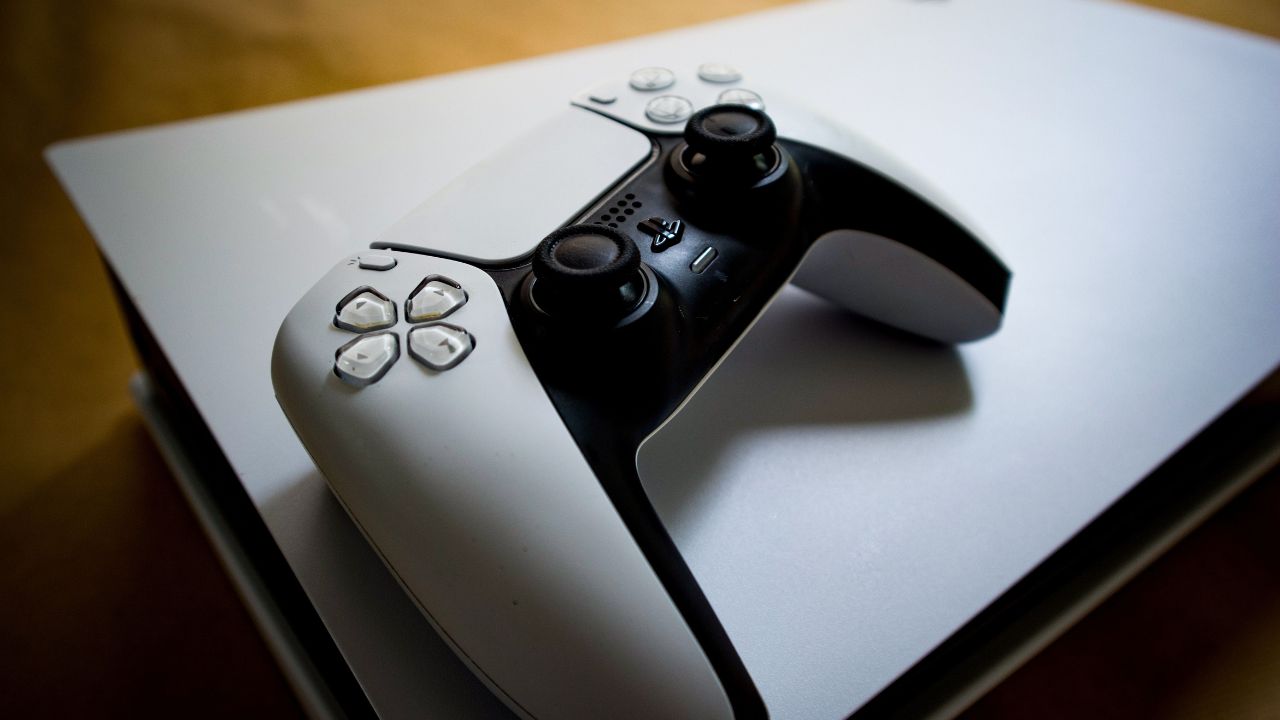
Few things ruin a gaming session faster than inserting your favorite game and hearing a horrible grinding noise, or worse, absolutely nothing at all. If you are staring at your console frustration, dealing with a PS5 Disc Drive Not Working: Step-by-Step Repair scenario is unfortunately common. Whether your console refuses to pull the disc in, spits it back out instantly, or throws a cryptic “Unrecognized Disc” error code on the screen, you do not need to panic.
Before you spend hundreds of dollars on a replacement console or weeks waiting for official factory servicing, many optical drive issues can be resolved at home. This guide breaks down exactly why these errors happen and walks you through safe, tested methods to get your physical games spinning again.
Why Your PS5 Disc Drive Stops Working
Optical drives are highly complex mechanical systems. They rely on precise physical alignments, tiny gears, voltage balances, and sensitive optical lenses to function. When one small part of that system encounters dust or a physical obstruction, the entire console can reject physical media.
Understanding the root cause helps you target the right fix without risking further damage to your PlayStation 5 hardware.
- Mechanical Misalignments: The internal rollers and plastic gears that pull the disc into the console can slip out of position due to sudden movements or forcefully inserting a disc.
- Dirty Optical Laser: Dust, pet hair, and ambient debris find their way into the console over time, forming a thin layer over the lens that blocks the blue-violet reading laser.
- Firmware Glitches: Sometimes, the hardware is completely fine, but a corrupted system cache or an incomplete system software update prevents the motherboard from communicating with the drive daughterboard.
- Horizontal vs. Vertical Positioning Friction: The internal gravity-assisted levers inside the drive can bind or stick depending on how your console is oriented on your desk or entertainment center.
Quick Reference Troubleshooter
| Symptom | Primary Suspect | Initial Action |
| Disc won’t feed into slot | Mechanical jam / Roller slip | Manual Eject Screw Adjustment |
| “Unrecognized Disc” error | Dirty laser lens or dirty disc | Clean disc / Safe Mode database rebuild |
| Clicking or grinding noise | Loose gear / Object stuck inside | Foreign object removal / Roller reset |
| Disc stuck inside completely | Power failure / Broken gear | Manual release sequence |
7 Methods for a PS5 Disc Drive Not Working: Step-by-Step Repair
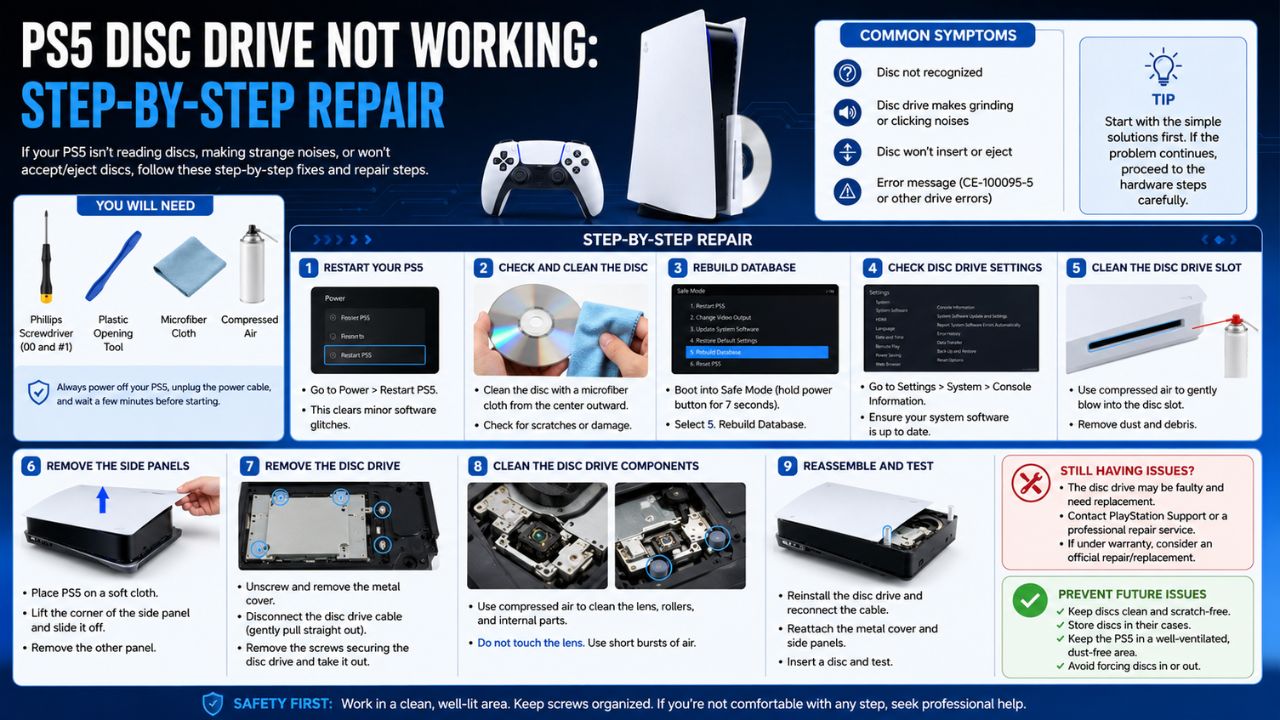
Item #1: The Basic Disc and Orientation Check
Before grabbing screwdrivers or altering system settings, rule out the simplest culprits. The PS5 design can confuse users regarding which way a disc should face, especially when switching between horizontal and vertical setups.
Always ensure the printed artwork on the disc faces the center of the console (or upwards if horizontal). Additionally, look for smudges or micro-scratches on the disc surface. The PS5 Ultra HD Blu-ray drive has tighter tolerances than older consoles; even a slight oily fingerprint can cause a reading failure.
| Metric | Detail |
| Difficulty Level | Very Easy |
| Tools Required | Microfiber cloth |
| Success Rate | ~20% of basic read errors |
Item #2: Power Cycling and System Updates
Software glitches can freeze the optical drive’s firmware module. A standard rest-mode restart won’t clear this; you need a full hardware power cycle to drain the capacitors and force the drive to re-initialize its components.
Turn off your console completely. Unplug the power cable from the back and wait a full two minutes. While it is unplugged, press and hold the power button for 10 seconds to discharge residual power. Plug it back in, check for system software updates in the settings menu, and try again.
| Metric | Detail |
| Difficulty Level | Easy |
| Time Required | 5 Minutes |
| Fix Targets | Software hangs, communication glitches |
Item #3: Rebuilding the System Database
A corrupted file structure on your PS5’s internal SSD can disrupt background processes, including the optical drive controllers. Rebuilding the database cleans up the system without deleting your games or save data.
Turn off your console. Hold the power button down until you hear a second beep (about 7 seconds) to boot into Safe Mode. Connect your controller via USB cable, navigate to option number 5 (“Rebuild Database”), and confirm. This forces the system to re-index all attached hardware.
| Metric | Detail |
| Difficulty Level | Easy |
| Time Required | 10-15 Minutes |
| Risk Factor | Zero data loss |
Item #4: Using the Manual Eject Screw Reset
If a disc is trapped inside or the drive rollers refuse to pull anything in, the manual mechanical bypass can reset the internal gear alignments. This is a built-in hardware feature designed by Sony.
Lay your console flat on a soft surface with the disc slot facing you. Pop off the bottom cover (the one without the PlayStation logo). Look for a circular black plastic film or sticker covering a screw hole near the drive. Insert a long Phillips screwdriver and turn it clockwise to manually cycle the internal gears and release mechanical tension.
| Metric | Detail |
| Difficulty Level | Medium |
| Tools Required | Phillips #1 Screwdriver |
| Best Used For | Stuck discs, unresponsive rollers |
Item #5: Clearing Hidden Optical Dust Barriers
Dust build-up inside the narrow entry slot can coat the rubber intake rollers, causing them to lose grip and slip against the disc instead of pulling it inside.
Using a can of compressed air, blow short bursts directly into the disc slot while the console is powered off. Do not stick the straw deep into the console. Follow this up by wrapping a thin microfiber cloth around a stiff card (like an old gift card), dampening it slightly with isopropyl alcohol (90%+), and gently sliding it into the slot to wipe clean the rubber rollers.
| Metric | Detail |
| Difficulty Level | Medium |
| Tools Required | Compressed air, 90%+ Isopropyl alcohol |
| Warning | Never use water or harsh household cleaners |
Item #6: Deep Cleaning the Laser Lens
If your console accepts discs smoothly but consistently throws “Unrecognized Disc” errors across multiple games, the laser lens itself is likely blocked by a film of fine dust.
This step requires removing the outer white plates and unscrewing the silver metal shielding covering the disc drive assembly. Once exposed, locate the tiny glass laser lens. Dip a clean cotton swab in high-purity isopropyl alcohol and gently wipe the lens in a circular motion. Let it dry completely for 5 minutes before reassembling.
| Metric | Detail |
| Difficulty Level | Advanced |
| Tools Required | Torx T8 Security Screwdriver, Isopropyl Alcohol |
| Risk | High if handled roughly; don’t scratch the lens |
Item #7: Checking Daughterboard Ribbon Cable Seats
The PS5 disc drive communicates with the console’s main motherboard via delicate ribbon cables. Vibrations, accidental drops, or factory assembly oversights can cause these cables to loosen over time.
If you have already opened the console to access the drive assembly, check the flat ribbon cables connecting the drive’s daughterboard to the main chassis. Gently flip up the plastic locking tabs, pull the ribbon out, check for any tears or corrosion on the gold contacts, reinsert them firmly, and snap the locking tabs back down.
| Metric | Detail |
| Difficulty Level | Advanced |
| Tools Required | Precision tweezers, non-marring pry tool |
| Crucial Note | The drive board is paired to the motherboard; don’t swap it |
Step-by-Step Mechanical Realignment Sequence
If your drive makes a clicking sound, follow this exact physical adjustment process to realign the guide tracks.
1.Power Down and Strip the Plates:Requires 5 mins.
Turn off the PS5 completely, detach all cables, and remove the white outer housing shell on the disc drive side of the console.
2.Locate the Manual Gear Port:No tools required yet.
Find the circular opening on the drive casing that houses the manual override screw mechanism beneath the protective black film strip.
3.Apply Counter-Clockwise Rotations:Requires Phillips screwdriver.
Insert your screwdriver and turn counter-clockwise 5-6 full rotations to manually force the loading arms to expand to their maximum width limit.
4.Clear and Verify the Intake Path:Inspect with a flashlight.
Look inside the slot to confirm the dual black rubber tracking rollers have popped back into parallel alignment along their steel tracks.
When to Call in the Professionals
If you have completed this comprehensive PS5 Disc Drive Not Working: Step-by-Step Repair protocol and the drive still shows zero signs of life—no motor noises, no reading attempts, or a total power blackout—you are likely dealing with a catastrophic hardware failure. This usually means a burned-out laser diode, a cracked plastic gear tooth, or a blown surface-mount fuse on the logic board.
Important Notice on Self-Repair: The PS5 disc drive daughterboard is digitally paired to the console’s main APU chip at the factory. You cannot simply buy a random replacement PS5 disc drive online and plug it in; it will refuse to read discs due to Sony’s anti-piracy hardware locks. If the internal circuit board is fried, you must go through Sony official channels or hire a micro-soldering technician who can transplant your original logic chip onto a donor drive chassis.
FAQs: Troubleshooting Beyond the Basics
Why does my PS5 drive work perfectly when horizontal but fail when placed vertically?
Gravity plays a role in how the internal loading arms cradle a disc. Over time, the internal guide springs can lose tension. When the console stands vertically, a weakened spring might fail to push the disc completely flat onto the spindle hub, preventing the laser from focusing correctly. Try running your console horizontally to see if the issue goes away.
Can a corrupted system update brick the disc drive permanently?
It is rare, but it happens. If a system software update gets interrupted while writing firmware data to the drive’s daughterboard chip, the drive can lose its identity keys. If this happens right after an update, boot your console into Safe Mode and select “Update System Software” via a USB flash drive to force a clean re-installation.
Will using a commercial laser cleaning disc fix my read errors?
Generally, no. Most lens cleaning discs use tiny, coarse brushes glued to a spinning disc. These were fine for old DVD players, but the ultra-precise lenses in modern UHD Blu-ray drives can easily be scratched or thrown out of calibration by physical brushes. Manual cleaning with alcohol and a cotton swab is much safer.
Conclusion
Dealing with a PS5 Disc Drive Not Working: Step-by-Step Repair situation can be incredibly annoying, but most issues boil down to basic dirt, simple software glitches, or temporary mechanical jams. Start with non-invasive fixes like power cycling, database rebuilds, and checking disc cleanliness before you attempt to open up the chassis.
If your console requires deep mechanical disassembly or a component replacement, remember to track your screws carefully and proceed gently. Take your time, handle the internal components with care, and you will give your console the best chance of getting back into the game.