
You sit down to install a game, the disc spins, the progress bar starts, and then Xbox throws error 0x87e00064. It is annoying because the console often gives you very little context. You just know the game is not installing.
This guide on Xbox Error Code 0x87e00064: How to Fix breaks the problem down in plain English. The error usually points to an installation issue, often linked to a disc that Xbox cannot read properly. It can also show up when Xbox services, storage, updates, or network settings get in the way.
The good news? You do not need to reset everything right away. Start with the simple fixes first. Most users can solve the issue by checking Xbox service status, cleaning the disc, restarting the console, or reinstalling the game the right way.
What Does Xbox Error Code 0x87e00064 Mean?
Xbox error code 0x87e00064 usually appears when you try to install a game or app on an Xbox console. Microsoft’s support guidance connects this error to installation trouble, especially when the console cannot read the disc properly.
That means the issue may not be the game itself. It could be the physical disc, the console’s disc drive, a paused update, a weak internet connection, damaged local install files, or a temporary Xbox service issue.
Here is the simple way to read it:
| Error Code | Common Meaning | Most Likely Area to Check |
| 0x87e00064 | Xbox cannot complete installation | Disc, network, storage, or service status |
| Best first move | Check Xbox Status and disc condition | Saves time before deeper fixes |
| Risk level | Usually fixable | Try simple steps before reset |
Quick Overview: Best Fixes for Xbox Error Code 0x87e00064
Before you jump into advanced troubleshooting, scan this quick table. It will help you choose the right fix based on what you see.
| Fix | Best For | Difficulty |
| Check Xbox service status | Digital install or update failure | Easy |
| Clean and inspect the disc | Physical disc install error | Easy |
| Restart or power cycle Xbox | Temporary console glitch | Easy |
| Cancel and reinstall the game | Corrupt install data | Easy |
| Install disc game offline first | Disc install stuck while downloading updates | Medium |
| Free up storage space | Install stops or pauses | Easy |
| Test network connection | Digital install or patch issue | Easy |
| Update the console | System software conflict | Medium |
| Reset while keeping games and apps | Persistent installation bug | Medium |
| Replace disc or contact support | Damaged disc or hardware issue | Advanced |
Top 10 Fixes for Xbox Error Code 0x87e00064
1. Check Xbox Service Status First
Start here because it takes less than a minute. If Xbox services are down or having problems, your console may fail during installation, license checks, downloads, or updates.
Open the official Xbox Status page and check whether games, store, account, or network services are affected. If there is an outage, do not waste time resetting your console. Wait until the service is stable and try again.
| What to Check | Why It Matters | What to Do |
| Xbox Store | Needed for digital installs | Wait if service is down |
| Games & gaming | Can affect installs and updates | Retry later |
| Account services | License checks may fail | Sign in again after recovery |
This step matters more for digital games, Game Pass downloads, and disc games that need a large update before launch. Even if your disc is fine, Xbox may still need online services to verify updates or download missing files.
2. Clean and Inspect the Game Disc
If you are installing from a physical disc, the disc is the main suspect. Xbox error 0x87e00064 often appears when the console cannot read the disc cleanly.
Take the disc out and check it under a bright light. Look for scratches, fingerprints, dust, cracks, or cloudy patches. Hold the disc by the edges and avoid touching the shiny side.
Use a soft, clean, slightly damp cloth. Wipe gently from the center of the disc outward. Do not rub in circles. Do not use harsh chemicals, window cleaner, or solvents.
| Disc Problem | What It Can Cause | Best Fix |
| Fingerprints | Read error during install | Wipe gently |
| Light dust | Installation pause | Clean and retry |
| Deep scratches | Unreadable disc | Replace disc |
After cleaning, insert the disc again and restart the installation. If the same error appears at the same percentage every time, the disc may be damaged.
3. Restart or Power Cycle Your Xbox
A normal restart can clear small software glitches. A full power cycle goes a bit deeper because it forces the console to shut down fully and reload system processes.
Press and hold the Xbox button on the console for about 10 seconds until it turns off. Unplug the power cable from the back of the console. Wait at least 30 seconds. Plug it back in and turn the console on.
| Restart Type | Use When | What It Does |
| Normal restart | Minor freeze or slow menu | Reloads the system |
| Full power cycle | Install keeps failing | Clears temporary glitches |
| Unplug method | Console feels stuck | Forces a clean reboot |
Now try installing the game again. This fix is simple, but it works surprisingly often when the issue comes from temporary cache or a stuck installation process.
4. Cancel the Installation and Reinstall Fresh
Sometimes Xbox keeps trying to use a broken install file. When that happens, cleaning the disc or checking the network will not help until you remove the failed installation.
Go to My games & apps. Find the game in the queue or installed list. Press the Menu button on your controller and choose Cancel or Uninstall. Then restart the console and install the game again.
| Step | Action | Why It Helps |
| Cancel install | Stops the broken process | Clears stuck queue |
| Uninstall partial data | Removes corrupt files | Fresh start |
| Restart console | Reloads system memory | Reduces repeat failure |
This is one of the safest fixes. It does not delete your Xbox account. It does not wipe the console. It only removes the failed installation files for that game.
5. Install the Disc Game Offline First
This is a useful trick for disc games that fail while Xbox tries to install the disc and download an update at the same time. The console may struggle when it has to read the disc and pull a large patch from the internet together.
Disconnect from the internet before installing the disc. On Xbox, go to Settings > General > Network settings and choose Go offline. Then insert the disc and let the base game install from the disc first.
After the disc installation finishes, reconnect to the internet. Then download the update separately.
| Mode | Best Use | Benefit |
| Online install | Digital games and stable internet | Downloads latest files |
| Offline disc install | Disc install keeps stopping | Avoids update conflict |
| Reconnect later | After base install | Gets patches safely |
This fix is especially helpful for older physical games or large modern games that launch with heavy day-one updates.
6. Free Up Storage Space
A game may fail to install if your console does not have enough free space. Even when Xbox shows some free storage, big games often need extra room for updates, temporary files, and reserved data.
Go to Settings > System > Storage devices. Check your internal storage and any external drive. Remove games, apps, add-ons, or captures you no longer need.
| Storage Issue | Why It Blocks Install | What to Remove |
| Low free space | Game cannot unpack files | Old games |
| Full external drive | Install queue may fail | Unused apps |
| Large captures | Wastes storage quietly | Clips and screenshots |
Try to keep more free space than the game’s listed size. If the game needs a 90 GB install, having exactly 90 GB free may still not be enough.
7. Test Your Xbox Network Connection
For digital games, Game Pass titles, and disc games with large updates, network problems can trigger install errors. A weak Wi-Fi signal, packet loss, strict NAT, or random router issue may interrupt downloads.
Go to Settings > General > Network settings. Run Test network connection. You can also check Test network speed & statistics to see download speed, latency, and packet loss.
| Network Check | What It Shows | What to Try |
| Test connection | Internet access | Restart router |
| Speed test | Download quality | Use wired Ethernet |
| NAT status | Multiplayer and service access | Reboot modem/router |
If possible, connect your Xbox with an Ethernet cable. Wired connections are usually more stable for large game downloads.
8. Update Your Xbox Console
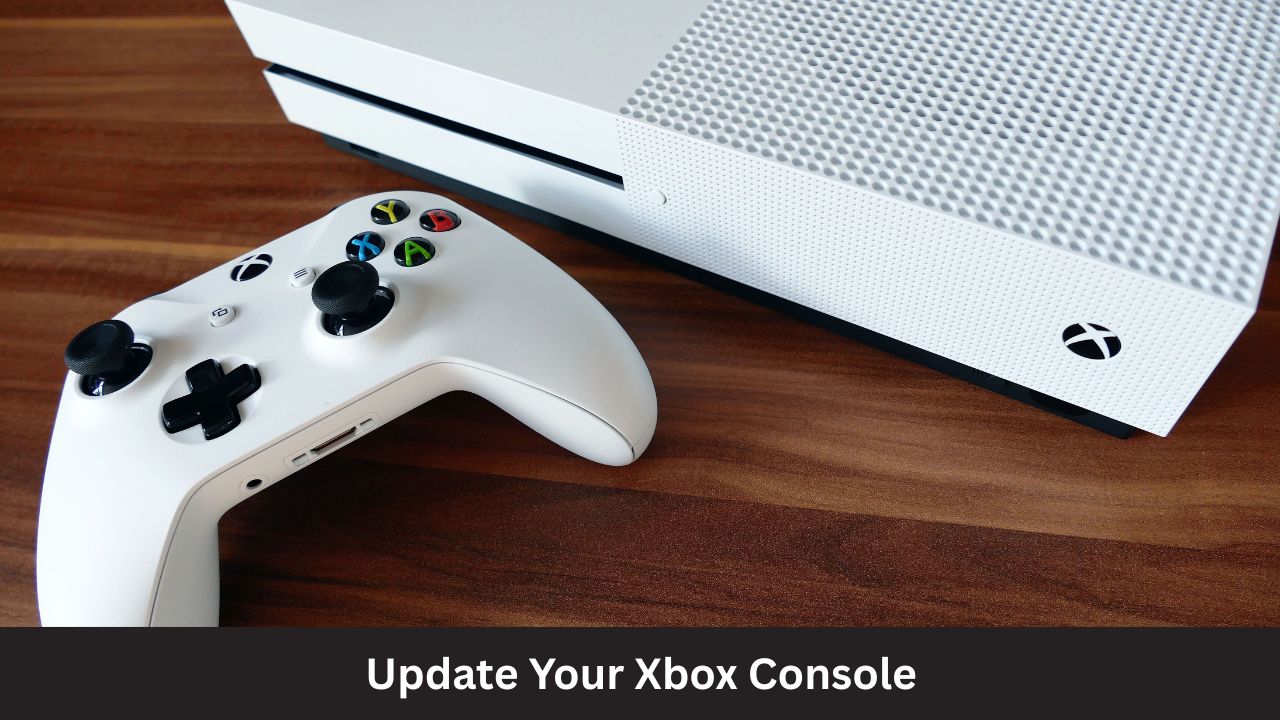
An outdated console can cause installation bugs. Xbox system updates often include fixes for store, storage, network, and game installation behavior.
Go to Settings > System > Updates. If an update is available, install it. After the update finishes, restart the console and try the game again.
| Update Area | Why It Helps | Best Action |
| System software | Fixes console bugs | Install updates |
| Store services | Helps digital installs | Restart after update |
| Disc handling | Improves compatibility | Retry disc install |
If your console cannot update online, Microsoft also offers an offline system update process. Use that only if normal online updates fail or the console cannot connect properly.
9. Reset Xbox While Keeping Games and Apps
Use this only after the easier fixes fail. Xbox gives you a reset option that keeps your installed games and apps, while refreshing the console system.
Go to Settings > System > Console info > Reset console. Choose Reset and keep my games & apps. Do not choose “remove everything” unless you truly want a full wipe.
| Reset Option | Keeps Games? | When to Use |
| Reset and keep games & apps | Yes | Persistent system bug |
| Reset and remove everything | No | Selling console or severe issue |
| No reset | Best first choice | Try simpler fixes first |
You may need to sign in again after the reset. Make sure you know your Microsoft account email and password before starting.
Xbox Error Code 0x87e00064: How to Fix When Nothing Works
If you have tried the steps above and the error still appears, narrow the issue down.
Try another disc. If other discs work, your original disc is probably damaged. If no discs work, your console’s disc drive may need service. If digital games also fail, the issue may be storage, account, network, or system software.
You can also try installing the same game from the Xbox app or Microsoft Store if you own a digital license. For a physical copy, the disc may still be required as proof of ownership.
| Test | Result | Meaning |
| Other discs work | One disc fails | Bad disc |
| No discs work | All disc installs fail | Possible drive issue |
| Digital installs fail too | Not disc-specific | Check storage, network, account |
At this stage, contact Xbox Support or request a replacement disc from the retailer if the disc is new and defective.
10. Replace the Disc or Contact Xbox Support
If the disc has deep scratches, cracks, or visible damage, replacement is the cleanest fix. A damaged disc can fail even if it looks almost fine.
If the disc is new, return it to the store. If it is used, test it on another Xbox console if possible. If your Xbox cannot read any disc, the console may need service.
| Problem | Best Next Step | Who Can Help |
| New disc defective | Return or exchange | Retailer |
| Used disc damaged | Replace copy | Seller |
| Console reads no discs | Service request | Xbox Support |
Do not open the console unless you know what you are doing. It can void warranty coverage and may make the problem worse.
Common Mistakes to Avoid
Do not reset your console first. It is better to check the disc, Xbox status, storage, and network before touching system reset options.
Do not keep retrying a scratched disc over and over. If the install fails at the same point every time, repeated attempts will not magically repair the disc.
Avoid these mistakes:
- Do not clean discs with harsh chemicals.
- Do not ignore Xbox service outages.
- Do not install a disc game and a huge update together if the install keeps stopping.
- Do not choose “Reset and remove everything” by accident.
- Do not assume your console is broken before testing another disc.
FAQs About Xbox Error Code 0x87e00064
Can Xbox error 0x87e00064 happen on Xbox Series S?
It can appear during digital installation issues, but the disc-related fixes do not apply to Xbox Series S because Series S has no disc drive. Focus on Xbox Status, storage, network connection, account sign-in, and console updates.
Does error 0x87e00064 mean my Xbox disc drive is broken?
Not always. One unreadable disc does not prove the drive is broken. Test another clean disc first. If every disc fails, then the disc drive may be the problem.
Will clearing local saved games delete my progress forever?
Usually, Xbox syncs saves to the cloud when you are connected online. Still, be careful. Make sure your console has been online and synced before clearing local saved data.
Why does the game install to a certain percentage and then stop?
That often points to a bad spot on the disc, corrupt partial install data, or a download update conflict. Try cleaning the disc, canceling the install, restarting Xbox, and installing offline first.
Should I install from disc or download the digital version?
If the disc is damaged, a digital version may install better, but you need to own the digital license. A physical disc usually acts as the license, so you may still need the disc inserted to play.
Can an external hard drive cause this Xbox install error?
Yes. If the external drive is full, slow, failing, or disconnecting, installation can fail. Try installing the game to internal storage to test whether the external drive is the problem.
Final Thoughts
Xbox Error Code 0x87e00064: How to Fix comes down to one smart rule: start simple. Check Xbox Status, clean the disc, restart the console, cancel the broken install, and make sure you have enough storage.
If the game comes from a disc, try installing it offline before downloading updates. If the same disc fails again and again, test another disc. That will tell you whether the problem is the game disc or the console.
Do the safe fixes first. Save console reset, disc replacement, and Xbox Support for the end. That gives you the best chance of fixing the error without losing time, games, or data.