It is very frustrating when your iPhone Bluetooth will not connect. You want to listen to music on your wireless headphones. You want to take a hands-free call in your car. Instead, you see a spinning wheel on your screen. Or, you get an error message.
Wireless connectivity issues are very common. Most of the time, the problem is a simple software glitch. You do not need to buy a new phone or visit a repair shop.
This comprehensive guide will show you how to fix your Bluetooth issues. We have listed 9 simple, step-by-step methods to get your iPhone working with your Bluetooth devices again.
Quick Summary of Bluetooth Fixes
Before we dive into the details, here is a quick overview of the fixes we will cover.
| Fix Number | Solution | What It Does | Time Needed |
| 1 | Toggle Bluetooth Off and On | Refreshes the Bluetooth system | 30 seconds |
| 2 | Restart Your iPhone | Clears minor software bugs | 2 minutes |
| 3 | Restart Your Bluetooth Accessory | Resets the wireless connection on the device | 1 minute |
| 4 | Forget the Bluetooth Device | Deletes the broken connection to start fresh | 2 minutes |
| 5 | Check Proximity and Charge | Ensures devices are close and have power | 1 minute |
| 6 | Update iOS | Installs new fixes from Apple | 10 minutes |
| 7 | Reset Network Settings | Wipes all network and Bluetooth data | 5 minutes |
| 8 | Check App Permissions | Allows apps to use your Bluetooth | 2 minutes |
| 9 | Contact Apple Support | Gets professional help for hardware | Varies |
1. Toggle Bluetooth Off and On
The simplest way to fix a wireless connection is to refresh it. Turning your Bluetooth off and back on can clear small errors in the iOS background system.
How to Toggle Bluetooth via Control Center
- Swipe down from the top-right corner of your iPhone screen. (For older iPhones with a Home button, swipe up from the bottom).
- Look for the Bluetooth icon (it looks like a stylized ‘B’).
- Tap the icon to turn it off. The icon will turn white or clear.
- Wait 10 seconds.
- Tap the icon again to turn it on. The icon will turn blue.
How to Toggle Bluetooth via Settings
- Open the Settings app on your iPhone.
- Tap on Bluetooth.
- Tap the green switch next to Bluetooth to turn it off.
- Wait 10 seconds, then tap the switch again to turn it on.
Summary Table for Toggling Bluetooth
| Step | Action | Expected Result |
| Step 1 | Go to Settings > Bluetooth | Opens the main Bluetooth control page |
| Step 2 | Turn the switch off | Disconnects all active Bluetooth links |
| Step 3 | Wait 10 seconds | Allows the system to shut down fully |
| Step 4 | Turn the switch back on | Restarts the Bluetooth search function |
2. Restart Your iPhone
Your iPhone is a small computer. When it stays on for a long time, temporary files and system tasks can cause errors. A simple system restart clears the temporary memory cache. This can quickly fix wireless pairing bugs.
How to Restart iPhone X, 11, 12, 13, 14, 15, or 16
- Press and hold the Volume Up or Volume Down button and the Side button at the same time.
- Wait for the slide to power off slider to appear on the screen.
- Drag the slider to the right.
- Wait 30 seconds for the device to turn off completely.
- Press and hold the Side button again until you see the Apple logo.
How to Restart Older iPhones (with a Home Button)
- Press and hold the Power button (top or side button).
- Drag the power off slider when it appears.
- Wait 30 seconds.
- Press and hold the Power button again until the Apple logo appears.
Summary Table for iPhone Restart
| iPhone Model | Buttons to Hold | Action |
| iPhone with Face ID | Side Button + Either Volume Button | Slide to power off, then hold Side button to restart |
| iPhone with Home Button | Top or Side Power Button | Slide to power off, then hold Power button to restart |
3. Restart Your Bluetooth Accessory
Sometimes, the issue is not your iPhone. The problem might be your wireless speaker, headphones, or smart watch. These devices have their own small computers inside. They can freeze up or get stuck in an old pairing loop.
How to Properly Reset a Bluetooth Device
- Locate the power button on your Bluetooth accessory.
- Turn the device completely off. Many devices have a light that stops flashing when they are off.
- If the device uses batteries, remove them for a few seconds, then put them back in. If it uses a charging case (like AirPods), put them inside the case and close the lid.
- Turn the accessory back on.
- Put the accessory into Pairing Mode. This often requires holding down the power button or a special Bluetooth button until a light flashes rapidly.
Summary Table for Accessory Reset
| Accessory Type | How to Reset / Restart | How to Enter Pairing Mode |
| Wireless Earbuds (AirPods) | Put in case, close lid for 15 seconds | Hold setup button on back of the case |
| Bluetooth Speakers | Hold power button until lights turn off | Press the dedicated Bluetooth symbol button |
| Car Audio System | Turn off the car engine and car radio | Go to the car screen setup menu > Add Phone |
4. Forget the Bluetooth Device and Pair It Again
When your iPhone connects to a Bluetooth accessory, it saves information about that device. This is called a pairing profile. If this profile becomes corrupted, your iPhone will fail to connect. You must delete the profile and make a new one.
How to Forget a Bluetooth Device on iPhone
- Open your iPhone Settings.
- Tap on Bluetooth.
- Look at the list under My Devices. Find the device that will not connect.
- Tap the blue “i” icon (information icon) next to the device name.
- Tap Forget This Device.
- Confirm your choice by tapping Forget Device in the pop-up menu.
How to Re-Pair the Device
- Make sure your Bluetooth accessory is turned on and is in pairing mode.
- Go back to Settings > Bluetooth on your iPhone.
- Look under the Other Devices section at the bottom of the screen.
- Tap the name of your device to connect again.
Summary Table for Re-Pairing
| Step | Screen Location | Action to Take |
| 1 | Settings > Bluetooth | Find the broken device name |
| 2 | Blue “i” Button | Tap to open device settings |
| 3 | Forget This Device | Delete the saved profile |
| 4 | Other Devices List | Tap the device name to create a new link |
5. Check Proximity, Range, and Battery Charge
Bluetooth is a short-range wireless technology. It relies on specific radio frequencies to talk to other devices. If there is a barrier or low power, the signal will fail.
Understanding Distance and Barriers
The standard range for a Bluetooth connection is about 30 feet (10 meters). However, this range drops when there are walls, metal doors, or large objects in the way. For the best connection, keep your iPhone within 3 feet of your accessory while pairing.
Battery Levels Matter
When a Bluetooth speaker or headphone has a low battery, its wireless chip may stop working properly. Many devices enter a power-saving mode when the battery drops below 20%. This mode can disable the Bluetooth pairing feature to save power.
Always charge both your iPhone and your Bluetooth accessory to at least 50% before troubleshooting.
Summary Table for Range and Power
| Checkpoint | Good Status | Problem Status |
| Distance | Less than 5 feet apart | More than 30 feet apart |
| Physical Obstacles | Clear line of sight | Walls, metal desks, microwave ovens |
| Battery Charge | 50% or higher | Below 20% or in Low Power Mode |
6. Update Your iOS Software
Apple updates the iPhone operating system frequently. These updates fix known bugs, repair security holes, and improve wireless features. If your iPhone is running an outdated version of iOS, it may have a bug that stops Bluetooth from working.
How to Check for an iOS Update
- Connect your iPhone to a stable Wi-Fi network.
- Plug your iPhone into a charger so it does not run out of battery.
- Open the Settings app.
- Tap on General.
- Tap on Software Update.
- Your iPhone will check for updates. If an update is available, tap Download and Install.
- Enter your passcode and let the phone update.
Summary Table for Software Updates
| Setup Requirement | Why It Is Needed |
| Wi-Fi Connection | Updates are large and need fast internet |
| Battery or Charger | Prevents the phone from turning off during installation |
| Passcode | Protects your security before installing new system files |
7. Reset Network Settings
If none of the basic fixes work, your iPhone may have a deeper network issue. You can reset your network settings. This process restores your phone’s wireless setup back to factory defaults.
Important Note: Resetting network settings will wipe out all saved Wi-Fi networks and passwords, cellular settings, and VPN profiles, along with your Bluetooth data. Make sure you know your home Wi-Fi password before doing this.
How to Reset Network Settings on iOS 15 or Later
- Open the Settings app.
- Tap on General.
- Scroll to the very bottom and tap Transfer or Reset iPhone.
- Tap Reset at the bottom of the screen.
- Tap Reset Network Settings from the list of choices.
- Enter your iPhone passcode to confirm.
- Your iPhone will restart. The Apple logo will appear while it resets the system.
Summary Table for Network Reset
| What Gets Deleted | What Stays Safe |
| Saved Wi-Fi Passwords | Photos and Videos |
| Saved Bluetooth Pairings | Text Messages and Contacts |
| VPN Server Settings | Apps and App Data |
| Custom Cellular Settings | Personal Documents |
8. Check iOS App Bluetooth Permissions
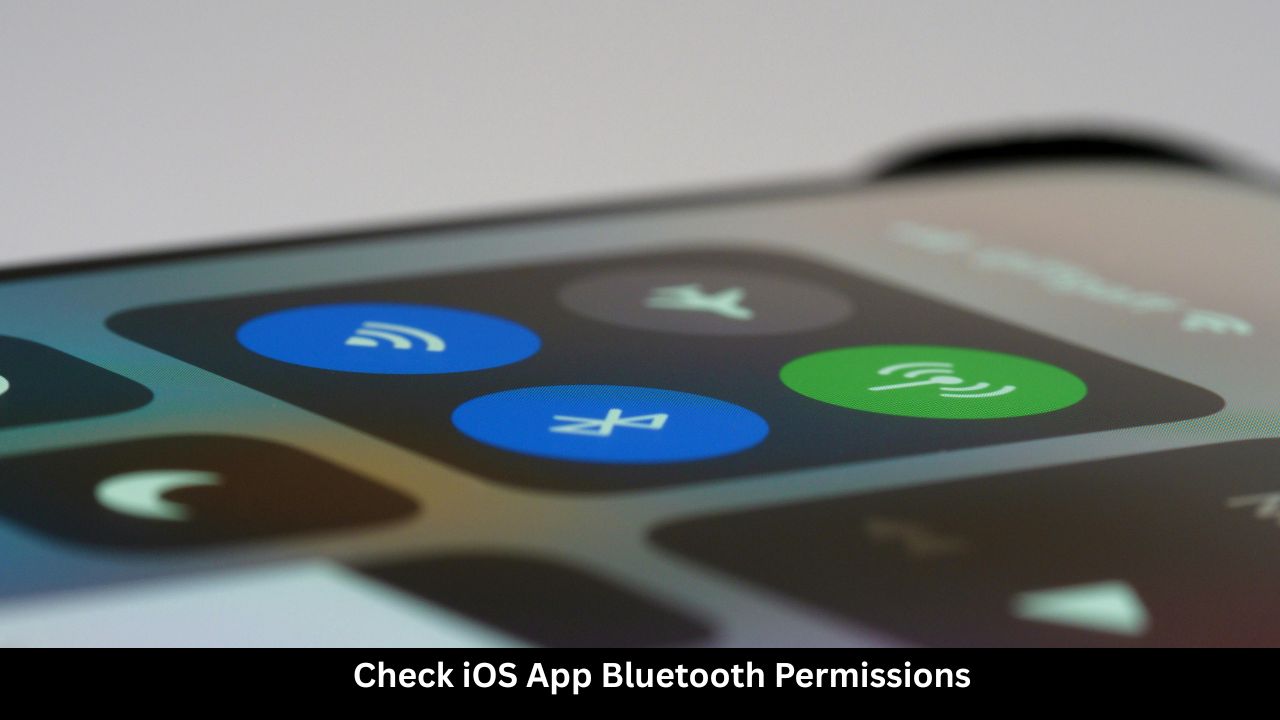
Sometimes, your iPhone connects to a Bluetooth device, but a specific app cannot use it. For example, your Spotify app might not play through your speaker, or a fitness app might not read your smart watch. This happens because the app does not have permission to use the Bluetooth chip.
How to Give Apps Access to Bluetooth
- Open the Settings app on your iPhone.
- Scroll down to find the Privacy & Security option and tap it.
- Tap on Bluetooth.
- You will see a list of every app that has requested Bluetooth access.
- Find the app you are trying to use.
- Toggle the switch next to the app to the green ON position.
Summary Table for App Permissions
| App Status | Switch Color | Meaning |
| Allowed | Green | The app can send data over Bluetooth freely |
| Denied | Gray/White | The app is blocked from using the Bluetooth chip |
9. Contact Apple Support for Hardware Issues
If you have tried all 9 steps and your iPhone Bluetooth still will not connect to any device, you may have a hardware problem. The internal Bluetooth antenna inside your iPhone might be broken or disconnected. This can happen if you drop your phone or if it gets wet.
How to Test for Hardware Issues
Try connecting your iPhone to a completely different Bluetooth device. Also, try connecting a different phone to your original Bluetooth accessory.
- If other phones can connect to the accessory, but your iPhone cannot connect to anything, your iPhone’s hardware is likely broken.
- You should contact Apple Support online, use the Apple Support app, or make an appointment at an Apple Store Genius Bar.
Summary Table for Support Options
| Support Method | Best Used For | What You Need |
| Apple Support App | Quick advice and troubleshooting chat | Your Apple ID log-in |
| Support.apple.com | Reading repair guides and booking appointments | Device Serial Number |
| Apple Store Genius Bar | In-person physical testing and physical repairs | Your iPhone and photo ID |
Final Words
Fixing an iPhone Bluetooth connection issue does not have to be difficult. In most cases, turning Bluetooth off and on, restarting your phone, or forgetting the device profile will solve the problem. Regular maintenance, like updating your iOS software, keeps these problems from happening in the future. Take your time going through these nine steps. You will be back to enjoying your wireless music, calls, and accessories in no time at all.
Frequently Asked Questions (FAQ)
Why is my iPhone Bluetooth spinning and not finding devices?
When the Bluetooth screen shows a loading wheel that keeps spinning, it means the iPhone is searching for active signals. If it finds nothing, your accessory is likely not in pairing mode, or its battery is dead. Ensure the accessory is close to your phone and flashing its pairing light.
Can a case cause iPhone Bluetooth issues?
Yes. Some extra thick cases, heavy-duty military armor cases, or cases made with real metal parts can block radio signals. If you are having trouble pairing, take your iPhone out of its protective case and try again.
Why won’t my iPhone connect to my car’s Bluetooth?
Car Bluetooth systems can be complicated. Many cars have a limit on how many phones they can remember. If the car’s system memory is full, it will r eject new phones. Try deleting old, unused phones from your car radio’s memory menu before pairing your new iPhone.
Does turning off Wi-Fi help Bluetooth performance?
Yes. Wi-Fi and Bluetooth share the same 2.4 GHz radio frequency band on many devices. Sometimes, strong Wi-Fi signals can jam or slow down Bluetooth traffic. Turning off Wi-Fi temporarily can help your iPhone complete the initial Bluetooth pairing sequence.
What is the difference between Bluetooth and AirPlay?
Bluetooth sends data directly between two devices using short-range radio signals. AirPlay is an Apple technology that uses a shared Wi-Fi network to stream high-quality audio and video. AirPlay has a wider range and better sound quality but requires a Wi-Fi connection.