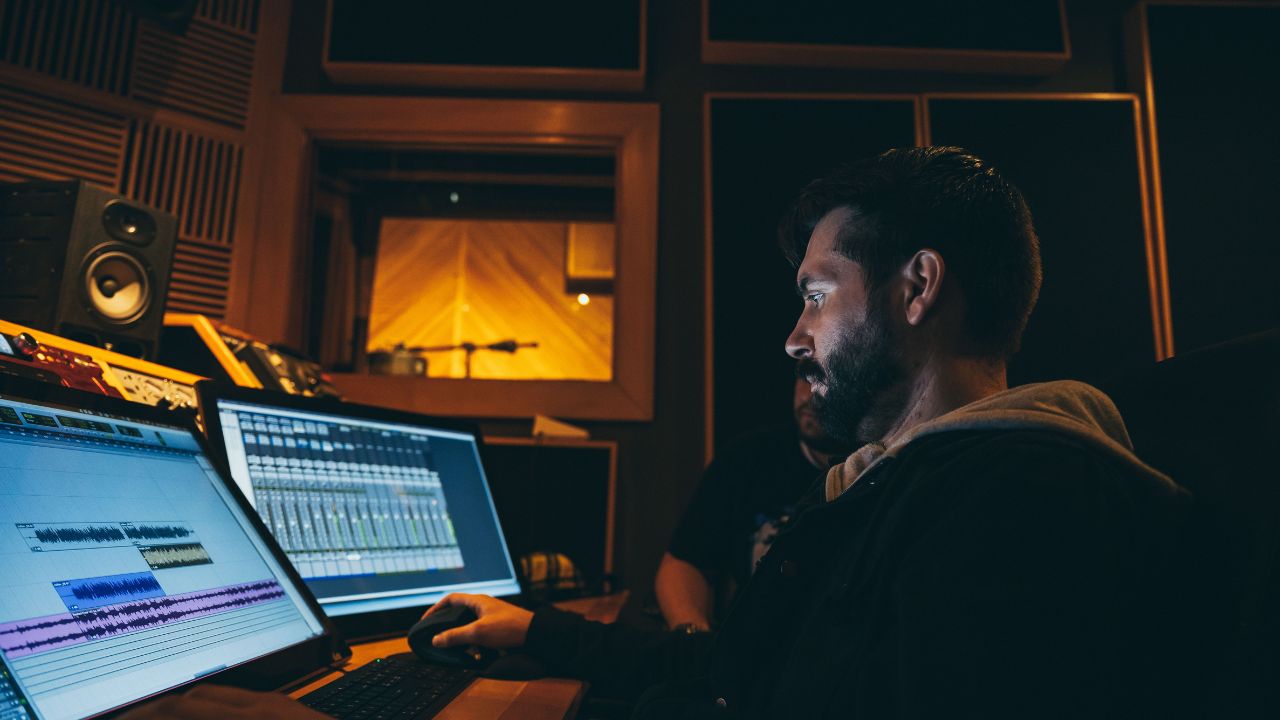
Watching your favorite show on Max (formerly HBO Max) is fun. But it is not fun when the sound does not match the video. This problem is called a lip-sync issue. It happens when the words you hear do not match the movement of the actor’s lips. It can turn a great movie night into a very frustrating experience.
Audio delay issues happen for many reasons. It could be a slow internet connection, a bad cable, or a glitch in your streaming device. The good news is that you can fix this problem easily. This detailed guide will show you exactly how to fix Max audio lag. We will look at simple solutions for TVs, phones, streaming sticks, and gaming consoles.
1. Understand Why Max Audio Goes Out of Sync
Before we fix the issue, we should know why it happens. Audio and video travel as two separate tracks of data. Your device must play both tracks at the exact same time. If one track slows down, you get an audio lag.
Common Causes of Max Audio Delay
- App Glitches: The Max app might have a temporary bug or a full cache memory.
- Slow Internet: Low bandwidth can cause the video stream to separate from the audio stream.
- Hardware Issues: Bad HDMI cables or old television speakers can slow down the sound.
- Wrong Settings: Your digital audio format settings might not match your home sound system.
| Cause Type | Main Culprit | Quick Explanation |
| Software | Max App Cache | Stored data gets corrupted and slows down the app performance. |
| Network | High Latency | Slow internet speed makes audio tracks load slower than video. |
| Hardware | Old HDMI Cable | Loose or damaged cables fail to send audio data fast enough. |
| System | Outdated Firmware | The streaming device software has bugs that affect media playback. |
2. Quick Troubleshooting Steps for Any Device
You do not need to be a tech expert to fix audio sync issues. Start with these basic fixes. They work on almost every device, including smart TVs, Roku, Firestick, and Apple TV.
Restart the Max App
The easiest fix is to close the Max app completely. Do not just go to the home screen. Force close the app so it stops running in the background. Open it again and play your show.
Power Cycle Your Device
If restarting the app fails, restart your device. Turn off your TV or streaming device. Unplug the power cord from the wall. Wait for 60 seconds. Plug the cord back in and turn the device on. This process clears the system memory and fixes minor bugs.
Check Your Internet Connection
Max needs a stable internet connection to sync audio and video. Run a quick speed test on your phone or computer. You need at least 5 Mbps for standard video and 25 Mbps for 4K streaming. If your speed is low, restart your internet router.
| Quick Action | How to Do It | What It Accomplishes |
| Force Close | Close app from settings menu | Cleans out active software bugs inside the Max application. |
| Power Cycle | Unplug device for one full minute | Resets hardware memory and stops hidden system background tasks. |
| Router Reset | Unplug router for 30 seconds | Refreshes your home internet connection to boost download speeds. |
3. How to Fix Max Audio Delay on Smart TVs
Smart TVs from brands like Samsung, LG, Sony, and Vizio often face audio delays. This happens because TVs use heavy software processing to make pictures look better. This processing takes time, which delays the video while the audio plays ahead.
Adjust the Audio Delay Setting (Digital Audio Lip Sync)
Most modern smart TVs have a built-in feature called Audio Delay, Lip Sync, or Audio Distance. This setting allows you to slow down or speed up the sound manually to match the picture perfectly.
Clear the App Cache on Your TV
Just like a computer, your smart TV stores temporary files. If these files get corrupted, the Max app will glitch. Go to your TV settings, find the applications manager, select Max, and click Clear Cache.
Update Your TV Firmware
Outdated TV software can cause compatibility issues with newer versions of the Max app. Check your TV system settings for any pending software updates and install them.
| TV Brand | Setting Location for Audio Sync | Suggested Action |
| Samsung | Settings > Sound > Expert Settings > Digital Output Audio Delay | Adjust slider until voice matches lips. |
| LG | Settings > All Settings > Sound > Match Screen and Sound | Turn on the bypass mode or tweak the delay. |
| Sony | Settings > Display & Sound > Audio Output > A/V Sync | Set the option to “Auto” or “On”. |
| Vizio | Menu > Audio > Lip Sync | Move the slider left or right to fix the gap. |
4. Fixes for Roku, Firestick, and Apple TV
External streaming media players are very popular. However, they connect to your TV via HDMI ports, which can sometimes create sound lag.
Troubleshooting Roku Devices
Roku devices have a hidden feature that fixes audio lag. Press the Home button five times, press the Up arrow once, press the Rewind button twice, and press the Fast Forward button twice. This will reboot your Roku and clear system issues. Alternatively, go to Settings > Audio > Digital Output Format and switch it from Auto to Stereo.
Fixing Amazon Fire TV Stick Audio Lag
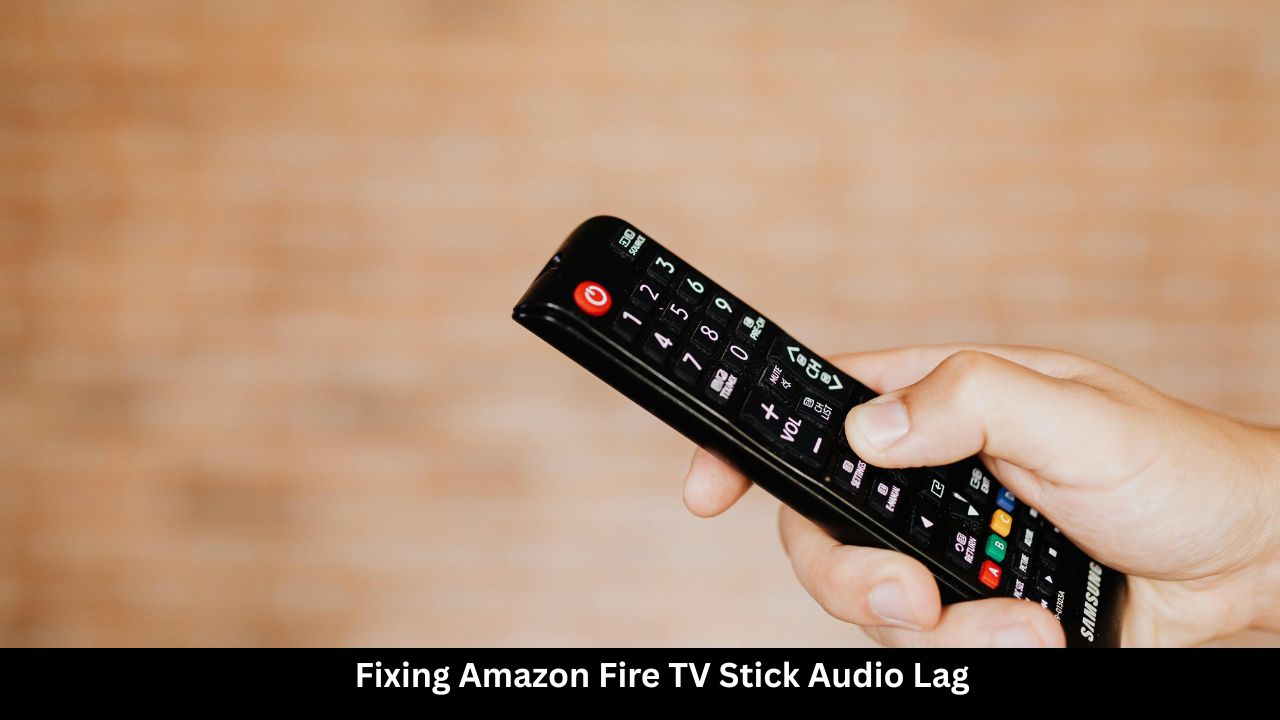
The Firestick is famous for audio-video sync problems, especially when using Dolby Digital sound. Go to Settings > Display & Sounds > Audio > Surround Sound and change it to PCM or Best Available. You can also use the built-in “Audio Bounce” tool under the diagnostics menu to check your audio alignment.
Fixing Apple TV Lip-Sync Issues
Apple TV has a fantastic feature called Wireless Audio Sync. If you use external Bluetooth speakers or Apple HomePods, this tool uses your iPhone microphone to measure how long sound takes to reach your ears and corrects it automatically.
| Device | Critical Audio Setting | Alternative Fix |
| Roku | Change Audio Mode to “Stereo” | Turn off Volume Leveling feature during playback. |
| Firestick | Change Surround Sound to “PCM” | Clear Max app data and restart the Fire TV Stick. |
| Apple TV | Run “Wireless Audio Sync” via iPhone | Change Audio Format from Dolby Atmos to Stereo. |
5. Adjusting Audio Format Settings (Dolby Digital vs. Stereo)
Advanced sound formats like Dolby Digital Plus, Dolby Atmos, and 5.1 Surround Sound require a lot of data. If your TV or soundbar cannot decode these formats instantly, you will hear a noticeable sound lag.
Switch to PCM or Stereo
If you experience a bad audio sync issue, change your audio output format from Dolby Digital to PCM or Stereo. Stereo sound uses less data and processes instantly. It removes the lag entirely in most cases.
Fix Soundbar and AV Receiver Connections
If you use an external soundbar, make sure it connects to your TV through the HDMI ARC or eARC port. These special ports allow two-way sound communication, which helps keep the audio track perfectly synced with the video track.
| Audio Format | Data Size | Processing Speed | Best Used For |
| Stereo / PCM | Low | Very Fast (Instant) | Built-in TV speakers and basic setups. |
| Dolby Digital | Medium | Medium Speed | Standard 5.1 home theater soundbars. |
| Dolby Atmos | High | Slow (Requires Power) | Premium multi-speaker surround setups. |
6. How to Fix Max Audio Out of Sync on Phones and Tablets
If you watch Max on a smartphone or mobile device, the experience should be smooth. But if you use wireless headphones, Bluetooth lag can easily ruin the timing.
Reconnect Bluetooth Headphones
Bluetooth has a tiny delay by nature. If your wireless earbuds lose sync, turn off your phone’s Bluetooth. Wait 10 seconds, then turn it back on and reconnect. If possible, test with wired headphones to see if the issue goes away.
Change Video Quality Settings
High-definition video strains mobile processors. If your phone gets hot, it might drop audio sync. Lower the streaming quality inside the Max app settings to reduce the load on your mobile processor.
| Mobile Device | Common Reason for Lag | Quickest Fix |
| Android Phone | Filled app cache storage | Long-press Max icon > App Info > Clear Cache. |
| Apple iPhone | Bluetooth audio latency | Toggle Bluetooth off and on via the Control Center. |
| iPad / Tablet | Low available system RAM | Close all other open apps before launching Max. |
7. Fixing Sound Delay on Gaming Consoles (PlayStation & Xbox)
Many users play Max through a PlayStation 5 or Xbox Series X. Gaming consoles process audio differently than TVs because they are optimized for games, not movie apps.
Adjust Console Audio Output
Go to your console’s audio settings menu. If your console is set to output audio as “Dolby Atmos” or “Bitstream,” change it to Linear PCM. Linear PCM does not require the console to compress the audio, eliminating the processing time that causes delays.
Avoid Using Controller Audio Jacks
Plugging headphones directly into your PlayStation or Xbox controller requires the sound to travel wirelessly from the console to the controller. This can cause severe lip-sync issues in media apps like Max. Use a direct connection to the TV instead.
| Gaming Console | Setting Path | Recommended Mode |
| PlayStation 5 | Settings > Sound > Audio Output > Audio Format (Priority) | Linear PCM |
| Xbox Series X/S | Settings > General > Volume & Audio Output > Speaker Audio | Stereo Uncompressed |
8. Change HDMI Cables and Hardware Setups
If software fixes fail, you might have a hardware problem. Bad or old hardware components cannot handle modern high-speed video streams.
Upgrade to High-Speed HDMI 2.1 Cables
Old HDMI cables lack the speed to transfer 4K video and high-quality audio at the same time. Buy a certified High-Speed HDMI 2.1 cable. It offers more bandwidth and supports auto-latency correction features.
Connect Directly to the TV First
If your streaming stick connects to an audio receiver first, bypass it. Plug your streaming stick directly into your TV’s HDMI port. Then, send the sound from the TV to your soundbar using an optical cable or an HDMI ARC cable.
| Cable Type | Max Bandwidth | Ideal Audio Support |
| Old HDMI 1.4 | 10.2 Gbps | Standard Stereo Sound Only |
| High-Speed HDMI 2.0 | 18.0 Gbps | Standard Dolby Digital 5.1 |
| Ultra High-Speed HDMI 2.1 | 48.0 Gbps | Dolby Atmos and eARC Uncompressed |
Frequently Asked Questions (FAQ)
Why is the audio out of sync on Max but fine on Netflix?
Every streaming app uses different video players and servers. The Max app requires more bandwidth for its high bitrate streams. If your device has low memory or a weak connection, it will struggle with Max even if smaller apps work fine.
How do I fix the permanent lip-sync issue on my Firestick?
Go to your Firestick Settings > Display & Sounds > Audio. Change the surround sound setting to PCM. Then, go to Applications > Managed Installed Applications > Max, and clear both the cache and data.
Does changing the video quality fix audio sync issues?
Yes. Lowering video quality from 4K to 1080p reduces the amount of data your device must process. This helps slower devices or weak internet connections keep the audio track aligned with the video track.
Can a dirty HDMI port cause sound delay?
Dust inside an HDMI port can weaken the connection, causing data loss. This can result in audio drops, static noise, or audio delays. Clean your ports gently with compressed air.
What is the difference between HDMI ARC and eARC for audio sync?
eARC (Enhanced Audio Return Channel) has much more bandwidth than older ARC ports. It includes a built-in feature called Automatic Lip Sync Correction, which forces your TV and soundbar to stay synchronized automatically.
Final Words
Fixing a Max audio out of sync issue does not have to be painful. In most cases, a simple power cycle or changing your audio format to PCM/Stereo solves the problem instantly. Start with simple software resets before moving on to changing cables or buying new equipment. Keep your streaming apps and TV firmware updated to enjoy smooth, hassle-free entertainment.