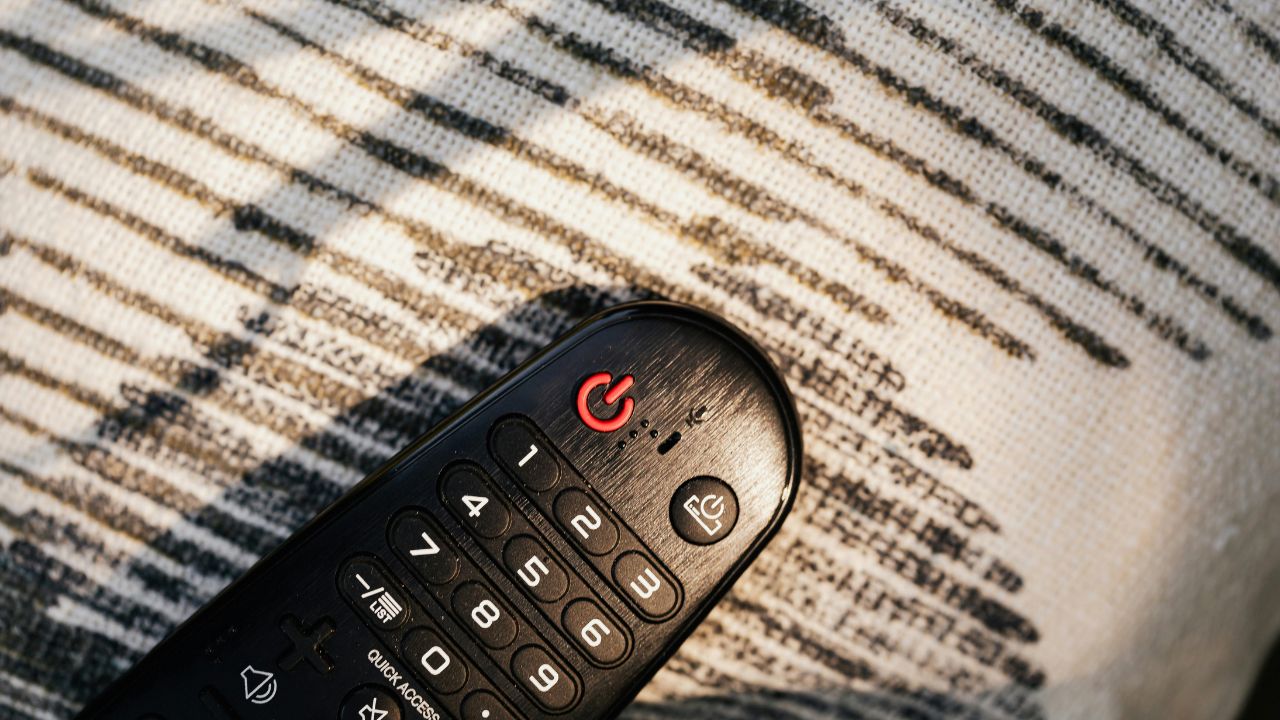
It is a quiet evening. You want to watch your favorite show on your TCL Roku TV. You sit on your couch. You pick up your remote control. You press the power button. Nothing happens. You press it again, harder this time. Still, the TV screen stays black.
This is a very common problem. Many people experience a TCL Roku TV remote not working at some point. It can be very frustrating when your smart TV does not respond.
The good news is that you can fix this issue easily. Most of the time, the problem is simple. It could be a dead battery or a blocked signal. You do not need to buy a new remote right away.
This guide will show you simple ways to fix your TCL Roku remote control. We use easy steps that anyone can follow. Let us get your TV remote working again.
At a Glance: Quick Troubleshooting Summary
| Common Issue | Quick Solution | Time Needed |
| Dead or Weak Batteries | Replace with new AAA or AA batteries | 2 minutes |
| Lost Connection / Pairing | Press the pairing button inside the battery compartment | 3 minutes |
| Blocked Infrared (IR) Signal | Clear the path between the remote and the TV sensor | 1 minute |
| Remote System Glitch | Perform a hardware reset on the remote control | 2 minutes |
| TV Software Glitch | Power cycle the TCL Roku TV by unplugging it | 5 minutes |
| Dirty Buttons or Contacts | Clean the battery contacts and buttons with alcohol | 5 minutes |
Understand Your Roku Remote Type
Before we start fixing the remote, we need to know what kind of remote you have. TCL Roku TVs come with two types of remotes.
- Standard Infrared (IR) Remote: This remote uses invisible light to talk to the TV. It needs a clear line of sight. You must point it directly at the TV screen. It does not have a microphone button for voice search.
- Roku Voice Remote (Enhanced/Point-Anywhere): This remote uses a wireless network (RF or Bluetooth) to connect to your TV. You do not need to point it at the TV. It has a microphone button for voice control. It also has a small pairing button inside the battery cover or uses a specific button combination.
Knowing your remote type helps you choose the right fix. If you have an IR remote, pairing steps will not work. If you have a voice remote, signal blockage is rarely the main issue.
1. Check and Replace the Batteries
The most common reason for a TCL Roku TV remote not working is dead batteries. Remotes use energy even when you are not pressing buttons. Over time, the power drains completely.
How to Check and Change Batteries
- Open the battery compartment cover on the back of the remote.
- Take out the old batteries.
- Look inside the compartment for rust or white dust. This is battery corrosion. Clean it with a dry cloth or a cotton swab.
- Put in two brand-new batteries. Make sure the plus (+) and minus (-) signs match the guide inside the remote.
- Use high-quality alkaline batteries. Do not mix old batteries with new ones. Do not mix different brands.
Once the new batteries are inside, try to turn on your TV. If it works, your problem is solved.
Battery Troubleshooting Overview
| Action Step | What to Check | Why it Matters |
| Step 1 | Remove old batteries | Stops potential acid leaks |
| Step 2 | Clean metal contacts | Ensures electricity flows smoothly |
| Step 3 | Insert new alkaline batteries | Provides full voltage to the remote |
| Step 4 | Test the remote functionality | Confirms if power was the sole issue |
2. Perform a Hard Reset on the Remote
Sometimes, the microchip inside your remote control gets stuck in a loop. This is a system glitch. A simple reset clears the memory of the remote and restarts its software.
Steps to Reset Your Roku Remote
- Open the back cover and remove the batteries.
- Do not put them back in yet.
- Press and hold every single button on the remote control one by one. Press each button firmly for one second.
- This drains any leftover electrical power stored inside the remote components.
- Insert the batteries back into the remote.
- Put the battery cover back on.
- Point the remote at your TCL TV and press a button.
This method is very effective for standard IR remotes that suddenly stop working for no clear reason.
Remote Reset Details
| Step Number | Action | Expected Result |
| 1 | Remove batteries completely | Cuts off all direct power supply |
| 2 | Press all buttons for 30 seconds | Drains residual power from capacitors |
| 3 | Reinsert functioning batteries | Reboots the remote’s internal system |
3. Clear the Line of Sight (For IR Remotes)
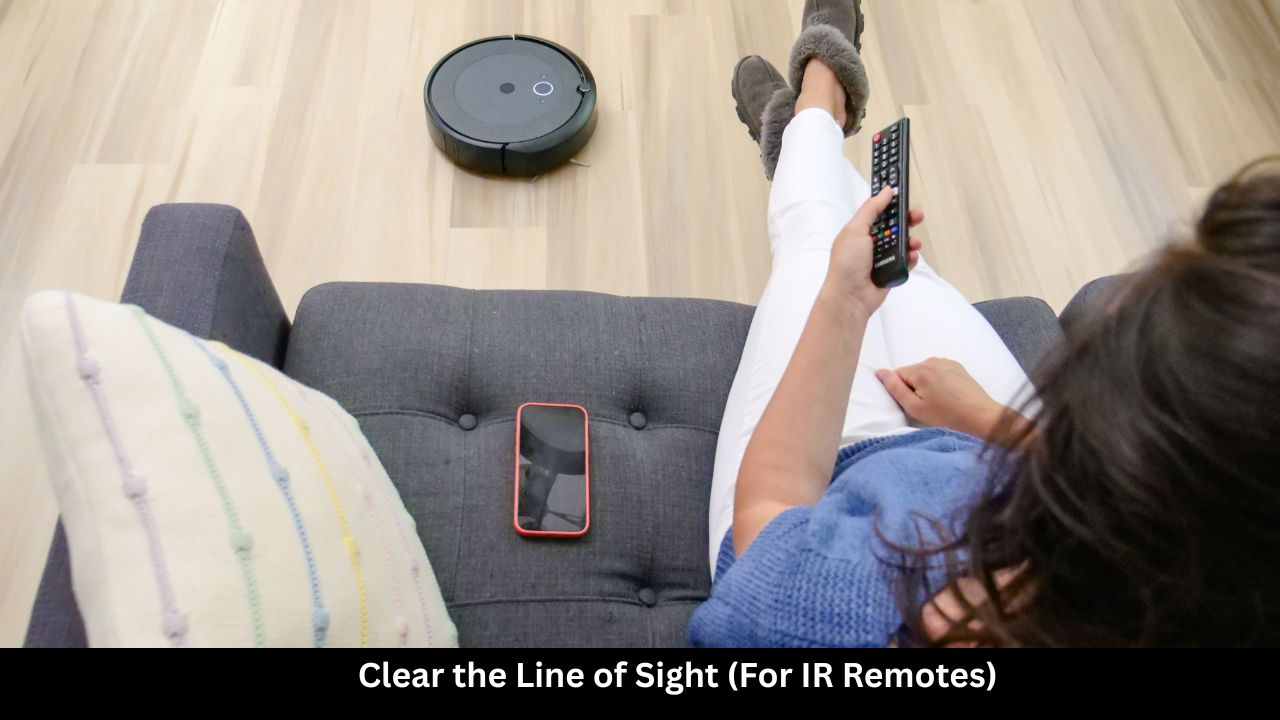
If you have a standard IR remote, it requires a clear path to the TV. The remote sends an infrared light beam to a sensor on the bottom of your TCL Roku TV. If something blocks this beam, the TV will not respond.
How to Fix Signal Blockage
- Look at the bottom frame of your TCL TV. Find the small plastic window. This is the IR receiver sensor.
- Make sure there are no objects in front of this sensor. Remove books, decorations, soundbars, or toys.
- Clean the front tip of your remote control. Dust can block the light beam. Use a microfiber cloth to wipe it clean.
- Check the position of your body. Ensure you are sitting within 15 feet of the TV screen and pointing the remote directly at it.
IR Signal Optimization
| Potential Obstacle | Impact on Remote | How to Clear |
| Soundbar in front of TV | Blocks the IR receiver completely | Move soundbar lower or use a riser |
| Dust on remote lens | Weakens the infrared light beam | Wipe with a clean, damp cloth |
| Extreme angle | Light misses the sensor | Sit directly in front of the television |
4. Re-pair the Voice Remote with Your TV
If you own a Roku Voice Remote, it must be paired to your TCL TV via wireless connection. If the connection drops, the remote will stop controlling the TV. You need to reconnect them.
How to Pair Your Roku Voice Remote
- Unplug the power cord of your TCL Roku TV from the wall outlet.
- Wait 60 seconds.
- Plug the TV power cord back into the wall. Turn the TV on using the physical power button on the TV frame.
- Open the battery compartment on your remote control.
- Look for a small, round Pairing Button near the bottom of the compartment.
- Note: If you do not see a button, look at your remote front. Press and hold the Home and Back buttons together for 5 seconds until the status light flashes.
- Press and hold the pairing button for about 3 to 5 seconds. You will see a small light start to flash on the remote.
- Look at your TV screen. A message should appear saying “Pairing remote…”.
- Wait for the progress bar to finish. The remote will now control your TV.
Pairing Methods at a Glance
| Remote Style | Trigger Mechanism | Indicator Light Behavior |
| With Pairing Button | Press button inside battery compartment for 5 seconds | Light flashes rapidly next to button |
| Without Pairing Button | Hold Home + Back buttons together for 5 seconds | Light flashes under the power button |
5. Power Cycle Your TCL Roku TV
Sometimes, the remote control is perfectly fine. The issue might be inside the smart TV itself. The TV software can crash or lock up. When this happens, the TV stops listening to any remote signals. A power cycle forces the TV system to reboot cleanly.
How to Power Cycle the TV
- Locate the main power cord behind your TCL Roku TV.
- Pull the plug out of the wall socket.
- Do not just turn it off with the button. The TV must lose all electricity.
- Leave the TV unplugged for a full two minutes.
- While the TV is unplugged, press and hold the physical power button on the TV itself for 15 seconds. This empties all remaining electrical energy inside the TV screens.
- Plug the power cord back into the wall outlet.
- Wait for the Roku logo to appear on the screen.
- Try using your remote control now.
Power Cycle Benefits
| System Component | Action Taken | Result |
| TV Motherboard | Complete power drain | Clears corrupt temporary cache memory |
| Wi-Fi / Bluetooth Module | Hardware reset | Refreshes wireless receiver antennas |
| Operating System | Fresh boot sequence | Restores smooth software performance |
6. Check for Infrared Light Emission (The Camera Test)
How do you know if your IR remote is actually broken or if the TV sensor is dead? You can use a smartphone camera to test it. Human eyes cannot see infrared light, but digital cameras can see it clearly.
How to Use the Camera Test
- Open the camera app on your smartphone.
- Point the top end of the Roku remote directly at the camera lens.
- Look at your smartphone screen.
- Press several buttons on the remote control while watching the phone screen.
- What to look for: If the remote works, you will see a bright, flashing purple or red light on your phone screen. If you see no light at all, the remote is dead or the batteries have zero power.
Note: Some newer smartphones have IR filters on their main back camera. If you do not see light, try using the front-facing selfie camera instead.
Camera Test Results Interpretation
| Camera Screen Observation | Diagnosis | Next Action |
| Bright flashing light | Remote is sending a signal | The issue is likely the TV sensor or software |
| Very faint, weak light | Batteries are almost dead | Install brand-new high-quality batteries |
| No light visible | Remote is completely broken | Replace the remote control device |
7. Use the Free Roku Mobile App as a Temporary Remote
If your physical remote control is broken and you want to watch TV right now, do not worry. You can convert your smartphone or tablet into a fully functional Roku remote control. Roku provides an official application for free.
How to Install and Set Up the Roku App
- Open the Apple App Store on your iPhone or the Google Play Store on your Android device.
- Search for the official app named The Roku App (Official).
- Download and install the application on your smartphone.
- Make sure your phone is connected to the exact same home Wi-Fi network as your TCL Roku TV.
- Open the app. Tap on the Devices icon at the bottom of the screen.
- The app will scan your network. Select your TCL Roku TV from the list.
- Tap the Remote icon.
- A digital remote control interface will open on your phone screen. You can use it to change channels, adjust volume, change settings, and search for movies.
Physical Remote vs. Mobile App Remote
| Feature | Physical Roku Remote | Roku Mobile App Remote |
| Connection Type | Infrared or Local RF | Local Wi-Fi Network |
| Power Source | AAA or AA Batteries | Phone Battery |
| Keyboard Input | Slow, on-screen typing | Fast typing via phone keyboard |
| Voice Search | Only on premium models | Available on all smartphones |
| Headphone Mode | Rare (only select models) | Yes (listen through phone headphones) |
Frequently Asked Questions (FAQ)
Why is my TCL Roku TV not responding to the remote when the light is blinking?
If the status light on your TV blinks but nothing happens, the TV recognizes a signal but cannot process it. This usually means the TV operating system is frozen. Unplug the TV power cord from the wall for two minutes to reset the internal system software.
How do I reset my TCL Roku TV without a working remote control?
You can find a physical Reset button on the back or side panel of your TCL TV. It looks like a small hole. Take a paperclip or a pin. Press and hold the button inside the hole for 15 seconds while the TV is powered on. This performs a complete factory reset.
Will any universal remote work with a TCL Roku TV?
Yes. Most universal remote controls work perfectly with TCL Roku TVs. You will need to enter a specific manufacturer code during setup. Popular brands like RCA, GE, and Logitech Harmony have built-in codes specifically for Roku TVs.
Why does my Roku remote get extremely hot to the touch?
If your remote feels hot, remove the batteries immediately. This happens when there is an internal short circuit or a defective battery cell. Do not use the remote again. It is unsafe and needs to be replaced.
Can I pair a regular Roku streaming stick remote to my TCL Roku TV?
Yes. If the remote uses wireless pairing (voice remote technology), it can be paired to a TCL Roku TV. Follow the standard pairing process by holding down the pairing button inside the battery bay.
Final Words
Dealing with a TCL Roku TV remote not working can interrupt your entertainment time. However, as we have shown, the solutions are simple. Start by replacing the batteries with new alkaline ones. Clean any dirt or debris from the sensors. Reset the remote control and your television set by performing a quick power cycle. If you have a voice remote, try the pairing steps to re-establish a secure wireless link.
If none of these steps fix your problem, your remote may have internal hardware damage. In this situation, the best choice is to buy a replacement remote. Replacement remotes are affordable and easy to find online. Until a new remote arrives, enjoy the free Roku smartphone app to stay in control of your entertainment experience.