Imagine sitting down after a long day, streaming your favorite show, and all you see is a spinning loading wheel. It is incredibly frustrating. You paid good money for a high-tech screen, but it feels like it is running on a dial-up connection. If you are wondering Why Your Smart TV Apps Are Slow: 8 Speed-Up Tips is the exact guide you need to fix the lag.
Modern televisions are basically smartphones stretched out across a wall. They have processors, operating systems, and memory. When any of those components get overwhelmed, your streaming experience takes a hit. Let’s break down why this happens and look at concrete ways to get your speed back.
Why This Topic Matters
Smart TVs have taken over our living rooms. According to recent tech industry data, over 70% of households now own a smart TV. We rely on them for everything from Netflix and YouTube to live sports and gaming.
However, television hardware rarely keeps pace with software updates. App developers constantly push heavy updates designed for newer chips, leaving older TVs struggling to keep up. When your apps lag, it ruins your entertainment. Learning how to manage your TV’s resources ensures you get the crisp, uninterrupted viewing experience you actually paid for.
Quick Overview: How to Fix a Lagging Smart TV
Before digging into the detailed steps, here is a quick glance at the main reasons your TV is lagging and how to address them.
| Common Cause | Quick Fix | Expected Results |
| Clogged Cache Memory | Clear app data or power cycle the TV | Frees up RAM for smoother navigation |
| Weak Wi-Fi Signal | Move router or switch to a wired Ethernet cable | Drastically reduces buffering and loading times |
| Outdated Software | Run a manual system firmware update | Fixes bugs and optimizes hardware performance |
| Background Apps | Force close unused streaming apps | Dedicates processing power to your active app |
Top 8 Ways to Fix Your Smart TV Lag
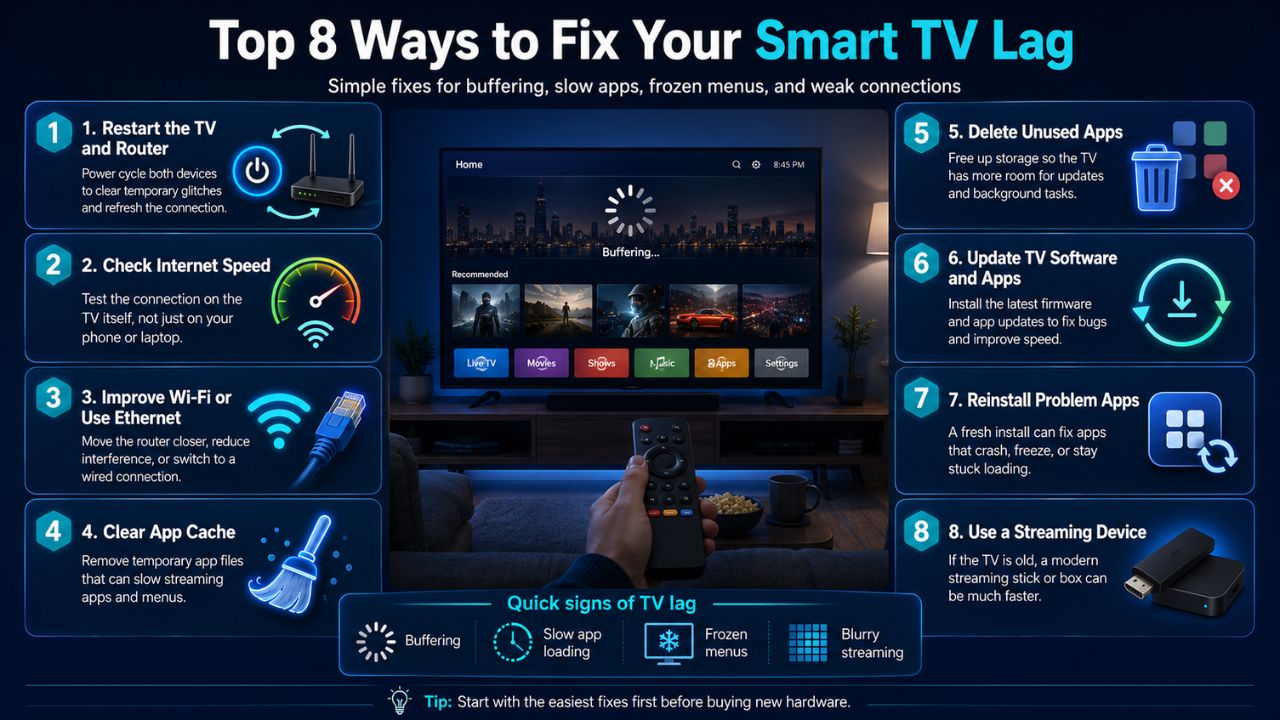
Let’s dive into the core solutions. These practical steps apply to most major TV brands, including Samsung (Tizen), LG (webOS), Sony (Google TV), and Roku.
Item #1: Clear the App Cache and Data
Every time you stream a movie or browse a gallery, your TV stores temporary files called cache. Over time, these files pile up and choke your system memory.
When your storage gets full, the processor has to work twice as hard to search for data. Cleaning out this digital junk is the fastest way to bring your apps back to life.
| Action Item | How to Do It | Primary Benefit |
| Clear Individual Cache | Settings > Apps > Select App > Clear Cache | Removes temporary junk without deleting logins |
| Clear App Data | Settings > Apps > Select App > Clear Data | Resets the app completely (requires logging back in) |
Item #2: Perform a Hard Power Cycle (Cold Boot)
Turning your TV off with the remote control doesn’t actually shut it down. It just puts it into a low-power standby mode.
A cold boot completely drains the electricity from the hardware, forcing the operating system to shut down completely. This clears out glitched background processes and refreshes the system memory (RAM).
| Method | Steps | Why It Works |
| The Plug Method | Unplug the TV from the wall for 60 seconds, then plug it back in | Drains all residual power and clears system RAM |
| The Remote Method | Hold down the remote’s power button until the logo appears | Forces an internal reboot on newer Samsung and Sony TVs |
Item #3: Switch to a Wired Ethernet Connection
Wi-Fi is convenient, but it is highly susceptible to interference. Walls, microwaves, and neighboring networks can degrade your signal, leading to slow app performance.
Placing a physical Ethernet cable between your router and your TV ensures a stable, unshakeable stream of data. Even if your Wi-Fi speeds seem high on paper, a wired connection eliminates the latency drops that cause apps to stutter.
| Connection Type | Speed Stability | Interference Risk |
| Wi-Fi (Wireless) | Fluctuates based on distance and walls | High |
| Ethernet (Wired) | Constant, maximum bandwidth delivery | None |
Item #4: Uninstall Unused Apps
Most smart TVs ship with a mountain of pre-installed apps you will never use. Plus, over the years, you probably downloaded services you no longer subscribe to.
These idle apps don’t just sit there; many run quiet background updates and consume valuable onboard storage. Deleting them gives your essential apps more breathing room to operate efficiently.
| Storage Status | Impact on System | Recommended Action |
| Less than 20% Free Space | Severe app stuttering, slow menu navigation | Uninstall all non-essential apps immediately |
| More than 50% Free Space | Smooth operation, faster app loading | Keep monitoring storage once a season |
Item #5: Update Your TV Firmware and Apps
App developers regularly optimize their code to fix performance bugs. If you are running an older version of an app, it might conflict with your TV’s current operating system.
Similarly, manufacturers release firmware updates to patch memory leaks and improve hardware efficiency. Keeping both your apps and your TV’s system software updated ensures maximum compatibility.
| Component to Update | Location in Menu | What it Solves |
| TV Firmware | Settings > Support > Software Update | Fixes core system bugs and optimizes memory |
| Streaming Apps | App Store > My Apps > Update All | Resolves app crashes and improves video playback |
Item #6: Disable Automatic Updates and Previews
While updates are good, letting your TV look for them automatically in the background can ruin your current viewing session.
Additionally, many smart TV home screens constantly stream live video previews and interactive ads as you scroll. Turning these heavy features off frees up massive amounts of processing power for the apps you actually want to use.
| Feature to Disable | Found Under | Performance Gain |
| Auto-App Updates | App Store Settings | Prevents background downloading while streaming |
| Home Screen Previews | Home Screen / Personalization Settings | Speeds up main menu navigation and load times |
Item #7: Close Background Apps Properly
When you press the “Home” button on your remote, most TVs don’t actually close the app you were using. Instead, they pause it in the background so you can jump back into it quickly.
If you open five different streaming services in a row, all five stay paused in the TV’s limited memory. Forcing these apps to shut down entirely ensures that 100% of your TV’s processing power goes to the active stream.
| TV Brand | How to Force Close | Benefit |
| Android / Google TV | Settings > Apps > See All > Select App > Force Stop | Instantly reclaims trapped RAM |
| Apple TV / Fire TV | Double-click Home button > Swipe up on the app card | Terminates background data usage |
Item #8: Factory Reset Your TV
If you have tried everything and your apps still crawl, it is time for the nuclear option. A factory reset wipes the slate clean, erasing all data, accounts, and corrupted files.
This restores the television to the exact state it was in when you pulled it out of the box. While re-entering all your passwords is a hassle, it eliminates deep software conflicts that standard troubleshooting cannot touch.
| Option | What It Deletes | When to Use It |
| Soft Reset | Only clears temporary system files | When minor lag occurs |
| Factory Reset | Deletes everything (Apps, Accounts, Settings) | As a final resort for permanent slowdowns |
Why Your Smart TV Apps Are Slow: 8 Speed-Up Tips Explained
Understanding the underlying mechanics of your television can help prevent future performance issues. The primary reason smart TVs slow down over time is hardware limitations. Manufacturers build televisions to display great pictures, often cutting corners on internal storage chips and processors to keep retail prices competitive.
As the years roll by, apps like Netflix, Disney+, and Hulu grow larger and require more processing muscle. Your TV’s hardware remains frozen in the year you bought it. By actively applying these optimization strategies, you manual manage your device’s ecosystem, bridging the gap between old hardware and modern software demands.
Uncommon FAQs
Why do apps run fast on my Roku stick but slow on my built-in smart TV?
External streaming sticks (like Roku, Apple TV, or Fire Stick) generally have more powerful processors and better-optimized software than the built-in chips inside many smart TVs. They are also updated much more frequently by their manufacturers.
Can a slow DNS server make my TV apps lag?
Yes. Your DNS (Domain Name System) translates web addresses into machine-readable IP addresses. If your ISP’s default DNS is congested, your TV will take longer to locate the streaming servers. Switching your TV’s network settings to a public DNS like Google (8.8.8.8) can noticeably speed up initial loading screens.
Does the temperature of my TV affect app speeds?
Absolutely. Modern slim TVs trap heat easily. If your TV is crammed into a tight entertainment center without proper ventilation, the processor will automatically throttle its speed to prevent overheating, causing apps to stutter.
Why does my TV app lag only during live streams but not regular movies?
Live streams (like sports or news) use a different delivery protocol that relies heavily on immediate decoding. Traditional movies can buffer several minutes ahead, masking brief drops in your TV’s processing power or network speed. Live feeds cannot do this, exposing any hardware bottleneck.
Conclusion
No one should have to deal with endless buffering and unresponsive interfaces. By understanding the core issues behind Why Your Smart TV Apps Are Slow: 8 Speed-Up Tips, you can easily take control of your home entertainment setup.
Start with simple fixes like clearing your cache and doing a hard reboot. If the problem persists, move your router closer or run a physical cable. If your TV is more than five or six years old, consider bypass its internal operating system entirely by picking up a dedicated external streaming stick. Your sanity—and your movie nights—will thank you.