You press play on Crunchyroll. The audio starts. The subtitles may even appear. But the video stays black.
That’s one of the most annoying streaming bugs because it feels half-broken. The app is clearly playing something, but the picture never shows up.
This Crunchyroll Black Screen with Audio: Complete Fix guide walks you through the real causes and the safest fixes. It covers browsers, Android TV, smart TVs, Chromecast, mobile apps, extensions, DNS, cache, updates, and device issues.
Start with the simple steps. Most users won’t need the advanced fixes.
Why Crunchyroll Shows a Black Screen but Still Plays Audio
A black screen with audio usually means the stream is loading, but the video layer is failing. The sound track can play while the video track gets blocked, delayed, or rendered incorrectly.
Common causes include:
- Browser extensions blocking the video player
- Ad blockers or script blockers
- Corrupt cache or cookies
- Old browser version
- Outdated Crunchyroll app
- App data problems
- Bad DNS routing
- Weak or restricted internet connection
- Smart TV app glitches
- Chromecast casting issues
- HDMI or display problems
- DRM or protected playback conflicts
- Graphics driver or hardware acceleration issues
The good news is that this is rarely a permanent account problem. It is usually tied to one device, browser, network, or app install.
Quick Overview: Crunchyroll Black Screen Fixes
| Fix | Best For | Difficulty |
| Refresh and restart | Temporary glitches | Easy |
| Try another device or browser | Finding the source | Easy |
| Disable extensions | Browser black screen | Easy |
| Clear cache and cookies | Stuck player or broken page | Easy |
| Update browser/app/device | Compatibility issues | Easy |
| Reinstall Crunchyroll | Broken app install | Medium |
| Check DNS and network | Videos not loading | Medium |
| Fix TV or Chromecast playback | Living room devices | Medium |
| Check display and graphics settings | PC black screen only | Medium |
| Contact Crunchyroll Support | Ongoing issue | Easy |
Crunchyroll Black Screen with Audio: Complete Fix Checklist
Use these steps in order. Test Crunchyroll after each fix. Don’t change five settings at once, or you won’t know what worked.
1. Refresh Crunchyroll and Restart the App or Browser
Start small. A black screen can happen because the player, app session, or browser tab failed to load properly.
Close Crunchyroll completely. Don’t just minimize the app. On mobile, swipe it away from recent apps. On desktop, close the tab and quit the browser if needed. Then open Crunchyroll again and try the same episode.
On a browser, use a hard refresh:
- Windows: Ctrl + F5
- Mac: Shift + Command + R
If you use the app on a TV, phone, tablet, console, or streaming stick, restart the device. A restart clears temporary memory and broken app sessions.
| Step | What It Fixes |
| Close and reopen Crunchyroll | Temporary player glitches |
| Hard refresh browser | Stale page files |
| Restart device | Memory and session issues |
| Try the same episode again | Confirms if the glitch is gone |
2. Try Another Browser, Device, or Network
This is the fastest way to find the real problem.
If Crunchyroll plays on your phone but not your laptop, the issue is likely with the laptop browser, extensions, graphics, or cache. If it fails on every device at home but works on mobile data, your Wi-Fi, DNS, router, or ISP may be involved.
Try these quick tests:
- Open Crunchyroll in another browser.
- Try the same episode on your phone.
- Switch from Wi-Fi to mobile data.
- Try another episode or show.
- Ask if the issue happens only with sub, dub, or one title.
If the black screen happens on one episode only, it may be a title-specific playback issue. If it happens everywhere, focus on the app, browser, or network.
| Test Result | Likely Cause |
| Works in another browser | Browser or extension issue |
| Works on mobile data | Wi-Fi, DNS, or router issue |
| Fails on one episode | Content-specific issue |
| Fails on all devices | Network or service-side issue |
| Fails on one TV only | TV app or device issue |
3. Disable Ad Blockers, Script Blockers, and Extensions
Browser extensions are a major cause of Crunchyroll black screen problems. Ad blockers, privacy tools, script blockers, pop-up blockers, and video download extensions can interfere with the player.
Open Crunchyroll in Incognito or Private mode first. Most extensions are off there by default. If the video works there, an extension is probably the problem.
Then turn off extensions one by one.
Pay close attention to:
- Ad blockers
- Script blockers
- Pop-up blockers
- Privacy extensions
- VPN browser extensions
- Video downloader tools
- Screenshot or screen recording extensions
- Dark mode page modifiers
If Crunchyroll works after disabling an extension, add Crunchyroll to that extension’s allowlist or keep the extension off while streaming.
| Extension Type | Why It Can Break Video |
| Ad blocker | Blocks player scripts or ad calls |
| Script blocker | Stops video player code |
| Privacy tool | Blocks tracking or playback requests |
| Video downloader | Conflicts with protected streams |
| Screen recorder | May trigger protected playback issues |
4. Clear Crunchyroll Cache, Cookies, and App Data
Old cache files can break streaming pages. Cookies can also store a bad session. When that happens, Crunchyroll may load the audio while the video player stays blank.
On a browser, clear cache and cookies for Crunchyroll first. That is better than deleting all browser data.
General Chrome path:
Settings > Privacy and security > Site data > Search Crunchyroll > Delete site data
You can also use the browser’s “Delete browsing data” option. After clearing, restart the browser and sign back in.
On Android or Android TV:
Settings > Apps > Crunchyroll > Storage > Clear cache
If that does not work, use Clear data. Just know it may sign you out.
| Action | What It Does |
| Clear cache | Removes temporary files |
| Clear cookies | Resets site session |
| Clear app data | Resets app storage |
| Sign in again | Refreshes account session |
5. Update Your Browser, Crunchyroll App, and Device
Crunchyroll video playback can fail when your browser, app, or device software is too old. Streaming apps rely on updated media playback support, security systems, and video player code.
Crunchyroll currently lists these supported browser versions or newer:
| Browser | Supported Version |
| Chrome | 117+ |
| Firefox | 117+ |
| Edge | 117+ |
| Safari | 16.1+ |
Update your browser first. Then update your operating system and the Crunchyroll app.
On smart TVs and streaming devices, check both:
- System update
- Crunchyroll app update
Do not ignore TV firmware updates. Apps may install correctly but still fail because the TV software is outdated.
| Update | Why It Matters |
| Browser update | Fixes video player support |
| Crunchyroll app update | Fixes app bugs |
| OS update | Improves playback compatibility |
| TV firmware update | Fixes device-level streaming issues |
6. Reinstall the Crunchyroll App
If clearing cache does not work, reinstall the app. This removes broken local files and gives you a clean copy.
Use this fix when:
- Crunchyroll opens but video is black
- Audio plays but picture does not
- The app freezes on one device
- The app works on other devices
- Updates did not help
- Cache clearing did not help
Best reinstall method:
- Uninstall Crunchyroll.
- Restart the device.
- Install Crunchyroll from the official app store.
- Sign in again.
- Test the same episode.
Only install from official stores. Avoid modified APKs, patched apps, or unofficial app files. They can create playback, account, and security problems.
| Device | Reinstall Method |
| Android phone | Google Play Store |
| iPhone or iPad | App Store |
| Android TV | Google Play Store on TV |
| Fire TV | Amazon Appstore |
| Console | Console app store |
| Smart TV | TV app store |
7. Check Your Internet, Router, and DNS
Crunchyroll can show a black screen when the video stream cannot reach the right server properly. Audio may start because it loads differently or buffers first, while the video fails.
Restart your router. Unplug it for 30 seconds, then plug it back in. Test Crunchyroll again.
Then check your connection:
- Try another streaming app.
- Move closer to the router.
- Use Ethernet if possible.
- Switch from Wi-Fi to mobile data.
- Try another Wi-Fi network.
- Lower video quality if your connection is unstable.
Crunchyroll also says DNS settings can cause browser video problems. If the issue keeps happening across browsers, try a trusted DNS provider such as Google Public DNS or OpenDNS.
Common DNS options:
| Provider | IPv4 DNS |
| Google Public DNS | 8.8.8.8 and 8.8.4.4 |
| OpenDNS | 208.67.222.222 and 208.67.220.220 |
| Cloudflare DNS | 1.1.1.1 and 1.0.0.1 |
Restart your device after changing DNS. If the change causes problems, switch back to automatic DNS.
8. Fix Smart TV and Android TV Playback
Smart TV apps can be buggy, especially on older TVs. If Crunchyroll plays audio with a black screen on a TV, restart the TV first.
For Android TV:
- Turn off the TV.
- Unplug it from power.
- Wait 30 seconds.
- Plug it back in.
- Open Crunchyroll again.
Then check the app:
- Update Crunchyroll from the TV app store.
- Reinstall Crunchyroll.
- Clear cache and data.
- Test another streaming app.
- Move the router closer or use Ethernet.
If the app works on your phone but not the TV, the TV app is likely the issue. In that case, a streaming device may be faster and more stable than the TV’s built-in app.
| TV Fix | Best For |
| Power cycle TV | Temporary app glitches |
| Clear cache/data | Broken local app files |
| Reinstall app | Persistent playback bug |
| Ethernet | Weak Wi-Fi or buffering |
| Streaming device | Old smart TV hardware |
9. Fix Chromecast Black Screen Issues
Casting adds another layer. Your phone, the Crunchyroll app, Chromecast, TV, Wi-Fi, and Google Home setup all need to work together.
If you see a black screen while casting, stop casting first. Close the Crunchyroll app. Reopen it. Then restart casting.
Also check:
- Your phone and Chromecast are on the same Wi-Fi.
- Crunchyroll is updated.
- Google Home is updated.
- Chromecast firmware is updated.
- Chromecast has been rebooted.
- Chromecast with Google TV has the latest Crunchyroll app.
If you use Chromecast with Google TV, reinstall the Crunchyroll app on the Chromecast itself. For older Chromecast models, reinstall Crunchyroll on the phone or tablet you use to cast.
| Chromecast Fix | Why It Helps |
| Stop and restart casting | Clears broken cast session |
| Update Crunchyroll | Fixes app bugs |
| Update Google Home | Fixes casting control issues |
| Reboot Chromecast | Clears device memory |
| Same Wi-Fi check | Ensures devices can connect |
10. Check HDMI, Display, and Screen Recording Issues
If Crunchyroll works on your laptop screen but goes black on a TV or monitor, check the display setup.
A black screen with audio can happen when the video display path fails. This is common with bad HDMI cables, loose ports, outdated graphics drivers, unsupported adapters, or protected playback conflicts.
Try this:
- Remove the HDMI cable and plug it back in.
- Try a different HDMI port.
- Try another cable.
- Restart the laptop and TV.
- Update graphics drivers.
- Turn off screen recording software.
- Stop screen sharing tools.
- Close capture cards or remote desktop apps.
Also avoid trying to record protected Crunchyroll video. Some streaming services may block video output during screen capture or recording. The safer fix is to watch through a supported app, browser, or device.
| Problem | What to Check |
| Black screen on external TV only | HDMI cable or port |
| Black screen during screen sharing | Protected playback conflict |
| Black screen after driver update | Graphics driver issue |
| Works on laptop but not monitor | Display connection issue |
11. Try Graphics Acceleration or Driver Fixes on Desktop
On desktop browsers, video playback depends on the browser, GPU, graphics driver, and display settings. If the audio plays but the video stays black, the browser may be struggling to render the video layer.
Try toggling graphics acceleration in your browser settings.
In Chrome, check:
Settings > System > Use graphics acceleration when available
If it is on, turn it off and relaunch Chrome. If it is off, turn it on and relaunch Chrome. Test Crunchyroll again.
Also update your graphics driver through your system settings or your GPU maker’s official app. If the black screen started after a graphics driver update, rolling back the driver may help.
Use this fix mainly for desktop or laptop playback, not TV apps.
| Desktop Fix | Best For |
| Toggle graphics acceleration | Browser video layer issues |
| Update GPU driver | Old display driver problems |
| Roll back GPU driver | New driver caused the issue |
| Try another browser | Confirms browser-specific bug |
12. Contact Crunchyroll Support with the Right Details
If nothing works, contact Crunchyroll Support. Don’t just say “black screen.” Give details so they can narrow it down fast.
Include:
- Device type
- Device model
- Operating system version
- Crunchyroll app version
- Browser name and version
- Country or region
- Episode or show affected
- Sub or dub version
- Whether audio plays
- Whether subtitles appear
- Whether it happens on one device or all devices
- Error code, if shown
- Steps you already tried
This saves time. It also helps support tell whether the issue is device-specific, account-related, regional, title-specific, or service-side.
| Detail | Why It Helps |
| Device model | Finds device-specific bugs |
| App version | Confirms update status |
| Browser version | Checks support |
| Region | Checks content availability |
| Error code | Speeds up diagnosis |
Crunchyroll Black Screen with Audio: Complete Fix by Device
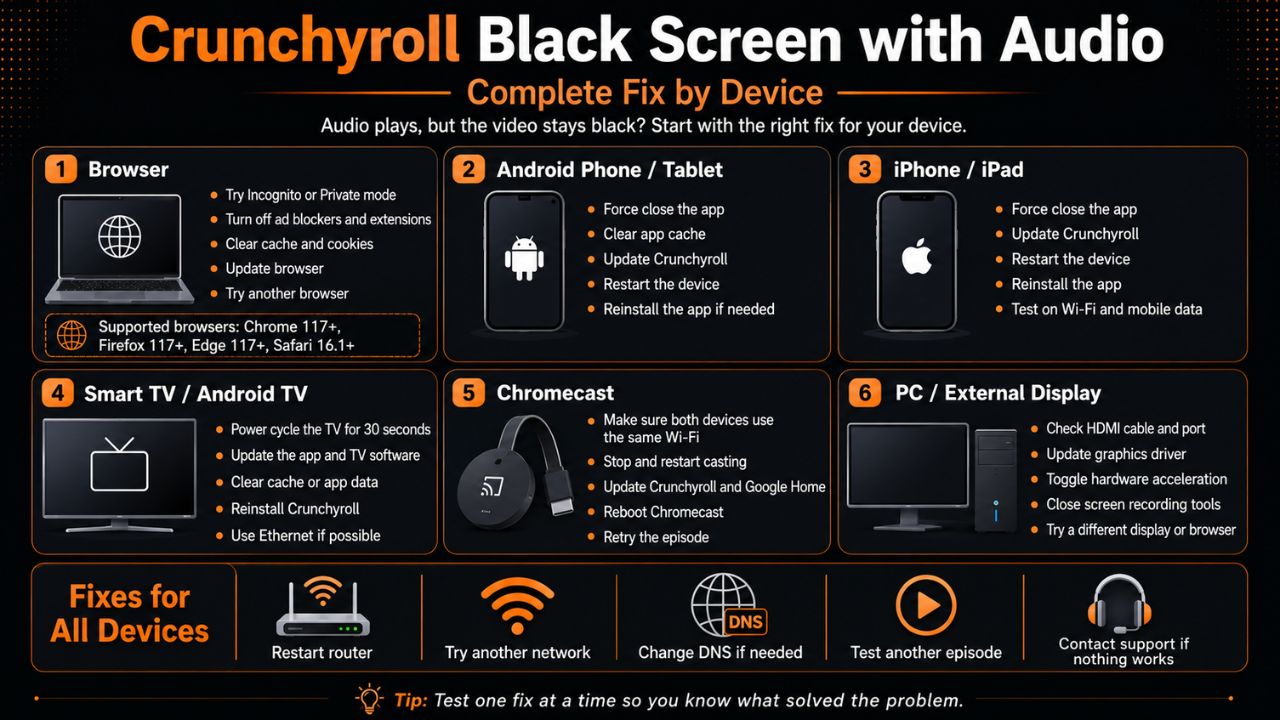
Different devices need different first steps.
| Device | Best First Fix |
| Chrome browser | Disable extensions and clear cache |
| Firefox or Edge | Try private mode and update browser |
| Safari | Update Safari/macOS and clear site data |
| Android phone | Clear cache, update app, reinstall |
| iPhone or iPad | Restart, update app, reinstall |
| Android TV | Power cycle, clear cache, update app |
| Samsung/LG TV | Restart TV, update app, reinstall |
| Chromecast | Restart casting, update apps, reboot device |
| Console | Restart console and reinstall app |
| External monitor | Check HDMI and graphics driver |
What Not to Do
Do not rush into extreme fixes. You usually do not need to reset your whole device, cancel your account, or replace your TV.
Avoid these mistakes:
- Don’t install unofficial Crunchyroll apps.
- Don’t keep ad blockers active while testing.
- Don’t skip browser updates.
- Don’t test five fixes at the same time.
- Don’t ignore error codes.
- Don’t try to bypass DRM or screen recording limits.
- Don’t assume the account is broken before testing another device.
The best approach is simple: test, isolate, fix.
FAQs About Crunchyroll Black Screen with Audio
Why does Crunchyroll play sound but show no video?
The audio layer may load while the video layer fails. This can happen because of extensions, cache, browser issues, app bugs, DNS problems, casting errors, HDMI issues, or graphics rendering problems.
Why does Crunchyroll work in Incognito mode?
Incognito usually disables most extensions and uses a cleaner session. If Crunchyroll works there, an extension, cookie, or cached file is likely causing the problem.
Can ad blockers cause Crunchyroll black screen?
Yes. Crunchyroll’s own browser troubleshooting guidance says ad blockers and extensions can interfere with video playback. Turn them off temporarily and test again.
Does clearing cache delete my Crunchyroll account?
No. Clearing cache does not delete your account. Clearing cookies or app data may sign you out, but you can sign back in.
Why is Crunchyroll black screen only on my TV?
The TV app may be outdated, low on cache/storage, or struggling with playback. Restart the TV, update the app, clear cache if available, or reinstall Crunchyroll.
Why does Crunchyroll go black when casting?
Casting depends on the phone, app, Chromecast, TV, and Wi-Fi. Restart casting, update Crunchyroll and Google Home, reboot Chromecast, and confirm both devices use the same Wi-Fi.
Can DNS really fix Crunchyroll playback?
Yes, it can help in some cases. Crunchyroll’s browser support page says DNS settings may cause streaming trouble and suggests trying another DNS provider.
Should I reset my device to fix Crunchyroll?
Only as a last resort. Try browser fixes, app reinstall, cache clearing, network checks, updates, and another device first.
Conclusion
The Crunchyroll Black Screen with Audio: Complete Fix comes down to one simple idea: find where the video layer is failing. Start with refresh, restart, cache, extensions, updates, and reinstalling. Then move to DNS, network, TV, Chromecast, HDMI, and graphics settings.
Most cases are fixable in a few minutes. If the problem continues, collect your device, app, browser, region, episode, and error-code details before contacting Crunchyroll Support.
That gives you the best shot at getting back to anime without guessing for hours.