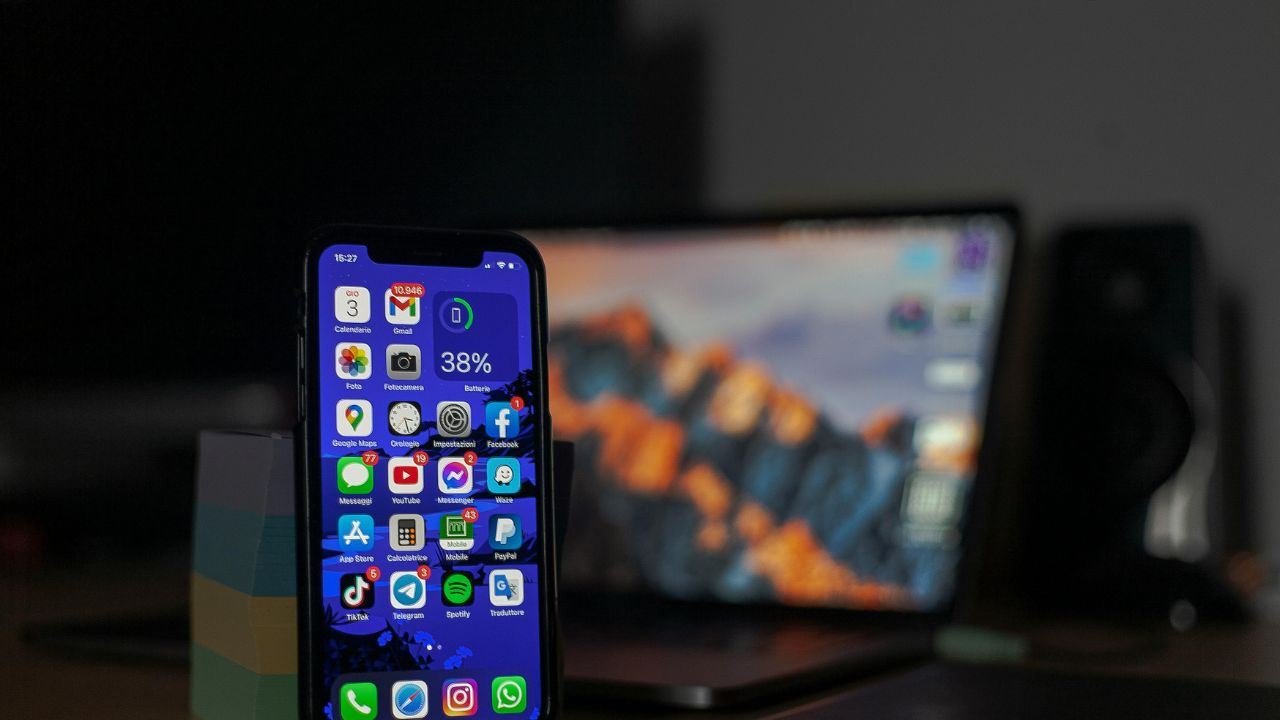
It can be very frustrating when you want to watch a video, play a game, or view a large photo, but your iPhone screen stays stuck in one direction. You turn your phone sideways, but nothing happens. The screen does not move. This is a very common issue that many Apple users face.
The good news is that you do not need to be a tech expert to solve this. Most of the time, the screen rotation problem happens because of a minor setting or a small software bug. You can usually fix it in less than half a minute.
In this ultimate guide, we will look at exactly why your iPhone screen won’t rotate. We will give you simple, step-by-step solutions to fix the auto-rotate settings on any iPhone model. Let us get started and get your display orientation moving again!
Why Your iPhone Screen Won’t Rotate
Before we jump into the quick fixes, it helps to understand why this problem happens. Your iPhone uses a special internal sensor called an accelerometer. This sensor detects when you move or tilt your phone. If the sensor is confused, or if a software setting blocks it, your display will stay locked.
Summary of Common Causes
| Cause | What It Means | Quick Fix |
| Portrait Orientation Lock | A built-in feature that stops the screen from turning. | Turn it off in the Control Center. |
| App Restrictions | Some apps do not support landscape mode at all. | Open a different app like Safari. |
| Software Glitches | Temporary bugs in iOS can freeze the rotation sensor. | Restart your device. |
| Display Zoom Mode | Zoom features can block rotation on certain models. | Switch to standard view. |
| Hardware Damage | The internal accelerometer sensor might be broken. | Contact Apple Support. |
Step 1: Check the Portrait Orientation Lock (The 5-Second Fix)
The most common reason an iPhone screen won’t rotate is that the Portrait Orientation Lock is turned on. You might have turned it on by accident. When this lock is active, your phone stays in portrait mode no matter how you hold it.
How to Turn Off Portrait Orientation Lock
- Open the Control Center:
- If you have an iPhone with Face ID (iPhone X or newer), swipe down from the top-right corner of your screen.
- If you have an iPhone with a Home button (iPhone 8 or older), swipe up from the very bottom of the screen.
- Find the Lock Icon: Look for an icon that looks like a small padlock with a curved arrow circling around it.
- Check the Color: If the icon is bright white and red, the lock is ON.
- Tap the Icon: Tap the lock icon. The icon will turn dark, and a message will say “Portrait Orientation Lock: Off” at the top of your screen.
Quick Verification Guide
| Status Indicator | What It Looks Like | Screen Behavior |
| Lock Active (ON) | Red padlock with a white background icon. | Screen stays vertical. |
| Lock Inactive (OFF) | Gray padlock with a transparent icon. | Screen rotates freely. |
Step 2: Test Apps That Actually Support Landscape Mode
Not all apps are designed to rotate. Some developers build their apps to work only in portrait mode. For example, many banking apps, social media apps like Instagram, and simple shopping tools only work vertically. Even if your settings are perfect, these apps will never turn sideways.
To see if your phone is truly broken, you must test an app that is built for landscape mode. Excellent test apps include Safari, YouTube, Apple Photos, or the official Calculator app.
How to Test Your Rotation Properly
- Open the built-in Calculator app.
- Turn your iPhone completely sideways into a horizontal position.
- If the screen rotates, the calculator will change into a complex scientific calculator with many extra buttons.
- If it changes, your screen rotation works perfectly! The issue is simply with the other app you were trying to use.
App Rotation Compatibility
| App Name | Supports Landscape Mode? | Expected Behavior When Rotated |
| YouTube | Yes | Video expands to full screen automatically. |
| Safari | Yes | Website expands to show more horizontal detail. |
| No | Stays vertical at all times. | |
| Apple Photos | Yes | Pictures expand to fill the wide screen. |
Step 3: Turn Off Display Zoom Settings
On certain iPhone models, especially older Plus or Max models, a feature called Display Zoom can stop your home screen and apps from rotating. Display Zoom makes everything on your screen look bigger, including text and app icons. However, it also changes the screen resolution, which can block the auto-rotate settings.
How to Disable Display Zoom
- Open the Settings app on your iPhone.
- Scroll down and tap on Display & Brightness.
- Scroll all the way to the bottom and look for the Display Zoom section. Tap on View.
- If it is set to “Zoomed”, tap on Standard instead.
- Tap Set in the top-right corner.
- Your iPhone screen will go black for a quick second to apply the changes. Once it turns back on, try rotating your screen again.
Standard View vs. Zoomed View
| Feature | Standard View | Zoomed View |
| Icon Size | Normal, original size. | Larger, easier to read. |
| Screen Rotation | Enabled for home screen/apps. | Often disabled on home screens. |
| Text Layout | Fits more text on the screen. | Fits less text but bigger font. |
Step 4: Restart Your iPhone to Clear Glitches
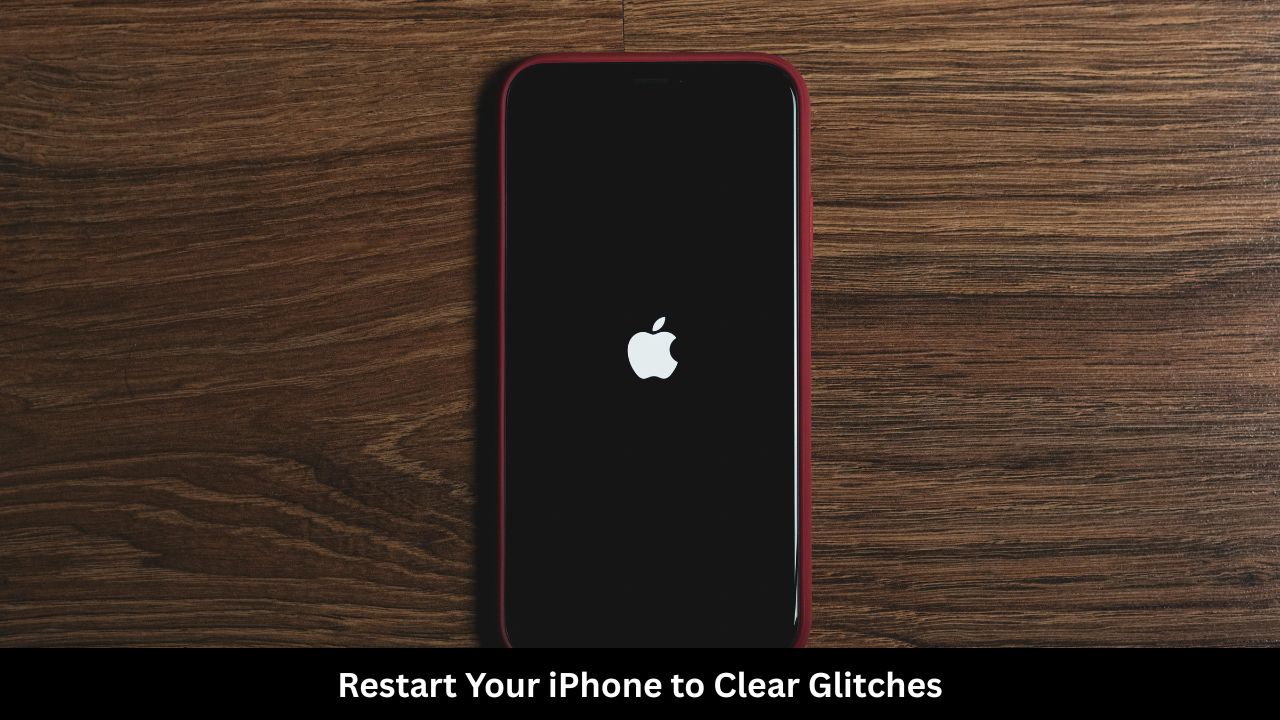
If your settings are correct but your iPhone screen won’t rotate, a temporary software bug might be freezing your system. Smart devices run many background tasks at the same time. Sometimes, the code that manages the accelerometer stops responding. A quick restart refreshes the memory and fixes these small issues.
How to Restart iPhones with Face ID (iPhone X, 11, 12, 13, 14, 15, 16)
- Press and hold the Side Button and either Volume Button at the same time.
- Wait until you see the “slide to power off” slider appear on the screen.
- Swipe the slider to the right.
- Wait 30 seconds for the device to shut down completely.
- Press and hold the Side Button again until the Apple logo appears.
How to Restart iPhones with a Home Button (iPhone SE, 8, 7, 6)
- Press and hold the Side/Power Button on the right side of your phone.
- Wait for the “slide to power off” slider to appear.
- Drag the slider across the screen.
- Let the phone stay off for 30 seconds.
- Press and hold the Side/Power Button until you see the Apple logo.
Restart Checklist
| Phase | Action | What to Look For |
| Shutdown | Drag the power slider. | Screen turns completely dark. |
| Waiting | Keep the phone off for 30 seconds. | Allows cache memory to clear out. |
| Reboot | Hold the side power button. | The bright Apple logo appears. |
Step 5: Update Your iOS Software
Apple regularly releases updates for your iPhone software. These updates fix known bugs, repair system security, and make features work better. If your screen rotation problem is caused by a widespread iOS glitch, Apple has likely released a patch to fix it.
How to Check for Updates
- Connect your iPhone to a stable Wi-Fi network.
- Ensure your battery is charged above 50%, or plug it into a charger.
- Open the Settings app.
- Tap on General, then tap on Software Update.
- Your phone will check for new software. If an update is available, tap Download and Install.
- Enter your passcode and let the phone update itself.
Software Update Benefits
| What Updates Improve | Why It Matters for Screen Rotation |
| Sensor Firmware | Keeps the accelerometer reading your physical movements correctly. |
| Bug Fixes | Repairs crashes in the Control Center menus. |
| Battery Health | Prevents battery saver modes from shutting down internal sensors. |
Step 6: Reset All Settings (The Advanced Software Fix)
If you have tried all the steps above and your screen still will not turn, your phone might have a deeply buried setting conflict. You can fix this by choosing to Reset All Settings.
Note: This will not erase your photos, videos, contacts, or personal data. However, it will reset your Wi-Fi passwords, Bluetooth connections, wallpaper, and sound settings back to the factory defaults.
How to Reset All Settings Safely
- Open your Settings app.
- Tap on General.
- Scroll down to the bottom and tap on Transfer or Reset iPhone.
- Tap on Reset at the bottom of the screen.
- Select Reset All Settings from the popup menu.
- Enter your device passcode to confirm the process. Your phone will restart automatically.
What Happens During a Reset?
| What Stays Safe (NOT Deleted) | What Gets Reset (Needs Re-entry) |
| Personal Photos & Videos | Saved Wi-Fi Passwords |
| Contacts and Text Messages | Paired Bluetooth Devices |
| Downloaded Apps | Home Screen Layouts |
| Email Accounts | Custom Wallpapers |
Step 7: How to Test for a Broken Hardware Sensor
If nothing else works, your physical hardware might be damaged. Drop damage, water exposure, or internal wear can break the accelerometer sensor. When this component breaks, the phone has no way of knowing that you have turned it sideways.
The Ultimate Accelerometer Test
You can easily test if your sensor is broken by downloading a free third-party app or using a built-in feature like the compass or a mobile game.
- Open the built-in Measure app on your iPhone. This app uses the phone’s internal sensors to calculate distances and balance levels.
- Tap on the Level tool inside the app.
- Move your phone around in your hand. Watch the lines on the screen.
- If the numbers and lines move smoothly when you tip your phone, your hardware sensor is alive and working. The issue is purely software.
- If the lines stay completely frozen no matter how you tilt the device, your accelerometer is likely broken.
Hardware Test Results Guide
| Test Observation | Sensor Condition | Next Step |
| Level tool moves when tilted. | Sensor is healthy. | Focus on software settings. |
| Level tool stays totally frozen. | Sensor is broken. | Contact Apple Service. |
Alternative Solutions: AssistiveTouch as a Smart Workaround
If you discover that your hardware sensor is broken, but you do not want to spend money to fix it right now, you can use a clever software workaround. Apple includes an accessibility feature called AssistiveTouch. This places a digital button on your screen that allows you to force the screen to rotate manually.
How to Turn On AssistiveTouch for Screen Rotation
- Go to Settings and tap on Accessibility.
- Tap on Touch, then tap on AssistiveTouch at the very top.
- Toggle the switch next to AssistiveTouch to ON. A gray floating circle will appear on your screen.
- Tap the floating circle to open the action menu.
- Tap on Device, and then tap on Rotate Screen.
- Choose Left, Right, or Upside Down to force your screen to spin exactly where you want it.
AssistiveTouch Options
| Button Selection | Direction Result | Best Used For |
| Portrait | Forces screen vertical. | Reading articles or texts. |
| Landscape Left | Turns screen left horizontally. | Watching widescreen movies. |
| Landscape Right | Turns screen right horizontally. | Playing landscape mobile games. |
Frequently Asked Questions
Why won’t my iPhone screen rotate even when the lock is turned off?
This usually happens because the specific app you are using does not support landscape orientation. Try testing your screen rotation in an official Apple app like Safari or Calculator. If it works there, your phone is fine, but that specific app is restricted.
Does the iPhone Home Screen rotate?
Only specific iPhone models allow the Home Screen to rotate into landscape mode. Larger Plus and Max models can rotate their home screens, but standard-sized iPhones keep the home screen layout vertical. However, supported apps will still rotate to landscape mode on all models.
Can a thick phone case cause screen rotation problems?
No, a phone case will not block the internal accelerometer sensor. The sensor measures physical movement and gravity, which a plastic or leather case cannot block. However, if your case presses too tightly against the volume buttons, it could cause other system glitches.
What should I do if my screen is stuck upside down?
First, open your Control Center and make sure the Portrait Orientation Lock is turned off. If it is already off, turn your phone completely right-side up, and then lock and unlock your screen using the power button. If it stays stuck, a simple system restart will fix it.
Is it expensive to fix a broken iPhone accelerometer?
If your phone is covered under AppleCare+, a hardware repair might be very cheap or completely free. If your phone is out of warranty, an official repair can be expensive because it involves fixing parts on the main logic board. In that situation, using AssistiveTouch is a great free alternative.
Final Words
Fixing an iPhone screen that won’t rotate is usually a quick and painless process. In almost all cases, a swift visit to the Control Center to switch off the Portrait Orientation Lock solves the mystery immediately. If it does not, running through a basic restart, disabling Display Zoom, or updating your iOS software will get your phone back on track.
Remember to always test your phone using simple apps like Calculator or Safari before worrying about hardware damage. If your hardware sensor is truly broken, features like AssistiveTouch give you a perfect, free way to stay in control of your display layout without running to a repair shop. Keep your software updated, check your simple locks first, and enjoy a perfectly rotating screen experience!