
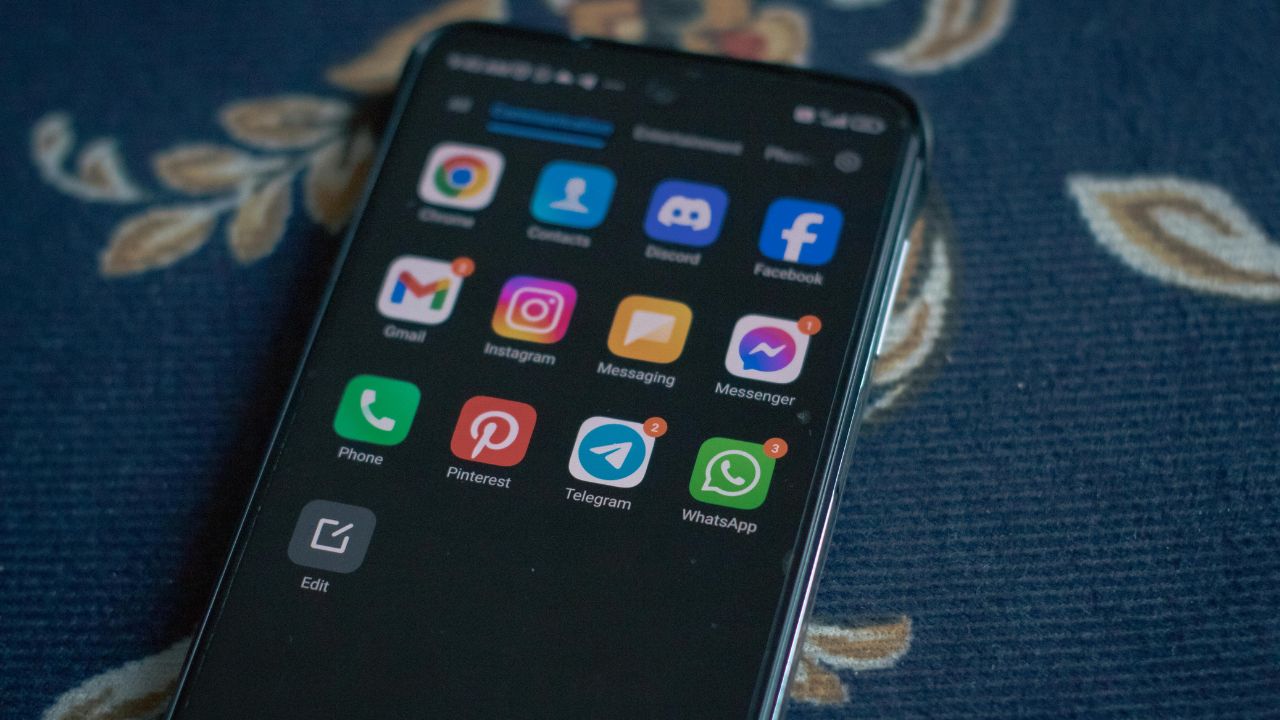
It is frustrating when you click the Discord icon, but nothing happens. You might see a quick loading circle, a blank screen, or simply… silence. Discord is a vital tool for many of us, whether you use it for gaming, work meetings, or just chatting with friends. When it stops working, your entire workflow or social plan hits a wall.
The good news? Most Discord launch issues are easy to fix. Often, it is just a background process getting “stuck” or a temporary file causing a glitch. In this guide, we will walk through every possible fix, from the simplest restarts to advanced troubleshooting. By the end, you will have your Discord client back to its normal, functional state.
Understanding Why Discord Fails to Launch
Before we dive into the fixes, it helps to know why this happens. Usually, the issue stems from a corrupted local cache, a process that did not shut down properly, or outdated application files.
| Possible Cause | Description |
| Zombie Processes | Discord is still running in the background but hidden. |
| Corrupt Cache | Old temporary files are preventing a fresh startup. |
| Outdated App | Your version of Discord has become incompatible. |
| Network Issues | Your internet is blocking Discord’s connection. |
The “Zombie Process” Problem
Sometimes, when you close Discord, the app does not actually exit. It stays active in your computer’s memory. When you try to click the icon again, Windows or macOS gets confused because it thinks the app is already running.
Step-by-Step Solutions
1. Kill Discord via Task Manager (The Fastest Fix)
The most common reason for Discord not opening is a background process that failed to close.
- Press Ctrl + Shift + Esc on your keyboard to open the Task Manager.
- Click on the Processes tab.
- Look for “Discord” in the list.
- Right-click on every Discord entry and select End Task.
- Try launching Discord again.
| Step | Action | Why it works |
| 1 | Open Task Manager | Accesses active memory processes. |
| 2 | Locate Discord | Finds the “hanging” process. |
| 3 | End Task | Clears the error state. |
2. Clear Your Discord Cache
Discord stores temporary data to load faster. Sometimes, this data becomes corrupt. Deleting it forces the app to rebuild clean files.
- Press Win + R to open the Run dialog.
- Type %appdata% and press Enter.
- Find the discord folder and delete it.
- Press Win + R again, type %localappdata%, and delete the Discord folder there as well.
- Restart your computer and launch the app.
3. Run Discord as Administrator
Sometimes, Discord lacks the “permission” to modify its own files or access network ports. Running it as an administrator often solves this.
- Right-click your Discord shortcut on the desktop.
- Select Properties.
- Go to the Compatibility tab.
- Check the box: “Run this program as an administrator”.
- Click Apply and then OK.
Advanced Troubleshooting
4. Check Your Date and Time Settings
It sounds strange, but Discord uses SSL certificates to keep your connection secure. If your computer’s time is wrong, these certificates will fail, and Discord will refuse to open.
- Ensure your “Set time automatically” and “Set time zone automatically” are turned ON in Windows or Mac system settings.
5. Perform a Clean Reinstall
If all else fails, your installation files might be deeply corrupted. A clean sweep is the best path forward.
- Uninstall Discord via the Control Panel.
- Delete the folders mentioned in the cache section above.
- Download a fresh copy from the official Discord website.
- Install and log in.
Frequently Asked Questions
Q: Why does Discord show a blank screen on startup?
A: This is usually a hardware acceleration issue or a corrupted cache. Try the cache clearing method mentioned earlier in this guide.
Q: Will I lose my messages if I delete the Discord folder?
A: No. Your messages and server data are saved on Discord’s servers, not your local computer.
Q: Can a VPN stop Discord from opening?
A: Yes, occasionally a VPN can block Discord’s authentication servers. Try turning it off to test your connection.
Final Words
Dealing with a stubborn application is never fun, but in most cases, these steps will resolve your “Discord won’t open” issue within a few minutes. Always start with the Task Manager—it solves the vast majority of launch errors. If you find yourself frequently dealing with these issues, ensure your operating system is fully updated, as older systems can sometimes struggle with newer versions of the Discord client.
Technology can be unpredictable, but you have the tools now to handle these minor glitches. Once you are back in your servers, you can get back to chatting with your friends and teammates without any further interruptions!