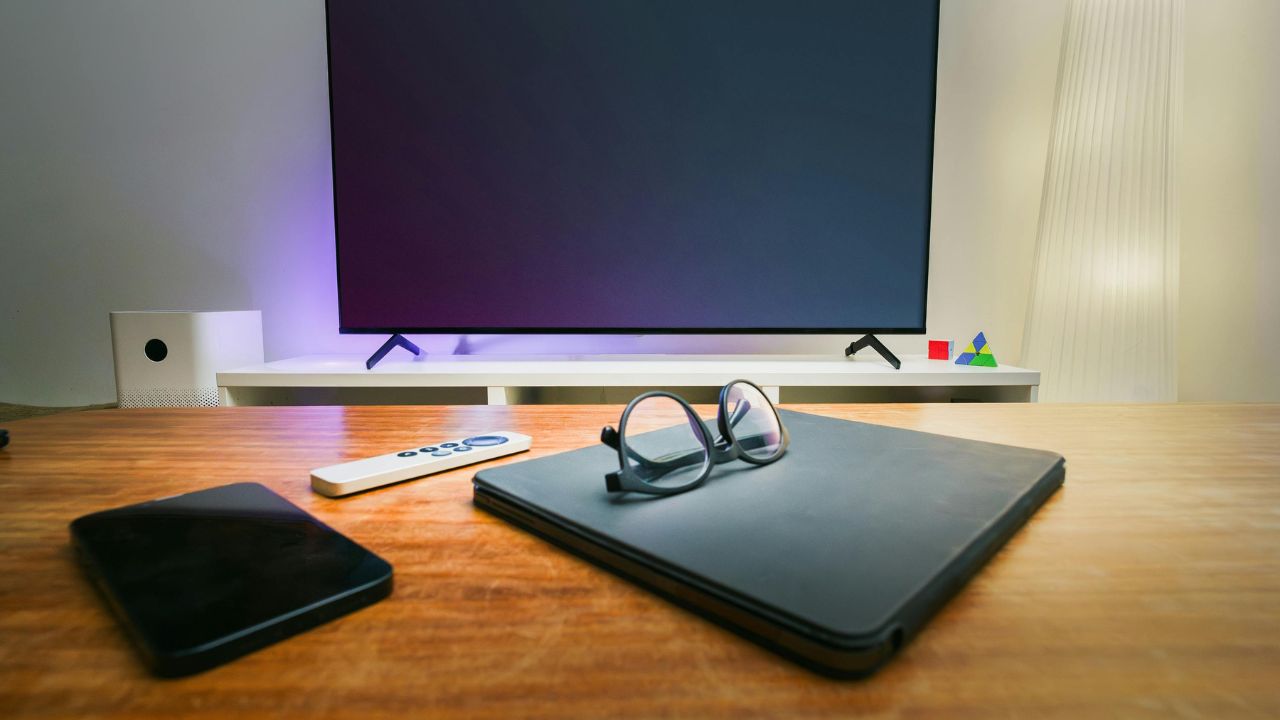
If your Smart TV keeps restarting, you are not alone. This problem is called a boot loop or constant power cycling. It is a common issue that affects many major television brands, including Samsung, LG, Sony Bravia, TCL Roku, Hisense, and Vizio.
When your television keeps turning off and on by itself, it ruins your entertainment. The good news is that you do not need to buy a new television right away. Most of the time, this issue happens because of minor software bugs, loose cables, or incorrect settings.
This detailed guide will explain why your smart television keeps restarting. It will also give you clear, easy, step-by-step methods to stop the problem and fix your screen today.
1. Quick Overview: Why Your Smart TV Keeps Restarting
Before we look at the deep solutions, let us see the most common reasons why your smart television is acting up. Understanding the core problem helps you choose the right fix.
- Power Supply Issues: A loose power cord, a broken wall outlet, or a faulty surge protector can cut power for a split second.
- System Software Bugs: A corrupt firmware update or a crashing streaming application can force the system to reboot.
- HDMI-CEC Conflicts: Connected smart devices like a soundbar, gaming console, or streaming stick can send wrong on/off signals to your television.
- Overheating: If dust blocks the ventilation holes, the interior parts get too hot. The television turns off automatically to protect itself from damage.
- Hardware Failure: Older electrical parts inside the television, like electrolytic capacitors on the power board, might be failing.
Quick Diagnostics Reference Table
| Potential Problem | Common Sign | Quick Check |
| Power Issues | The red standby light flashes or goes completely dark randomly. | Plug the cord directly into a wall outlet. |
| Software Bugs | Restarts happen only when you open specific apps like YouTube or Netflix. | Clear the app cache or update your television firmware. |
| HDMI-CEC Faults | The television restarts right after you turn on a gaming console or soundbar. | Turn off HDMI-CEC in the system settings. |
| Overheating Issues | The back of the television feels very hot to the touch before it shuts down. | Clean out dust from the vents and give it space. |
| Internal Hardware | The television shows the brand logo on loop and never goes to the home screen. | Requires physical inspection by a repair technician. |
2. Step-by-Step Solutions to Stop Your Smart TV from Restarting
Follow these steps in order. We start with the simplest, safest fixes and move toward advanced troubleshooting.
Step 1: Perform a Proper Power Reset (Soft Reset)
The simplest fix is often a power cycle. A quick turn-off with your remote does not fully reset the computer chips inside a modern smart television. You need to clear the temporary memory and drain the remaining electricity.
1.Turn Off the Television:Step 1.
Press the power button on your remote control to turn off the screen.
2.Unplug the Power Cord:Step 2.
Pull the main power plug out of the wall socket or surge protector.
3.Hold the Physical Power Button:Step 3.
Find the actual physical power button on the frame of your television. Press and hold it down for 20 to 30 seconds. This drains any residual electricity left inside the internal parts.
4.Wait Intentionally:Step 4.
Leave the television completely unplugged for 2 to 3 minutes to let the system rest.
5.Plug Directly Into the Wall:Step 5.
Plug the power cord directly into a working wall outlet. Do not use an extension lead or a surge protector for this test. Turn the television on.
Step 2: Check Your Power Source and Cables
Modern smart televisions need a steady, continuous flow of electric current. If the electricity drops for even a microsecond, the television’s computer system will crash and reboot.
- Inspect the Power Cord: Look closely at the power cable. Ensure it is not bent, crushed, or frayed. Push the cord firmly into the back of your television to make sure it sits tight.
- Bypass Surge Protectors: Power strips and surge protectors can degrade over time. A old or overloaded surge protector might drop voltage, causing a constant restart loop. Plug your television straight into the wall socket to see if the issue stops.
- Test the Wall Outlet: Plug another small appliance, like a lamp, into the same outlet. If the light flickers, your wall outlet or home circuit breaker might have a loose connection.
| Power Component | What to Look For | Action Item |
| Power Cable Connection | Wobbly or loose plug at the back of the television screen. | Push it firmly until it clicks or sits deep in the port. |
| Surge Protector / Strip | Multiple high-power devices plugged into a single cheap power strip. | Remove other devices or replace the power strip entirely. |
| Wall Socket | Loose fit where the plug slips out easily from the wall. | Try a completely different wall outlet in another room. |
Step 3: Tame Your HDMI-CEC Settings and Disconnect External Devices
HDMI-CEC (Consumer Electronics Control) is a feature that allows your television remote to control other attached devices, like a Blu-ray player, a soundbar, or a PlayStation console. While helpful, a glitchy attached device can send a false command that tells your television to turn off and on repeatedly.
To see if an external accessory is causing your problem, try a isolation test:
- Turn off the television and unplug all HDMI and USB cables from the back.
- Leave only the power cord plugged in.
- Turn on the television and use it normally for 20 minutes.
- If the television stops restarting, one of your external devices is the culprit. Plug them back in one by one until the problem returns to identify the bad device.
To permanently prevent this, turn off HDMI-CEC in your television’s main setup menu. Television brands use different proprietary names for this feature:
- Samsung: Anynet+
- LG: SimpLink
- Sony: Bravia Sync or Bravia Link
- TCL / Vizio / Hisense: HDMI-CEC or CEC Control
Important Note: Disabling this feature means you will have to turn on your soundbar or media box manually using its own remote control, but it will instantly stop a random restart loop caused by external signal conflicts.
Step 4: Update Your Smart TV Firmware and Applications
Operating systems like Android TV, Samsung Tizen, and LG webOS require regular software patches. A software bug can cause system memory leaks that lead to crashes.
- Update the Main Software: Use your remote to navigate to Settings > Support or System > Software Update. If a new update is found, download and install it. Make sure you do not turn off the television while the update runs.
- Update Streaming Applications: Sometimes, the television system is fine, but a specific app like Netflix or Prime Video is corrupt and causes a crash. Go to your television’s App Store and select “Update All” to make sure your apps are running on their newest code.
Step 5: Clear System Cache and Delete Unused Apps
Just like a smartphone or a computer, your smart television saves small temporary files called cache to help apps load faster. If these files become corrupted, or if the television’s internal storage space gets completely full, the television will freeze and restart on its own.
- For Android TV / Google TV: Go to Settings > Apps > See All Apps. Select heavy apps like YouTube, click on Clear Cache, and confirm.
- Remove Unused Applications: If your storage space is full, delete any games or media players you no longer use. Keeping at least 20% of your internal storage space empty helps the operating system run smoothly.
Step 6: Disable Eco-Mode and Sleep Timers
Modern televisions have automatic power-saving configurations. These are called Eco-Mode, Auto Power Off, or Sleep Timers.
If someone in your home turned these settings on by accident, your television might turn off at the exact same time every day. Go to your television’s settings menu, look for General > Eco Solution or System > Time, and turn off all sleep timers and automatic power-down options.
Step 7: Perform a Factory Reset (The Last Software Resort)
If you have tried all the steps above and your smart television still reboots randomly, there is likely a deep, stubborn software issue or corrupted system file that cannot be cleared manually. A Factory Data Reset will erase everything and return your television back to its original factory condition.
Warning: A factory reset will completely wipe out all your downloaded applications, saved personal accounts, login passwords, and custom picture adjustments. You will need to set up your television again from scratch.
1.Navigate to Reset Menu:Step 1.
Open the main menu using your remote control. Go to Settings, then choose General, System, or About (this varies by your television brand).
2.Select Factory Reset:Step 2.
Look for the option labeled Reset, Factory Reset, or Factory Data Reset.
3.Enter Your System Security PIN:Step 3.
If the screen asks for a security PIN code, enter it. If you never changed this code, try the factory default numbers: 0000, 1111, or 1234.
4.Confirm and Wait:Step 4.
Select Confirm or Yes. The television screen will turn off, wipe its internal memory, and turn back on to the initial setup screen.
3. Brand-Specific Troubleshooting Tips
Different television manufacturers have unique hardware layouts and specific software settings. Here are some tailored things to look out for based on your specific television brand:
Samsung Smart TVs
Samsung sets are highly sensitive to power disruptions.
- The Smart Hub Bug: Sometimes the Samsung Smart Hub gets stuck in a loop. Go to Settings > Support > Device Care > Self Diagnosis and click Reset Smart Hub.
- Anynet+ Conflict: Ensure Anynet+ is turned off if you use an older external soundbar that does not support modern ARC connections.
LG Smart TVs
LG televisions run on webOS, which manages memory differently.
- Quick Start+ Feature: This setting keeps the television in a low-power standby mode for faster turn-on speeds. However, it can trap system bugs. Turn it off by going to Settings > All Settings > General > Quick Start+ and toggling it off. This forces a clean boot every time you press power.
- Location Settings: Sometimes shifting your location setting away from automatic and selecting your exact country manually refreshes the local application links and stops random crashes.
Sony Bravia & Android TVs
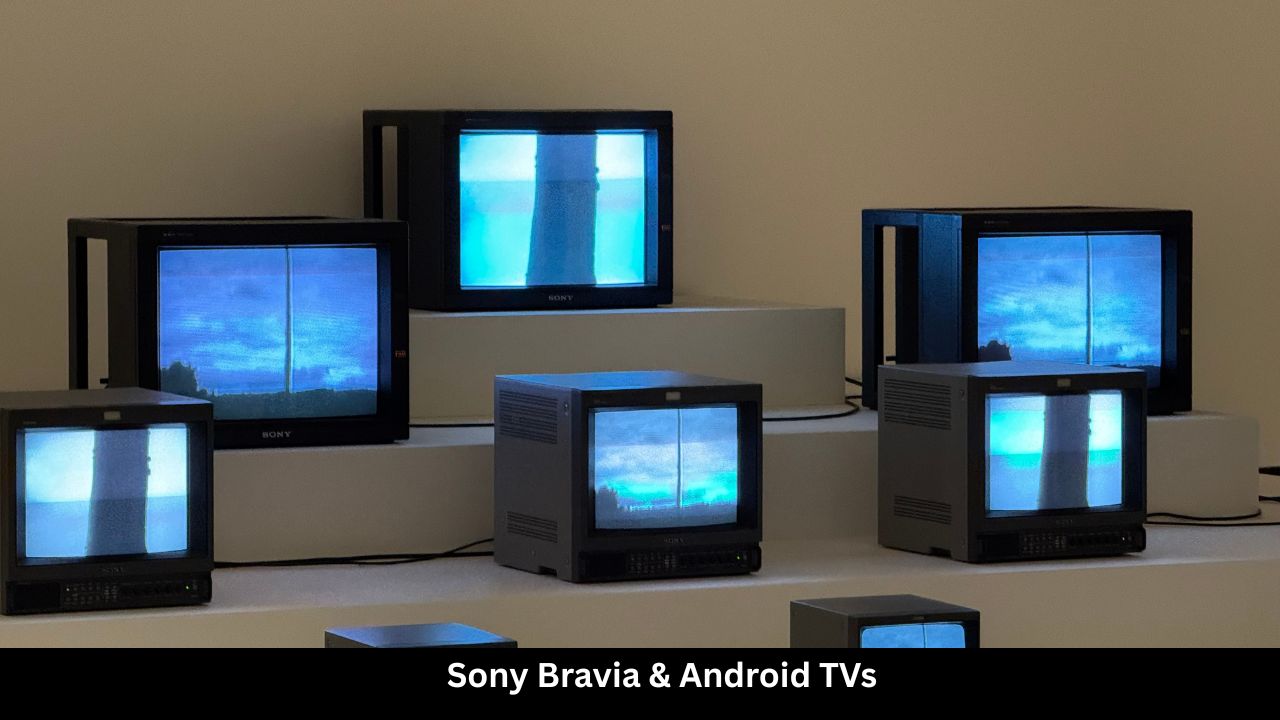
Sony screens run a full version of the Android or Google TV operating system.
- Forced Hardware Reset: If your Sony television is stuck in a boot loop and you cannot access the regular settings menu, you can force a reset using physical buttons. Unplug the television. Press and hold both the Power and Volume Down (-) buttons located on the physical back panel of the television body. While holding them down, plug the power cord back into the wall socket. Keep holding the buttons until a green LED light appears on the front panel, then let go.
- Clear System Storage: Android operating systems slow down dramatically when internal storage falls below 1 GB. Keep an eye on system storage.
4. Hardware Issues: When to Seek Professional Repair
If you have done a full factory reset, checked your power cables, removed all HDMI plugs, and your Smart TV keeps restarting, the problem is unfortunately not related to your software. It is time to look at internal physical parts.
Modern flat-screen televisions contain internal electronic circuit boards. Unless you have training in electronics repair and know how to safely handle high-voltage electrical components, you should contact a professional repair center.
Here are the three most common internal hardware parts that cause a television to enter an endless reboot loop:
1. Blown or Bulging Capacitors on the Power Board
The power board converts the raw electricity from your wall socket into stable, lower-voltage power for the television’s computer chips. The most common hardware failure point involves tiny barrels called electrolytic capacitors. Over years of use, these capacitors can overheat, swell, bulge at the top, or leak internal chemicals. When they degrade, they can no longer maintain a smooth voltage output, causing the circuit protection safety trigger to shut down the television. A technician can easily desolder the damaged capacitors and solder on cheap new replacements.
2. Failing LED Backlights
The screen uses rows of tiny LED backlight strips behind the glass panel to illuminate the picture. If a single LED bulb burns out or develops a short circuit, it creates an electrical current spike. The television’s main system board detects this error flag within a fraction of a second and cuts all system power immediately to prevent an electrical fire, restarting the set.
3. Damaged eMMC Memory Chip on the Main Board
The main board acts as the central motherboard of your television. It houses the main processor and the eMMC memory chip, which holds the core operating system files. Budget television models sometimes suffer from premature memory wear. If the sectors holding the boot data become corrupted or physically unreadable, the system will read up to that corrupted block, crash, and restart from the beginning over and over.
5. Frequently Asked Questions (FAQ)
Why does my smart television keep turning off and on every few seconds?
This fast cycle is usually a sign of a physical power hardware problem or a major HDMI-CEC signal conflict. Unplug all attached boxes, game consoles, and soundbars. If the television still shuts down immediately after showing the brand logo, it likely has a faulty power board or a shorted internal LED backlight strip.
Can a bad Wi-Fi connection cause a Smart TV to restart?
Yes, it can. If your television is trying to stream a high-definition video track or download an automatic background system update, a spotty, dropping Wi-Fi signal can cause a streaming application to freeze. In severe cases, the application crashes the underlying system kernel, forcing the television to clear itself by rebooting. Try disconnecting your television from Wi-Fi in the network settings to see if it stabilizes.
Is it safe to leave my television in a constant restart loop?
No, it is not recommended. Leaving your television plugged in while it cycles off and on repeatedly strains the sensitive electronic components. The continuous electrical surges can cause further damage to the health of your main board. Unplug the main power cord from the wall outlet until you are ready to troubleshoot or repair it.
How much does it cost to fix a television that keeps restarting?
The cost depends on what part is broken. If it is a software glitch, a power reset costs nothing. If a professional repair technician needs to open up the television casing and replace blown capacitors on the power board, parts and labor generally range from $100 to $200. However, if the main display panel itself is shorted out, the repair cost can be higher than buying a completely new television.
Final Words
Dealing with a Smart TV that keeps restarting can test your patience. However, remember that most of these power loop errors can be solved at home without spending a single cent.
Start by stripping the television down to its basics. Perform a comprehensive power reset, plug the cable directly into a clean wall outlet, and disconnect all external HDMI accessories. If the television runs steadily, turn your attention to updating your software, cleaning out app cache data, and managing your HDMI-CEC settings.
If your television continues to reboot after a full factory reset, you have ruled out software errors. At that point, reach out to the customer support team of your television manufacturer or a trusted local appliance repair shop to safely check the internal electronics boards