Imagine settling down on your couch to watch a great movie or a hot new TV show on Amazon Prime Video. You grab your snacks, dim the lights, and press play. But suddenly, you notice a big problem. The actors are talking, but no words appear at the bottom of the screen. Your subtitles are completely missing!
This is a very common issue that frustrates thousands of stream viewers every day. Subtitles and closed captions (CC) are vital tools. They help you catch quiet dialogue, enjoy brilliant foreign films, or watch shows clearly without raising the volume. When they break, your entertainment stops.
Thankfully, you do not need to be a technology expert to fix this problem. Most subtitle errors happen because of minor software bugs, outdated apps, or incorrect settings. This comprehensive guide will walk you through easy, step-by-step solutions to restore your text stream instantly. We will look at quick fixes for smart TVs, mobile phones, computers, and popular streaming sticks like the Amazon Fire Stick or Roku.
Let us dive in and fix your Amazon Prime Video playback issues together!
1. Check if Subtitles Are Available for the Title
Before changing any technical settings on your device, you must confirm that the video actually has subtitles built into it. Not every single piece of content on Prime Video includes text tracks for every language. This is especially true for older movies, classic television programs, or rare indie films.
How to Check Availability
When you click on a movie or show, do not hit the play button right away. Look closely at the description page first. Look for a small “CC” icon or a section labeled “Subtitles” or “Languages.” If you see your preferred language listed there, the video supports it. If you see nothing, then the title itself lacks text tracks, and no amount of troubleshooting will make them appear.
Fast Subtitle Status Check
| Visual Indicator | Meaning | Required Action |
| CC Icon Present | The video fully supports subtitles. | Turn them on in the media player. |
| No CC Icon | Subtitles are not coded into this video. | Try playing a different, newer video. |
| Language Missing | Subtitles exist but not in your language. | Check the Prime Video language settings. |
2. Toggle the Subtitle Setting Off and On
If the video definitely supports captions but they refuse to load, the simplest trick is a quick refresh. Sometimes the digital stream gets confused, and turning the option off and back on forces the app to reload the text track data.
Step-by-Step Subtitle Reset
1.Pause the Video:Takes 2 seconds.
Press the pause button on your remote control, phone screen, or computer keyboard to halt the stream.
2.Open the Subtitle Menu:Takes 5 seconds.
Look for the small square speech bubble or “CC” icon on your screen and click it.
3.Turn Subtitles Off:Takes 5 seconds.
Select “Off” from the language list to shut down any active text rendering.
4.Turn Subtitles On:Takes 5 seconds.
Wait a moment, then select your desired language (such as English) again.
5.Resume Playback:Takes 2 seconds.
Press play to see if the dialogue text now scrolls smoothly across the bottom of the screen.
3. Perform a 60-Second Power Cycle
If a basic settings refresh fails, your streaming device might be suffering from a deep system glitch or temporary memory errors. A power cycle, also known as a hard reboot, clears out stalled background data and forces your hardware to start fresh.
How to Power Cycle Your Setup
This process is incredibly easy but highly effective for smart TVs, Roku boxes, Apple TVs, and game consoles.
- Step 1: Turn off your television and your streaming media player completely.
- Step 2: Unplug the power cords of both devices directly from the wall outlet or power strip.
- Step 3: Wait a full 60 seconds. This allows all remaining electricity to drain from the internal circuits, wiping out temporary glitch files.
- Step 4: Plug the power cords back into the wall.
- Step 5: Turn your devices back on, open the Prime Video app, and test your show.
4. Clear App Cache and Data
Every time you watch a video, the Prime Video app saves tiny pieces of data called “cache” to help things load faster. If these cache files become corrupted or broken over time, they can block your subtitles from rendering properly. Clearing this digital clutter can instantly fix display problems.
Cache Clearing Guide by Device
| Device Type | Settings Path | Expected Result |
| Amazon Fire TV / Stick | Settings > Applications > Manage Installed Applications > Prime Video > Clear Cache. | Clears corrupt streaming data without logging you out. |
| Android TV / Phone | Settings > Apps > Prime Video > Storage > Clear Cache. | Removes laggy background files and fixes text glitches. |
| Web Browser (PC/Mac) | History > Clear Browsing Data > Cached Images and Files. | Refreshes the media engine for smooth in-browser viewing. |
Note: If you select “Clear Data” instead of “Clear Cache,” it will erase your login credentials. You will simply need to sign back into your Amazon account using your password.
5. Update the Prime Video App and System Software
Running old, outdated software is a recipe for streaming errors. App developers constantly release updates to fix bugs, match new operating systems, and keep features like closed captions running perfectly.
How to Check for Updates
- Smart TVs & Streaming Sticks: Go to your device’s app store (such as the Google Play Store, Roku Channel Store, or Apple App Store). Search for Prime Video. If an update is available, click the “Update” button.
- Mobile Devices: Open your phone’s app store, look under your profile for pending downloads, and install the newest version of Prime Video.
- TV Operating System: Sometimes the entire TV system needs a refresh. Go to your television’s main settings menu, look for “System Update” or “Software Update,” and install any available firmware updates.
6. Adjust Subtitle Styling and Size
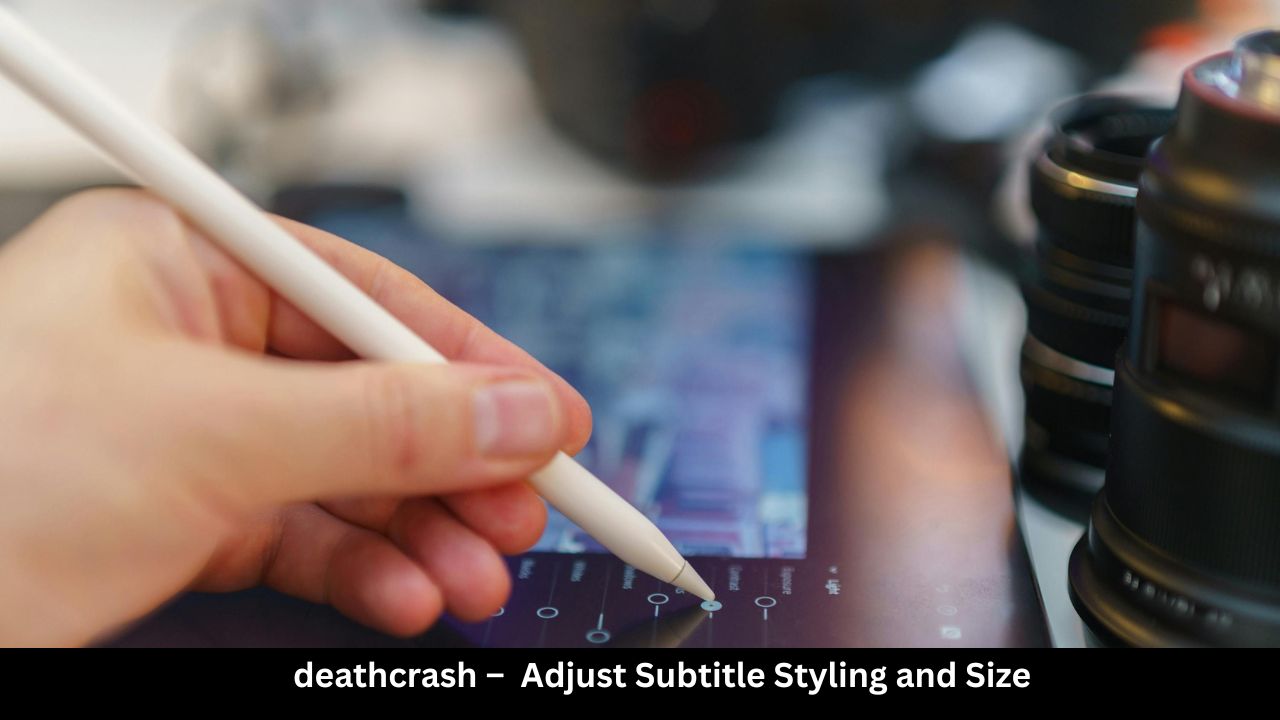
Sometimes the subtitles are working, but they are practically invisible. If the text color matches the background video, or if the font size was accidentally shrunk down to a microscopic level, you won’t be able to read them.
Customizing Your Subtitles
You can customize exactly how your text looks so it stands out against dark or bright scenes.
- Go to the Amazon website on a computer or phone browser.
- Navigate to Account & Settings and click on the Subtitles tab.
- Here, you will find several style presets. You can change the font color to bright yellow, add a solid black background box behind the words, or raise the text size to Large or Extra Large.
- Save your changes. The new look will sync across all devices tied to your Amazon profile.
7. Reinstall the Prime Video App
If none of the basic troubleshooting methods work, your app files might be deeply broken or corrupted. A complete uninstallation and clean reinstallation removes all corrupted code and builds a fresh connection to Amazon’s core servers.
Clean Reinstall Steps
1.Delete the App:Takes 10 seconds.
Go to your device’s app management menu, select Prime Video, and click “Uninstall” or “Delete”.
2.Restart the Device:Takes 30 seconds.
Turn your device off and back on again to ensure all residual cache memory is completely cleared.
3.Download Prime Video Again:Takes 1 minute.
Open your app store, search for Amazon Prime Video, and download the application once more.
4.Sign Back In:Takes 1 minute.
Launch the app, log in using your Amazon account username and password, and turn on your subtitles.
Troubleshooting Summary Table
Here is a fast-reference cheat sheet to help you choose the right fix based on your exact issue:
| What You See on Screen | Most Likely Cause | Quick Solution |
| No text at all | Subtitles are turned off or text track is glitched. | Toggle subtitles off/on or power cycle device. |
| Words don’t match speech | Subtitle sync lag or timing error. | Close the video stream and restart it immediately. |
| Text cuts off at the edge | Display aspect ratio or font size preset error. | Lower the font size in Prime Video subtitle settings. |
| Subtitles are in the wrong language | Incorrect default language selected. | Open the audio/subtitle menu and click your language. |
Frequently Asked Questions (FAQ)
Why are my Amazon Prime subtitles suddenly missing on my Smart TV?
This usually happens due to a temporary memory glitch within your Smart TV’s operating system or an outdated Prime Video app. Try clearing the app cache or unplugging your television’s power cable for 60 seconds to reset the system data.
Can I fix subtitle lag or text that is out of sync?
Yes! Subtitle lag happens when the audio stream and text data stream get out of alignment. Pausing the video for a few seconds, turning the subtitles off, playing the video, and turning them back on usually forces the data streams to snap back into sync.
Why do subtitles work on my phone but not on my Roku or Fire Stick?
If captions work fine on one device but fail on another, the problem lies with that specific streaming hardware or its local app installation. Update your streaming stick’s software or completely reinstall the Prime Video app on that device.
How do I make the subtitle text larger on Prime Video?
You can change the text appearance by logging into your Amazon account via a web browser. Go to “Account & Settings,” click the “Subtitles” tab, select a larger font size preset, and save your changes.
What should I do if subtitles won’t show up for just one specific movie?
If subtitles fail on only one video but work perfectly on every other show, there is an issue with that specific video file from Amazon. You should use the “Help” or “Feedback” button inside the app to report the broken title to Amazon Customer Support so their team can patch it.
Final Words
Dealing with missing subtitles on Amazon Prime Video can certainly test your patience, but it is rarely a permanent issue. As we have explored in this guide, resolving the issue is usually as simple as refreshing your stream settings, running an app update, or giving your television a brief 60-second rest. By systematically following these steps, you can eliminate software conflicts and go back to enjoying your favorite content with perfect, easy-to-read closed captions. Keep your apps updated, clean out your storage cache from time to time, and you will ensure a seamless, interruption-free streaming experience every time you hit play!