It is a frustrating moment. You sit down to play your favorite game, you press the PS button, and nothing happens. Your PlayStation 5 DualSense controller flashes a blue or white light, but it refuses to connect to the console.
This is a very common issue for PS5 owners. Most of the time, the problem is simple to fix. It could be a minor software glitch, a bad cable, or a signal error with Bluetooth.
This complete troubleshooting guide will help you fix your PS5 controller connection issues quickly. We will cover simple steps like resetting your controller to advanced tricks like fixing safe mode errors. Let’s get your controller back online.
1. Check the USB-C Cable First
When your DualSense wireless controller stops pairing wirelessly, your first move should be to connect it using a physical wire. However, not all USB cables are the same.
Some USB-C cables only transmit power to charge devices. They do not transmit data. To pair your PS5 controller with the console again, you must use a USB-C data cable. The cable that came inside the retail box with your PlayStation 5 console is a data cable. If you are using a third-party cable from an old phone, it might not work for syncing.
How to Check and Fix the Cable
- Unplug your current cable from the front of the PS5.
- Find the original Sony USB-C cable that came with your console.
- Plug one end into the Type-A or Type-C port on the front of the PS5.
- Connect the other end directly to your DualSense controller.
- Press the PS button in the middle of the controller.
| Checkpoint | What to Look For | Action Item |
| Cable Type | Must support data transfer, not just charging. | Swap to the official Sony PS5 cable. |
| Port Damage | Check for dust, lint, or bent pins inside the ports. | Clean the port gently with a toothpick. |
| Console Port | Try the rear USB ports if the front port fails. | Move the cable to the back of the PS5. |
2. Hard Reset the DualSense Controller
If the cable is good but the controller still flashes white or blue, you need to clear its memory. A hard reset restores the controller back to its original factory settings. This clears out any corrupted data that causes connection failures.
Step-by-Step Guide to Hard Reset
- Turn off your PlayStation 5 console completely. Do not put it in Rest Mode.
- Look at the back of your DualSense controller.
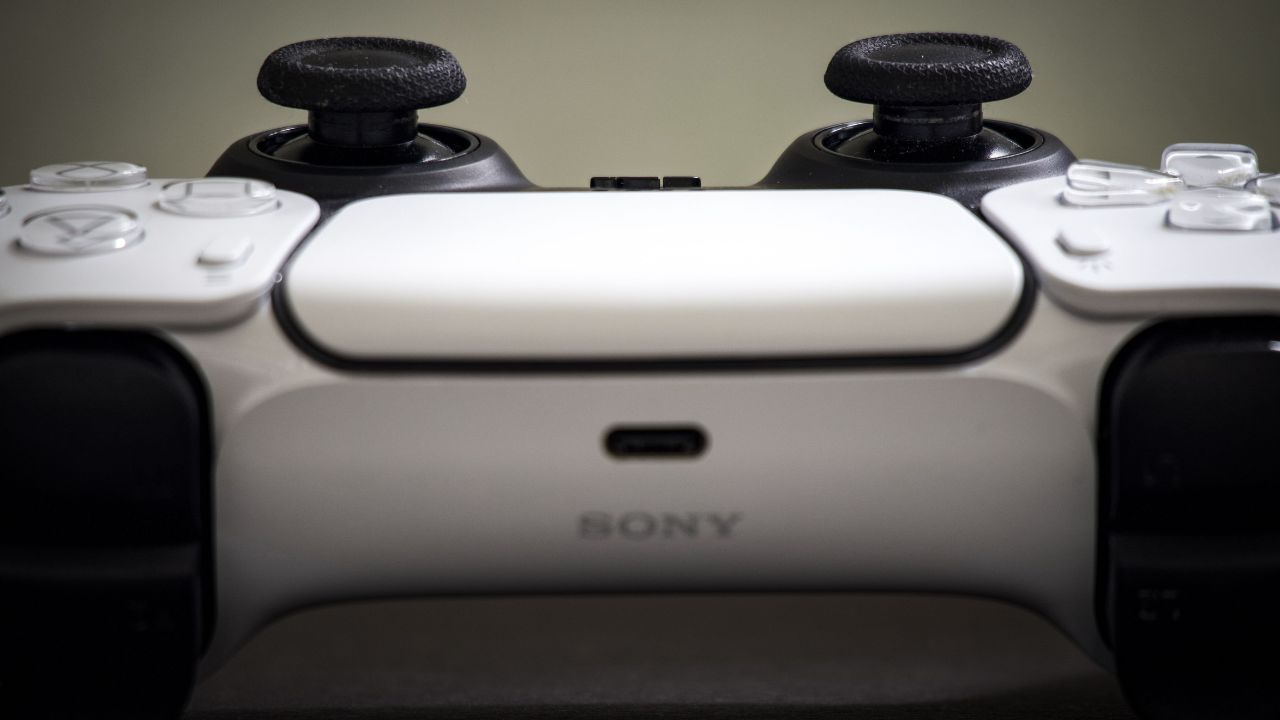
- Find the tiny pinhole located next to the “Sony” logo on the right side.
- Take a small, straight paperclip or a SIM card ejector tool.
- Push the tool into the hole. Press down gently on the internal button.
- Hold the button down for 5 to 7 seconds.
- Release the button and wait 10 seconds.
- Connect the controller to the PS5 with your data cable and press the PS button.
| Action Stage | Duration | Expected Result |
| Hold Reset Button | 5 to 7 Seconds | Clears the internal Bluetooth cache. |
| Disconnect Period | 10 Seconds | Allows the controller logic board to reboot. |
| USB Connection | Immediate | Pairs the hardware with a fresh identity code. |
3. Disconnect and Clear Bluetooth Devices
Sometimes, your PS5 gets confused by too many wireless signals. If you have connected your controller to a PC, an iPad, or an Android phone recently, the controller might be trying to connect to that device instead of your console.
To fix this, you should tell your PS5 to forget the controller, then add it back as a fresh accessory. You will need a second working controller or a media remote for this step. If you do not have one, you can use the official PlayStation App on your smartphone as a temporary remote control.
How to Forget the Controller on PS5
- Go to the PS5 home screen and select the Settings gear icon in the top right corner.
- Scroll down and click on Accessories.
- Select General, then choose Bluetooth Accessories.
- Find the controller that is not working (it will usually say “Not Connected”).
- Press the Options button on your working controller or select it and click Delete.
- Now, take the broken controller, connect it via the USB cable, and press the PS Button to register it again.
| Menu Path | Target Action | Purpose |
| Settings > Accessories | Access system hardware options. | Opens the device registry database. |
| Bluetooth Accessories | Locate the specific DualSense profile. | Shows all saved wireless devices. |
| Delete / Forget | Erase the old connection profile. | Removes corrupted pairing keys. |
4. Perform a Full PS5 Power Cycle
Electronics can get bogged down by system cache problems. If your console stays on or remains in Rest Mode for weeks at a time, temporary system files can cause errors. A full power cycle drains all electricity from the console and forces it to clear its temporary memory cache.
How to Power Cycle Your PS5
- Press and hold the power button on the front of the PS5 console until the lights stop blinking and the system turns completely off.
- Remove the power cable from the back of the PS5 console.
- Wait at least 2 full minutes to ensure all electrical capacitors are empty.
- Plug the power cable back into the wall outlet and the console.
- Connect your controller to the console using the USB-C cable.
- Turn on the console by pressing the power button on the front panel, not the controller.
| System State | Time Required | Why It Works |
| Completely Off | 0 Seconds | Stops active read/write drive functions. |
| Unplugged | 120 Seconds | Drains standby voltage from the motherboard. |
| Cold Boot | 1-2 Minutes | Forces the PS5 OS to search for new hardware inputs. |
5. Update the Controller Device Firmware
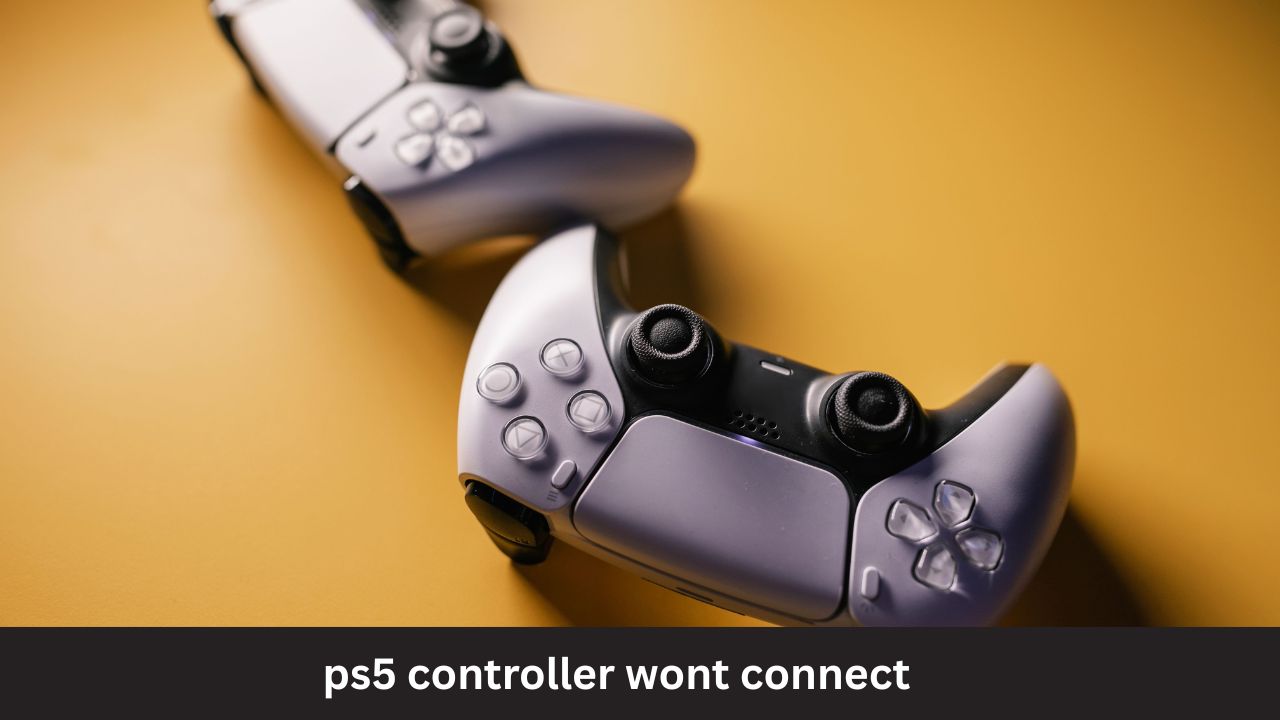
Sony releases regular software updates for the DualSense controller. These updates fix known bugs, improve battery life, and patch wireless connection errors. If your console system software is updated but your controller firmware is outdated, they might fail to talk to each other.
How to Update Controller Firmware Manually
- Make sure your PS5 is connected to the internet.
- Go to Settings > System.
- Choose System Software, then select System Software Update and Settings.
- Select Update System Software to make sure your console is on the latest patch.
- Go back to Settings > Accessories > Controller (General).
- Select DualSense Wireless Controller Device Software to run the update checker. Make sure your wire is plugged into the controller during this process.
| Component | Check Target | Ideal Status |
| Console OS | System Software Update | Must be on the latest public Sony build. |
| DualSense Firmware | Wireless Controller Software | Updates internal chip communication codes. |
| Power Stability | Keep wire connected during install | Prevents bricking the controller accessory. |
6. Troubleshoot Bluetooth Interference
The PS5 controller uses a standard 2.4GHz Bluetooth signal to talk to the console. This frequency is very crowded. Many household items can disrupt or block this signal, causing input lag, random disconnections, or a complete failure to pair.
Common Sources of Interference
- Wi-Fi Routers: If your internet router sits right next to your PS5, it can easily drown out the controller’s weaker Bluetooth signal.
- External Hard Drives: USB 3.0 external hard drives radiate high-frequency noise that blocks 2.4GHz signals. If your external drive sits directly on top of your PS5, move it away.
- Other Bluetooth Devices: Wireless headphones, smartwatches, and soundbars can create a wall of wireless noise.
Tips to Reduce Signal Interference
- Move your Wi-Fi router at least three to five feet away from your PS5 console.
- Move external USB hard drives to the back USB ports instead of using the front ports.
- Turn off Bluetooth on nearby smartphones or tablets while you attempt to pair your controller.
- Ensure there is a clear, direct line of sight between where you sit and the console. Do not hide the PS5 inside a closed wooden or glass cabinet.
| Source of Noise | Danger Level | Easy Solution |
| Wi-Fi Router (2.4GHz) | High | Separate the router and console by at least 3 feet. |
| USB 3.0 External Drives | Medium | Use longer cables and place the drive away from the front panel. |
| Physical Blockers (Glass/Wood) | Medium | Open the cabinet doors during active gameplay sessions. |
7. Change Connection Method to USB Cable
If your controller works fine when it is plugged in but stops working the moment you pull the cord out, your controller’s Bluetooth antenna might be broken. Thankfully, you can change your PS5 settings to force the system to route all commands through the physical wire instead of Bluetooth. This will let you play games without any wireless lag while you save up for a new controller.
How to Turn on USB Communication Mode
- Open the Settings menu on your PS5.
- Navigate down to Accessories.
- Select Controller (General).
- Click on Connection Method.
- Switch the setting from Use Bluetooth to Use USB Cable.
Note: When this setting is active, your controller will turn off instantly if you unplug the USB cable. It will only send input signals down the wire.
| Option Mode | Input Delay | Best Use Case |
| Use Bluetooth | Very Low | Normal, comfortable couch gaming setups. |
| Use USB Cable | Ultra-Low (None) | Competitive gaming or troubleshooting broken antennas. |
8. Boot Your PS5 into Safe Mode
If nothing else has worked, the issue might be a deeper software crash inside the PS5 operating system. You can bypass the standard OS by launching the console in Safe Mode. Safe Mode runs a basic text menu that allows you to clear system data and force connections.
How to Use Safe Mode for Syncing
- Turn off your PS5 completely by holding down the power button.
- Once the console is quiet and dark, press and hold the power button down again.
- Listen for two distinct beeps. You will hear the first beep when you press the button, and a second beep about 7 seconds later. Release the button after the second beep.
- Connect your DualSense controller to the front USB port with your data cable.
- Press the PS button on the controller to activate the Safe Mode menu screen.
- Select option 5: Clear Cache and Rebuild Database, then choose Clear System Software Cache.
- Once the console restarts, check your controller connection.
| Safe Mode Option | Safety Level | What It Modifies |
| 1. Restart PS5 | 100% Safe | Reboots the system normally. |
| 5. Clear Cache | 100% Safe | Deletes corrupted temporary boot files. |
| Reset PS5 | Warning | Eraser mode: Deletes all user games and save files. |
Troubleshooting Summary: At-a-Glance Guide
| What is Happening? | Most Likely Root Cause | Fastest Repair Step |
| Flashing Blue Light | Looking for a paired phone or PC. | Do a hard pinhole factory reset. |
| Flashing White Light | Not seeing the console signal. | Swap to an official Sony USB data cable. |
| No Light at All | Complete battery death or bricked board. | Charge on a wall block for 30 minutes. |
| Works only on wire | Broken internal Bluetooth chip. | Change settings to “Use USB Cable” mode. |
Frequently Asked Questions (FAQ)
Why is my PS5 controller blinking orange?
An orange blinking light means the controller is in Rest Mode or charging while turned off. If it blinks orange once when you press the PS button but does not turn on, the battery is completely dead. Plug it into a charger and leave it alone for 30 minutes.
Can I use a normal phone charger to charge my DualSense?
Yes, you can use most phone chargers. However, you should avoid ultra-fast chargers (like laptop chargers) because they can degrade or damage the lithium-ion battery inside the controller over time. A standard 5V USB charger block is safest.
Why does my controller keep disconnecting randomly?
Random disconnects are usually caused by wireless 2.4GHz interference. Check if your Wi-Fi router or an external USB hard drive is sitting too close to your console. Moving these items away usually fixes the dropouts.
How do I know if my USB cable is a data cable?
The easiest way to check is to plug your phone into a computer using that cable. If the computer lets you browse files on your phone, it is a data cable. If it only charges the battery, it is a charge-only cable and will not sync your controller.
What if my controller won’t connect even in Safe Mode?
If your controller refuses to turn on or work even when plugged in inside Safe Mode, your USB cable is bad, the USB ports on your console are damaged, or the controller’s internal hardware has failed. Try a brand-new cable or test the controller on a different console.
Final Words
Dealing with a PS5 controller that won’t connect is annoying, but it is rarely a sign of permanent hardware death. In nine out of ten cases, the problem is caused by an incorrect USB charging cable, a crowded Bluetooth room, or a quick glitch that a simple paperclip reset will cure instantly.
Always start your diagnostic journey with the easiest steps. Change your cable, clear out nearby electronics, and perform a factory reset on the DualSense hardware. If you have gone through every item on this list and your controller still flashes non-stop without connecting, your controller may have suffered internal hardware failure. In that case, you should contact Sony Interactive Entertainment for a repair or warranty exchange.