You are right in the middle of a massive plot twist on Netflix or Prime Video, and suddenly—poof. The screen goes black, and you are kicked straight back to your home menu.
If this happens to you constantly, you are not alone. Smart TVs and streaming boxes are incredible, but they carry a big flaw: they are basically low-powered computers packed into a display panel. When their limited system memory gets choked up, your favorite entertainment tools simply give up and shut down.
Learning how to fix apps crashing on Android TV does not require a degree in software engineering. Most of the time, the culprit is a bloated cache, low internal storage space, or a background loop that needs a quick kill switch.
This comprehensive troubleshooting guide breaks down exactly why your system is misbehaving and provides ten highly effective, field-tested ways to bring stability back to your living room.
Why This Topic Matters
A crashing smart television ruins more than just your movie night; it actively shortens the shelf life of your hardware. When apps continuously fail, users often resort to hard power cycling—yanking the cord out of the wall while the operating system is attempting to write background files. Over time, this abrupt power disruption can corrupt core system files, turning minor application glitches into severe boot loops that ruin the hardware entirely.
Furthermore, modern streaming platforms require a high level of system harmony. Streaming apps like Disney+, YouTube, and Max update their interfaces constantly. If your device’s core system architecture lags behind these changes, apps will fail immediately upon launch.
Fixing these memory conflicts early frees up critical system resources. It keeps your interface responsive, lowers internal temperatures, and extends your TV’s lifespan by several years.
Core Breakdown: Quick Fixes at a Glance
Before we dive into the specific step-by-step methods, here is an overview of the most common reasons why your Android TV apps are failing and the immediate remedies available.
| Root Cause | Immediate Symptom | Quick Fix Level |
| Saturated System Cache | App freezes on start or kicks you out within seconds. | Very Easy (Clear App Cache) |
| Insufficient System Storage | Stalls during launch loops; unable to download new data. | Easy (Delete Unused Apps) |
| Background RAM Squeeze | Stuttering playback followed by sudden, abrupt crashes. | Medium (Limit Background Processes) |
| Outdated Core Web Modules | Specific video titles fail to open; web elements do not render. | Medium (Update Android System WebView) |
| Corrupted App Security Data | Persistent login errors or infinite loop loading circles. | Easy (Clear App Data / Reinstall) |
Top 10 Ways to Fix Apps Crashing on Android TV
Item #1: Perform a Hardware Cold Boot
A standard remote power button press usually just puts your television into a shallow sleep state. To truly flush out system glitches, you need to initiate a proper cold boot that fully drains the internal capacitors.
[TV Power Cord] —> [Unplug from Wall] —> [Wait 60 Seconds] —> [Plug Back In]
When you leave your television plugged in, background processes keep running quietly in the background. Over a period of weeks, these micro-tasks create lingering memory conflicts. Unplugging the physical power source forces the operating system to clear out temporary files completely and start fresh.
| Step | Action Item | Why It Matters |
| 1 | Turn off the TV via the remote control. | Prepares the operating system for shutdown. |
| 2 | Pull the power cord out of the wall outlet. | Completely breaks the active current loop. |
| 3 | Hold the physical power button on the TV chassis for 15 seconds. | Quickly drains any residual energy stored in capacitors. |
| 4 | Wait a full 60 seconds before reconnecting the power. | Ensures all system RAM modules wipe clean. |
Item #2: Clear the Targeted App Cache
Every single media app saves images, thumbnail carousels, and small data streams locally to load menus faster. However, when these files become bloated or partially corrupted, they crash the entire program.
Clearing the cache acts as a targeted trash removal tool. It deletes all the temporary junk files without wiping out your saved login credentials or personal interface preferences. Think of it as the safest, least destructive step when an application refuses to load correctly.
| Path Location | Action to Take | Expected Outcome |
| Settings > Apps > See all apps | Select the specific crashing app. | Targets the specific problem area. |
| App Settings Submenu | Click Force Stop, then Clear Cache. | Safely drops temporary data logs. |
Item #3: Purge Corrupted App Data
If clearing the cache fails to stabilize the application, the problem usually stems from a deeply corrupted local database file or an invalid security token.
Clearing app data completely resets the application back to the exact state it was in when you first installed it. While this means you will have to re-enter your username and password, it completely destroys any underlying corrupted data configuration files that were causing the crash loops.
Warning: Clearing data removes local profiles and preferences. Make sure you have your account login credentials handy before proceeding.
| Feature Metric | Cache Clear | Data Purge |
| Login Status | Retained securely | Wiped completely (Requires Re-login) |
| Local Settings | Unchanged | Reset to Factory Default Settings |
| Success Rate | Moderate for minor bugs | Exceptionally High for severe launch failures |
Item #4: Free Up Internal Storage Space
Most budget and mid-range Android TVs ship with a mere 8 GB of total internal storage space. Once your available free space drops below 1 GB, the system loses its breathing room.
Android requires free storage space to handle virtual memory swapping. When space runs dangerously low, active apps try to write temporary video playback streams to storage, hit an absolute wall, and crash out of self-preservation. Deleting even two or three unused games or applications can solve this issue instantly.
[System Storage Profile]
===============================> 8 GB Total
[█████████████████████████░░░] 7.3 GB Used (Danger Zone!)
[████████████████░░░░░░░░░░░░] 4.0 GB Used (Healthy Buffer Zone)
| Action Step | Target Area | Recommended Target |
| Check Space | Settings > Device Preferences > Storage | Locate total available space. |
| Clean Up | Uninstall apps you haven’t opened in 30 days. | Aim to maintain at least 1.5–2 GB of free room. |
Item #5: Force Update Android System WebView
This is a hidden fix that many people miss. A massive percentage of Android TV apps are actually web apps wrapped in a native framework shell. They rely entirely on a system tool called WebView to render visual elements.
If Android System WebView is outdated or contains a known bug, apps like Netflix, YouTube, or local news streams will crash immediately upon launching. Manually pushing an update to this specific component frequently fixes mysterious, multi-app crashing issues.
| System Component | Primary Role | Update Source |
| Android System WebView | Renders HTML5/Web components inside apps. | Google Play Store |
| Google Play Services | Manages licenses, logins, and API hooks. | Google Play Store |
Item #6: Limit Background Process Architecture
By default, Android TV allows several applications to run concurrently in the background. If you bounce between heavy apps like Plex, Kodi, and live TV streams, the system RAM quickly fills up.
You can fix this by unlocking the hidden Developer Options menu and capping the active background processes. This stops resource-hungry applications from stealing memory away from the app you are currently trying to watch.
| Step Sequence | Action Required | Technical Result |
| Step A | Go to Settings > System > About. | Opens device identity menu. |
| Step B | Click Android TV OS Build 7 times. | Unlocks the hidden Developer Options menu. |
| Step C | Enter Developer Options > Background process limit. | Controls system resource distribution. |
| Step D | Change setting from Standard to At most 2 processes. | Forces the TV to reclaim RAM automatically. |
Item #7: Synchronize System Date and Time Settings
It sounds bizarre, but a mismatched system clock is a very common cause of app crashes. Streaming applications require secure, encrypted connections to verify digital rights management (DRM) licenses before playing premium video content.
If your television’s internal date or time zone wanders even a few minutes away from the true global network time, secure server handshakes fail. The application security layer reads this time offset as a potential piracy attempt and automatically terminates the session.
[TV Time: 12:00 PM] <— Time Mismatch —> [Server Time: 12:15 PM]
|
[DRM Handshake Fails]
|
[App Force Closes]
| Menu Path | Setting Value | Key Benefit |
| Settings > Device Preferences > Date & Time | Automatic Date & Time | Syncs clock directly via network pings. |
| Time Zone Submenu | Set explicitly to your current region. | Prevents secure SSL certificates from throwing errors. |
Item #8: Swap Out the Resource-Heavy Default Launcher
Many standard TV interfaces (especially the modern Google TV interface) are incredibly heavy. They use precious processing power to constantly load video previews, sponsored ads, and personalized rows of algorithmic recommendations across your home screen.
Switching to a clean, minimal third-party launcher (like Projectivy Launcher or FLauncher) strips away all the background bloatware. This simple switch frees up hundreds of megabytes of system RAM, providing an immediate stability boost to older, lower-spec televisions.
| Launcher Option | Interface Style | Resource Footprint |
| Stock Android / Google TV | Heavy recommendation carousels, ads, auto-playing videos. | Very High (Strains weak chipsets) |
| Projectivy Launcher | Clean rows, custom shortcuts, no built-in ads. | Extremely Light (Saves system RAM) |
Item #9: Reinstall the Application and Remove Updates
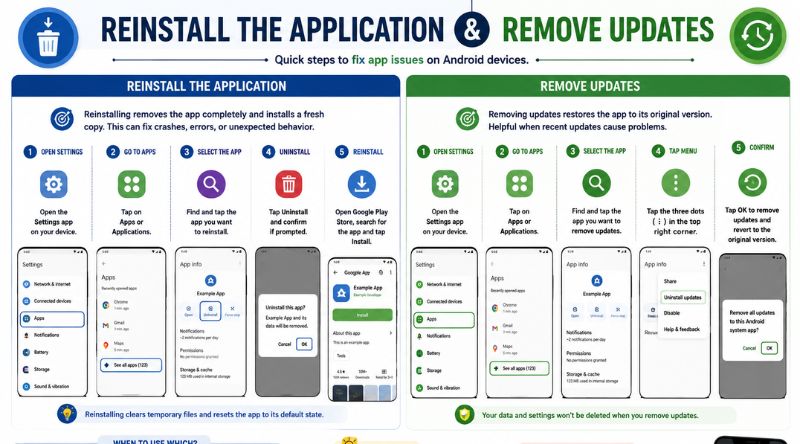
Sometimes an application update rolls out via the Play Store with a broken line of code that conflicts with your specific television manufacturer’s firmware.
If you cannot completely uninstall a core system app, you can choose to “Uninstall Updates“. This rolls the application back to the stable factory version that shipped with the television hardware, cleanly bypassing problematic recent update bugs.
| Action Phase | System Menu Route | Primary Objective |
| Phase 1 | Settings > Apps > select the problem app. | Targets the corrupted package build. |
| Phase 2 | Choose Uninstall or Uninstall Updates. | Cleans out broken, non-compatible application code. |
| Phase 3 | Re-download the app via the official Google Play Store. | Pulls down a fresh, clean installation package. |
Item #10: Perform a Factory Data Reset
When multiple individual troubleshooting steps fail and the entire operating system feels sluggish, laggy, or keeps dropping apps indiscriminately, a full factory system reset is your ultimate fallback option.
A factory reset completely wipes the slate clean. It deletes all system configurations, user modifications, saved accounts, and hidden residual cache files, restoring the flash storage back to a pristine out-of-the-box state.
| Pros of Resetting | Cons of Resetting |
| Clears deep system-level registry bugs. | Wipes out all saved account logins. |
| Restores original out-of-the-box processing speeds. | Requires manual reconfiguration of settings. |
| Reclaims every last megabyte of storage space. | Takes roughly 10–15 minutes to complete setup. |
How to Fix Apps Crashing on Android TV: The Step-by-Step Recovery Routine
If you want a definitive, systematic routine to diagnose a stubborn app right now without reading through every separate option, simply follow this precise order of operations:
- Force Stop and Clear Cache: Go to your app management settings, halt the software completely, and clear out the old temporary cache files.
- Verify Network and Time Integrity: Make sure your Wi-Fi connection is active and verify that the automated system clock shows the correct local time.
- Audit Available Storage Capacity: Delete non-essential media tools to ensure your operating system has a buffer of at least 1.5 GB of free space.
- Push Essential Updates: Open the Google Play Store, enter the profile menu, and manually update both the target app and the Android System WebView tool.
- Execute a System Power Cycle: Unplug the main television power cord from the wall for a full minute to clear out lingering RAM leaks.
Uncommon FAQs
Why do my sideloaded apps crash more often than official Play Store apps?
Sideloaded applications are frequently designed for standard touchscreens (smartphones or tablets) rather than the specialized leanback architecture used by Android TV systems. They often crash because they attempt to call up mobile-specific system drivers or display orientations that simply do not exist on a smart TV framework.
Can an unstable Wi-Fi connection cause an Android TV app to completely crash to the home screen?
Yes. While a weak network connection usually just causes buffering wheels, some poorly optimized media apps cannot handle sudden data drops or packet loss. Instead of waiting for the stream to reconnect, the application’s internal code errors out completely, forcing a hard crash back to the main launcher screen.
Does turning off “Usage & Diagnostics” tracking help prevent application crashes?
Absolutely. When your TV runs low on RAM, the background engines responsible for logging errors and sending anonymous telemetry reports back to Google compete directly for memory with your active video player. Turning this feature off via the Privacy settings menu frees up valuable processing headroom for older TVs.
Final Takeaways
Learning how to fix apps crashing on Android TV comes down to smart resource management. Keep your storage lean, clear out the cached clutter every few months, and give the system a true cold restart whenever the interface starts to lag. With these simple maintenance habits, you can stop dealing with annoying crash loops and spend your time actually enjoying your movies.