
You settle in, pick a movie, and press play. Then the screen goes black. Maybe it turns purple. Maybe you see a warning that says the content is unauthorized.
An hdcp error streaming message looks technical, but the cause is usually simple. Your streaming device and TV aren’t completing the copy-protection check needed to play the video.
That doesn’t automatically mean your television is broken. It usually means something in the HDMI connection isn’t working as expected.
The problem could be a loose cable, the wrong HDMI port, an older receiver, a soundbar, an HDMI switch, or a 4K setting your setup can’t fully support.
Start with the easiest fixes. In many cases, a restart or direct connection to the TV solves the problem in minutes.
What an HDCP Error Really Means
| Term | Plain-English Meaning |
| HDCP | Copy protection used for digital video and audio |
| HDMI | The cable connection that carries the picture and sound |
| HDCP check | A security check between the player and display |
| Source device | Roku, Fire TV, Apple TV, Google TV, console, or computer |
| Display | TV, monitor, projector, receiver, or soundbar |
| Common failure | Black screen, purple screen, audio only, or an error message |
HDCP stands for High-bandwidth Digital Content Protection.
It protects copyrighted movies, shows, and other digital content while the signal moves from one device to another. Most streaming setups use HDCP over an HDMI connection.
The streaming device checks whether the TV and every device between them can handle protected content. If one part of the setup fails that check, playback may stop.
HDMI and HDCP aren’t the same thing.
HDMI carries the picture and sound. HDCP controls whether protected content is allowed to travel through that connection.
That explains a common and confusing situation: the streaming device’s home screen works, but the movie doesn’t.
The home menu may appear without using the same protection process. The HDCP check often starts when the protected video begins.
Common Signs and Causes of an HDCP Error
| What You See | What It Usually Points To |
| Purple warning screen | HDMI or HDCP connection failure |
| Black screen with sound | Protected video signal is blocked |
| Menus work but movies fail | HDCP check starts during playback |
| 1080p works but 4K fails | HDCP 2.2 or 4K signal problem |
| Error after sleep mode | Devices failed to reconnect properly |
| Laptop works, monitor doesn’t | Adapter, dock, cable, or display issue |
| Flickering before the error | Weak cable or unstable video format |
Most HDCP errors come from the connection chain, not the streaming service itself.
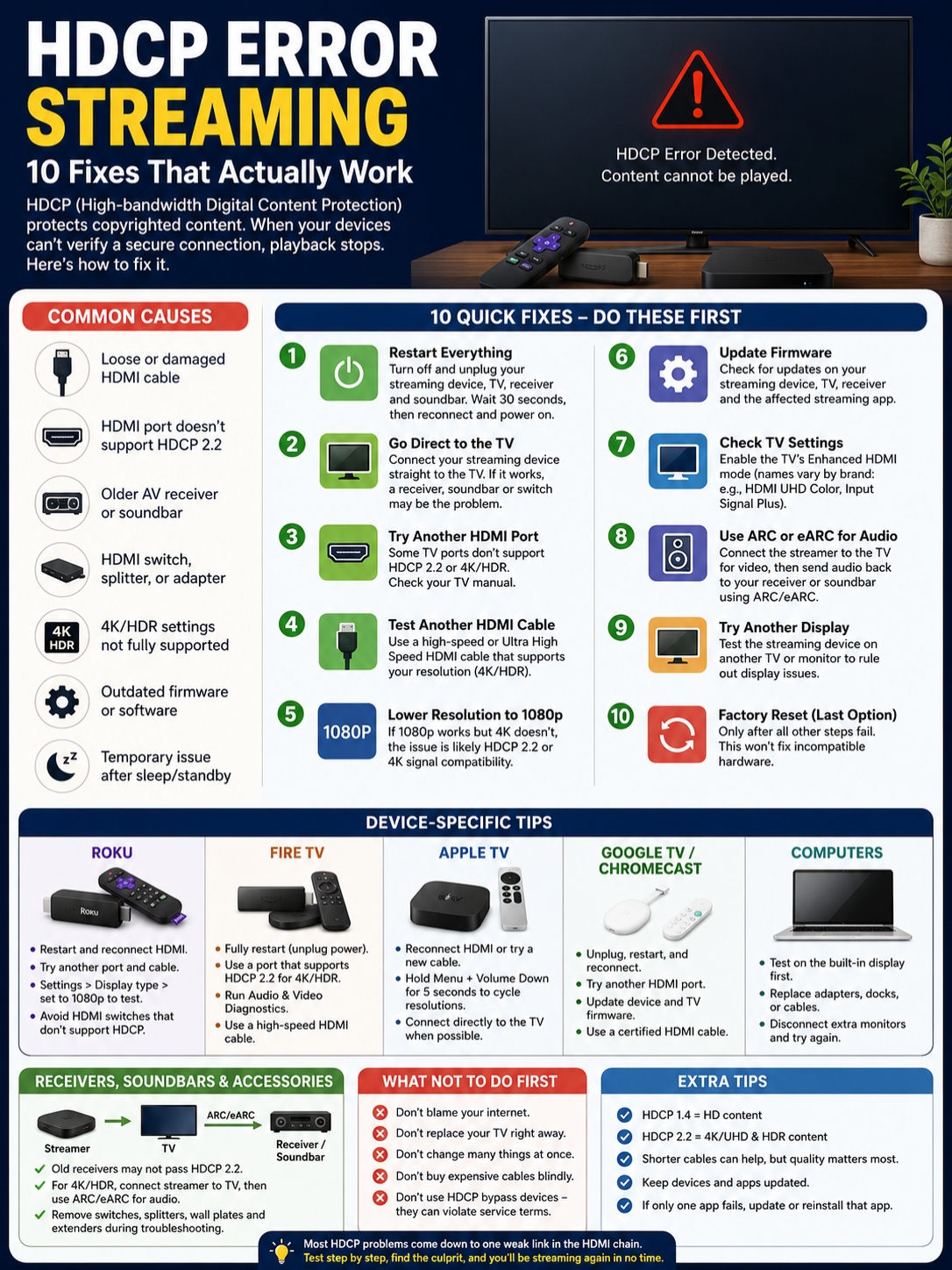
Common causes include:
- A loose HDMI cable
- A damaged cable
- A TV input that doesn’t support the required HDCP version
- An older receiver or soundbar
- An HDMI switch or splitter
- A faulty wall plate or adapter
- A 4K or HDR format the full setup can’t pass
- Outdated firmware
- A temporary failure after sleep or standby
Wi-Fi usually isn’t the problem.
A weak internet connection can cause buffering, low picture quality, or loading errors. It doesn’t normally cause an HDCP warning.
When you see an HDCP message, focus on the HDMI setup first.
HDCP Error Streaming: Start With These Quick Fixes
| Step | What to Do | What It Tests |
| 1 | Close and reopen the app | Temporary playback issue |
| 2 | Unplug the entire setup | Failed HDMI handshake |
| 3 | Reconnect the HDMI cable | Loose connection |
| 4 | Plug the streamer directly into the TV | Receiver or soundbar problem |
| 5 | Try another HDMI port | Port compatibility |
| 6 | Try another HDMI cable | Cable failure |
| 7 | Test another TV | Display-side problem |
Restart Everything Properly
Don’t just press the power button on the remote.
Turn off the streaming device, TV, receiver, and soundbar. Unplug them from power. Then disconnect the HDMI cable at both ends.
Wait about 30 seconds.
Reconnect the HDMI cable firmly. Plug the devices back in and turn on the TV first. Select the correct input, then power up the rest of the setup.
This forces the devices to create a fresh HDMI and HDCP connection.
A simple restart often works because sleep mode doesn’t always clear a failed handshake.
Connect the Streaming Device Straight to the TV
This is the best troubleshooting step in the whole process.
Remove everything between the streaming player and the television.
That includes:
- AV receivers
- Soundbars
- HDMI switches
- HDMI splitters
- Video capture devices
- Wall plates
- Extension cables
- Adapters
Connect the streamer directly to the TV.
If the video works, you’ve narrowed down the problem. The streaming device and TV can communicate. One of the removed components is blocking the signal.
Reconnect those devices one at a time. Test playback after each connection.
That’s far more useful than changing several things at once and hoping for the best.
Try a Different HDMI Port
Move the streaming device to another input on the television.
Then use the TV remote to select that port.
This matters because HDMI inputs aren’t always identical. Some older 4K televisions support HDCP 2.2 on only one or two ports.
The compatible input may carry a label such as:
- 4K
- UHD
- HDCP 2.2
- HDMI 2.0
- HDMI 2.1
Port labels vary, so check the TV manual when you’re unsure.
Test Another HDMI Cable
A cable can partly work and still cause trouble.
It may show menus and basic video but fail when the streamer switches to 4K, HDR, or a higher refresh rate.
Try another cable that matches the format you use.
For most modern 4K setups, a certified Premium High Speed or Ultra High Speed HDMI cable is the safer choice.
You don’t need the most expensive cable in the shop. Certification and compatibility matter more than price.
Roku also suggests testing a shorter cable when possible. Treat that as a troubleshooting step, not a universal rule. A properly made longer cable can still work.
Why 4K and HDR Often Trigger HDCP Errors
| Part of the Setup | What It Must Support |
| Streaming player | 4K or HDR output |
| TV input | HDCP 2.2 for protected 4K playback |
| HDMI cable | Enough bandwidth for the selected format |
| Receiver | Matching video and HDCP support |
| Soundbar | Compatible passthrough, if used |
| TV setting | Enhanced HDMI mode on some models |
An hdcp error streaming issue often appears only when you try to watch 4K or HDR content.
That’s because protected 4K video usually needs HDCP 2.2 across the full connection path.
It isn’t enough for the streaming stick and TV to support 4K. Every device between them must support the required format too.
One older receiver can break the whole chain.
The same applies to soundbars, switches, splitters, adapters, and wall-mounted HDMI systems.
Read Also: 15 Best Miniseries to Binge in One Weekend
Drop the Resolution to 1080p
Temporarily change the streaming device’s output to 1080p.
Then play the same content again.
If it works at 1080p but fails at 4K, you’ve learned something useful. The app and account are probably fine. The problem likely sits in the 4K path.
Check:
- The HDMI port
- The cable
- The receiver
- The soundbar
- HDCP 2.2 support
- The television’s HDMI input settings
Using 1080p is also a safe temporary workaround. The picture won’t be as sharp, but it won’t damage anything.
Turn On the TV’s Enhanced HDMI Setting
Some TVs need a special input setting before they can accept certain 4K or HDR signals.
Manufacturers use different names for it, including:
- Input Signal Plus
- HDMI UHD Color
- HDMI Ultra HD Deep Color
- Enhanced HDMI Format
- Enhanced Signal Format
Only enable it on the HDMI input connected to the streamer.
Don’t switch on every setting you see. Use the TV manual for your exact model.
An incompatible device can sometimes behave worse when enhanced mode is enabled, so match the setting to the hardware.
Roku HDCP Error Fixes
| Fix | Why It Helps |
| Restart Roku and TV | Rebuilds the connection |
| Reseat HDMI | Fixes a loose plug |
| Change HDMI port | Rules out port issues |
| Connect Roku directly to TV | Bypasses receivers and soundbars |
| Change Display type | Tests 1080p versus 4K |
| Try another TV | Checks display compatibility |
Roku often shows a purple screen or an “HDCP Error Detected” message.
Start by unplugging the Roku, TV, and any connected audio equipment. Disconnect HDMI, wait, and reconnect everything.
If the error returns:
- Try another HDMI port.
- Test another cable.
- Connect Roku directly to the TV.
- Remove any HDMI switch.
- Try another television.
- Lower the display resolution.
On Roku, go to:
Settings > Display type
Choose 1080p and test the same video.
If it works, the fault probably sits in the 4K or HDR connection.
Roku also notes that not every HDMI switch handles HDCP correctly. If you use one, bypass it before replacing anything else.
Amazon Fire TV HDCP Fixes
| Fix | What It Checks |
| Full restart | Clears a temporary error |
| Direct TV connection | Bypasses other devices |
| Different port | Checks HDCP 2.2 support |
| Different cable | Rules out cable failure |
| Audio and Video Diagnostics | Checks 4K compatibility |
| Display setting review | Finds format mismatches |
Restart the Fire TV fully. Don’t leave it in sleep mode.
Unplug it, wait briefly, and reconnect it.
Then try these steps:
- Plug the Fire TV directly into the television.
- Try another HDMI input.
- Test another HDMI cable.
- Confirm the input supports HDCP 2.2 for UHD or HDR.
- Review the Display & Sounds settings.
- Use the Audio and Video Diagnostics tool if your model includes it.
Fire TV generally needs HDCP 1.4 for HD playback and HDCP 2.2 for protected UHD or HDR content.
That’s why basic video may work while a 4K title fails.
Follow the power instructions for your specific Fire TV model. Different models use different power setups, so one rule doesn’t fit every device.
Apple TV HDCP Fixes
| Fix | When to Use It |
| Reconnect HDMI | First step |
| Replace the cable | When the picture drops or flickers |
| Try another input | When one TV port fails |
| Bypass the receiver | When direct playback works |
| Cycle resolutions | When the screen stays blank |
| Update tvOS | When the issue appears after a software change |
Disconnect and reconnect both ends of the HDMI cable.
Try another port and another cable.
If Apple TV runs through an AV receiver or HDMI switch, plug it directly into the television.
When the screen stays blank, Apple TV can cycle through different resolutions.
On supported remotes:
- Hold Menu and Volume Down for five seconds.
- Wait while Apple TV changes resolution.
- Select OK when the picture appears correctly.
For newer setups, Apple recommends a cable suitable for the HDMI version you use.
A Premium High Speed cable is a sensible choice for HDMI 2.0. An Ultra High Speed cable is better for HDMI 2.1 features.
Chromecast and Google TV HDCP Fixes
| Fix | What It Solves |
| Restart streamer and TV | Temporary connection failure |
| Reconnect HDMI | Loose or unstable signal |
| Change HDMI port | Incompatible input |
| Bypass soundbar or receiver | Passthrough failure |
| Update firmware | Software compatibility issue |
| Use a suitable HDMI cable | Bandwidth or signal problem |
Unplug the Chromecast, Google TV Streamer, TV, receiver, and soundbar.
Reconnect the streamer directly to the television and test again.
If that works, add the sound system back later.
Also check for updates on both the streaming device and TV. Firmware updates can fix display compatibility problems.
Google TV Streamer doesn’t include an HDMI cable in every market or package, so make sure the cable you use can handle the selected resolution and features.
For a modern 4K setup, a certified Ultra High Speed HDMI cable gives you the most headroom.
Receivers, Soundbars, Switches, and Splitters
| Device | Common Problem | Best Test |
| AV receiver | Doesn’t pass HDCP 2.2 | Connect streamer to TV |
| Soundbar | Limited HDMI passthrough | Use ARC or eARC |
| HDMI switch | Poor HDCP support | Remove it |
| HDMI splitter | Breaks authentication | Test without it |
| Wall plate | Adds weak connections | Bypass it |
| Capture device | Protected video is blocked | Remove it |
Receivers and soundbars cause a lot of confusion because they may support some 4K features but not others.
A receiver might pass 4K at one frame rate but fail with HDR. A soundbar may support ARC but not full 4K passthrough.
The fastest test is simple:
Streaming device → TV
If that works, the middle device is the likely issue.
For an older receiver, try this layout:
Streaming device → TV → ARC/eARC → Receiver or soundbar
The TV handles the video. ARC or eARC sends the audio back to the sound system.
Check which HDMI port supports ARC or eARC. Many TVs have only one.
Also test every cable separately. A receiver setup normally uses two HDMI cables, and either one can fail.
HDCP Errors on Computers and External Monitors
| Setup | What to Try |
| Laptop with monitor | Play the video on the laptop screen |
| Desktop computer | Try another monitor |
| USB-C dock | Remove the dock |
| HDMI adapter | Test a different supported adapter |
| Dual monitors | Disconnect the second screen |
| Extension cable | Connect directly |
If a movie plays on the laptop screen but fails on an external monitor, the issue probably sits in the external display path.
That could be:
- The monitor
- The HDMI cable
- A USB-C dock
- A display adapter
- A second connected screen
- An extension cable
Disconnect everything you don’t need.
Connect the computer straight to the monitor whenever possible. Then test playback again.
Some cheap adapters handle normal desktop output but fail with protected streaming video.
This doesn’t always mean the adapter is defective. It may simply lack the required HDCP support.
What You Shouldn’t Do First
| Action | Why It’s a Bad First Move |
| Factory-reset the device | It won’t fix incompatible hardware |
| Replace the TV immediately | The fault may be one cable or port |
| Blame the internet | HDCP is an HDMI connection issue |
| Buy the most expensive cable | Price doesn’t guarantee compatibility |
| Change several things at once | You won’t know what fixed it |
| Use an HDCP bypass tool | It can violate service rules and cause more problems |
A factory reset should sit near the bottom of your list.
It wipes apps, accounts, network settings, and preferences. It also can’t give an old receiver HDCP 2.2 support.
Use a reset only after you’ve tried:
- A full restart
- A direct TV connection
- Another HDMI port
- Another cable
- A lower resolution
- Firmware updates
- Another display
Avoid products sold as HDCP removers or bypass devices.
They interfere with content-protection systems, may violate service terms, and often create new compatibility problems.
Final Thoughts
An hdcp error streaming message usually points to the HDMI path, not the app, subscription, or internet connection.
Start with a full restart. Reseat the cable. Then plug the streaming device directly into the TV.
If the video works, reconnect the receiver, soundbar, switch, or adapter one piece at a time.
When 1080p works but 4K doesn’t, check HDCP 2.2 support across the full setup. Don’t forget the TV input, cable, receiver, and enhanced HDMI setting.
Most HDCP problems come down to one weak link. Find that link, and the error usually disappears without a reset or expensive hardware replacement.
Frequently Asked Questions
Why Does 1080p Work but 4K Doesn’t?
Protected 4K video usually needs HDCP 2.2 across the full setup.
Your TV may support it, but the receiver, soundbar, switch, cable, or selected HDMI port may not.
When 1080p works, focus on the 4K connection path.
Why Can I See the Menu but Not the Movie?
The device menu may not use the same protection check as copyrighted video.
The HDCP process often begins when the movie starts. That’s why the error appears after you press play.
Can an HDMI Switch Cause the Error?
Yes.
Some switches don’t support the required HDCP version or video format. Remove the switch and connect the streaming device directly to the TV.
Can ARC or eARC Help?
Yes, especially when an older receiver blocks 4K video.
Connect the streamer directly to the television. Then send audio back to the receiver or soundbar through ARC or eARC.
Why Does the Error Come Back After Standby?
The TV and streamer may fail to rebuild the HDMI connection after waking.
A full restart usually works better than turning the screen off and on with the remote.
Can a USB-C-to-HDMI Adapter Cause an HDCP Error?
Yes.
The adapter must support protected video, not just ordinary screen output.
Try another adapter or connect the device directly to the display.
Should I Turn Off HDR?
You can turn it off temporarily as a test.
If the video works without HDR, the cable, HDMI port, receiver, soundbar, or TV setting may not support the full HDR signal.
Does Reversing the HDMI Cable Help?
Most passive HDMI cables work in either direction.
Active and optical cables can be directional, though. Look for “Source” and “Display” labels before reconnecting them.