
Imagine opening your iPhone camera to capture a perfect, fleeting moment, only to see a completely black screen. Or perhaps the camera app freezes, the lens refuses to focus, or the flash is completely out of sync. It is a incredibly frustrating experience.
Your iPhone camera is a marvel of modern technology, but like all technology, it can run into software glitches or hardware issues. The good news is that most iPhone camera problems are software-related. This means you can fix them yourself at home in just a few minutes.
This comprehensive guide walks you through the exact steps to troubleshoot and fix your iPhone camera quickly. We will cover everything from simple app restarts to advanced settings resets, helping you get your camera back to crisp, clear performance.
1. Force Close and Restart the Camera App
When your iPhone camera shows a black screen or freezes, the culprit is often a minor software glitch within the app itself. Apps can hang or crash in the background, preventing the camera lens from opening properly. Force closing the app clears its temporary memory and gives it a fresh start.
How to Force Close the Camera App:
- Swipe Up: On an iPhone with Face ID, swipe up from the bottom of the screen and hold for a second to open the App Switcher. If your iPhone has a Home button, double-click it.
- Find the App: Swipe left or right to find the Camera app preview.
- Swipe It Away: Swipe up firmly on the Camera app preview to close it completely.
- Relaunch: Go back to your home screen and tap the Camera icon to reopen it.
| Action | What It Does | Success Rate |
| Force Close App | Clears temporary system glitches in the app memory | High for temporary freezes |
| Wait 5 Seconds | Allows background processes to fully terminate | Recommended before relaunch |
2. Switch Between Front and Rear Cameras
Sometimes, the iPhone’s iOS operating system fails to communicate correctly with the specific camera lens you are trying to use. Switching back and forth between the selfie (front) camera and the primary (rear) camera can force the software to recalibrate and trigger the hardware mechanism to respond.
If the black screen only happens on one side, it helps you identify if the issue is a specific hardware failure or a global software bug.
How to Trigger the Lens Switch:
- Open the Camera app.
- Tap the Flip Camera icon (two curved arrows) in the bottom right corner.
- If the selfie camera works, wait two seconds, then tap it again to switch back to the rear camera.
| Camera Mode | Potential Issue | Next Best Step |
| Front Works, Rear Black | Rear lens hardware glitch or blockage | Clean lens / Check for physical damage |
| Both Cameras Black | System-wide software crash or power issue | Force restart the iPhone |
3. Disable VoiceOver and Other Background Features
An overlooked cause of a malfunctioning iPhone camera is the VoiceOver feature. VoiceOver is an essential accessibility tool, but a known, recurring iOS bug sometimes causes the Camera app to display a black screen when VoiceOver is active. Turning this feature off and on again can clear the conflict.
How to Turn Off VoiceOver:
- Open the Settings app on your iPhone.
- Scroll down and tap on Accessibility.
- Tap on VoiceOver at the very top.
- Toggle the switch to Off.
Settings ➔ Accessibility ➔ VoiceOver ➔ Toggle Off
| Feature | Known Camera Conflict | Resolution |
| VoiceOver | Can cause a total black screen or UI freezes | Turn off temporarily to check |
| Screen Time Restrictions | Can block the camera app entirely | Ensure Camera is an “Allowed App” |
4. Force Restart Your iPhone
If restarting the app does not work, the issue might lie deeper within the iOS operating system cache. A force restart completely cuts power to the internal components for a brief second and clears the system cache. This fixes deeper software freezes without deleting any of your personal data.
How to Force Restart Modern iPhones (iPhone 8, X, 11, 12, 13, 14, 15, 16, and Newer):
- Press and quickly release the Volume Up button.
- Press and quickly release the Volume Down button.
- Press and hold the Side/Power button. Keep holding it even when the screen goes dark.
- Release the button only when you see the Apple Logo appear on the screen.
| iPhone Model Series | Button Combination | Hold Time |
| iPhone 8 to iPhone 16 | Vol Up, Vol Down, then hold Side Button | Until Apple Logo appears (~10 seconds) |
| iPhone 7 / 7 Plus | Hold Volume Down + Sleep/Wake Button together | Until Apple Logo appears |
| iPhone 6s and older | Hold Home Button + Power Button together | Until Apple Logo appears |
5. Remove Phone Cases and Clean the Lenses
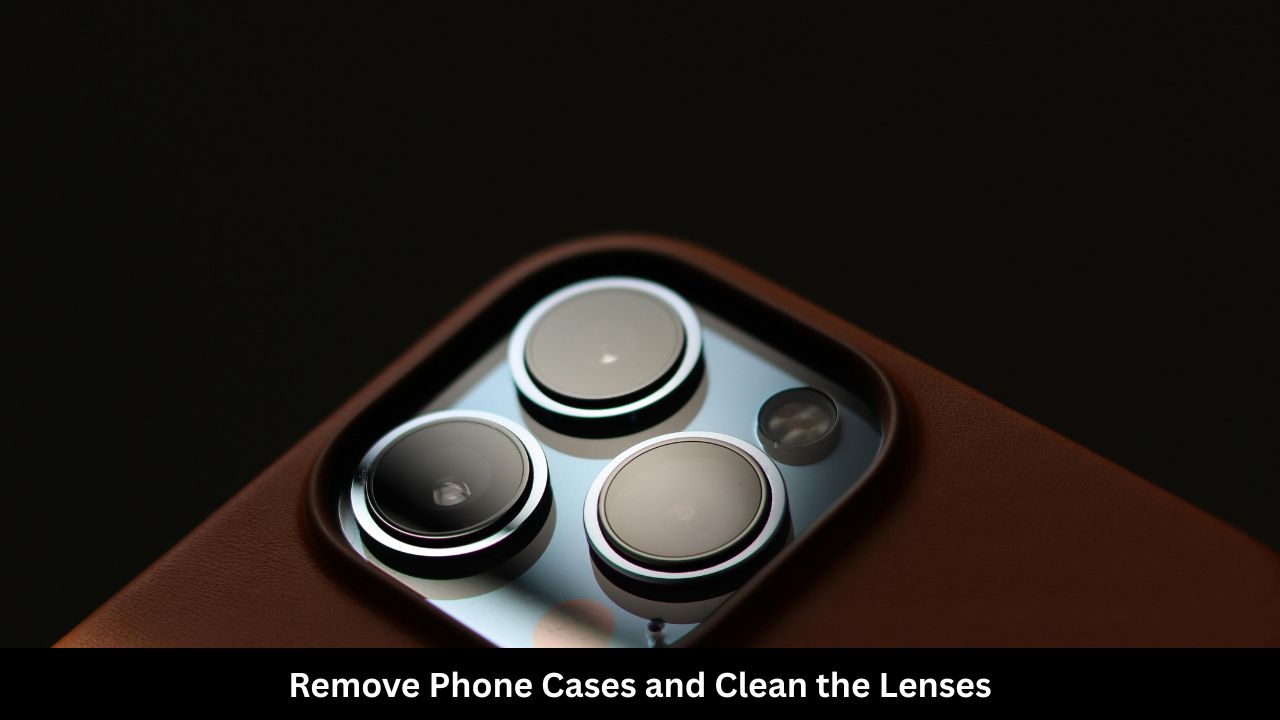
It sounds incredibly simple, but physical blockages are a leading cause of blurry photos, focus issues, and seemingly “broken” cameras.
Many heavy-duty, magnetic, or metallic phone cases can block the optical image stabilization (OIS) system inside the lens. Furthermore, laser-guided autofocus sensors (like the LiDAR scanner on Pro models) can misbehave if they are covered by a microscopic layer of dirt, grease, or a poorly aligned screen protector.
Cleaning and Inspection Checklist:
- Strip the iPhone: Take off your phone case and any protective films covering the camera module.
- Use Microfiber: Take a clean, dry microfiber cloth (like a glasses cleaning cloth).
- Wipe Gently: Wipe the camera lenses and the small round sensors next to them in a circular motion. Do not use harsh chemicals or household glass cleaners.
| Component | Common Issue | Quick Fix |
| Magnetic Cases | Interferes with Lens Stabilization (OIS) | Use a non-magnetic plastic/leather case |
| Fingerprint Smudges | Causes cloudy, milky, or blurry images | Wipe gently with a dry microfiber cloth |
| Debris in Flash | Dim or yellowed photos when using flash | Clean the small flash LED window |
6. Update iOS to the Latest Version
Apple frequently releases iOS updates to patch known security vulnerabilities and software bugs. If your camera is glitching due to an internal coding error in the operating system, Apple has likely noticed it and issued a fix in the newest software update. Keeping your phone updated ensures your camera hardware functions seamlessly with the software.
How to Check for Updates:
- Connect your iPhone to Wi-Fi and ensure it has at least 50% battery.
- Open Settings and tap General.
- Tap Software Update.
- If an update is available, tap Download and Install.
| iOS Status | Impact on Camera Performance | Action Required |
| Outdated iOS | High risk of app crashes and camera lag | Update immediately via Settings |
| Beta iOS Software | May contain unstable code affecting hardware | Downgrade to stable public iOS release |
7. Reset All Settings
If none of the steps above have worked, your iPhone might be suffering from corrupted system settings or a deep-seated configuration conflict. Instead of wiping your entire phone and losing your photos, you can perform a “Reset All Settings.”
This action restores system configurations—like Wi-Fi passwords, Bluetooth connections, location permissions, and privacy settings—back to factory defaults, while leaving your personal data, apps, and photos completely untouched.
How to Reset All Settings:
- Open Settings and tap General.
- Scroll to the absolute bottom and tap Transfer or Reset iPhone.
- Tap Reset.
- Select Reset All Settings from the pop-up menu.
- Enter your passcode to confirm. Your iPhone will restart.
| Reset Type | Data Lost? | What It Fixes |
| Reset All Settings | No (Keeps photos, texts, apps) | Fixes broken system paths and app permissions |
| Erase All Content & Settings | Yes (Wipes the entire phone) | Deep system errors (Requires a full backup first) |
Understanding Why iPhone Cameras Fail: Diagnostics
To prevent future camera issues, it helps to understand why they happen in the first place. iPhone cameras are complex systems made of moving glass elements, magnets, and sensors.
[Drop Impact / Water Exposure] ➔ Hardware Damage ➔ Black Screen / Rattling Lens
[Corrupted Cache / OS Conflict] ➔ Software Bug ➔ App Freeze / Black Screen
- Software Glitches: These are temporary code loops where the operating system fails to allocate memory to the camera. They are completely harmless and fixed via restarts or updates.
- Hardware Damage: If your phone was recently dropped, the internal ribbon cables connecting the camera module to the logic board might have loosened. Physical drops can also shatter the delicate springs that manage autofocus.
- Water Exposure: Even though modern iPhones are water-resistant, liquid can still seep into the camera cavity, causing condensation inside the lens or short-circuiting the camera module entirely.
Final Words
Experiencing an issue where your iPhone camera is not working can be highly disruptive, but patience and systematic troubleshooting usually solve the problem. If you have tried all seven steps—including a force restart and resetting all settings—and your camera still displays a solid black screen or makes a distinct rattling noise, you are likely dealing with a physical hardware failure.
In cases of hardware damage, the best course of action is to avoid third-party repair shops that use unverified components. Non-genuine camera parts can trigger iOS warnings and disable features like Portrait Mode or Cinematic Video. Take your device to an authorized Apple Service Center or schedule an appointment via the Apple Support app to get genuine diagnostic assistance.
Frequently Asked Questions (FAQ)
Why is my iPhone camera screen black but the flashlight works?
The camera and the flashlight use separate hardware modules on your iPhone. A black camera screen usually indicates that the camera sensor itself is failing to receive power or cannot communicate with iOS, even if the LED flashlight bulb is perfectly healthy. Run through a force restart to see if it fixes the loop.
Can a low battery cause my iPhone camera to stop working?
Yes. When an iPhone battery drops below a critical percentage (usually under 5%), iOS automatically enters an extreme power-saving mode. To preserve battery life for emergency calls, the system may throttle performance or refuse to launch power-heavy components like the camera sensor and the true-tone flash.
How can I fix an iPhone camera that keeps shaking and buzzing?
A shaking or buzzing camera lens means the Optical Image Stabilization (OIS) system is malfunctioning. OIS uses tiny magnets to steady the lens when your hands shake. If you mount your iPhone to high-powered motorcycle handlebars or drop it hard, these magnets can break. This requires a physical camera replacement.
What should I do if there is moisture or fog inside my iPhone camera lens?
If you see condensation inside the lens window, do not use a hairdryer, as intense heat can permanently melt the internal adhesive seals. Instead, place your iPhone in a tightly sealed container filled with silica gel packets for 24 to 48 hours to draw out the trapped moisture naturally.