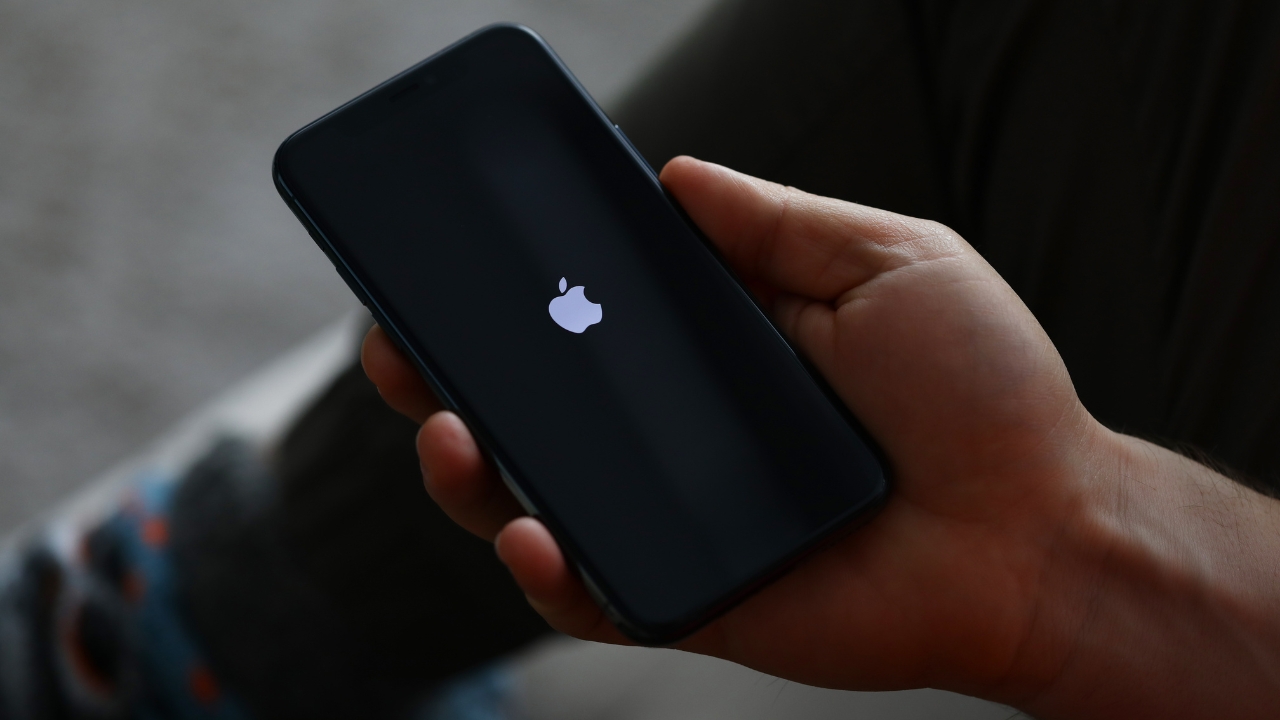
Seeing your iPhone freeze on the Apple logo can feel scary. One minute the phone is updating, restarting, or restoring. The next minute, it just sits there with the Apple logo and refuses to move. If your iphone stuck apple logo problem started after an iOS update, backup restore, data transfer, or sudden restart, don’t panic yet.
This issue can happen for software reasons, storage problems, interrupted updates, battery trouble, or sometimes hardware damage. The smart move is to start with safe fixes first. Do not rush into a full restore because that can erase your data.
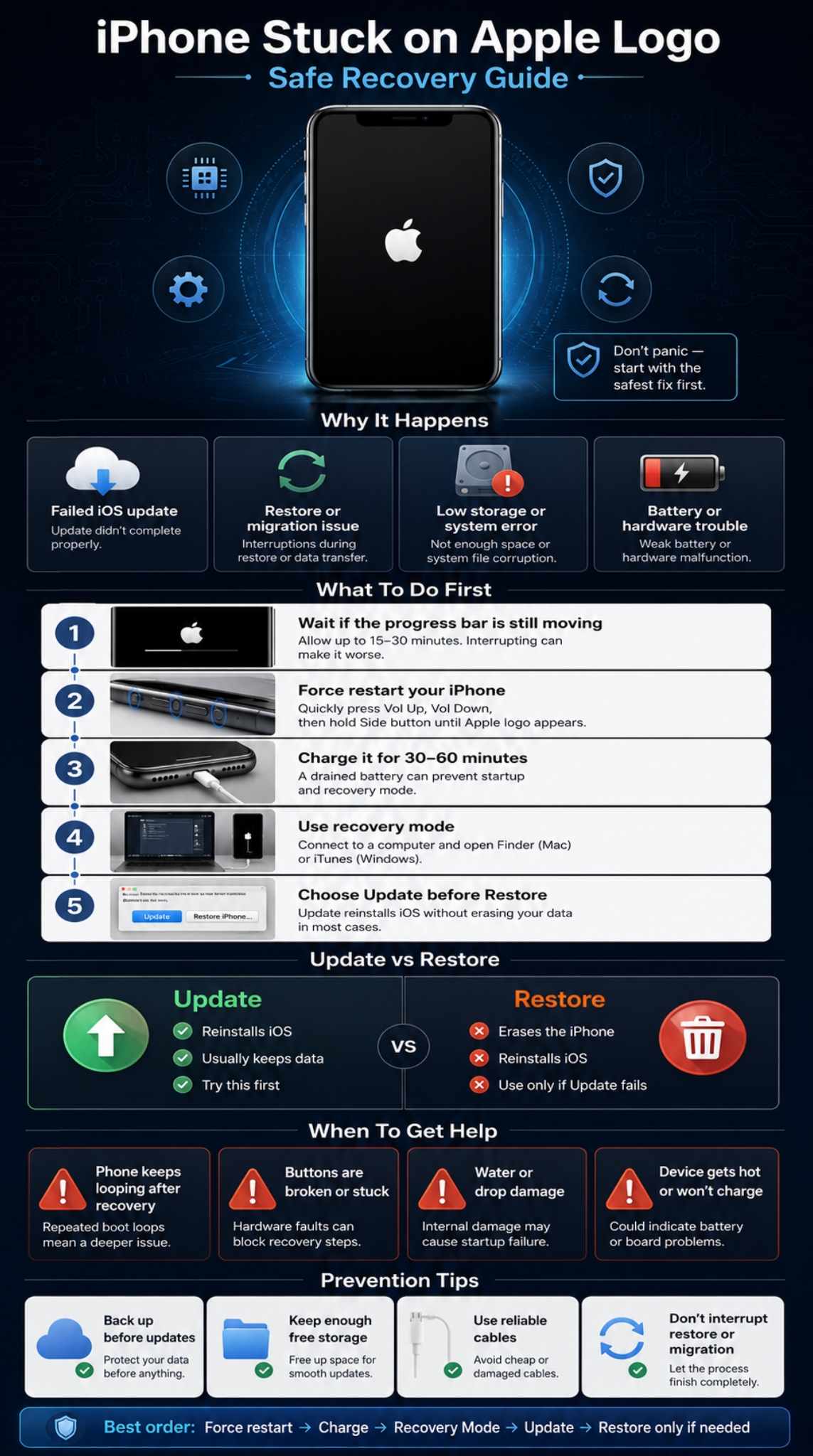
This guide explains what to do step by step. We’ll start with force restart, charging checks, and recovery mode. Then we’ll explain when to choose Update, when Restore makes sense, and when it’s better to contact Apple Support or a trusted service center.
Quick Answer: What to Do First If Your iPhone Is Stuck on Apple Logo
If your iPhone is frozen on the Apple logo, start with the least risky fix. A force restart is usually the first thing to try because it does not erase your data. If the phone is showing a progress bar, wait and check whether the bar is still moving. Apple says if the progress bar has not moved for more than one hour, connect the iPhone to a computer and put it into recovery mode.
| Situation | First Action | Data Risk |
| Apple logo only | Force restart | Low |
| Apple logo with progress bar | Wait first, then recovery mode if stuck | Low to medium |
| Keeps restarting | Charge, force restart, then recovery mode | Low to medium |
| Update failed | Recovery mode and choose Update | Usually lower |
| Restore needed | Choose Restore only when necessary | High |
Start With the Safe Order
Follow this order before doing anything drastic:
- Wait if the progress bar is moving.
- Force restart your iPhone.
- Charge it for at least 30–60 minutes.
- Connect it to a Mac or Windows PC.
- Use recovery mode and choose Update first.
- Choose Restore only if Update fails.
- Contact Apple Support if recovery mode does not work.
This order matters because Update attempts to reinstall iOS without wiping the phone, while Restore erases the device.
Why Does an iPhone Get Stuck on the Apple Logo?
An iPhone stuck on Apple logo usually means the device cannot finish the startup process. The Apple logo appears when iOS begins loading. If something blocks that process, the phone may freeze, restart again and again, or stay on the same screen for a long time.
This can happen after an iOS update, a backup restore, device migration, or an interrupted software process. After updating, restoring, erasing, or migrating data, an iPhone may show the Apple logo with a progress bar while the process completes. The bar may even appear slow or static for a while.
| Possible Cause | What It Means | Common Sign |
| Failed update | iOS did not install fully | Apple logo after update |
| Restore issue | Backup restore got stuck | Apple logo with progress bar |
| Low storage | iOS may not have enough room to finish | Boot loop |
| Battery issue | Phone cannot hold stable power | Logo appears, then phone turns off |
| Hardware fault | Damaged part affects startup | Recovery mode fails repeatedly |
iOS Update Problems
Updates rewrite important system files. If the update is interrupted by low battery, unstable Wi-Fi, a forced shutdown, or lack of storage, the phone may not boot normally. This is one of the most common reasons people search for iphone stuck apple logo after update.
Backup Restore or Data Migration Problems
Many users see this problem after moving data from an old iPhone to a new one. The Apple logo and progress bar can appear for more than one hour after restoring from a backup or migrating from a previous device. If the progress bar does not move for at least one hour, recovery mode is the next recommended step.
Storage and System File Errors
If your iPhone was almost full before the update, iOS may struggle to complete the boot process. A full device can also make backup restores slower and less stable.
Battery, Cable, or Hardware Trouble
Sometimes the issue is not only software. A weak battery, damaged charging port, broken button, water damage, or internal storage problem can also stop the phone from starting properly. Service may be needed if you cannot update or restore the device with recovery mode, or if a stuck or broken button prevents recovery mode.
iPhone Stuck Apple Logo: Know Which Problem You Have
Not every Apple logo issue is the same. Before choosing a fix, look closely at what your iPhone is doing. Is the progress bar moving? Does the logo flash? Does the phone turn off? Does your computer detect it? These small details help you avoid the wrong step.
| What You See | Likely Meaning | Best Next Step |
| Apple logo with progress bar | Update, restore, or migration is running | Wait, then recovery mode if stuck |
| Apple logo only | Startup is frozen | Force restart |
| Flashing Apple logo | Boot loop | Charge and recovery mode |
| Logo then black screen | Battery or boot failure | Charge and force restart |
| Connect to computer screen | Recovery mode needed | Use Finder, Apple Devices app, or iTunes |
Apple Logo With a Progress Bar
If there is a progress bar, don’t rush. The process may still be running. The progress bar can move slowly and may appear static depending on the number of files and the type of operation.
Apple Logo Without Progress Bar
If the phone shows only the Apple logo for several minutes and nothing changes, you may need recovery mode. This is one of the common signs that the iPhone cannot finish starting up normally.
Read Also: iPhone Battery Drains Fast: 12 Proven Fixes for 2026
Flashing Apple Logo or Boot Loop
A boot loop means the iPhone starts, fails, shuts down, and tries again. This may happen after a failed update, low battery, corrupted system files, or hardware issues.
Logo Then Phone Turns Off
This often points to battery or power trouble. Charge the phone first. Try another cable, adapter, and wall outlet before moving to recovery mode.
Before You Fix It: Protect Your Data First
The biggest mistake is choosing Restore too soon. Restore can solve software problems, but it also erases your data. If you have a recent iCloud or computer backup, recovery becomes less stressful. If you do not have a backup, try Update before Restore.
iCloud Backup lets you keep a copy of your information in case your device is replaced, lost, or damaged. It also lets users back up manually or turn on automatic backup.
| Before You Begin | Why It Matters |
| Check backup status if possible | Helps restore data later |
| Use a reliable cable | Prevents recovery interruption |
| Use an updated computer | Reduces software errors |
| Avoid Restore first | Restore erases the phone |
| Note error codes | Helps Apple Support diagnose faster |
Check Whether You Have a Backup
If you can access iCloud from another device or browser, check whether you have a recent backup. If you normally use Finder or iTunes backups, use the computer where you last backed up your iPhone.
Do Not Unplug During Recovery
A loose cable can interrupt the recovery process. Use a proper cable and avoid USB hubs if possible. Connect the iPhone directly to the computer.
Be Careful With Third-Party Repair Tools
Some third-party tools claim to fix an iPhone boot loop without data loss. Some may work in specific cases, but not all are safe or transparent. Check reviews, privacy terms, pricing, refund policy, and data-loss warnings before using one.
Fix 1: Force Restart Your iPhone
Force restart is the best first fix because it does not erase data. It simply forces the iPhone to restart when the screen is frozen or the normal restart option does not work. Apple recommends force restart when an iPhone is not responding and cannot be turned off and on normally.
| iPhone Model | Button Combination |
| iPhone 8 or later | Volume Up, Volume Down, then hold Side button |
| iPhone 7 or 7 Plus | Hold Volume Down and Sleep/Wake |
| iPhone 6s or earlier | Hold Home and Sleep/Wake |
| iPhone SE 2nd gen or later | Same as iPhone 8 or later |
For iPhone 8 or Later
Press and quickly release Volume Up.
Press and quickly release Volume Down.
Press and hold the Side button.
Release the button when the Apple logo appears or when the recovery screen appears.
For iPhone 7 and iPhone 7 Plus
Press and hold Volume Down and Sleep/Wake together. Keep holding until the Apple logo or recovery screen appears. This model uses a different button combination because it does not use the same restart method as newer Face ID iPhones.
For iPhone 6s, iPhone SE 1st Generation, and Earlier
Press and hold Home and Sleep/Wake together. Keep holding until you see the Apple logo or recovery screen.
What If Force Restart Fails?
If the phone returns to the same frozen logo, move to charging checks and then recovery mode. Do not keep forcing restarts endlessly, especially if the phone feels hot or has water damage.
Fix 2: Charge the iPhone and Check the Cable
A low battery can make an iPhone behave strangely. The phone may show the Apple logo, fail to boot, turn off, and repeat the same cycle. Before using recovery mode, connect it to power and leave it charging.
| Basic Check | What to Do |
| Battery | Charge for 30–60 minutes |
| Cable | Try another Apple-certified cable |
| Adapter | Use a reliable wall adapter |
| Port | Check for dust or damage |
| Heat | Stop if the phone becomes very hot |
Charge Before Trying Recovery Mode
Use a wall charger instead of a weak USB port. Let the phone charge for at least 30–60 minutes. If the battery was deeply drained, it may need time before it can start normally.
Try Another Cable and Adapter
A damaged cable can disconnect during recovery or fail to deliver stable power. If you have another cable and adapter, test them before assuming the phone has a serious issue.
Check the Charging Port
Dust, lint, or damage inside the port can stop the phone from charging properly. Do not push sharp objects into the port. If the port looks damaged, get it checked.
Fix 3: Use Recovery Mode and Choose Update First
Recovery mode is the main official fix when an iPhone cannot finish startup. Recovery mode may be needed if the screen shows the Apple logo for several minutes with no progress bar, the computer does not recognize the device, or the device shows the Connect to computer screen.
| Recovery Step | What It Does | Data Risk |
| Connect to computer | Lets Finder or Apple Devices app detect iPhone | Low |
| Enter recovery mode | Prepares iPhone for update or restore | Low |
| Choose Update | Reinstalls iOS without aiming to erase data | Lower |
| Choose Restore | Reinstalls iOS and erases data | High |
| Repeat if download times out | Needed if iPhone exits recovery screen | Low to medium |
What You Need
You need a Mac with Finder, or a Windows PC with the Apple Devices app or iTunes. Keep the Mac updated and use the latest Apple Devices app or iTunes on PC.
Recovery Mode for iPhone 8 or Later
Connect the iPhone to the computer.
Press and quickly release Volume Up.
Press and quickly release Volume Down.
Press and hold the Side button until the Connect to computer screen appears.
Recovery Mode for iPhone 7 and 7 Plus
Connect the iPhone to the computer.
Press and hold the Side button and Volume Down button together.
Keep holding until the Connect to computer screen appears.
Recovery Mode for iPhone 6s or Earlier
Connect the iPhone to the computer.
Press and hold the Home button and the top or side button together.
Keep holding until the Connect to computer screen appears.
Choose Update First
When the computer shows Update or Restore, choose Update first. This is the safer option because it tries to reinstall iOS without erasing your data. Restore erases the iPhone, so do not choose it unless Update fails or you already have a backup.
Fix 4: Restore Your iPhone Only If Update Fails
Restore is a stronger fix, but it comes with a serious trade-off. It erases the iPhone and reinstalls iOS. Use it only after Update fails, or when you already have a backup and need to get the phone working again.
| Option | What It Does | When to Use |
| Update | Reinstalls iOS while trying to keep data | First recovery mode attempt |
| Restore | Erases iPhone and reinstalls iOS | When Update fails |
| Backup restore | Brings data back after erase | If backup exists |
| Service | Hardware/software diagnosis | If Restore fails |
When Restore Makes Sense
Use Restore if the iPhone will not boot after repeated Update attempts. It also makes sense if the phone has no important data or you already have a recent backup.
What Happens After Restore?
After Restore finishes, the iPhone starts like a new device. You can set it up again and restore from iCloud or a computer backup if one exists.
What If You Have No Backup?
Stop before choosing Restore if the data is important. There is no guaranteed way to save every file from an iPhone that will not boot. Try Update first, then consider Apple Support or a trusted data recovery expert.
What If the Recovery Download Takes Too Long?
This part confuses many people. The computer may download iOS while your iPhone waits in recovery mode. If the download takes too long, the iPhone may exit the Connect to computer screen. That does not always mean the process failed.
If the download takes more than 15 minutes and the device exits the Connect to computer screen, let the download finish. Then repeat the recovery-mode steps.
| Problem | What It Means | Fix |
| Download takes over 15 minutes | iPhone may exit recovery mode | Let download finish |
| iPhone restarts normally | Recovery mode ended | Repeat recovery steps |
| Computer shows error | Software or connection issue | Note error code |
| Update fails again | Deeper software issue | Consider Restore or service |
Do Not Disconnect Too Early
If the computer is still downloading iOS, wait. Disconnecting too early may force you to restart the process.
Repeat Recovery Mode After Download
Once the download finishes, put the iPhone back into recovery mode and choose Update again. This often works better because the computer already has the software ready.
Watch for Error Codes
If Finder, Apple Devices app, or iTunes shows an error code, write it down. Error codes can help Apple Support identify whether the problem is software, cable, computer, or hardware-related.
When the Problem May Be Hardware-Related
If your iPhone keeps returning to the Apple logo after Update and Restore, hardware may be involved. Software fixes cannot repair a damaged battery, failed storage chip, faulty logic board, or broken button.
Service may be needed when the device cannot be updated or restored with recovery mode, or when recovery mode cannot be used because a button does not work or is stuck.
| Warning Sign | Possible Issue |
| Restore fails repeatedly | Storage, board, or software issue |
| Button does not work | Recovery mode may fail |
| Phone was dropped | Internal damage possible |
| Water exposure | Corrosion or board damage possible |
| Phone gets hot | Battery or hardware fault |
| Logo appears then turns off | Battery or power issue |
Signs You Should Stop DIY Fixes
Stop trying repeated restores if the iPhone gets hot, smells strange, has a swollen battery, shows signs of water damage, or was recently dropped. These are not normal software symptoms.
What to Tell the Technician
Share your iPhone model, what happened before the issue, whether it followed an update or restore, and whether you saw any error code. Also mention whether you have a backup.
Why Service Can Be the Safer Choice
If the device has important data and Restore has not been done yet, a professional diagnosis may be safer than repeated trial and error.
Can You Fix iPhone Stuck Apple Logo Without Losing Data?
Yes, sometimes. The best chance is force restart or recovery mode Update. These methods are designed to fix startup issues without immediately wiping the device. But no method can promise data safety in every case.
| Fix Method | Data Loss Risk | Best For |
| Force restart | Very low | Frozen Apple logo |
| Charge and cable check | Very low | Power-related boot loop |
| Recovery mode Update | Lower | Failed iOS startup |
| Recovery mode Restore | High | Update failed |
| DFU restore | High | Severe software failure |
Best No-Data-Loss Options
Try force restart first. Then use recovery mode and select Update. These are the two most practical options before you risk erasing the phone.
When Data Loss Becomes Likely
Data loss becomes likely when you choose Restore, erase the iPhone, or use deeper restore methods. That is why backups matter.
If the Data Is Very Important
If photos, business files, messages, or app data are not backed up, do not rush into Restore. Get professional advice before erasing the device.
Should You Try DFU Mode?
DFU mode is often mentioned in iPhone repair guides, but it should not be your first step. It is a deeper restore method that can help when standard recovery mode fails. It can also erase the device, so it is not ideal when you care about unbacked-up data.
| DFU Mode Factor | Details |
| Difficulty | Higher than normal recovery mode |
| Data risk | High |
| Best use | Severe software failure |
| Not ideal for | Broken buttons or hardware damage |
| Safer first option | Recovery mode Update |
When DFU Mode May Help
DFU mode may help if recovery mode Restore fails and you believe the issue is software-related. It is more advanced and easier to get wrong.
When to Avoid DFU Mode
Avoid DFU mode if the phone has water damage, broken buttons, or valuable data that is not backed up. Also avoid it if you are not comfortable following exact timing steps.
Better Option for Most Users
For most readers, standard recovery mode is enough. Try Update first, then Restore only if necessary. Use DFU mode only as a last software step.
How to Prevent This Problem Next Time
You cannot prevent every iPhone startup issue, but you can reduce the risk. Most prevention comes down to storage, backups, battery health, and patience during updates.
iCloud Backup can automatically back up an iPhone when backup is turned on, the device is connected to power, connected to Wi-Fi, and the screen is locked.
| Prevention Tip | Why It Helps |
| Keep storage free | Gives iOS room to update |
| Back up before updates | Protects data |
| Use stable Wi-Fi | Reduces update failure |
| Keep battery charged | Prevents shutdown during update |
| Avoid unplugging during restore | Prevents interruption |
Back Up Before Major Updates
Before installing a major iOS update, back up your iPhone. Use iCloud Backup or a computer backup. This gives you a safety net if something goes wrong.
Keep Free Storage
Try to keep several GB of free storage. A nearly full iPhone is more likely to struggle during updates, restores, and app changes.
Keep the Phone on Power
If you are updating over the air, keep the phone connected to power. This helps prevent power loss during the update.
Do Not Interrupt Migration
If you are transferring data from an old iPhone, let the process finish. Do not unplug, restart, or reset the phone unless the process is clearly stuck.
Final Thoughts
An iphone stuck apple logo issue looks serious, but it does not always mean the phone is dead. Start with the safe steps. Force restart the device. Charge it properly. Check the cable. If it still will not boot, use recovery mode and choose Update first.
Save Restore for later because it erases the iPhone. If the phone has physical damage, broken buttons, water exposure, repeated restore errors, or important unbacked-up data, stop and get professional help. The best recovery plan is simple: protect the data first, fix the software second, and avoid risky steps unless they are truly needed.
FAQs About iPhone Stuck Apple Logo
These FAQs cover extra questions that readers often have after trying the main fixes.
| Question Type | Reader Concern |
| Time | How long should I wait? |
| Data | Will my files be erased? |
| Tools | Do I need a computer? |
| Update | Why did this happen after iOS update? |
| Repair | When should I contact Apple? |
Why Is My iPhone Stuck on the Apple Logo After an Update?
It may happen if the update did not finish properly, the battery ran low, storage was too full, or system files did not install correctly. Try force restart first. If that fails, use recovery mode and choose Update.
How Long Should I Wait on the Apple Logo Screen?
If there is a progress bar, wait and see whether it moves. If the progress bar has not moved for more than one hour, connect the device to a computer and use recovery mode.
Does Force Restart Delete Photos or Messages?
No. Force restart does not erase photos, messages, apps, or settings. It only forces the phone to restart when it is frozen.
Can I Fix It Without a Computer?
You can try force restart and charging checks without a computer. But recovery mode requires a Mac or Windows PC with Finder, Apple Devices app, or iTunes.
Should I Choose Update or Restore?
Choose Update first. Restore should be the later option because it erases the iPhone. Try Update first if you have not already done so.
Why Does My iPhone Show the Logo Then Turn Off?
This can happen because of a weak battery, charging problem, software boot loop, or hardware issue. Charge it first, try another cable, then use recovery mode if needed.
What If My iPhone Button Is Broken?
Recovery mode may not work properly if a required button is broken or stuck. Service may be needed in this situation.