Do you love to watch movies on Netflix? If yes, you might feel sad when a black screen stops your show. Many users see a specific error code on their web browsers. This code is Netflix Error M7111-1331-5059. It usually comes with a message on your screen. The message says that Netflix has detected a proxy or an unblocker.
When this happens, you cannot watch your favorite videos. It can feel very annoying. However, you do not need to worry. This guide will help you fix this problem today. We will explain why this error happens. We will also give you simple, step-by-step methods to solve it.
What is Netflix Error M7111-1331-5059?
Netflix Error M7111-1331-5059 is a streaming block code. It happens when Netflix thinks you are using a Virtual Private Network (VPN), a proxy server, or an unblocker service. Netflix has strict rules about where people can watch certain shows. These rules are called geo-restrictions or content licensing agreements.
If the system thinks you are trying to hide your real location, it blocks your video stream. This error code mostly targets users who watch Netflix on a web browser like Google Chrome, Mozilla Firefox, Microsoft Edge, or Safari.
Quick Summary of the Error
| Error Feature | Details |
| Error Code | M7111-1331-5059 |
| Main Cause | Detection of VPN, proxy, or tunneling software |
| Common Platforms | Google Chrome, Firefox, Edge, Safari |
| Impact | Users cannot play any video on the site |
| Difficulty to Fix | Very Easy to Medium |
Why Does This Netflix Error Happen?
To fix the problem, you must know why it happens. Netflix uses advanced systems to check your network traffic. Here are the main reasons why you see this error message:
- Active VPN Services: You are using a VPN to stay safe online or to change your digital location.
- Proxy Servers: A proxy server mediates your computer and the internet, masking your real IP address.
- IPv6 Tunneling Software: Your network provider uses special tools to route IPv6 traffic over IPv4 networks, which can confuse Netflix.
- Bad Browser Cache: Old cookies and cached files store wrong location information.
- Public Wi-Fi Networks: Some public networks use built-in proxies that trigger Netflix blocks.
Common Triggers and Explanations
| Trigger Name | What it Does | Why Netflix Blocks It |
| VPN | Encrypts data and changes IP address | Violates regional content licenses |
| Proxy | Hides the user’s real network origin | Hides the true location of the viewer |
| IPv6 Tunnel | Changes how internet data travels | Looks like a location-spoofing tool |
| Corrupt Cache | Saves old website data | Holds conflicting location data |
Step-by-Step Solutions to Fix the Error
Here are the best ways to fix Netflix Error M7111-1331-5059 on your web browser. Follow these steps one by one until your streaming works again.
1. Turn Off Your VPN or Proxy Service
The most common fix is to disable your VPN. Netflix blocks most commercial VPNs to protect its video rights. If you have an active VPN app or a browser extension, you need to turn it off completely.
- Step 1: Open your VPN application on your computer.
- Step 2: Click the Disconnect button.
- Step 3: Close the VPN application fully.
- Step 4: Open your browser and refresh the Netflix website.
VPN Status and Actions
| Current Status | Required Action | Result |
| VPN Connected | Click Disconnect | Restores real IP address |
| Browser VPN Active | Turn off the extension | Clears browser traffic routing |
| Router VPN On | Disable in router settings | Fixes all devices on the network |
2. Clear Your Web Browser Cache and Cookies
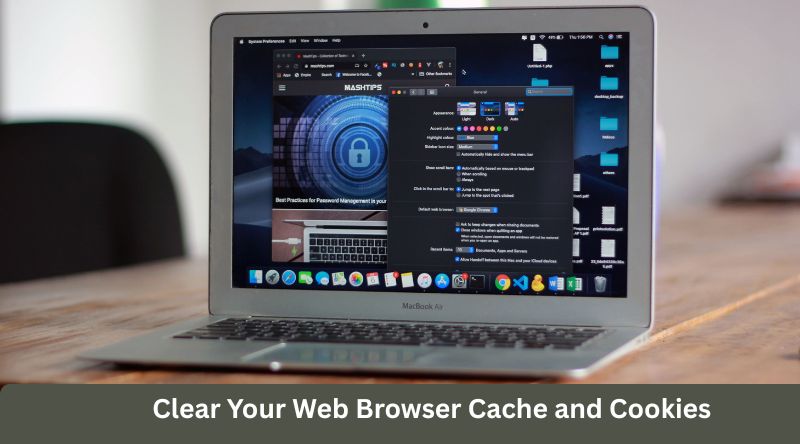
Sometimes, your browser saves old information from when your VPN was on. This old data tells Netflix that you are still using a proxy. Clearing your cache and cookies will solve this problem.
For Google Chrome:
- Step 1: Click the three dots in the top right corner of Chrome.
- Step 2: Select Clear Browsing Data.
- Step 3: Choose All Time as the time range.
- Step 4: Check the boxes for Cookies and other site data and Cached images and files.
- Step 5: Click Clear data.
For Mozilla Firefox:
- Step 1: Click the three horizontal lines in the top right corner.
- Step 2: Click Settings, then go to Privacy & Security.
- Step 3: Find the Cookies and Site Data section.
- Step 4: Click Clear Data, check both boxes, and click Clear.
Browser Settings for Clear Cache
| Browser Name | Shortcut Keys | Action Button Name |
| Google Chrome | Ctrl + Shift + Delete | Clear data |
| Mozilla Firefox | Ctrl + Shift + Delete | Clear |
| Microsoft Edge | Ctrl + Shift + Delete | Clear now |
| Apple Safari | Command + Option + E | Empty Cache |
3. Check and Disable IPv6 Tunneling
Some internet service providers use IPv6 tunneling protocols. These protocols can look like a proxy server to the Netflix security team. Turning off IPv6 on your computer can help fix Error M7111-1331-5059.
For Windows Users:
- Step 1: Press the Windows Key + R to open the Run box.
- Step 2: Type ncpa.cpl and press Enter to see your network connections.
- Step 3: Right-click your active network (Wi-Fi or Ethernet) and choose Properties.
- Step 4: Look for Internet Protocol Version 6 (TCP/IPv6) in the list.
- Step 5: Uncheck the box next to it.
- Step 6: Click OK to save the changes. Restart your computer.
Network Protocol Comparison
| Protocol Name | Status for Netflix | Action Needed If Error Occurs |
| IPv4 | Recommended | Keep this turned on always |
| IPv6 | Can cause proxy errors | Turn off if you see error M7111-1331-5059 |
4. Switch to a Different Web Browser
If your main browser keeps showing the error code, the problem might be a hidden browser setting or an extension. You can try a different browser to see if the video plays correctly.
- If you use Google Chrome, try switching to Microsoft Edge or Mozilla Firefox.
- Make sure the new browser does not have any proxy add-ons installed.
- Log into your Netflix account and try to stream a video.
Browser Testing Matrix
| Main Browser | Alternative Browser 1 | Alternative Browser 2 |
| Google Chrome | Mozilla Firefox | Microsoft Edge |
| Mozilla Firefox | Google Chrome | Opera |
| Apple Safari | Google Chrome | Mozilla Firefox |
5. Reset Your Internet Router
Your home router might have bad network routing data. This data can confuse Netflix servers. Restarting your network hardware resets your IP address connection.
- Step 1: Unplug the power cable from your internet router and modem.
- Step 2: Wait for 60 seconds.
- Step 3: Plug the power cable back into your devices.
- Step 4: Wait for all the lights on the router to turn green.
- Step 5: Connect your computer to the internet and open Netflix.
Router Reboot Checklist
| Steps to Take | Time to Wait | Expected Outcome |
| Unplug power cord | 60 full seconds | Clears temporary network memory |
| Reconnect power cord | 2 minutes | Establishes a fresh IP connection |
| Refresh Netflix tab | 10 seconds | Checks if proxy block is gone |
Advanced Troubleshooting Methods
If the basic steps did not fix your issue, you can try these advanced methods. These methods will help fix deeper network and software conflicts.
1. Flush Your DNS Cache
Your operating system keeps a log of internet addresses in a DNS cache. If this cache gets corrupted, it can cause streaming errors. Flushing the DNS will force your computer to fetch fresh network paths.
For Windows:
- Step 1: Type cmd in the Windows search bar.
- Step 2: Right-click Command Prompt and select Run as administrator.
- Step 3: Type ipconfig /flushdns and press Enter.
- Step 4: You will see a success message. Close the window.
For macOS:
- Step 1: Open the Terminal application.
- Step 2: Type sudo dscacheutil -flushcache; sudo killall -HUP mDNSResponder and press Enter.
- Step 3: Enter your Mac admin password and press Enter again.
DNS Command Summary
| Operating System | Command to Use | Purpose |
| Windows | ipconfig /flushdns | Clears local DNS address logs |
| macOS | sudo dscacheutil -flushcache… | Resets system network resolution |
2. Disable Conflicting Browser Extensions
Some browser extensions act like proxies without telling you. Ad-blockers, security tools, and privacy extensions can sometimes alter your network data headers.
- Step 1: Open your browser’s extension settings menu.
- Step 2: Turn off all extensions one by one.
- Step 3: Reload Netflix after turning off each extension to find the culprit.
- Step 4: Delete the extension that causes the proxy error.
Extension Types and Risk Levels
| Extension Category | Risk Level for Proxy Errors | Recommended Action |
| Ad-Blockers | Low to Medium | Whitelist the Netflix website |
| Privacy Protectors | High | Turn off while streaming video |
| Free VPN Add-ons | Very High | Remove completely from browser |
| Theme Changers | None | Leave turned on safely |
3. Use a High-Quality Premium VPN (If You Must Use One)
If you need a VPN for online safety, you should use a high-quality service. Cheap or free VPNs share the same IP addresses with thousands of users. Netflix finds these public IPs easily and blocks them. Premium VPN services change their IP addresses constantly to bypass the proxy detection system.
VPN Quality Differences
| Feature | Free VPN Service | Premium VPN Service |
| IP Address Variety | Very Small Pool | Millions of Private IPs |
| Netflix Compatibility | Fails constantly | Has dedicated video servers |
| Speed Levels | Very slow, causes buffering | High-speed, supports Ultra HD |
| Security Standards | Low privacy protection | Strong military-grade encryption |
Contacting Your Internet Service Provider (ISP)
Sometimes you see Netflix Error M7111-1331-5059 even when you do not use a VPN or proxy. This happens because your Internet Service Provider (ISP) is routing your web traffic incorrectly. Netflix might misidentify your ISP’s residential IP address as a business or proxy address.
What to Ask Your ISP:
- Ask them if they are routing your internet traffic through a proxy server network.
- Ask them if they have configuration issues with their IPv6 protocols.
- Request a fresh, static residential IP address that is not on any website blocklists.
ISP Communication Guide
| Issue to Mention | What to Tell the Support Agent | Expected Fix |
| False Proxy Block | “Netflix thinks my residential IP is a VPN proxy.” | They will check IP address tags |
| IPv6 Routing Problem | “Please verify my network’s IPv6 tunnel settings.” | They can update network paths |
Frequently Asked Questions (FAQ)
What does Netflix error code M7111-1331-5059 mean?
This error means Netflix detected that you are using a VPN, proxy server, or an unblocker tool to view the website. The system blocks your video stream until you turn off these services.
Can I watch Netflix with a free VPN?
Most free VPNs do not work with Netflix. Their server IP addresses are already known and blocked by the Netflix security team. It is better to turn off free VPNs before you stream videos.
Why do I see this error when I do not use a VPN?
This can happen if your web browser has saved old cache files, if you have a malicious browser extension, or if your internet provider uses bad network routing. Clearing your cache and disabling IPv6 can fix this.
Will clearing my browser history fix this error?
Clearing your browsing history does not fix the error, but clearing your browser cookies and cache will help. Cookies store location data that can confuse the Netflix website.
Does this error affect mobile phones and smart TVs?
Yes, this proxy error can happen on any device, including smart TVs, gaming consoles, and mobile phones. However, the code M7111-1331-5059 specifically appears on computer web browsers.
Can an ad-blocker cause Netflix Error M7111-1331-5059?
Yes, some strict ad-blockers change how your browser sends data to web servers. This can look like a proxy system to Netflix. Try turning off your ad-blocker or adding Netflix to its safe list.
Final Words
Fixing Netflix Error M7111-1331-5059 is easy when you follow the right steps. In most cases, turning off your VPN or proxy server will solve the problem instantly. If that fails, clearing your browser cache, turning off IPv6 protocols, or checking your browser extensions will get your streaming back on track.
Always ensure your internet connection is direct and private. This prevents automated security systems from flagging your account. By keeping your browser clean and your network transparent, you can enjoy uninterrupted movies and television shows on Netflix at any time.