Do you love watching free movies and TV shows on Pluto TV, but suddenly the app stops working? You are not alone. Millions of cord-cutters use Pluto TV every day to stream live channels without a subscription. However, like any streaming service, it can run into unexpected technical glitches.
When Pluto TV keeps buffering, displays a black screen, or crashes entirely, it can ruin your relaxation time. The good news is that most Pluto TV problems are easy to fix on your own. You do not need to be a tech genius to get your stream back up and running.
This comprehensive guide will walk you through the seven most common reasons why Pluto TV stops working and provide clear, step-by-step solutions for each issue. Whether you are streaming on a smart TV, Roku, Amazon Firestick, mobile phone, or computer, these quick fixes will solve your streaming headaches.
1. Slow or Unstable Internet Connection
A weak internet connection is the number one reason why Pluto TV stops working. Live streaming requires a continuous, stable flow of data. If your Wi-Fi signal drops or your internet speeds slow down, Pluto TV will start buffering, freeze, or refuse to load entirely.
Pluto TV needs a minimum download speed of 5 Mbps to stream content smoothly in standard definition, and higher speeds for high definition. When your network is crowded with too many connected devices, your streaming quality drops instantly.
How to Fix Internet Issues
- Run a Speed Test: Open a web browser on your phone or computer and visit a free speed-testing website to check your current download speed.
- Power Cycle Your Router: Unplug your internet modem and router from the wall outlet. Wait for 60 seconds, then plug them back in. This clears out temporary network bugs.
- Disconnect Other Devices: Disconnect smart devices, gaming consoles, or laptops that are downloading large files while you try to watch TV.
- Move Closer to the Router: If you are using Wi-Fi, move your streaming device closer to your router, or switch to a wired Ethernet cable connection for maximum stability.
| Internet Symptom | Root Cause | Immediate Solution |
| Constant Buffering | Download speed is below 5 Mbps | Restart your internet router |
| Spinning Loading Wheel | Weak Wi-Fi signal strength | Use a wired Ethernet cable connection |
| App Error Code | Complete network dropout | Check with your ISP for local outages |
2. Outdated Pluto TV App Version
Using an outdated version of the Pluto TV app can cause severe performance issues. Developers release regular software updates to patch known security bugs, fix crashes, and improve overall streaming stability.
If your device has turned off automatic updates, your older app version may struggle to communicate with Pluto TV’s modern servers. This mismatch often leads to random app closures or specific channels failing to load.
How to Update the App
- On Roku: Highlight the Pluto TV channel icon, press the Star (*) button on your remote control, and select “Check for updates.”
- On Amazon Firestick: Go to Settings, select Applications, choose Managed Installed Applications, find Pluto TV, and check if an update is available in the Appstore.
- On Smart TVs (Samsung, LG, Sony): Open your TV’s built-in App Store, search for Pluto TV, and click the “Update” button if it appears.
- On Android and iOS: Open the Google Play Store or Apple App Store, view your installed apps, and tap “Update” next to Pluto TV.
| Device Platform | Update Menu Location | Average Time to Fix |
| Roku | Home Screen > Star (*) Button | 1 Minute |
| Amazon Fire TV | Settings > Applications > Appstore | 2 Minutes |
| Android / iOS | Google Play Store / Apple App Store | 1 Minute |
3. Corrupted App Cache and Data
Every time you browse channels on Pluto TV, the app saves small files called cache data onto your device’s internal storage. This data helps the app load your favorite channels much faster. However, over time, these temporary files can accumulate, become corrupted, and slow down your system.
Corrupted cache files can cause Pluto TV to freeze on the loading screen, experience severe audio sync delays, or crash back to your device’s home screen immediately after opening.
How to Clear Cache
- On Amazon Firestick: Go to Settings > Applications > Manage Installed Applications > Pluto TV. Click “Clear Cache” and then “Clear Data.”
- On Android TV and Phones: Open Settings > Apps > Pluto TV. Tap on Storage, then select “Clear Cache.”
- On Web Browsers (Chrome/Edge): Press Ctrl + Shift + Delete on your keyboard, select “Cached images and files,” and click “Clear data.”
- Note for Roku and Apple iOS: These platforms do not have a dedicated manual cache button. You must uninstall the app, restart the device, and reinstall the app to completely clear the temporary data.
| Device Type | Action Required | Will It Delete My Login info? |
| Amazon Firestick | Clear Cache & Clear Data | Yes (Data clear requires logging back in) |
| Android Devices | Clear Cache | No (Safe temporary file removal) |
| Web Browsers | Clear Browser Cache | No (If you only select cache files) |
4. Device System Software Needs an Update
Sometimes the problem is not the Pluto TV app itself, but the operating system of the hardware device you are using. An outdated TV, streaming stick, or phone operating system can cause software conflicts with modern apps.
If your device’s firmware is years out of date, it may lack the updated video decoding capabilities required to stream live video feeds smoothly, causing a frustrating black screen.
How to Update Device Firmware
- Smart TVs: Navigate to the main Settings menu, look for “System,” “About,” or “Support,” and click on “System Software Update.”
- Roku: Go to Settings > System > System Update > Check Now.
- Amazon Firestick: Go to Settings > My Fire TV > About > Check for System Update.
- Mobile Devices: Go to Settings > System Updates or Software Update to download the latest software patches.
| Device OS | Navigation Pathway | Importance Level |
| Roku OS | Settings > System > System Update | High (Prevents system-wide app bugs) |
| Fire OS | Settings > My Fire TV > About | High (Improves hardware performance) |
| Smart TV Firmware | Settings > Support > Software Update | Medium (Fixes HDMI and screen bugs) |
5. Severe Server Side Outages
If your internet speed is blazing fast and all your other streaming apps work perfectly, Pluto TV’s central servers might be experiencing a temporary outage. When millions of viewers log on at the exact same time to watch a major live broadcast, the massive traffic load can temporarily crash Pluto TV’s servers.
When a server outage occurs, you cannot fix the issue from your home. You must wait patiently for Pluto TV’s engineering team to repair the technical problem on their side.
How to Check for Server Outages
- Use DownDetector: Open a web browser and search for Pluto TV on DownDetector. This website tracks real-time user complaints to show if a widespread outage is happening right now.
- Check Official Social Media: Look at the official Pluto TV support accounts on platforms like X (formerly Twitter). They often post alerts when their network is undergoing emergency maintenance.
- Test Multiple Devices: Try launching Pluto TV on your mobile phone using cellular data. If it fails to load there too, the problem is definitely an official server outage.
| Outage Check Method | What to Look For | Reliable Source? |
| DownDetector Website | A sharp, sudden spike in user error reports | Yes (User-generated real-time data) |
| Official Social Media | Direct status update posts from Pluto TV staff | Yes (Official company statements) |
| Mobile Data Test | App failure across completely different networks | Yes (Isolates your home internet) |
6. Overloaded Device Hardware (Low Memory)
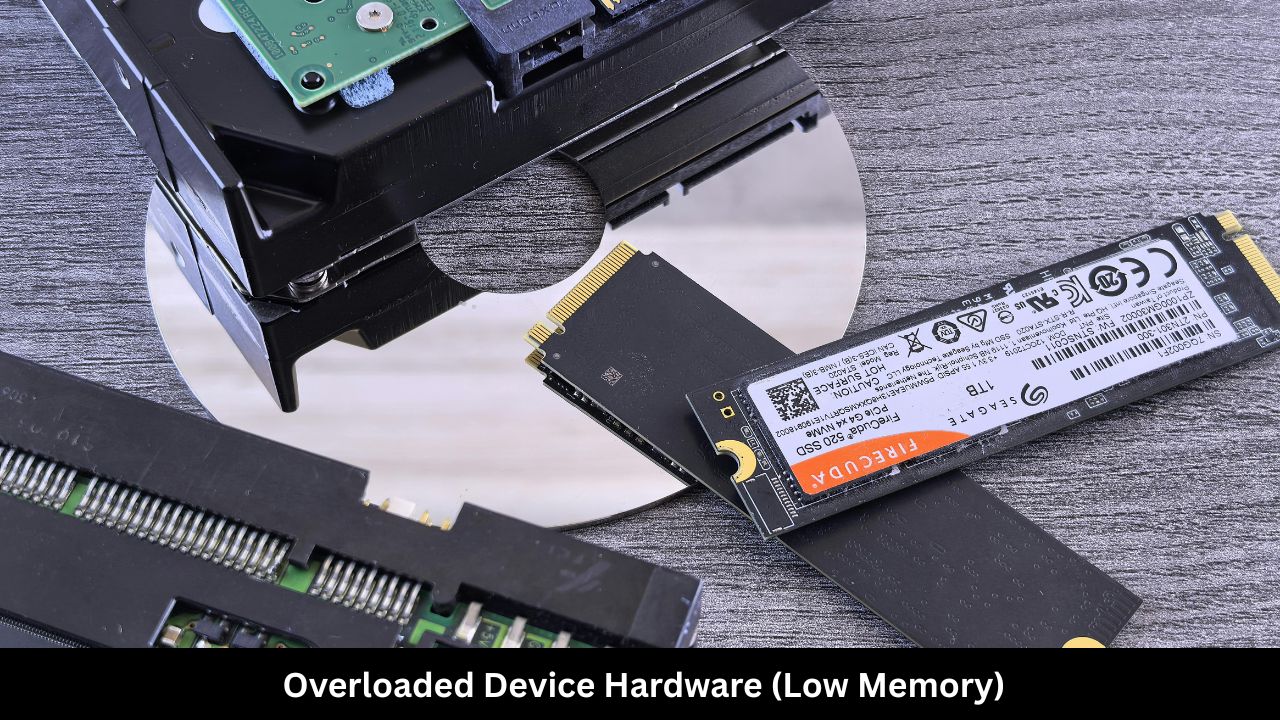
Streaming live television requires a lot of processing power and active RAM memory. Cheap streaming sticks and older smart TVs have very limited internal memory. If you leave multiple apps running in the background for days without turning the device off, the hardware memory gets completely clogged up.
When your device runs out of available RAM, it will automatically shut down heavy applications like Pluto TV to protect the hardware from overheating.
How to Free Up Device Memory
- Perform a Cold Reboot: Unplug your TV or streaming stick directly from the electrical wall outlet. Leave it completely unplugged for two full minutes to drain the residual power and clear the active RAM, then plug it back in.
- Force Stop Unused Apps: Go to your device’s application manager and manually click “Force Stop” on hidden background apps like Netflix, YouTube, or Hulu.
- Uninstall Unused Apps: Delete old games or video services you no longer use to free up valuable internal storage space.
| Hardware Issue | Visual Sign | Best Remedy |
| Overloaded RAM | App crashes instantly back to home screen | Unplug the power cord for 2 minutes |
| Low Storage Space | Severe menu lag and choppy video playback | Delete unneeded applications |
| Component Overheating | Device feels physically hot to the touch | Let the device cool down in an open space |
7. Aggressive Ad Blockers and VPN Conflicts
Pluto TV is a 100% free streaming platform because it relies completely on video advertisements to fund its business operations. If you are using a web browser equipped with an aggressive ad-blocker extension, or a network-wide ad blocker like Pi-hole, Pluto TV’s video player may break.
The app is intentionally programmed to stop playback if its advertisement servers are blocked. Additionally, using a Virtual Private Network (VPN) can confuse Pluto TV’s regional licensing system, causing the app to block your stream entirely due to location mismatches.
How to Fix Ad Block and VPN Issues
- Disable Ad Blockers: Click on your web browser’s extension icon and toggle off your ad blocker for the Pluto TV website. Add plutotv.tv to your ad blocker’s trusted whitelist.
- Turn Off Your VPN: Disconnect your active VPN service before launching Pluto TV, or configure your VPN’s split-tunneling feature to bypass the Pluto TV app entirely.
- Check Geolocation Settings: Ensure your device’s internal clock and location settings match the country you currently reside in.
| Security Tool | Why It Blocks Pluto TV | How to Correct It |
| Ad Blocker Extension | Blocks required commercial video scripts | Whitelist the Pluto TV web address |
| VPN Service | Hides your true geographic location | Disconnect the VPN before viewing |
| Custom DNS Server | Blocks tracking domains needed for stream verification | Reset your device DNS to default settings |
Final Words
Experiencing technical issues with your favorite streaming platform can be highly frustrating, but Pluto TV glitches are rarely permanent. In most scenarios, a quick internet router reboot, an app update, or clearing out old temporary cache files will solve your problem within five minutes. By systematically testing each of the seven common issues outlined above, you can easily pinpoint the exact cause of your streaming problem and fix it safely on your own. Keep your app updated, maintain a strong Wi-Fi signal, and enjoy thousands of hours of free, high-quality entertainment.
Frequently Asked Questions (FAQ)
Why is Pluto TV showing a black screen but playing audio?
This issue usually points to a device firmware conflict or a temporary HDMI handshake glitch. Unplug your TV and streaming stick from the wall outlet for two minutes to reset the video display hardware. Also, make sure your device’s system software is fully updated.
Does Pluto TV require a paid subscription to fix stream errors?
No, Pluto TV is completely free and does not offer any premium paid tiers. If an error message occurs, it is caused by a technical glitch or an internet connectivity issue, never because you lack a paid subscription account.
Why does Pluto TV keep freezing during commercial breaks?
Freezing during ad breaks happens when the app struggles to transition from the main movie stream to a local advertisement server. Clearing your app cache or disabling web browser ad blockers will prevent the app from getting stuck on commercial screens.
Can a weak Wi-Fi signal cause Pluto TV to crash?
Yes, a weak or fluctuating Wi-Fi signal can cause a data timeout error, forcing the Pluto TV app to crash unexpectedly or kick you back out to your device’s home screen.