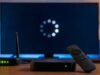
Imagine you are ready to watch your favorite show. You open Netflix, grab some snacks, and settle into your couch. Instead of the movie starting, a black screen appears with a message: Netflix Error UI-800-3.
This error can feel incredibly frustrating, but you do not need to worry. It is one of the most common issues on Netflix. Best of all, it is highly straightforward to fix. This guide will explain why this error happens and give you simple, step-by-step instructions to clear it from any device.
What is Netflix Error UI-800-3?
Netflix Error UI-800-3 is a code that shows up when the Netflix application cannot open or load content properly. It mostly happens on smart TVs, streaming sticks, gaming consoles, and set-top boxes.
According to the official Netflix Help Center, this code usually means that data stored on your device needs to be refreshed. In other cases, a minor home network issue is stopping Netflix from communicating with its servers. Think of it like a glitch in the local memory of your device. The device gets confused by old data and needs a quick reset to clear its mind.
| Quick Summary of Error UI-800-3 | |
| Primary Cause | Corrupted local data or cache stored on the device. |
| Secondary Cause | Outdated app version or minor home internet glitches. |
| Common Devices Affected | Smart TVs, Roku, Amazon Fire TV, Xbox, PlayStation. |
| Average Fix Time | 2 to 5 minutes. |
Common Causes of the Error Code
Understanding why this error happens helps you stop it from coming back. Here are the three main reasons your device might display this error code:
1. Cached Data Glitches
Every time you use Netflix, your device saves tiny files called cache. This cache helps the app load images, text, and menus much faster. However, if your device shuts down unexpectedly or if the app crashes, these cache files can become corrupted. When Netflix tries to read a broken file, it triggers the UI-800-3 screen.
2. Outdated Application Software
Netflix frequently updates its application to improve security and fix bugs. If your smart TV or streaming stick has not updated the Netflix app in a long time, the old app might fail to connect to modern Netflix servers.
3. Home Network Issues
Sometimes, your internet is working for web browsing but struggles to build a secure handshake with the Netflix server. A temporary glitch in your wireless router can block the specific data streams that Netflix needs to launch its user interface.
General Fixes for All Devices
No matter what device you use to watch Netflix, there are a few universal troubleshooting steps that fix the UI-800-3 error ninety percent of the time. You should try these general steps first before moving to device-specific fixes.
+———————————————————+
| START TROUBLESHOOTING |
+———————————————————+
|
v
+————————-+
| Sign Out of Netflix |
+————————-+
|
Did it fix it?
/ \
Yes No
/ \
v v
+—————+ +————————+
| Enjoy Shows! | | Power Cycle the Device |
+—————+ +————————+
|
Did it fix it?
/ \
Yes No
/ \
v v
+—————+ +———————–+
| Enjoy Shows! | | Restart Home Network |
+—————+ +———————–+
|
v
(Check Device Steps Below)
Sign Out of Netflix
Signing out clears your current user data session and forces Netflix to create a fresh connection when you log back in.
1.Open the Netflix Menu:Step 1.
From the Netflix error screen, press the Back or Menu button on your remote. If you cannot see a menu, use your remote to press this exact sequence: Up, Up, Down, Down, Left, Right, Left, Right, Up, Up, Up, Up.
2.Select Get Help:Step 2.
A hidden diagnostic menu will appear on your screen. Locate and select the option labeled Get Help or Settings.
3.Sign Out:Step 3.
Scroll down to the bottom of the list and choose Sign Out or Reset. Confirm your choice by selecting Yes.
4.Log Back In:Step 4.
Wait 10 seconds, open the Netflix app again, type in your password, and try streaming a video.
Power Cycle Your Streaming Device
A standard power cycle drops all temporary electrical current out of the random-access memory (RAM) of your device, clearing out frozen code lines.
- Turn off your device using the physical power button or the remote control.
- Unplug the power cable cleanly from the wall outlet.
- Crucial Step: Hold down the physical power button on the actual device for 60 seconds while it is unplugged. This drains any leftover electricity from the internal capacitors. If the device has no power button, leave it completely unplugged for 3 full minutes.
- Plug the power cable back into the wall outlet.
- Turn the device on and test Netflix.
Restart Your Home Network
If the local device data is fine, your router might be holding onto a bad internet protocol (IP) address configuration.
- Unplug your internet modem and your wireless router from their electrical outlets.
- Leave both boxes completely dark for at least 30 seconds.
- Plug your modem back in first. Watch the lights on the front panel and wait until the “Internet” or “Online” light turns solid green or blue.
- Plug your wireless router back into the wall. Wait 2 minutes for the Wi-Fi signal to broadcast throughout your home.
- Reconnect your streaming device to the network and try opening Netflix again.
Device-Specific Troubleshooting
Different streaming devices handle memory management in unique ways. If the general fixes did not solve your issue, find your specific device in the sections below to follow targeted steps.
Amazon Fire TV and Fire Stick
The Amazon Fire TV line lets you clear data for individual applications manually. This is highly effective because you do not have to delete your whole app library just to fix one error.
| Fire TV Troubleshooting Checklists | |
| Primary Action | Clear App Cache and App Data. |
| Alternative Action | Reinstall the Netflix Application. |
| Network Check | Confirm the Fire Stick is not behind a heavy wall blocking Wi-Fi signals. |
Press the Home button on your Fire TV remote to open the main Amazon dashboard.- Navigate over to the gear icon on the far right to open Settings.
- Select Applications, then choose Manage Installed Applications.
- Scroll down through the alphabetized list until you find Netflix.
- Select Clear Cache. Next, select Clear Data and confirm it. This wipes out corrupted files instantly.
- Go back to the Fire TV home screen, open Netflix, sign in, and check if the error is gone.
Roku Streaming Devices
Roku players do not have a dedicated “Clear Cache” button for apps. Instead, you must remove the channel entirely, restart the operating system to clear system memory, and then download the channel again.
[Remove Netflix Channel] —> [System Restart Roku] —> [Reinstall Netflix Channel]
- Press the Home button on your Roku remote.
- Highlight the Netflix app icon on your channel grid.
- Press the Star (*) button on your remote to pull up the options menu.
- Select Remove channel and confirm your choice.
- Go to Settings > System > System restart. Wait for the Roku logo to bounce and load back to the home screen. (Do not skip this step, or the bad data will stay in the Roku memory!)
- Go down to Store or Search, look up Netflix, and select Add Channel. Open the new app copy and log back in.
Samsung, LG, and Sony Smart TVs
Smart TVs often keep apps running in a sleep state when you turn the screen off. This means the TV rarely gets a true system restart, which allows data errors to build up over time.
- The Remote Control Trick (Samsung TVs): While the TV is turned on, hold down the Power button on your remote control. Do not let go. The TV screen will turn off, and a few seconds later, it will turn back on with the brand logo. This forces the TV OS to perform a cold boot.
- The Unplug Method (All Smart TVs): Unplug the TV power cord directly from the wall. Hold down the physical power button located under the bottom rim or on the back panel of the TV for 30 seconds. Plug it back in after 2 minutes.
- Check for Firmware Updates: Go to your TV’s Settings menu, look for Support or About, and choose Software Update. An old TV operating system can stop Netflix from functioning safely.
Gaming Consoles (Xbox and PlayStation)
Gaming consoles have massive storage drives and complex network settings. Sometimes a DNS mismatch or a bad app installation causes Error UI-800-3.
PlayStation 4 and PlayStation 5 Instructions:
- Highlight the Netflix icon on your media home screen.
- Press the Options button on your DualShock or DualSense controller.
- Select Delete and confirm.
- Go to the PlayStation Store, navigate to the Media tab, find Netflix, and download it again.
- If the error stays, test your network settings by going to Settings > Network > Test Internet Connection.
Xbox One and Xbox Series X/S Instructions:
- Press the Xbox button on your controller to open the guide panel.
- Select My games & apps > See all > Apps.
- Highlight Netflix and press the Menu button (three horizontal lines) on your controller.
- Select Uninstall > Uninstall all.
- Go to the Xbox Store, re-download the Netflix app, and launch it.
Frequently Asked Questions (FAQ)
What does the code UI-800-3 mean?
The code indicates that Netflix is experiencing an internal storage data issue on your device. The application cannot properly read its own configuration files or connect stably to the web servers, which stops video playback completely.
Why does this error keep happening repeatedly?
If the error occurs multiple times a week, your streaming device might be running out of overall internal storage space. When flash storage is full, apps cannot overwrite cache files cleanly, causing frequent data corruption. Try deleting apps or games you no longer use.
Do I lose my watch history if I clear Netflix data?
No. Your personal profile, custom watch lists, and viewing history are safely stored in the cloud on the main servers of Netflix. Clearing your device data or uninstalling the app only deletes temporary files from that specific television or device. You just have to type your password again.
Can a bad internet connection trigger UI-800-3?
Yes. While it is mostly an internal device data issue, a weak or drops-heavy internet connection can disrupt Netflix while it tries to refresh its UI data. If your Wi-Fi signal drops for a split second during startup, the app may display this code.
What should I do if none of these fixes work?
If you have cleared the cache, reinstalled the app, and restarted your internet, the problem could be an outage on Netflix’s side or a hardware issue with your streaming device. Try opening Netflix on a smartphone or computer using the same Wi-Fi. If it works there, your streaming device or its firmware needs a factory reset.
Final Words
Running into Netflix Error UI-800-3 can temporarily ruin your evening plans, but it is rarely a sign of serious device failure. In almost every case, the solution boils down to refreshing the device’s local memory. By working your way down from simple steps like signing out and power cycling to specific steps like clearing app cache data, you can reliably clear the roadblock yourself. Keep your applications updated, make sure your streaming device has a little bit of free storage space, and you can look forward to uninterrupted, smooth streaming marathons moving forward.