Few things ruin a movie night faster than a Roku that drops WiFi again and again. One minute you’re watching a show. The next, Roku says it has no connection, the app buffers, or the device kicks you back to the home screen.
The good news? Most Roku WiFi problems come from a few simple causes. Weak signal, router issues, crowded WiFi bands, low power, outdated software, or a saved network glitch can all make Roku act unstable.
This guide explains Why Your Roku Keeps Disconnecting from WiFi: Fixed in plain English. You’ll see what causes the problem, how to test it, and which fix to try first.
Why This Roku WiFi Problem Matters
Roku needs a steady internet connection for streaming, app updates, sign-ins, and software checks. Roku’s own support pages recommend checking the network connection, testing internet access, restarting the Roku and router, resetting the Roku network connection, and updating software when connection issues continue.
This matters because not every “disconnect” is the same problem. A weak WiFi signal is different from a bad router lease. A Roku app crash is different from Bandwidth Saver stopping playback after hours of inactivity. A stick powered by a weak TV USB port can also restart and look like it dropped WiFi.
Start with diagnosis. Then fix the right cause.
Quick Overview: Common Roku WiFi Disconnect Causes
| Problem | Common Sign | Best First Fix |
| Weak WiFi signal | Roku works near router but fails far away | Move router or Roku closer |
| Router glitch | Many devices act slow or unstable | Restart router and modem |
| Wrong WiFi band | 5 GHz drops far from router, 2.4 GHz feels slow | Try the other band |
| Network cache issue | Roku sees network but won’t stay connected | Reset Roku network connection |
| Low power | Roku restarts or shows low power warning | Use wall power adapter |
| Outdated Roku software | Apps freeze, updates fail, WiFi acts odd | Check for software update |
| App-specific issue | Only one app drops or buffers | Update or reinstall the app |
| Bandwidth Saver | Streaming stops after long inactivity | Turn off Bandwidth Saver |
| ISP outage | All devices lose internet | Contact ISP |
| Old Roku hardware | Frequent drops after all fixes | Use Ethernet or upgrade device |
Top 10 Fixes for Roku Keeps Disconnecting from WiFi
1. Check Roku’s Network Connection First
Before changing router settings, run Roku’s built-in connection test. It tells you whether Roku can see your WiFi network and reach the internet.
Go to Settings > Network > Check connection. Roku will test the wireless connection and internet access. You should see green check marks when each part works.
If Roku fails the wireless test, the issue is between the Roku and router. If it passes WiFi but fails internet, your router or ISP may be the problem.
| Check | What It Means | What to Do |
| Wireless fails | Roku cannot connect to router | Move closer or reconnect WiFi |
| Internet fails | Router works, internet may not | Test another device |
| Both pass | WiFi is working now | Watch for repeat drops |
| Weak signal | Roku is barely connected | Improve placement |
A quick test saves time. It stops you from factory resetting Roku when the real issue is your internet provider.
2. Restart Your Roku and Router the Right Way
A restart sounds basic, but it fixes many short-term network bugs. Roku support recommends restarting both the Roku device and router when WiFi problems appear.
Do it in this order:
- Unplug the Roku from power.
- Unplug the modem and router. If you use one gateway box, unplug that.
- Wait at least 10 seconds.
- Plug the modem/router back in.
- Wait until the internet light is stable.
- Plug Roku back in.
You can also restart Roku from Settings > System > Power > System restart. Some Roku models do not show the Power menu, so choose System restart under System if needed.
| Step | Why It Helps |
| Restart router | Clears router memory and bad sessions |
| Restart Roku | Refreshes Roku’s network stack |
| Wait before reconnecting | Lets router fully reboot |
| Test after reboot | Confirms whether the fix worked |
I’d try this before anything deeper. It’s fast, safe, and doesn’t erase your apps.
3. Improve WiFi Signal and Router Placement
Weak signal is one of the top reasons Roku keeps disconnecting. Roku says poor wireless strength can cause playback problems, and its WiFi improvement guide recommends checking signal strength, reducing interference, and improving placement.
Place the router higher, more central, and away from thick walls. Don’t hide it behind a TV, inside a cabinet, near metal, or beside a microwave.
Microsoft gives similar home WiFi advice: fewer walls and obstacles help, central placement helps, and corners or desks can reduce signal strength.
| Router Placement Issue | Better Option |
| Behind TV | Open shelf beside TV |
| Inside cabinet | Higher, open position |
| Far corner room | Central room |
| Near microwave | Move several feet away |
| Behind thick wall | Reduce walls between devices |
For Roku Streaming Stick models, the TV itself can block signal. If possible, use an HDMI extender or move the stick so it gets better airflow and signal.
4. Switch Between 2.4 GHz and 5 GHz WiFi
Many routers use two bands: 2.4 GHz and 5 GHz. The 2.4 GHz band reaches farther but is usually slower and more crowded. The 5 GHz band is faster but has shorter range and struggles more with walls. Intel’s WiFi guidance describes 2.4 GHz as longer range at lower data rates, while 5 GHz and 6 GHz offer faster speeds over shorter distances.
So, which one should Roku use?
Use 5 GHz if your Roku is close to the router. Use 2.4 GHz if Roku sits far away or behind several walls.
| Situation | Better Band |
| Roku near router | 5 GHz |
| Roku far from router | 2.4 GHz |
| Apartment with many routers nearby | Try 5 GHz |
| Old Roku model | 2.4 GHz may be safer |
| 4K streaming close to router | 5 GHz |
Some routers combine both bands under one network name. That can work well, but it can also cause band switching problems. If your Roku drops often, try separating the bands in your router settings and connect Roku to one band manually.
5. Reset Roku’s Network Connection
This is one of the best fixes when Roku remembers a bad network state. It does not factory reset the whole Roku. It only clears network settings.
Go to:
Settings > Advanced system settings > Network connection reset > Reset connection
After the reset, Roku restarts. Then go back to Network settings and connect to WiFi again. Roku support lists this as a fix when the device keeps failing to connect.
| Reset Type | What It Erases | When to Use |
| Network connection reset | Saved WiFi details | Roku keeps dropping WiFi |
| System restart | Temporary memory | First basic fix |
| Factory reset | Apps, settings, login data | Last resort only |
This fix works well after you change your router name, WiFi password, security mode, or router hardware.
6. Check the Power Source
This one gets missed a lot. Some Roku sticks are powered through the TV’s USB port. That may work at first, but if the USB port does not supply steady power, the Roku can restart or act unstable.
Roku says if a player shows a “low power” message or randomly restarts, users should plug it into a wall outlet instead of the TV’s USB port.
| Power Setup | Risk | Better Fix |
| TV USB port | Low or unstable power | Use wall adapter |
| Old USB cable | Random restarts | Replace cable |
| Loose adapter | Power drops | Reseat plug |
| Power strip issue | Intermittent power | Try wall outlet |
A restart can look like a WiFi disconnect. If the Roku logo appears again, or the device returns to the home screen without warning, power could be the real issue.
7. Update Roku Software and Apps
Roku devices usually update automatically, but manual checks help if your Roku has been offline or unstable. Roku says you can check updates through Settings > System > Software update > Check Now. If updates are available, Roku downloads them, installs them, and reboots.
Software updates can improve stability, app performance, and security. Roku’s release notes also mention performance optimizations, bug fixes, security improvements, and stability changes in Roku OS updates.
| Update Area | Why It Matters |
| Roku OS | Fixes system bugs |
| Streaming apps | Fixes app crashes |
| Router firmware | Improves WiFi stability |
| Mobile app | Helps remote-control features |
Also update your router firmware if the router app offers it. A router bug can affect only one device, especially if that device uses a different band or older WiFi mode.
8. Turn Off Bandwidth Saver If Streaming Stops After Hours
Sometimes Roku did not disconnect from WiFi at all. It simply stopped playback.
Roku’s Bandwidth Saver feature can halt streaming after four hours with no remote or mobile app activity. Roku treats that as inactivity.
This is useful for people with data caps. But it can confuse users who leave live TV, music, or a long playlist running.
Go to:
Settings > Network > Bandwidth Saver
Then turn it off if you want longer playback.
| Symptom | Likely Cause | Fix |
| Stops after about 4 hours | Bandwidth Saver | Turn it off |
| WiFi icon still connected | Not a WiFi drop | Resume playback |
| Happens during live TV | Inactivity timer | Use remote or disable feature |
| Happens randomly under 1 hour | Not Bandwidth Saver | Check signal/power |
This is a big one for background streaming. It feels like a disconnect, but it’s a Roku setting.
9. Check for Router Congestion and Interference
Your Roku may disconnect because your WiFi network is crowded. This is common in apartments, dorms, and homes full of smart devices.
The 2.4 GHz band has fewer usable channels and often carries more interference. Intel notes that 2.4 GHz has limited spectrum, while 5 GHz offers more available spectrum and faster options.
Try these fixes:
- Move smart plugs, cameras, and speakers to 2.4 GHz.
- Keep Roku on 5 GHz if it is close enough.
- Restart the router during off-hours.
- Change the WiFi channel in router settings.
- Avoid placing Roku behind metal or near other electronics.
| Cause | Sign | Fix |
| Too many devices | Streaming drops at night | Reduce active devices |
| Neighbor WiFi | Worse in apartments | Change channel |
| Microwave interference | Drops near kitchen use | Move router |
| Smart home traffic | Slow 2.4 GHz band | Split devices by band |
If your router has a network optimization tool, run it. Many modern routers can pick a cleaner channel automatically.
10. Use Ethernet or Replace Aging Hardware
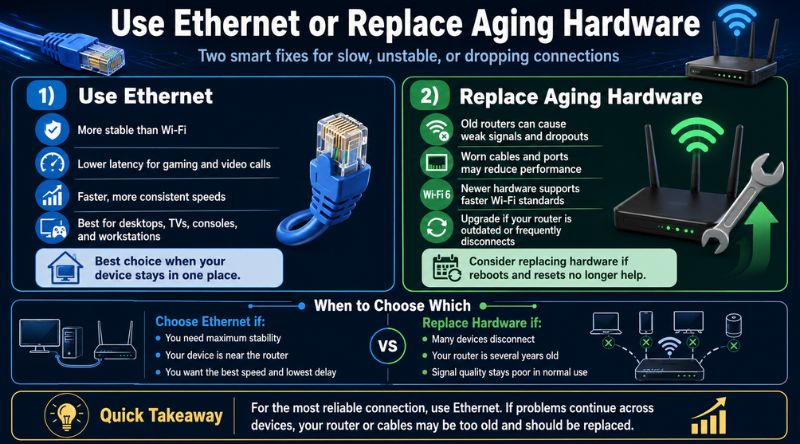
If you’ve tried every WiFi fix and Roku still drops, use a wired connection if your model supports it. Roku also recommends Ethernet as an option when update or connection problems continue.
Ethernet avoids wireless interference, weak signal, band switching, and crowded channels. It’s the best setup for 4K streaming if your Roku TV, Roku Ultra, or compatible adapter supports it.
| Option | Best For |
| Ethernet | Most stable streaming |
| Mesh WiFi node | Large homes |
| New router | Old or overloaded networks |
| New Roku device | Aging hardware |
| HDMI extender | Streaming Stick signal issues |
Older Roku models may also struggle with modern routers, crowded networks, and newer app demands. If only one old Roku disconnects while every other device works, the Roku hardware may be the weak link.
Why Your Roku Keeps Disconnecting from WiFi: Fixed — Best Order to Try
Use this order before you factory reset anything:
- Run Settings > Network > Check connection.
- Restart Roku and router.
- Move Roku or router closer.
- Try 2.4 GHz or 5 GHz.
- Plug Roku into a wall outlet.
- Reset Roku’s network connection.
- Check Roku software updates.
- Turn off Bandwidth Saver if playback stops after hours.
- Check router congestion.
- Use Ethernet or replace old hardware.
This order works because it starts with easy, low-risk fixes. It also avoids deleting your Roku settings too early.
When Should You Factory Reset Roku?
Factory reset should be your last step. It removes personal settings and returns the Roku to its original setup state. Roku’s factory reset path is Settings > System > Advanced system settings > Factory reset. For Roku TVs, the option may say Factory reset everything.
Try factory reset only when:
- Roku drops WiFi after network reset.
- The device freezes often.
- Apps crash across the system.
- You already tested the router.
- Other devices work fine on the same WiFi.
- Roku support steps did not fix it.
| Factory Reset Pros | Factory Reset Cons |
| Clears deep software issues | Removes logins |
| Fresh setup | Takes time |
| Helps before selling device | Does not fix weak WiFi |
| Can fix corrupted settings | Not ideal as first fix |
If the router signal is bad, factory reset will not help. Fix the signal first.
Uncommon FAQs About Roku WiFi Disconnecting
Why does my Roku disconnect but my phone stays connected?
Phones often have stronger antennas and better roaming features than small streaming sticks. Your phone may also switch between WiFi and mobile data without you noticing. Roku depends fully on the local WiFi signal.
Why does Roku disconnect when the TV turns off?
Some Roku devices get power from the TV’s USB port. When the TV turns off, the USB port may also turn off or reduce power. Use the Roku wall adapter to keep power stable.
Does Roku Bandwidth Saver disconnect WiFi?
No, not usually. Bandwidth Saver stops streaming after long inactivity. Roku says the feature can halt playback after four hours without remote or mobile app activity.
Should I use 2.4 GHz or 5 GHz for Roku?
Use 5 GHz when Roku is close to the router. Use 2.4 GHz when Roku is far away or blocked by walls. 2.4 GHz reaches farther, while 5 GHz is faster over shorter range.
Can a bad HDMI port cause WiFi disconnections?
A bad HDMI port usually causes video issues, not WiFi drops. But a Roku Streaming Stick placed directly behind a TV can get weaker WiFi signal and poor airflow. An HDMI extender can help.
Why does Roku lose WiFi after a router upgrade?
Your new router may use a different security mode, combined band name, DFS channel, or WiFi mode. Reconnect Roku, try a separate 2.4 GHz or 5 GHz network, and reset Roku’s network connection.
Can too many devices make Roku disconnect?
Yes. Heavy network use can cause buffering, slow app loading, and unstable streaming. This is more likely on older routers or crowded 2.4 GHz networks.
Is Ethernet better than WiFi for Roku?
Yes, when available. Ethernet gives Roku a direct connection and avoids wireless interference. It is the most stable option for 4K streaming and busy homes.
Conclusion: Why Your Roku Keeps Disconnecting from WiFi: Fixed
Most Roku WiFi drops come from weak signal, router bugs, crowded WiFi bands, low power, old software, or a saved network glitch. Start with Roku’s connection test. Then restart the Roku and router. After that, improve placement, switch WiFi bands, reset the network connection, and check the power source.
That’s the practical path behind Why Your Roku Keeps Disconnecting from WiFi: Fixed. Don’t jump straight to factory reset. Fix the simple causes first, and your Roku should stream with fewer drops, less buffering, and fewer ruined movie nights.