A streaming app that refuses to update can ruin movie night fast. One minute you’re opening Netflix, Hulu, Prime Video, Disney+, YouTube, or HBO Max. The next minute your TV says the app needs an update, the update fails, or the button does nothing.
The good news is that most update problems are not serious. They usually come down to weak Wi-Fi, low storage, outdated TV software, a stuck app store, or an older TV that no longer supports the latest app version.
This guide explains How to Fix a Streaming App That Won’t Update on TV using simple steps that work across Roku, Fire TV, Google TV, Android TV, Samsung Smart TV, LG webOS TV, and Apple TV. Streaming matters more than ever: Nielsen reported that streaming held 47.6% of total U.S. TV viewing in April 2026, so keeping TV apps updated is no longer a small tech chore. It affects daily entertainment.
Quick Overview: Common Fixes for TV App Update Problems
| Problem | Most Likely Cause | Best First Fix |
| Update stuck at 0% | Weak internet or app store glitch | Restart TV and router |
| Update button missing | Auto-update already enabled or app unsupported | Check app store page |
| App says “update required” but won’t update | Old TV software | Update TV firmware |
| Not enough space error | Low storage | Delete unused apps |
| App crashes after update | Bad cache or damaged install | Clear cache or reinstall |
| App no longer available | Device lost support | Use streaming stick or newer TV |
| App store won’t open | Store cache/account issue | Clear store cache or sign in again |
| App update works on hotspot only | Router/DNS/network issue | Restart router or change network |
How to Fix a Streaming App That Won’t Update on TV: Start Here
Before you dig into deeper fixes, check three things: internet, storage, and TV software. These cause most failed app updates.
Do not factory reset your TV first. That should be the last move. A reset wipes apps, logins, settings, picture adjustments, and sometimes paired remotes or smart home links.
A streaming app update needs four things to work:
- A stable internet connection
- Enough free storage
- A supported TV operating system
- Access to the correct app store or platform server
If one of those fails, the update may hang, disappear, or loop.
Top 9 Ways to Fix a Streaming App That Won’t Update on TV
1. Restart the TV and Router First
This sounds basic, but it works more often than people expect. TVs sleep instead of shutting down fully, so old app sessions can stay stuck in memory.
Unplug the TV from power for 30 seconds. Then plug it back in. Restart your router too, especially if the app update fails on more than one streaming app.
Roku’s official support page also recommends restarting the Roku device and router when update problems happen. Roku says users can unplug the power cable, wait 30 seconds, and reconnect it, or restart from the system menu.
| What to Do | Why It Helps | Time Needed |
| Unplug TV for 30 seconds | Clears stuck memory | 1 minute |
| Restart router | Refreshes network connection | 2–3 minutes |
| Reopen app store | Forces a fresh update check | 1 minute |
A restart is safest because it does not delete your app data. Try this before clearing cache, deleting apps, or changing network settings.
2. Check the Internet Connection on the TV
Your phone may have good Wi-Fi, but your TV may not. Smart TVs are often placed behind walls, cabinets, soundbars, or the TV panel itself. That can weaken the signal.
Open another streaming app or run the TV’s network test. On Roku, go to Settings > Network and confirm the correct network is selected. Roku also says a stable internet connection is required for updates and suggests moving the device closer to the router or using Ethernet when possible.
On LG TVs, LG says app freezing or loading issues are often linked to unstable network connections. LG recommends checking the router connection, checking network status in settings, and testing another network such as a mobile hotspot.
| Check | Good Sign | Bad Sign |
| TV network status | Connected with strong signal | Weak or disconnected |
| Other apps | Open normally | Buffer or fail |
| Mobile hotspot test | Update works | Home network issue |
| Ethernet test | Update works faster | Wi-Fi signal problem |
If the update works on a mobile hotspot, your TV is probably fine. The problem is likely your router, DNS, firewall, VPN, or weak Wi-Fi.
3. Update the TV Software or Streaming Device Firmware
Many streaming app updates depend on the TV’s operating system. If the TV firmware is old, the app may refuse to update.
On Samsung TVs, Samsung recommends checking for software updates when Smart TV trouble appears because updates may contain fixes. Samsung’s app update guide also notes that menus may vary by model and software version.
On Roku, devices are designed to check for updates when they turn on and every 24–36 hours. Roku also allows a manual check through Settings > System > System update > Check now.
Common update paths:
| Platform | Where to Check |
| Roku TV / Roku Stick | Settings > System > System update |
| Fire TV | Settings > My Fire TV > About > Check for Updates |
| Google TV / Android TV | Settings > System > About > System update |
| Samsung TV | Settings > Support > Software Update |
| LG webOS TV | Settings > All Settings > Support > Software Update |
| Apple TV | Settings > System > Software Updates |
After the firmware update, restart the TV. Then try the streaming app update again.
4. Free Up Storage Space
Streaming devices do not always show storage warnings clearly. Sometimes an app update fails with no helpful message because there is not enough room to download and unpack the new version.
Delete apps you no longer use. Games, screen savers, unused streaming apps, and large media apps can take up space.
LG says low memory can stop apps from running correctly and recommends deleting unnecessary apps to secure free memory. Its guidance also notes that older webOS models may fail to run apps when memory-related messages appear.
Amazon’s Fire TV help pages also include tools to clear app data and cache, and its support guidance for app problems recommends clearing cache/data, uninstalling and reinstalling the app, and restarting Fire TV.
| Device | Storage Tip |
| Fire TV | Settings > Applications > Manage Installed Applications |
| LG TV | Home > Edit App List > Delete unused apps |
| Google TV | Settings > System > Storage |
| Roku | Remove unused channels/apps |
| Apple TV | Delete unused apps from Home screen |
Keep at least some free space available after installing the update. If the TV is always near full, the same problem may return.
5. Clear the App Cache or App Store Cache
Cache is temporary data. It helps apps load faster, but it can also become stale or corrupted. When that happens, the app store may show the wrong version, fail to download the update, or keep showing the same error.
On Google Play, Google says clearing the Play Store cache is one of the most common solutions for issues when downloading apps. Google also recommends clearing storage only after trying basic steps, since it may remove some Play Store settings.
On Fire TV, go to Settings > Applications > Manage Installed Applications, choose the problem app, then select Clear Cache. If that does not work, use Clear Data, but remember that this may sign you out.
| Action | Deletes Login? | Best Use |
| Clear cache | Usually no | First safe cleanup |
| Clear data | Often yes | Stuck app or broken update |
| Clear app store cache | May reset store settings | Store update errors |
| Reinstall app | Yes, usually | Damaged app install |
Do not clear every system service randomly. Start with the streaming app. Then try the platform store, such as Google Play Store or Fire TV Appstore, if needed.
6. Turn On Auto-Update or Update the App Manually
Sometimes the update is not broken. It simply has not started yet. Auto-update may be off, or the TV may wait until idle time.
On Samsung TVs, go to Home > Apps > Settings, then enable Auto Update. Samsung says automatic updates work when the TV is connected to the internet.
On Apple TV 4K, Apple says apps are automatically updated by default when new versions are released. Users can turn automatic updates on or off under Settings > Apps, and if automatic updates are off, they can open an app in the App Store to check for an update manually.
| Platform | Manual App Update Path |
| Samsung TV | Home > Apps > Settings > Auto Update |
| Apple TV | App Store > app page > Update |
| Google TV | Play Store > profile > Manage apps |
| Fire TV | Appstore or app page |
| Roku | Highlight channel > Options > Check for updates, where available |
If the app page only shows Open, the latest available version for your TV may already be installed.
7. Delete and Reinstall the Streaming App
If the update keeps failing, reinstalling the app can replace damaged files. This is one of the most practical steps when only one app is affected.
Roku’s support guidance for playback issues recommends removing and reinstalling an app if it is not loading. LG also says that if a problem happens only in one app, users should update or reinstall that app, and contact the app provider if it continues.
Before removing the app, make sure you know your login email and password. Some apps also require a cable provider login, QR activation, or two-factor authentication.
| Before Reinstalling | Why It Matters |
| Check login details | You may be signed out |
| Check subscription status | Expired accounts can block access |
| Restart after uninstall | Clears old app files |
| Install fresh from official store | Avoids unsafe app files |
Always reinstall from the TV’s official app store. Avoid random APK files or third-party app packages unless you fully understand the risk.
8. Check Account, Region, Date, and VPN Settings
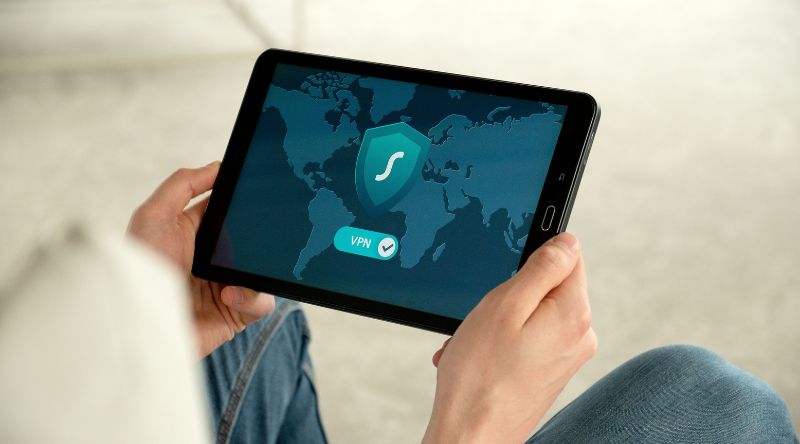
Streaming apps are tied to regions, licenses, and app store rules. If your TV region does not match your account or location, an update may not appear.
This can happen after moving countries, buying an imported TV, using a VPN, changing DNS, or signing into a different app store account.
Check these settings:
- TV region or service country
- App store country
- Payment country
- Date and time
- VPN or smart DNS tools
- Parental control or restricted profile settings
| Setting | What Can Go Wrong |
| Region | App update not available |
| Date/time | Store certificate errors |
| VPN | Store or app blocks update |
| DNS | Update server cannot connect |
| Wrong account | App linked to another store region |
If you use VPN or smart DNS, turn it off temporarily. Then restart the TV and try updating again.
9. Check Whether the TV Still Supports the App
This is the fix nobody likes, but it matters. Older smart TVs often lose support for newer streaming app versions. The TV may still work fine, but the app may need newer security, DRM, browser, or operating-system features.
Netflix says it may no longer be available on some TVs and streaming devices made before 2015. Netflix also advises users to search for their device or contact Netflix or the device maker for support details.
Research on smart TV apps also shows that TV apps are not just phone apps on a bigger screen. App versions, resources, security behavior, and user interaction patterns can differ across phone and TV platforms. That makes TV app maintenance more complex than many users expect.
| Sign | What It Means |
| App not found in store | TV may no longer support it |
| “No longer available” message | App support ended |
| Update button missing | Latest version unavailable for device |
| App works on newer TV only | Hardware or OS limit |
| App provider support page excludes model | Time to use external device |
The cheapest fix is often a modern streaming stick or box. A Roku, Fire TV, Chromecast with Google TV, or Apple TV can give an older screen a newer app platform without replacing the whole TV.
Platform-Specific Fixes
Roku TV or Roku Streaming Stick
Start with Settings > System > System update > Check now. If the update fails, restart the Roku and router. Roku lists network errors, weak internet, server access, and connection timeouts as common update problems.
If one app is broken, remove it, restart the Roku, and reinstall it from the Channel Store.
Amazon Fire TV
Go to Settings > Applications > Manage Installed Applications. Select the problem app, then clear cache. If needed, clear data, uninstall, and reinstall.
Amazon’s help guidance for Fire TV app crashes or loading problems includes clearing cache/data, uninstalling and reinstalling the app, and restarting Fire TV.
Google TV or Android TV
Open Google Play Store and check for updates. If the store itself is stuck, clear the Play Store cache. Google says clearing the Play Store cache is a common fix for download issues.
If that fails, restart the TV, check storage, and update the system software.
Samsung Smart TV
Go to Home > Apps > Settings and turn on Auto Update. Then check Settings > Support > Software Update.
Samsung notes that automatic app updates need an internet connection and that menu names can vary by model and software version.
LG webOS TV
Check the network first. LG says app loading problems are often tied to unstable network connections and recommends checking router cables, TV network status, or another network.
If storage is low, delete unused apps from the app list. Then reinstall the problem app.
Apple TV
Go to Settings > Apps and check whether automatic updates are enabled. Apple says apps update automatically by default, but users can manually check an app in the App Store when automatic updates are off.
If the update still fails, restart Apple TV and check for a tvOS software update.
When You Should Not Keep Troubleshooting
Stop troubleshooting when the app provider clearly says your TV model is no longer supported. At that point, reinstalling and resetting will not bring back updates.
You should also stop if several apps fail at the same time and the TV is very old. That usually points to system-level support, not one broken app.
A factory reset is worth trying only when:
- Multiple apps fail to update
- The app store will not open
- Software updates fail repeatedly
- Storage looks wrong even after deleting apps
- The TV has strange system errors
Back up your settings if the TV allows it. Take photos of picture settings before resetting.
FAQs About Streaming App Update Problems on TV
The latest app version may not be available for your TV model yet. It may also mean the app already updated, but the TV has cached an old warning. Restart the TV and check the app store page again.
Can low storage stop streaming apps from updating?
Yes. App updates often need extra temporary space during installation. Delete unused apps and clear cache, especially on Fire TV, LG, and Android TV devices.
Why does the app update work on my phone but not on my TV?
Phone and TV apps are separate versions. They may have different update schedules, features, permissions, and support requirements. A TV may need newer firmware or may be too old for the latest app version.
Should I clear cache or clear data first?
Clear cache first. It is safer and usually does not sign you out. Clear data only when cache cleanup fails, because it can remove app settings and login sessions.
Can a VPN stop TV apps from updating?
Yes. A VPN or smart DNS can make the app store see the wrong region. Turn it off, restart the TV, and try the update again.
Why do older smart TVs lose app support?
Streaming apps need newer security, video playback, DRM, and platform features. Older TV operating systems may stop receiving the updates needed to run newer app versions.
Is a factory reset the best fix?
No. Try restart, internet checks, firmware updates, storage cleanup, cache clearing, and reinstalling first. Use factory reset only when system-level problems remain.
Conclusion
A failed app update is annoying, but it usually has a clear cause. Start with the easy fixes: restart the TV and router, check internet strength, update the TV software, free storage, clear cache, and reinstall the app.
If none of that works, check whether the app still supports your TV model. Sometimes the real answer is not another reset. It is a newer streaming device.
Use this guide whenever you need How to Fix a Streaming App That Won’t Update on TV, and work through the steps in order. You’ll save time, avoid unnecessary resets, and get back to streaming faster.